The dashboard is the first thing you see when you log in. It gives you a quick look at your business — how your clients are doing, what needs your attention, and shortcuts to your most-used tools.
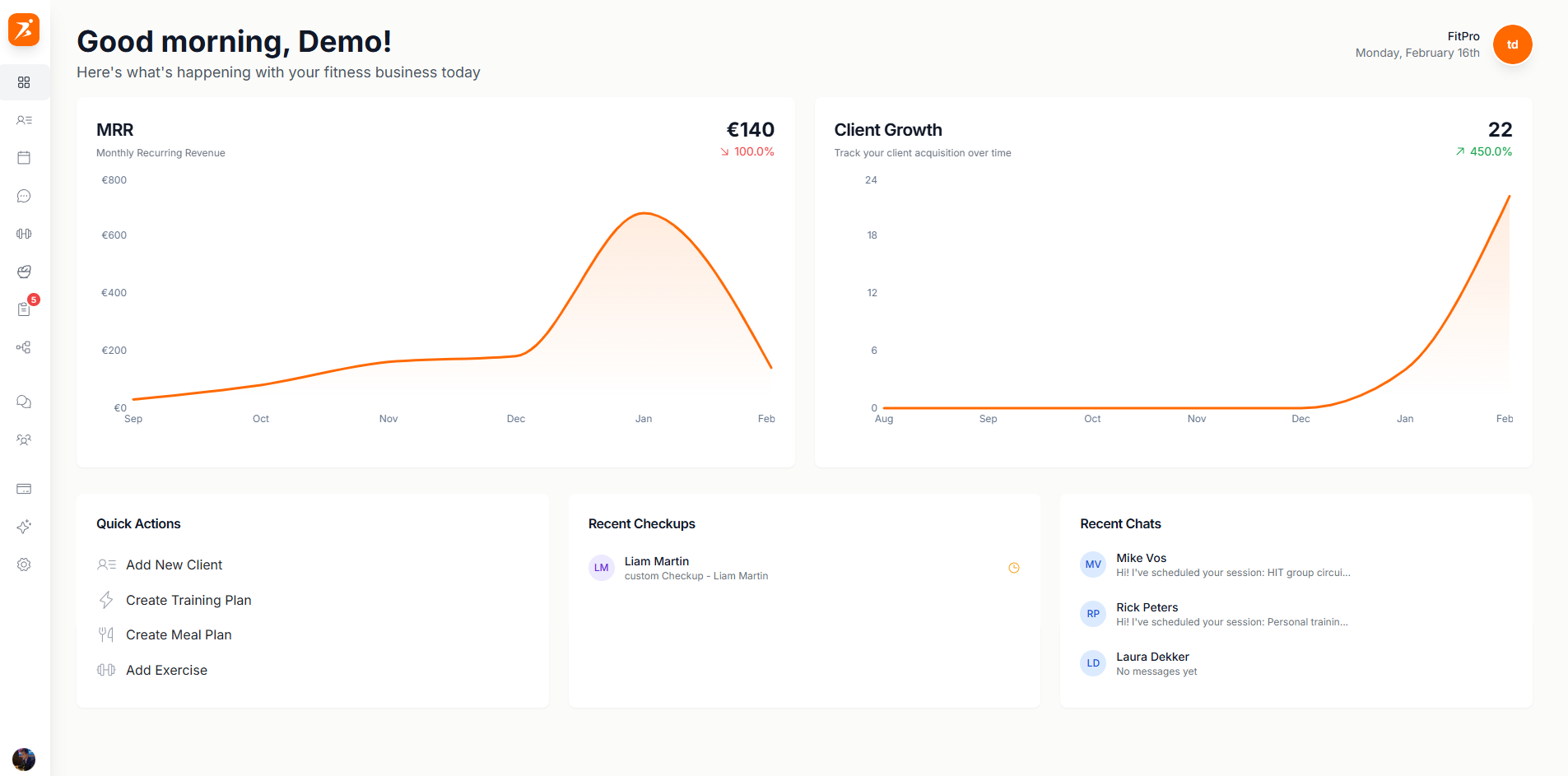
Screenshot: Trainer dashboard
Show: full dashboard with greeting header, two charts (Appointment Activity + Client Growth), Quick Actions panel, Recent Checkups list, Recent Chats list
public/docs/dashboard.png
Your dashboard has four main sections. Each one helps you stay on top of your day.
See how your appointments and client base are growing over time. Numbers update automatically.
One-click shortcuts to add a client, create a training plan, build a meal plan, or add an exercise.
See the latest checkup submissions from your clients. Pending ones need your review.
Your most recent client conversations. Click any chat to continue the conversation.
At the top of your dashboard you'll find two charts that track your business.
Shows how many sessions you've had over time, plus how many are coming up.
Shows how your client base is growing month by month.
If you have Stripe connected, the first chart switches to Monthly Recurring Revenue (MRR) instead.
These shortcuts sit right on your dashboard so you don't have to dig through menus.
Add New Client
Open the new client form and register someone in seconds.
Create Training Plan
Start building a new workout program from scratch or with AI.
Create Meal Plan
Set up a new nutrition plan for a client.
Add Exercise
Add a new exercise to your personal exercise library.
The bottom of your dashboard shows what's been happening lately.
Shows client checkup submissions with their status — pending, approved, or rejected. Click any checkup to review it and respond.
Shows your latest client conversations with a message preview. Click to jump straight into the chat.