Make everything look like YOUR business. Upload your logo, pick your colors, and see how it all looks on the phone app, in emails, and on your pricing page -- all in one place.
On the left side you'll see a simple form. Type in your business name, add a short tagline if you want, upload your logo, and pick a color. That's it -- your color and logo will show up everywhere your clients look.
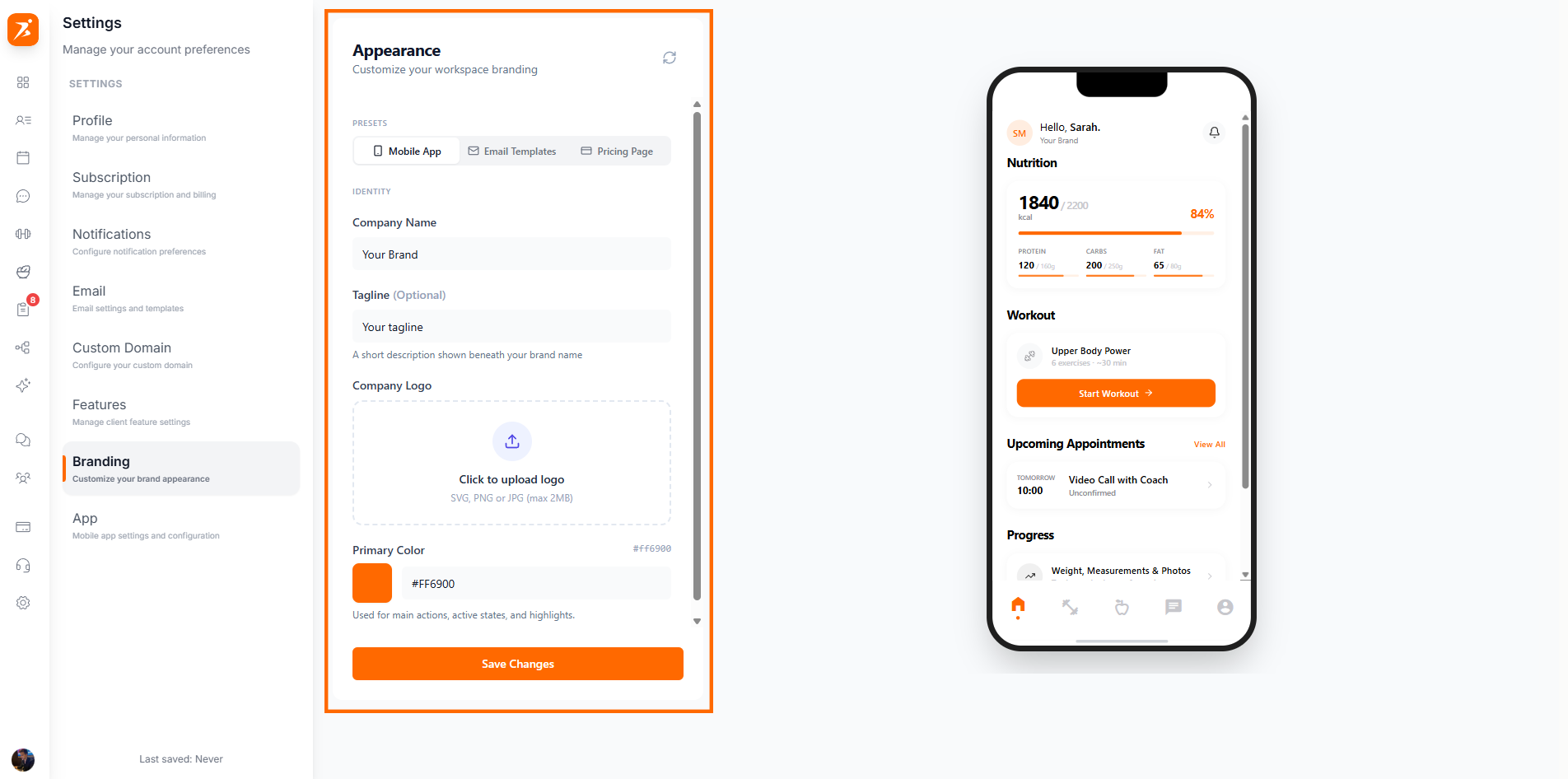
Screenshot: Brand identity settings
Show: Left panel with business name input, tagline input, logo upload dropzone with uploaded logo preview and remove button, primary color picker with hex input. Right panel shows a live phone mockup of the client app.
public/docs/brand-identity.png
Click the "Mobile" tab at the top and you'll see a phone on the right side of the screen. This is exactly what your clients will see on their phone. Change your color or logo and watch it update right away. You can tap through five tabs -- Home, Workout, Food, Chat, and Profile -- to see how everything looks.
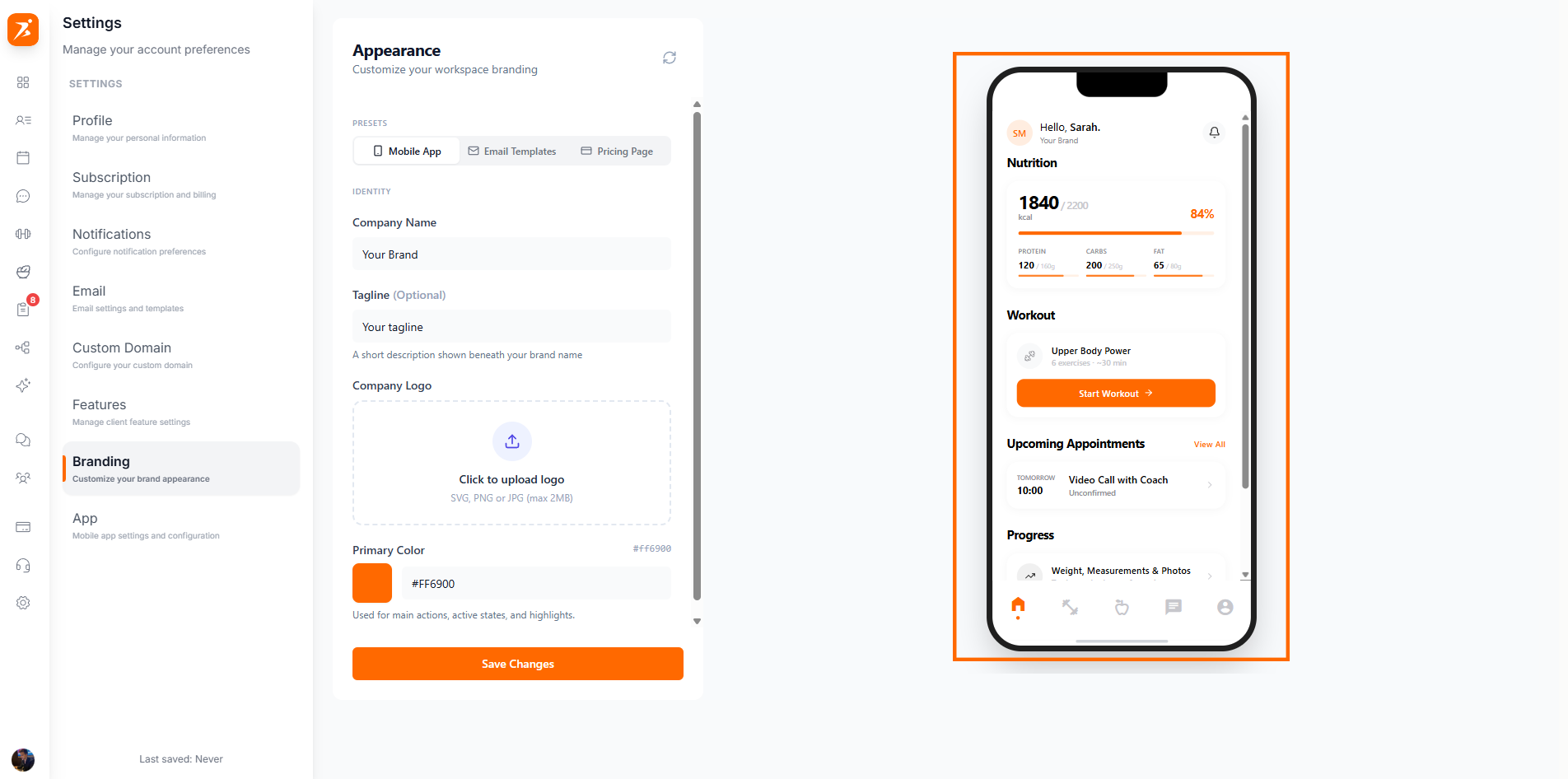
Screenshot: Mobile app live preview
Show: Preview mode toggle with "Mobile" selected. Right panel shows a realistic phone frame with Dynamic Island, status bar, branded Home tab content (nutrition, workout, appointment cards in brand color), and a 5-tab navigation bar (Home, Workout, Food, Chat, Profile).
public/docs/mobile-presets.png
Click the "Email" tab to change how your emails look. There are five ready-made styles you can pick from -- just click one and the preview on the right shows you exactly what your clients will receive.
Clean and simple with rounded buttons
Everything centered, big logo on top
A colorful bar at the top, strong and eye-catching
Neat and business-like, with extra info at the bottom
Fun and spacious, with bright colors
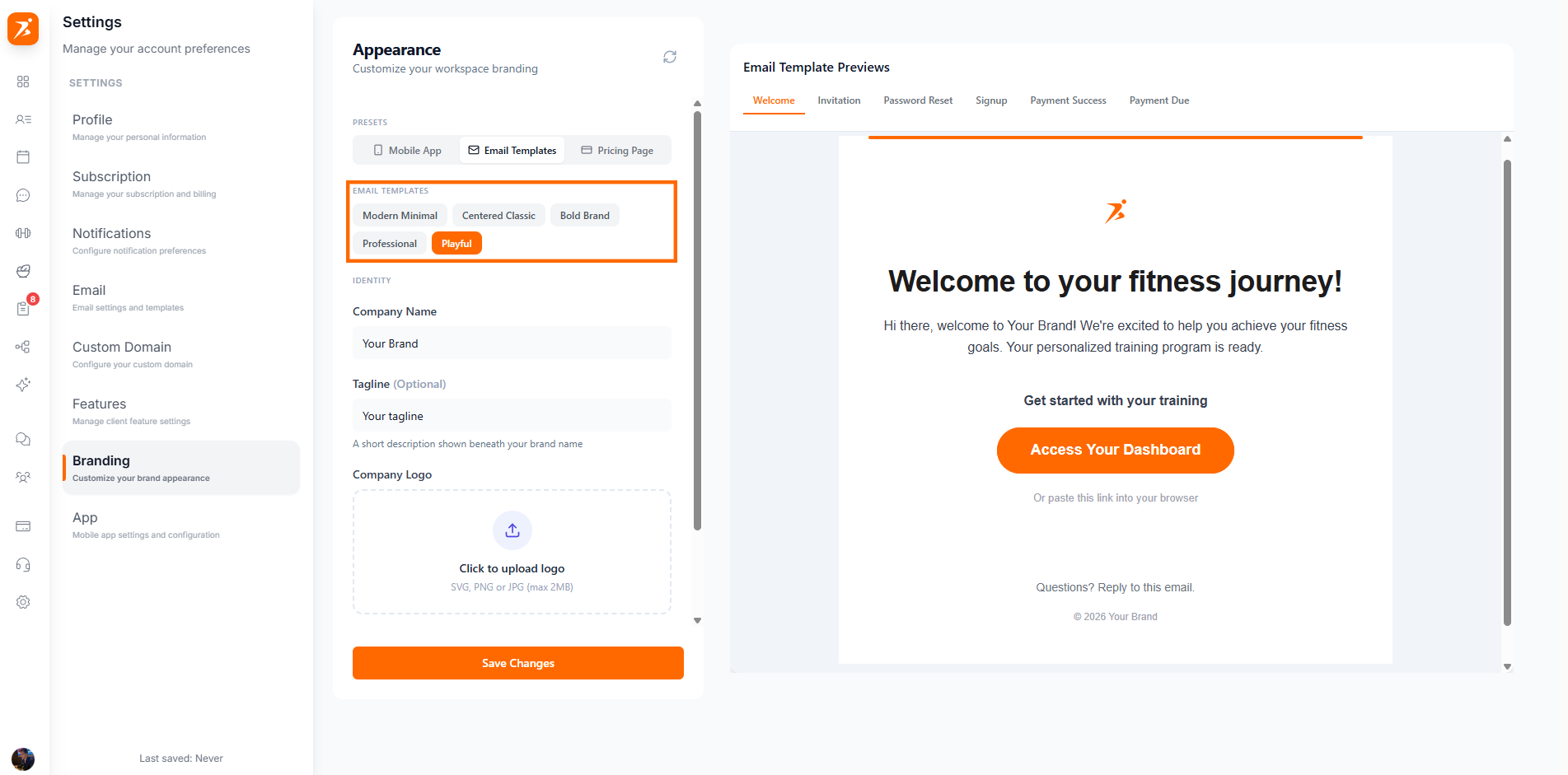
Screenshot: Email design presets
Show: Preview mode toggle with "Email" selected. Left panel shows email preset chips (Modern Minimal, Centered Classic, Bold Brand, Professional, Playful). Right panel shows a full email preview with tabs for Welcome, Invitation, Password Reset, Signup Confirm, Payment Success, and Payment Due.
public/docs/email-presets.png
You can preview six different emails: Welcome, Invitation, Password Reset, Signup Confirmation, Payment Success, and Payment Reminder. Just click the tabs at the top of the preview to switch between them.
Click the "Pricing" tab to design the page where your clients see your plans and prices. There are eight different looks to choose from -- just click one and see how it looks right away.
Light background, nice and tidy
Your brand color fills the background
Dark background with a glowing highlight
White and simple, nothing extra
Colorful background with frosted glass cards
A smooth color fade behind white cards
A gentle tint of your brand color
Black background with white cards -- very sharp
You can also change the big headline, the smaller text below it, and the button text on your pricing page.
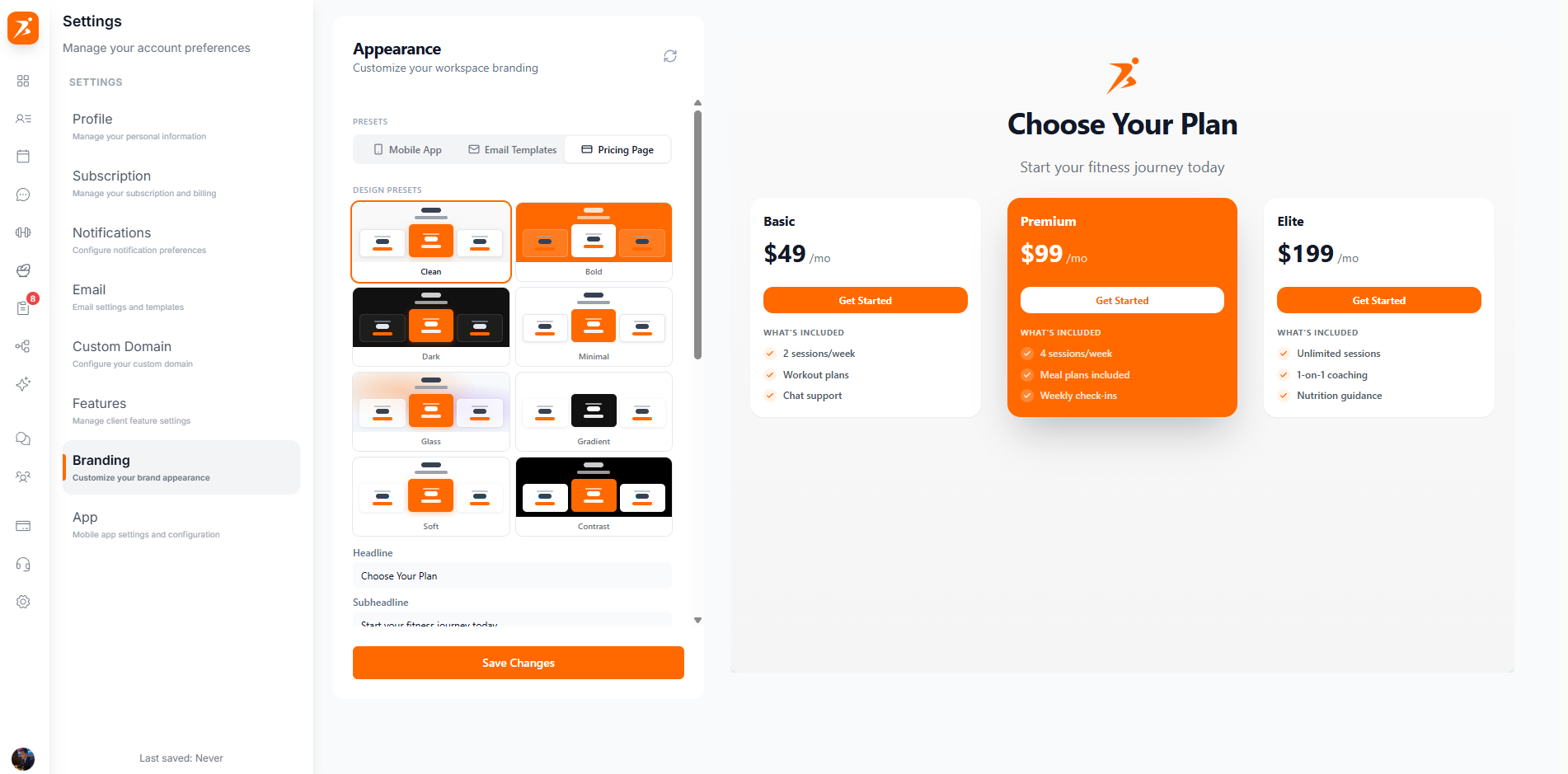
Screenshot: Pricing page customization
Show: Preview mode toggle with "Pricing" selected. Left panel shows a 2-column grid of 8 design preset thumbnails (Clean, Bold, Dark, Minimal, Glass, Gradient, Soft, Contrast) with mini pricing card previews inside each, plus headline/subheadline/CTA text inputs below. Right panel shows a live pricing page preview with 3 plan cards.
public/docs/pricing-page-builder.png
Your color and logo show up in the phone app, in emails, and on your pricing page. Everything matches.
Change a color or pick a style and see what it looks like right away -- before you save anything.
Pick from Modern Minimal, Centered Classic, Bold Brand, Professional, or Playful. Every email your clients get will use the style you choose.
From Clean and Minimal to Glass, Gradient, and Contrast -- pick the look that fits your brand best.