Create a branded public pricing page where clients can browse your plans and subscribe directly. Customize the layout, reorder plans, and preview changes in real time.
Navigate to the Pricing Page tab in your finance settings. Enable your pricing page, set a headline and subheadline, and your public URL is ready to share.
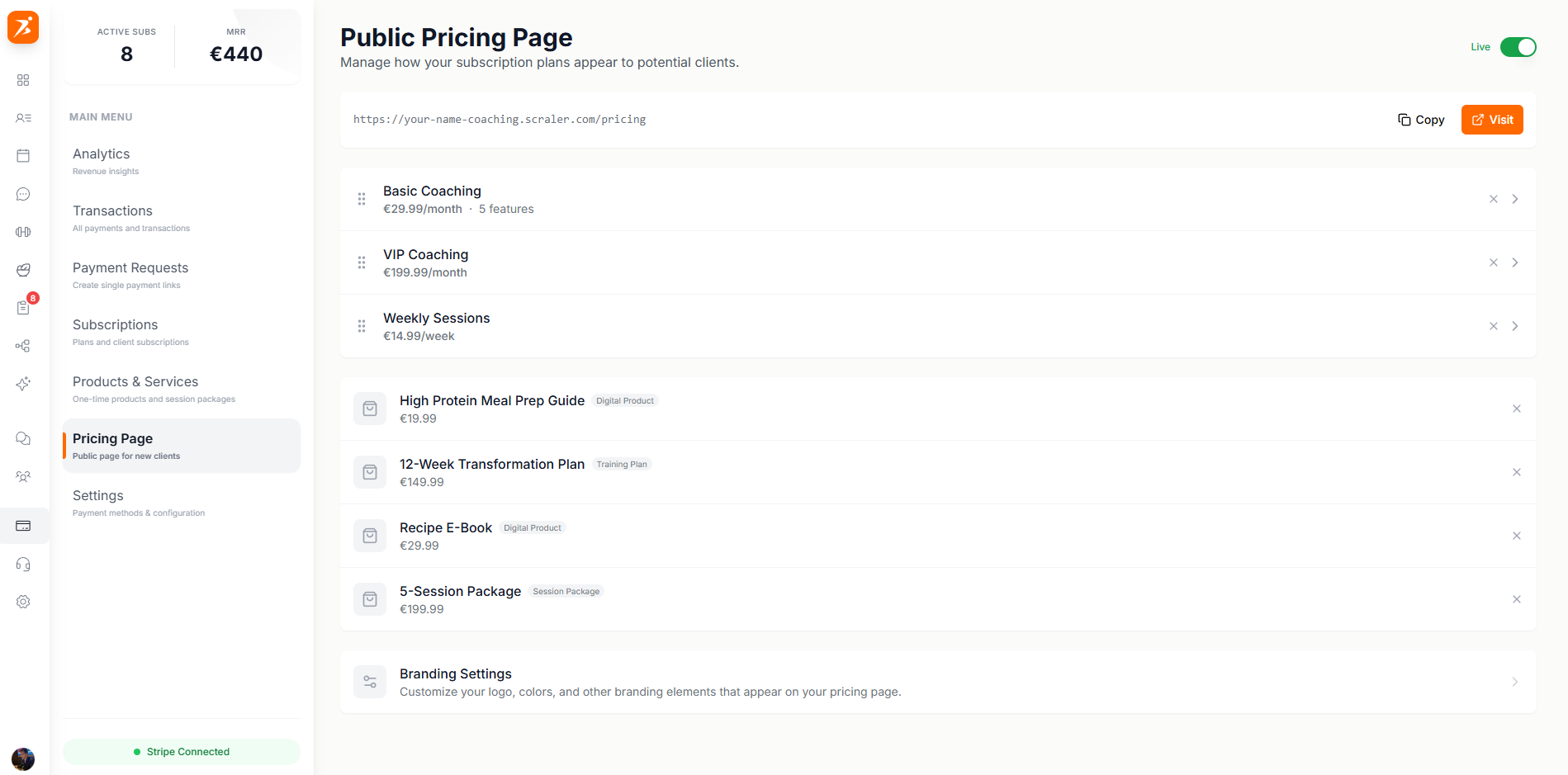
Screenshot: Pricing page setup
Show: Pricing Page settings tab with headline and subheadline inputs, "Enable Pricing Page" toggle, and the public URL (yourname.scraler.com/pricing) with a copy button
public/docs/pricing-page-setup.png
Tailor your pricing page to match your brand and highlight your best plans.
Set custom text that appears at the top of your pricing page.
Drag and drop to reorder how plans appear on the page.
Show or hide individual plans using the eye icon toggle.
Mark a plan as "Popular" to highlight it with a special badge.
Drag plans up or down to change their display order. The first visible plan appears on the left. Use the eye icon to toggle plan visibility.
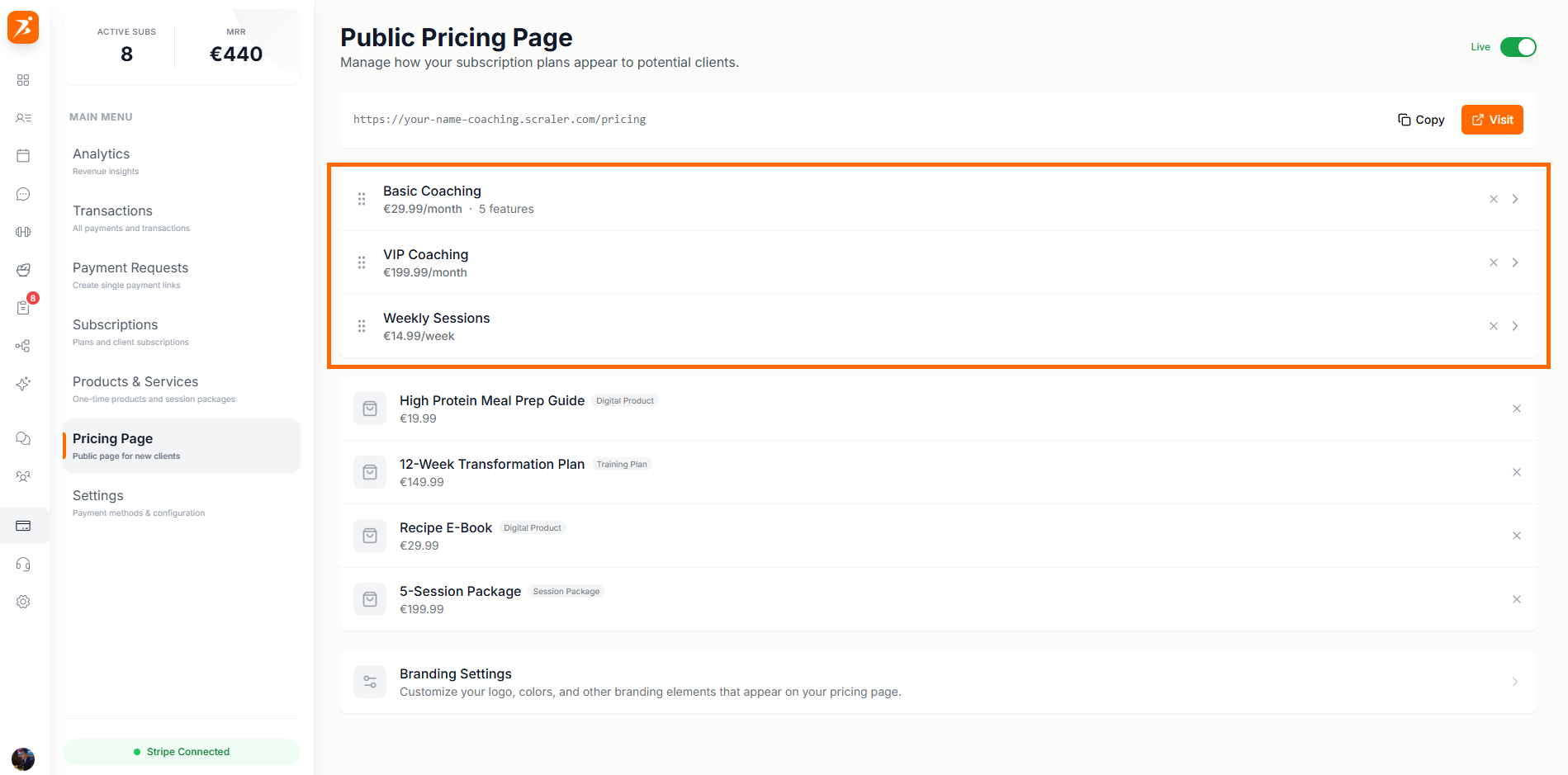
Screenshot: Reorder subscription plans
Show: draggable list of plans with grip handles, eye icon toggles for visibility, and a live preview panel on the right showing the public pricing page
public/docs/pricing-page-reorder.png
See exactly how your pricing page looks to clients in real time. Changes update instantly in the preview panel as you edit settings.
Your pricing page also supports different visual presets. You can switch between styles in the Branding tab under Settings to change the overall look and feel of your page.
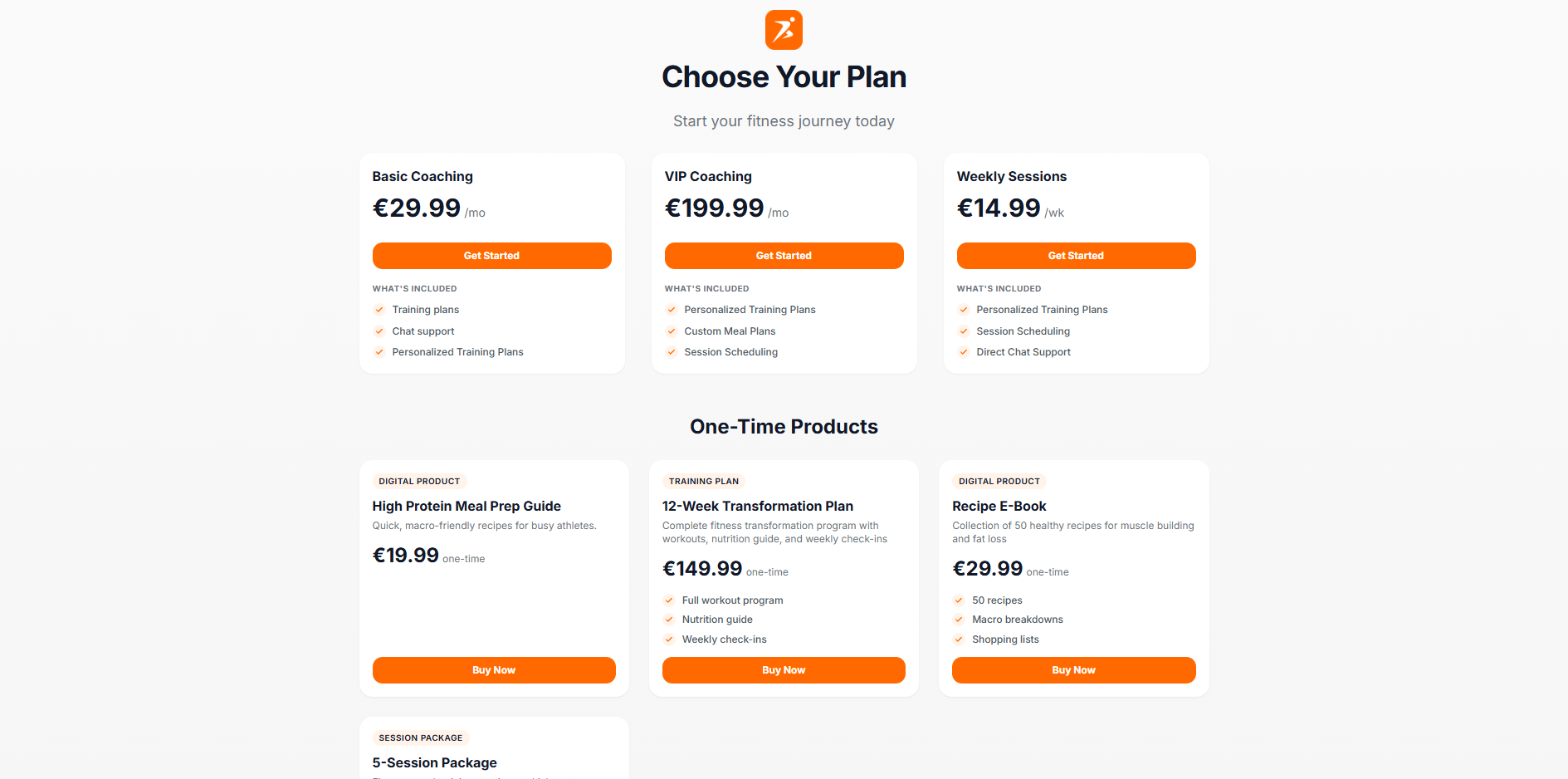
Screenshot: Public pricing page
Show: the public-facing pricing page with branded header, headline text, 2-3 plan cards with prices, features lists, and "Subscribe" buttons, trainer branding visible
public/docs/pricing-page-preview.png
Your pricing page uses your brand colors, logo, and custom URL.
Arrange plans in any order with simple drag-and-drop.
Hide plans you don't want to show without deleting them.
See changes instantly before publishing to clients.