
Branding
Your name, logo and colour across the client app and every email, so clients experience your brand, not ours.
Your brand
Your brand is your name, your logo and one colour. Clients see it everywhere: in the app, on the login page, and in every email.
Upload your logo
Upload your logo, and it replaces ours.
Brand colour
Set your brand colour, and the preview shows it straight away.
Email templates
Under Email Templates, pick the style of every email your clients get, and preview each one: the welcome, the invitation, the payment emails.
Go live
Save, and your brand is live.
More details and screenshots
Branding
Set your name, logo and color once. Your clients see them in the app, and in every email you send through Scraler.
Identity
Open Settings, then Branding. Team members with the branding permission find it in the sidebar.
The left panel holds four fields. The phone on the right shows a sample Home screen with your changes before you save.
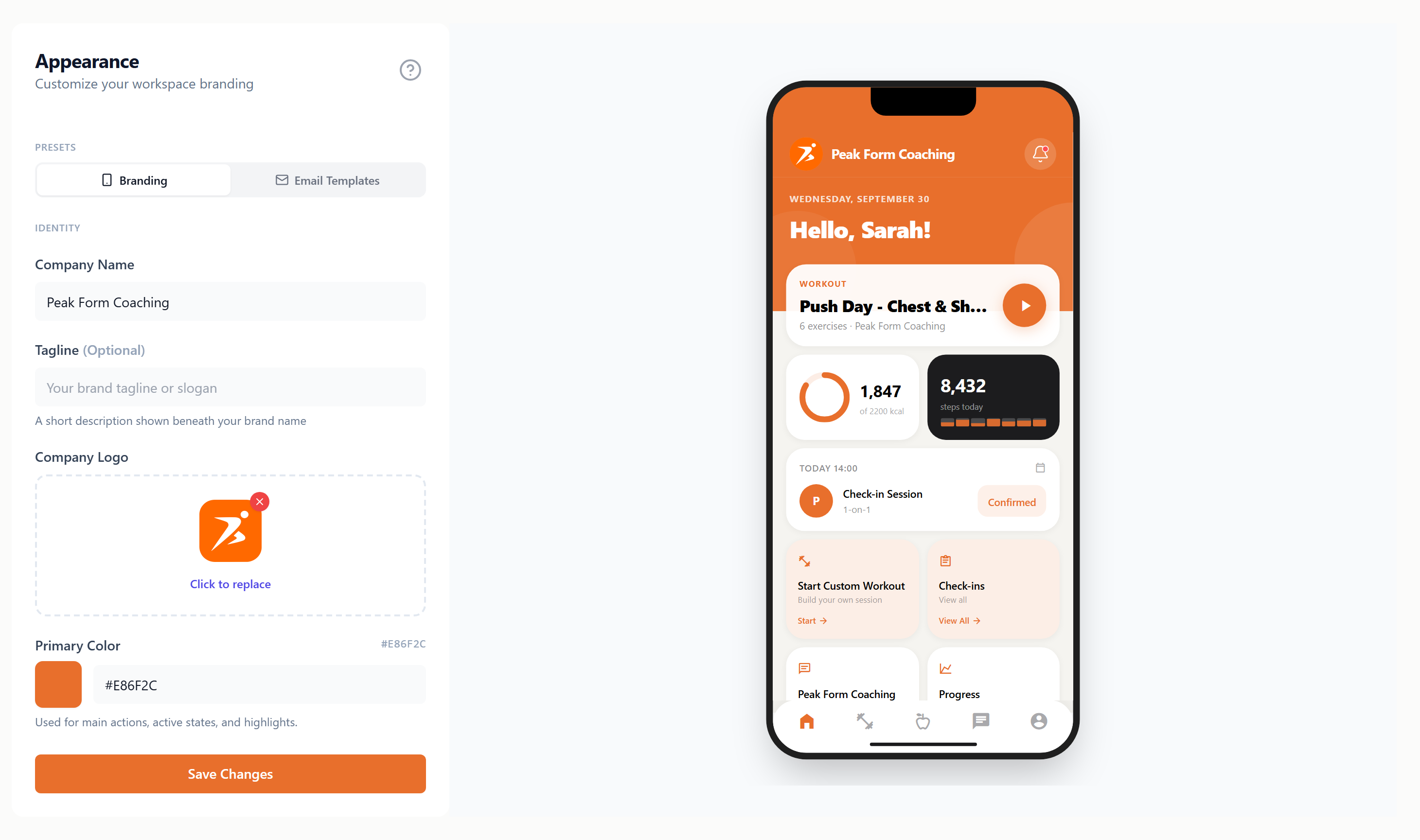
- Company Name
- Shown at the top of the client app and in emails.
- Tagline
- Optional. A short line beneath your name.
- Company Logo
- SVG, PNG or JPG, up to 2MB. Click the dropzone to replace it, or the red cross to remove it.
- Primary Color
- Pick a color or type a hex code. It is used for buttons, active states and highlights.
Nothing changes for your clients until you press Save Changes.
Phone preview
The phone is a sample, not your live app. It shows how your name, logo and color look on a typical Home screen. To choose which pages and cards your clients get, use My App.
Email styles
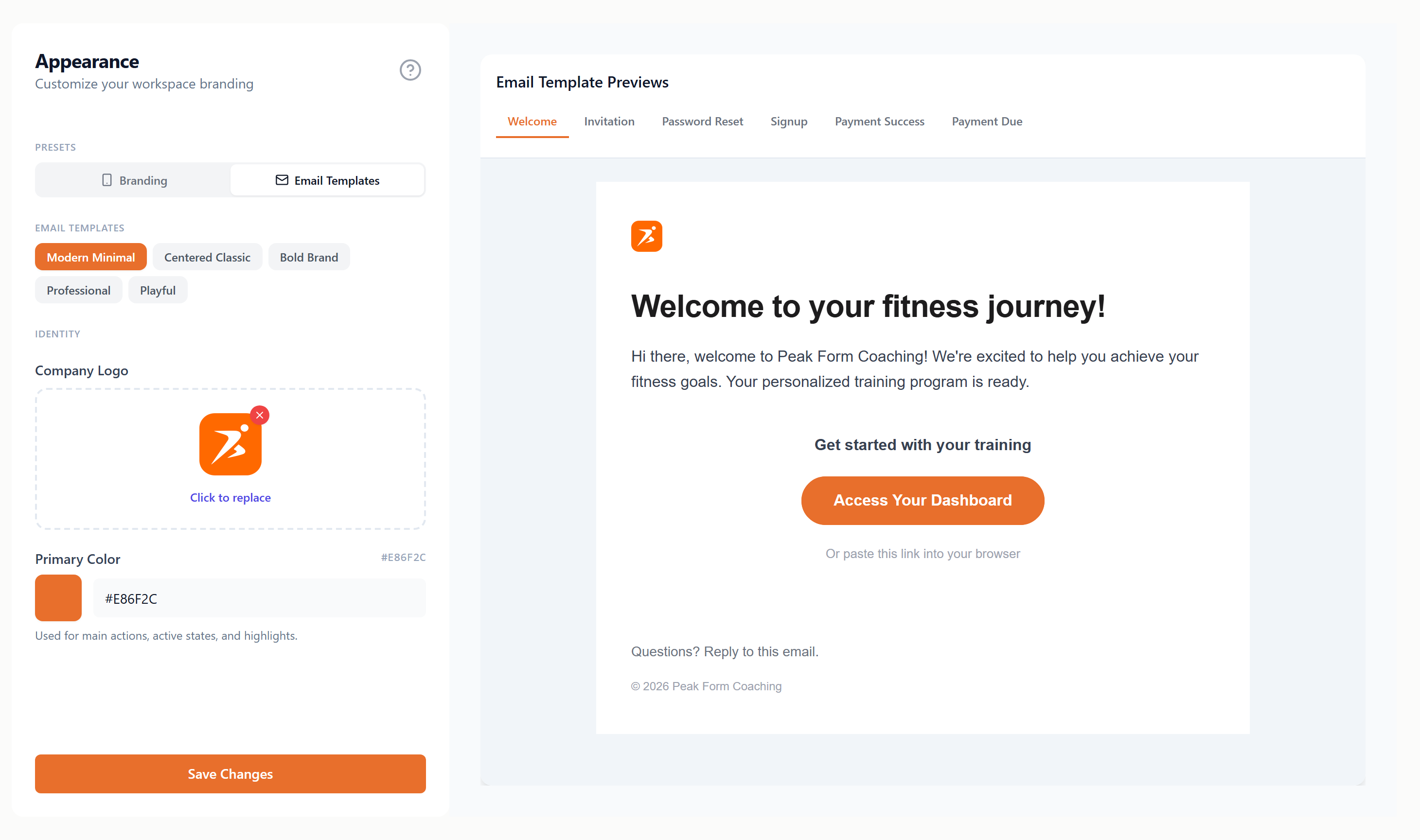
Switch to Email Templates to choose how your emails look. The preview on the right has a tab for each email type: Welcome, Invitation, Password Reset, Signup, Payment Success and Payment Due.
- Modern Minimal
- Clean left-aligned, pill buttons, bordered cards
- Centered Classic
- Centered layout, rounded buttons, elegant shadows
- Bold Brand
- Color header bar, square buttons, high impact
- Professional
- Compact spacing, subtle colors, detailed footer
- Playful
- Centered, spacious, bold colors, pill buttons
Emails go out from noreply@scraler.com unless you connect your own domain.
Plans
Name, logo and color are available on every plan. The email style preview needs Plus or higher. Sending emails from your own domain needs Ultimate.