
Workouts
From an empty canvas, or an AI draft, to a workout you can reuse.
What a workout is
A workout is one session you build once and reuse with every client.
Create a workout
Create one from scratch and give it a name.
Add exercises
Search the exercise library and click to add what you need.
Program every set
Then program every set: reps, load, R P E and rest. Under Columns, you can switch on percent of one rep max.
Supersets and circuits
Link two exercises into a superset and set the rounds. Add a third and it becomes a circuit.
Warm-up and sections
Add a warm-up, then split the session into sections.
Exercise notes
Leave a note on any exercise. Your client sees it in the workout.
Save to your library
Save, and the workout is in your library.
Build it with AI
Short on time? Describe the session in a sentence and let AI build it from your library. Review it, adjust anything, and save.
More details and screenshots
Workouts
A workout is a reusable session: the exercises, their sets and how to do them. Build it once under Training > Workouts, then give it to clients or drag it into a training plan.
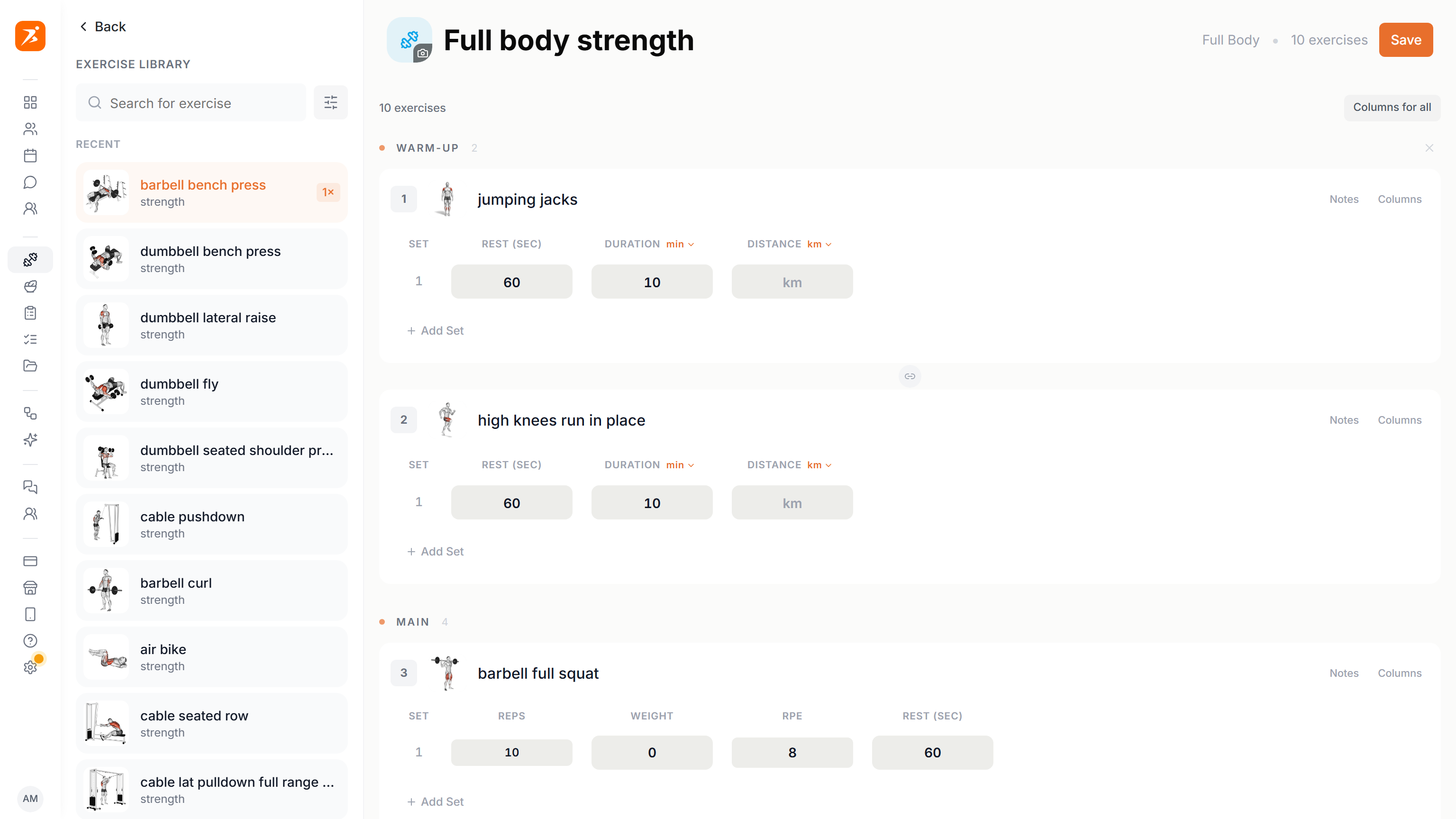
Build a workout
Click Create Workout and pick Build from Scratch, or Build with AI for a first draft you can edit. Name the workout, then click Next to open the builder.
- Exercises
- Drag exercises in from the Exercise Library on the left, or click one to add it. Drag cards to change the order. A workout holds up to 50 exercises.
- Sets
- Every row is one set, and Add Set adds another. Columns picks what an exercise tracks: Reps, Weight, RPE, % 1RM, Rest, Duration and Distance. Columns for all changes every exercise at once.
- Notes
- Notes on an exercise are shown to the client.
- Media
- Pictures and videos come from the exercise itself. Add them to your own exercise under Exercises and every workout that uses it shows them. Clients can play the video from their workout.
- AI coach
- The sparkle button in the corner opens a chat that edits the workout for you.
Click Save to keep your changes. If you leave with unsaved changes, the builder asks first.
Supersets and circuits
Hover between two exercises and click the link icon. Two linked exercises form a Superset, three or more a Circuit. The client does them back to back, for a set number of rounds.
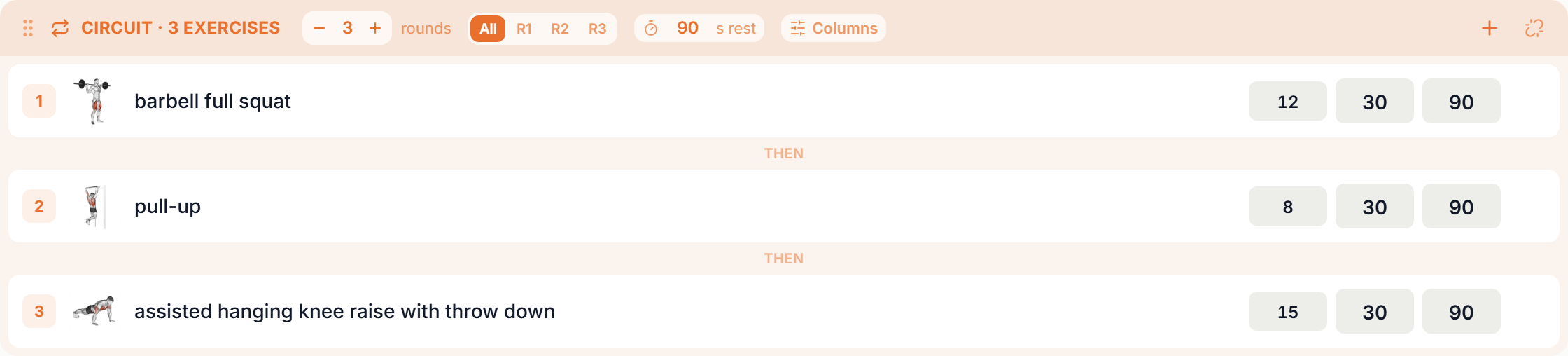
- Rounds
- Set with minus and plus, up to 20. Every exercise in the block does the same number of rounds.
- All, R1, R2
- All changes every round at once. R1, R2 and so on edit one round, for example to add weight each round.
- Rest
- The rest field sets the rest after every exercise. The rest after the last exercise is the break between rounds.
- Add, ungroup
- The plus adds an exercise to the block. The icon at the far right splits it up again.
Sections
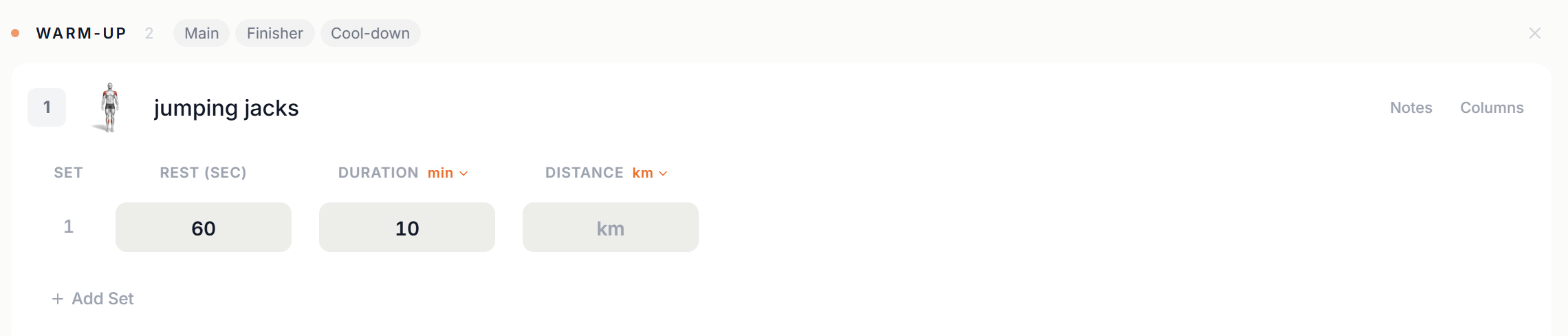
Sections split a workout into parts, such as a warm-up, the main work and a cool-down. They are optional.
- Click + Section above the first exercise, or hover between two exercises and click Section to start a new one there.
- Type a name, or pick a suggestion: Warm-up, Main, Finisher or Cool-down.
- Exercises you add or drag in join the section they land in. A superset or circuit always stays inside one section.
- The X next to a section removes it. Its exercises move to the section above.
What the client sees. Sections stay with the workout wherever the client sees it, on the web and in the app. The overview groups exercises under each section, the live workout shows the current section next to the exercise count, and the summary and history keep the same groups.
Workout overview
Live workout
Barbell squat
3 × 10
Trainers can add and rename sections in workout templates in the mobile app too.
Manage your workouts
Training > Workouts lists your workouts, newest first. Search templates finds them by name or description, and the filter icon shows one type: Strength, Cardio, Circuit or HIIT. Click a workout to open it.
- Edit
- The pencil opens the builder, the same as clicking the row.
- Icon or photo
- Click the icon at the start of a row to pick another icon, a colour or a cover photo.
- Delete
- The bin removes the workout after you confirm. This cannot be undone.
- Default
- Workouts with this badge come from the Scraler library. Open one and click Save to get your own copy, which you can then change, categorise and delete.
- Assign
- Add a workout to a day on a client's Training tab, or drag it onto a day in the training plan builder.
Categories
Every workout has one category. Categories are there to sort your own list.
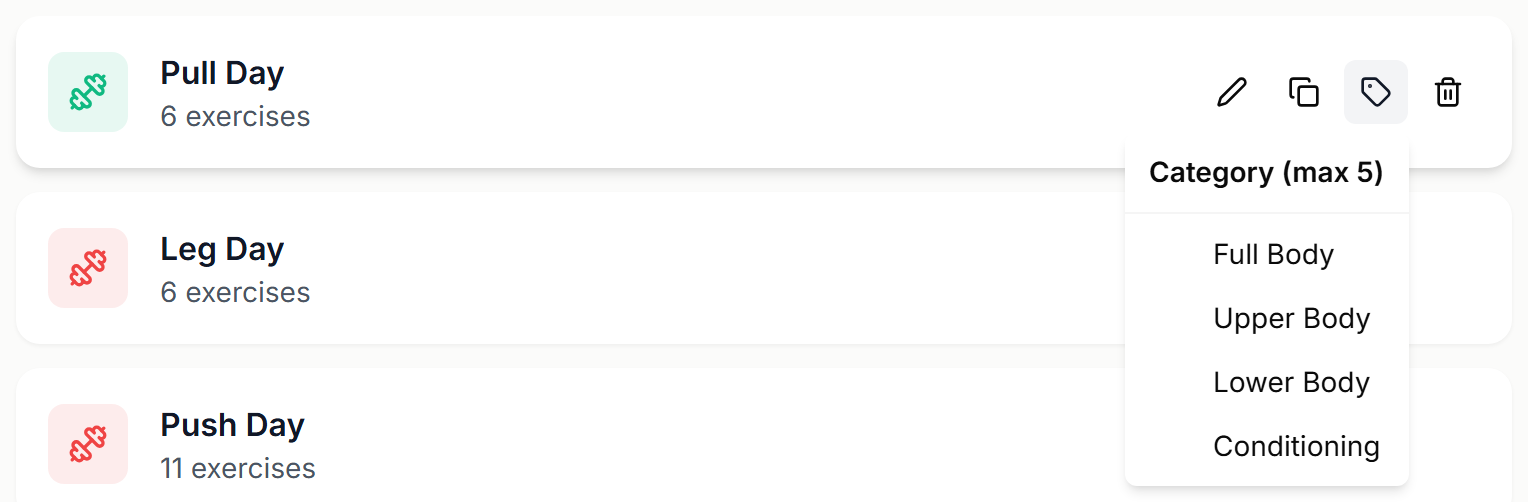
- Filter
- The Categories list on the left shows each category your workouts use, with a count. Click one to see only those workouts, or All Categories to see everything.
- Change
- Hover a workout, click the tag icon and pick Full Body, Upper Body, Lower Body or Conditioning. New workouts start as Full Body.
- Fixed set
- You cannot create, rename or delete workout categories. Library workouts and workouts made with AI can carry other names, such as Push or Legs, and those show in the list too.