Support tickets
Message the Scraler team without leaving your dashboard. Create a ticket, describe the issue and we reply inside the app.
Creating a ticket
Open Support in the sidebar and click New. Fill in Subject, Category, Priority and Description, then click Submit Ticket.
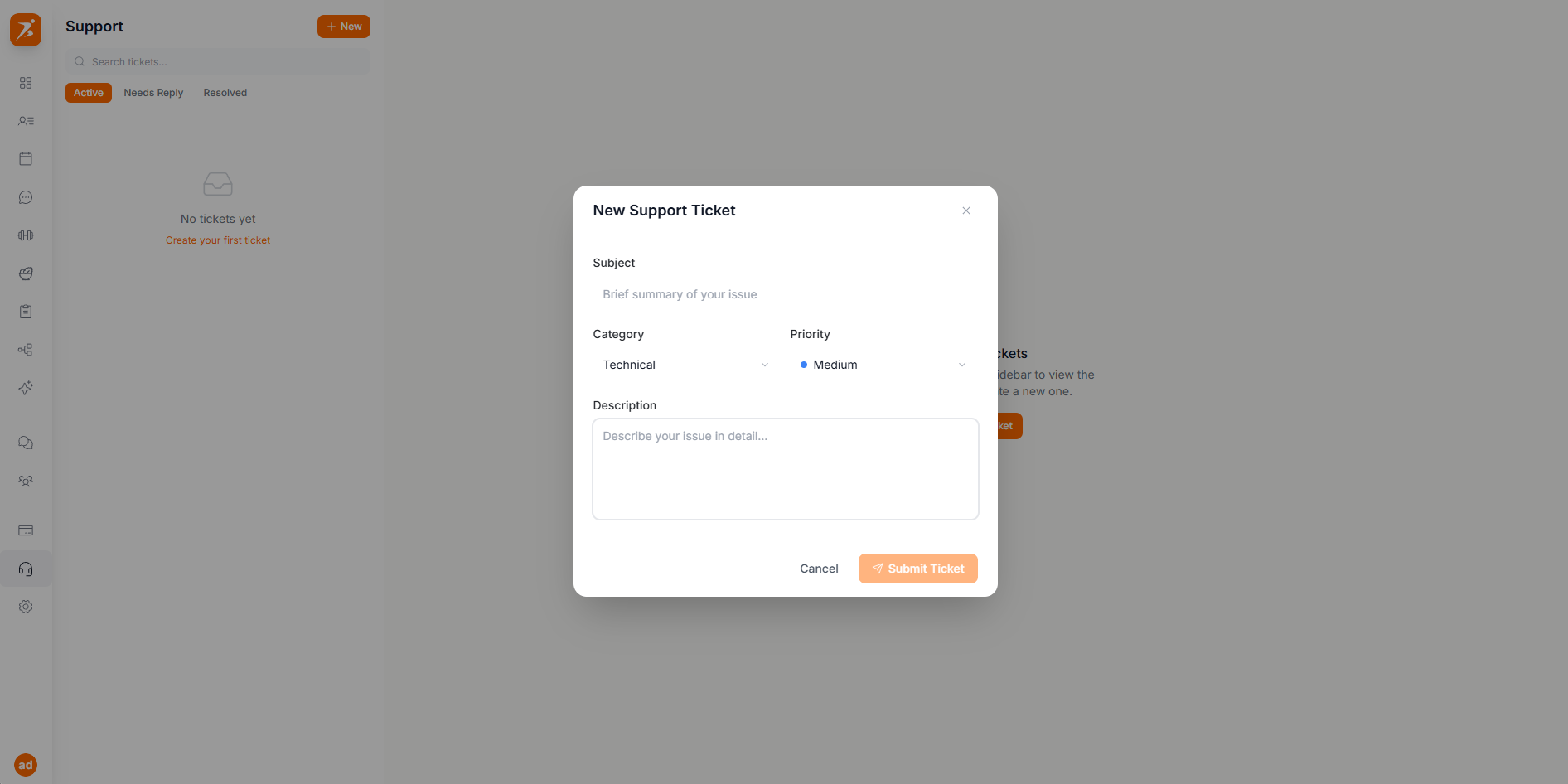
- Category
- AccountBillingTechnicalClient ImportFeature RequestOther
- Priority
- LowMediumHighUrgent Medium by default.
Managing tickets
- Ticket list
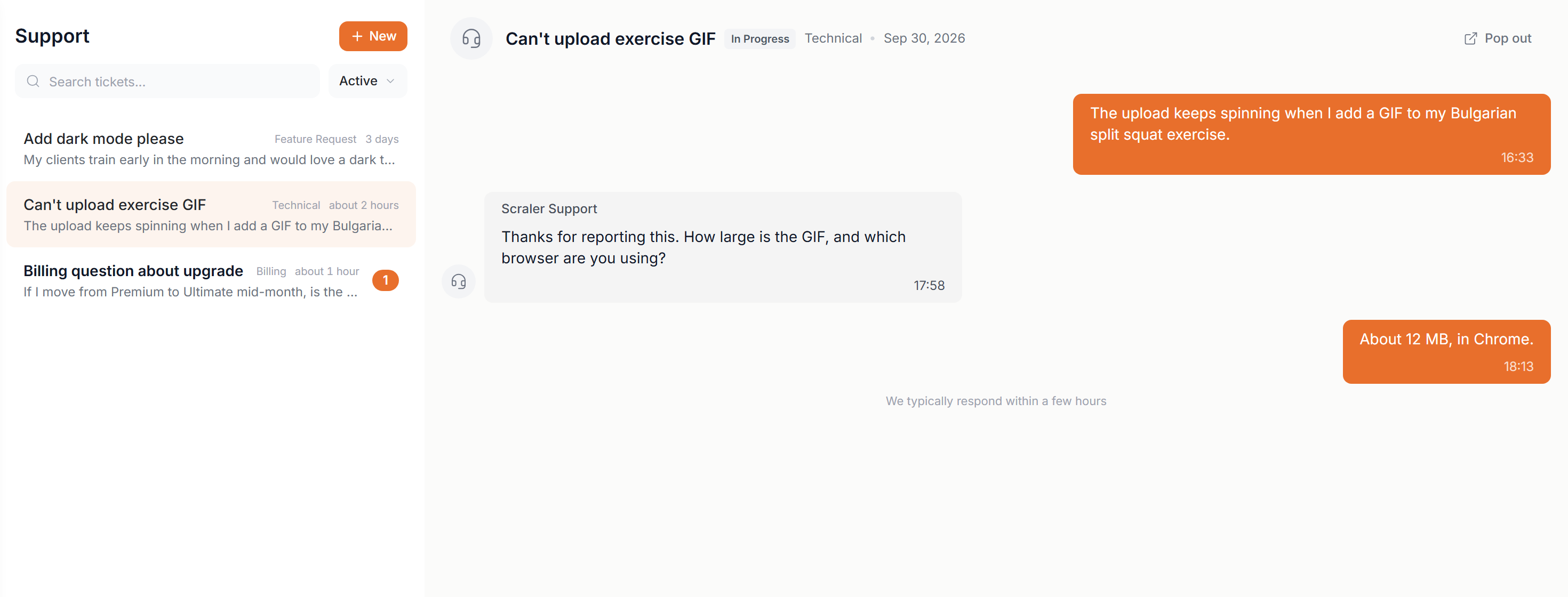
- Search by keyword, or filter by Active (everything not resolved or closed), Needs Reply or Resolved. A ticket with a reply waiting for you is bold and shows a count. A badge on Support in the sidebar shows it too.
- Conversation
- Click a ticket to open it. Your messages are on the right, replies from Scraler Support on the left. Type at the bottom and press Enter.
- Attachments
- Use the attach button to add a screenshot or video. Images: JPEG, PNG, GIF or WebP up to 10 MB. Videos: MP4, MOV or WebM up to 100 MB.
- Status
- The status shows next to the title of an open ticket. You cannot reply to a resolved or closed ticket. Create a new ticket if you need more help.OpenIn ProgressAwaiting ReplyResolvedClosed
Pop out
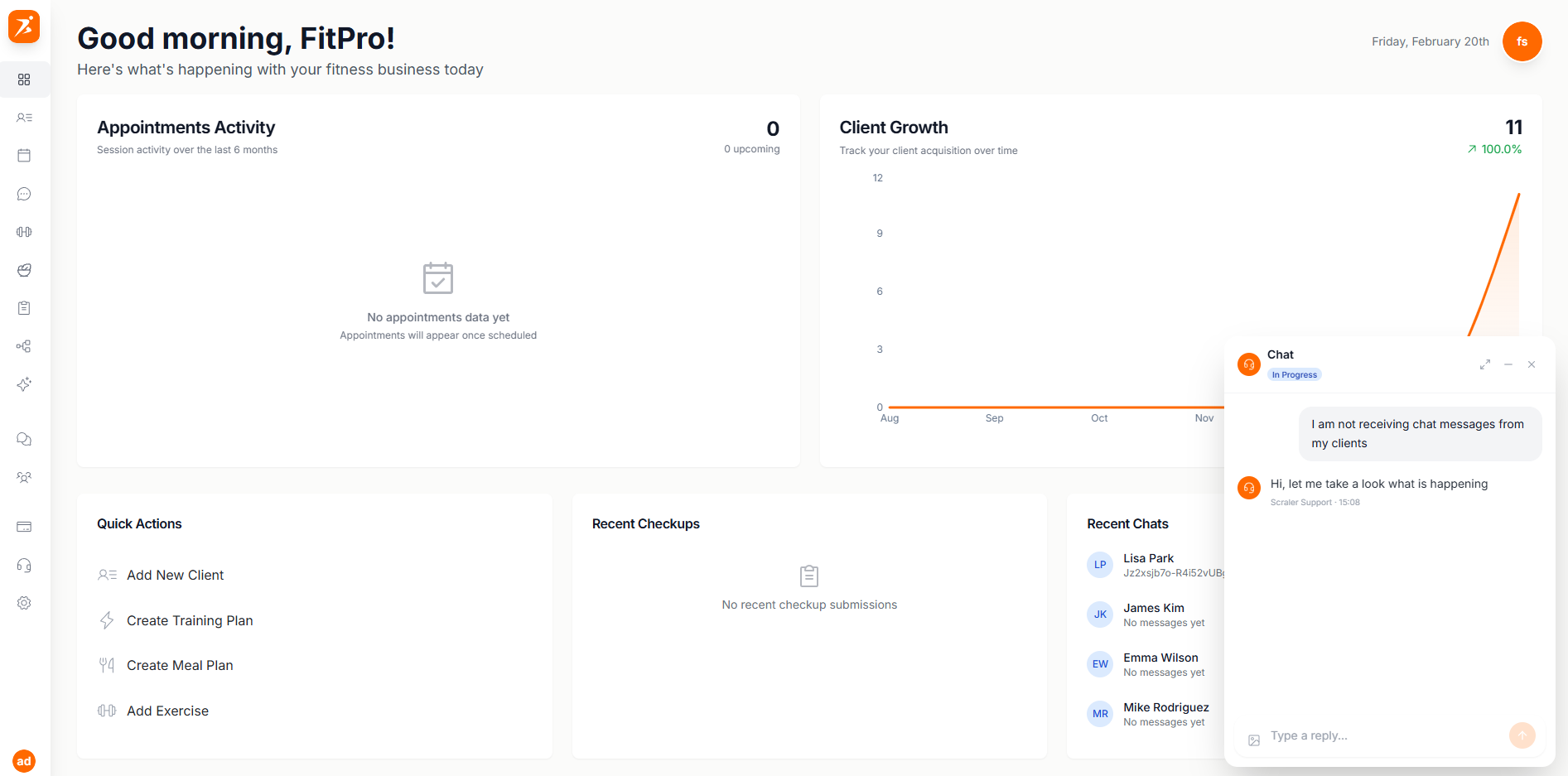
Click Pop out on a ticket to keep the conversation as a small chat window in the bottom right corner while you work on other pages. You can minimize, expand or close it at any time.