
Automations
Start from a trigger, and chain the actions that should follow.
Triggers and actions
An automation reacts to what a client does. It starts with a trigger, and runs the steps you chain after it.
Create an automation
Create one and give it a name.
Add a trigger
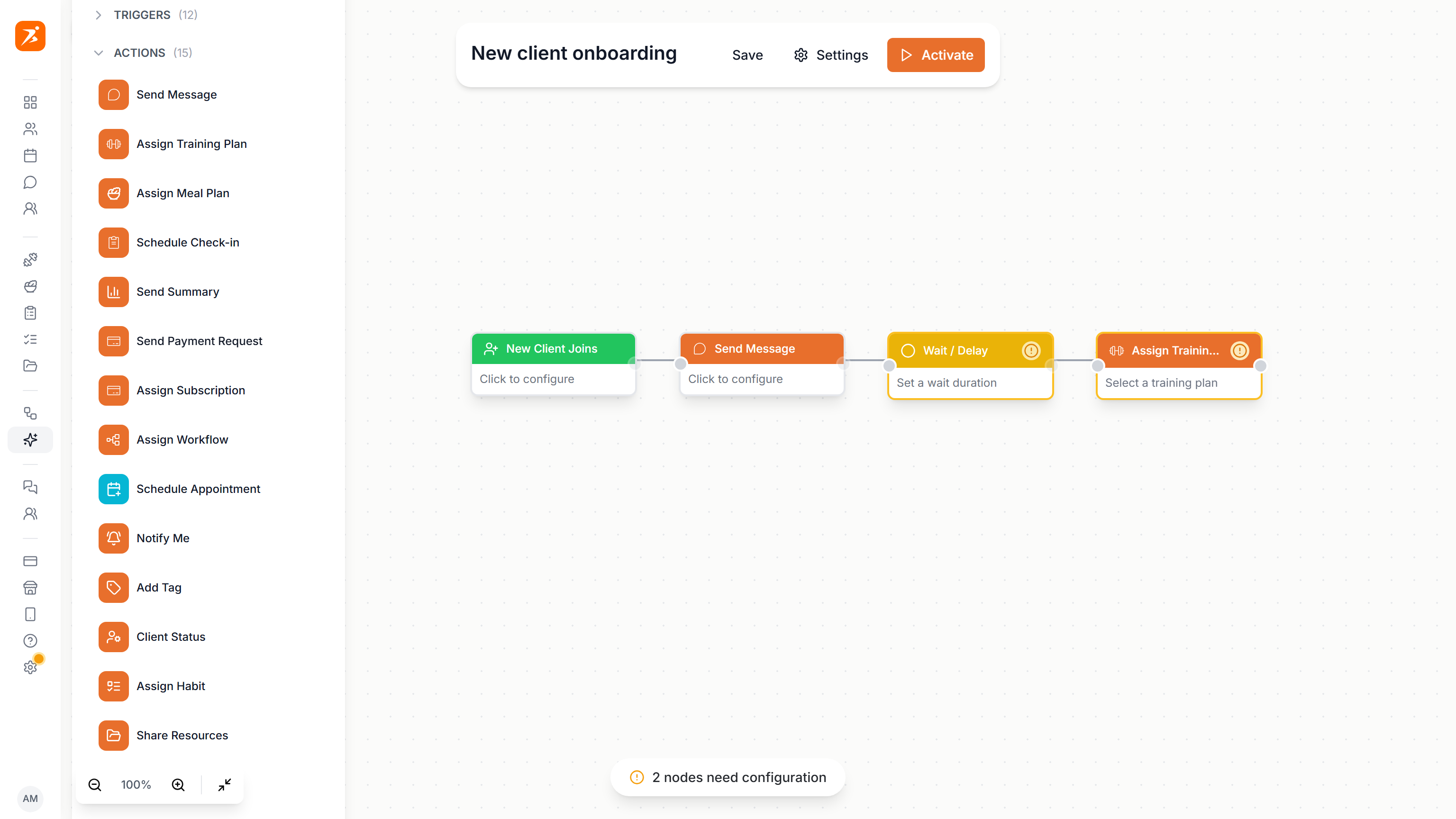
Drag a trigger onto the canvas. This one fires when a new client joins.
Add actions
Then the actions: a message, and a workflow to assign.
Wait steps
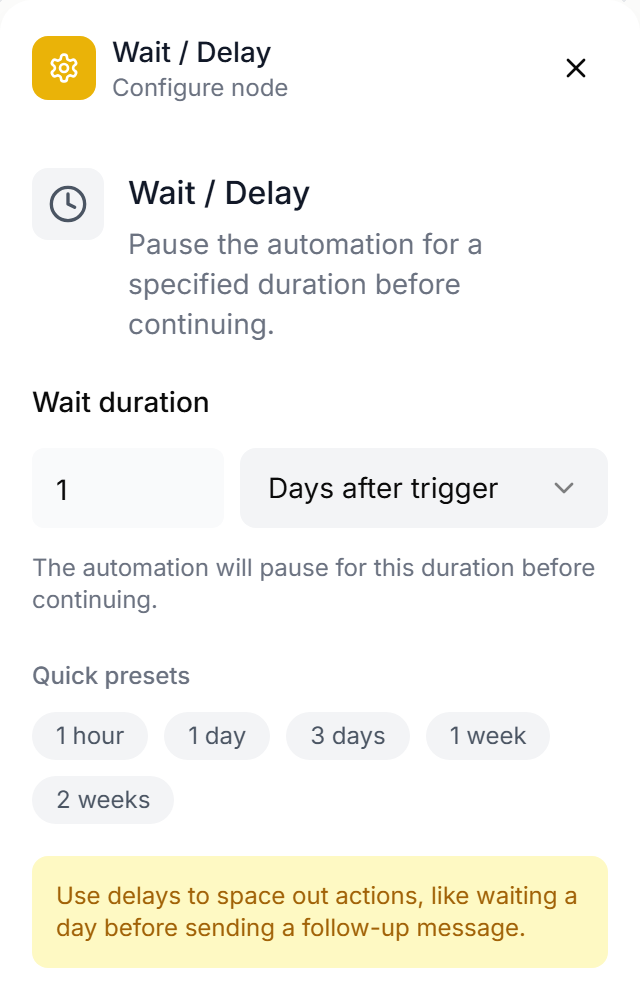
Under conditions you find Wait, to put time between two steps.
Connect the chain
Connect the steps by dragging from one dot to the next, into a single chain.
Configure each step
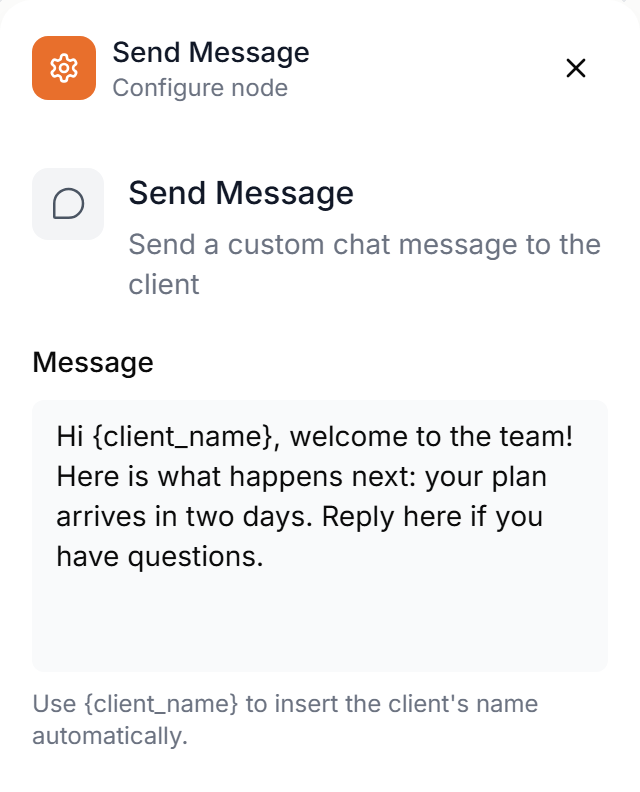
Click a step to set it up: the message, how long to wait, and which workflow to assign.
Save and activate
Save, then activate. From now on it runs for every new client.
Live automations
Back in the list, a green dot marks the automations that are live.
More details and screenshots
Automations
Automations act on clients for you. A trigger says when, actions say what. Build the chain once on a canvas and it runs for every client who matches.
Automations are on the Ultimate plan.
Building an automation
Open Automation in the sidebar to see your automations. Click New Automation, or AI Generate to describe what you want in plain words and get a first version to edit.
On the canvas, drag items from the left panel: Triggers, Actions and Conditions. Connect them by dragging from the dot on the right of a node to the dot on the left of the next one.
- One chain
- Triggers come first, then the steps in order. Every step has one next step, loops are not allowed, and all triggers point at the same first step.
- Limits
- Up to 5 triggers and 50 nodes per automation.
Click a node to set it up in the panel on the right. A node with missing settings is flagged until you complete it.
Save keeps your changes. Activate turns the automation on and Pause stops it. Settings has Trigger timing and Exclude clients, for clients it should never run for. Test runs it with a simulated trigger and History lists every run.
Results of AI Analyzer steps wait in the AI analysis tab until you apply or dismiss them.
Triggers
Triggers decide when an automation runs. With more than one, all of them must be true for the same client. In Settings you can limit how many days apart they may be.
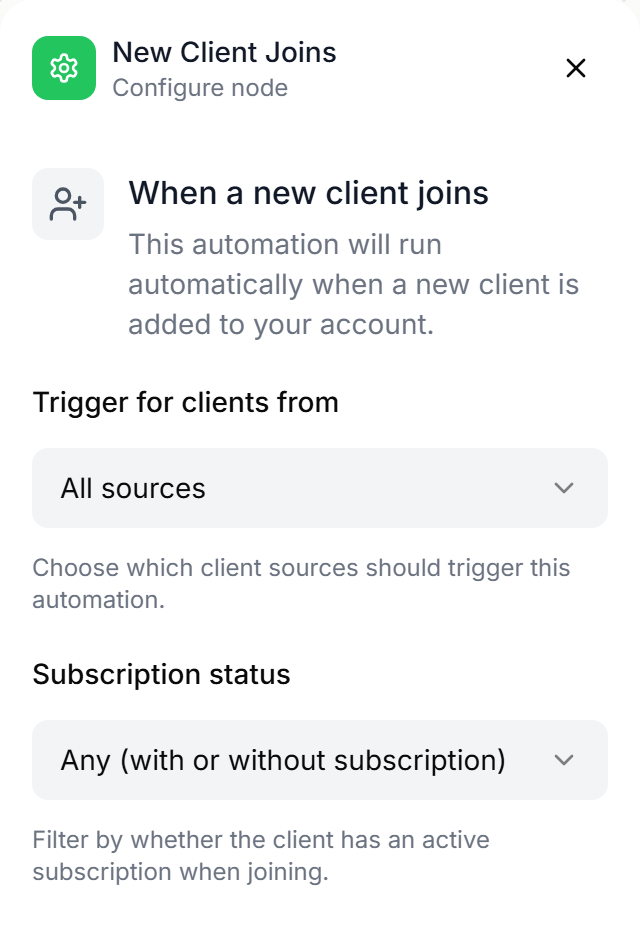
- New Client Joins
- A client is added. Filter by where they came from and whether they have a subscription.
- Subscription Started
- A client subscribes or upgrades. Filter by plan, new or upgrade, and trials.
- Missed Workout
- A scheduled workout was not done.
- Weight Logged
- A client logs their weight. Any log, loss only, gain only, or a goal milestone.
- Check-in Submitted
- A client sends in a check-in.
- Low Meal Adherence
- Adherence falls below a percentage you set, over the last week, 2 weeks or month.
- Client Inactive
- No activity for a number of days. Count any activity, workouts only, or app use only.
- Training Plan Completed
- A client finishes all weeks of their plan.
- Appointment Missed
- A client does not show up for an appointment.
- Subscription Expiring
- A set number of days before a subscription ends.
- Milestone Reached
- A client hits a value you set, such as workouts completed or days active.
- Payment Failed
- A subscription payment fails. Any failure, the first only, or retry failures only.
Actions
Actions are the steps that run after the triggers, in the order you connect them.
Message the client
- Send Message
- A chat message. Use {client_name} to insert the client's name.
- Send Summary
- A progress summary, sent in chat.
Plans and content
- Assign Training Plan
- Starts today, next Monday, or in a set number of days.
- Assign Meal Plan
- For this week, next week, or in a set number of weeks.
- Assign Habit
- One or more habits for the client to track.
- Share Resources
- Resources from your vault.
- Assign Workflow
- A workflow template that schedules actions on set days.
Check-ins and appointments
- Schedule Check-in
- A recurring check-in from one of your templates.
- Schedule Appointment
- Books a session on the client's calendar.
Payments
- Send Payment Request
- A Stripe payment link for an amount and description you set.
- Assign Subscription
- Sends a payment link to start a subscription plan.
Organise and review
- Add Tag
- Tags the client so you can filter on it later.
- Client Status
- Archives a client or brings an archived client back.
- Notify Me
- Sends you a notification about the client, with a priority.
- AI Analyzer
- Reviews the client and proposes changes. Nothing changes until you approve.
Wait / Delay
A condition that pauses the chain before the next step, for minutes, hours or days. Use it to space steps out, for example a message now and a plan two days later.
For actions on fixed days after a start date, use a workflow instead. Go to Workflows