
Community
A branded space where your clients motivate each other.
Your community feed
Community gives your clients a space of their own, to share their wins, ask questions and cheer each other on.
Write a post
New post opens the composer. Write an update for the whole group.
Add a photo and pin it
Add a photo or a video, and pin the post so it stays at the top of the feed.
Create a poll
Switch to Poll to ask the group a question, with up to six answers to choose from. It shows up in the feed right away, and members vote with a tap.
Schedule a post
A post can also wait for the right moment. Pick Schedule and set the day and time. It goes out on its own, and waits under Scheduled until then.
Reply to comments
Open any post to read the comments and join the conversation. Your reply appears under the post, for everyone in the group.
Pin or remove posts
From a post's menu, you can pin it or remove it.
Members
Every active client is a member, and new clients join on their own.
Challenge board
The challenge board ranks members on a habit they run, by streak or by days completed. Clients choose to join it themselves.
Community settings
In Settings you set the name, cover and headline, and decide whether clients can post, stay anonymous, and hear about your posts by push or email.
Invite-only communities
For a small group or a program, add another community. Invite only, with just the clients you pick.
Your clients' view in the app
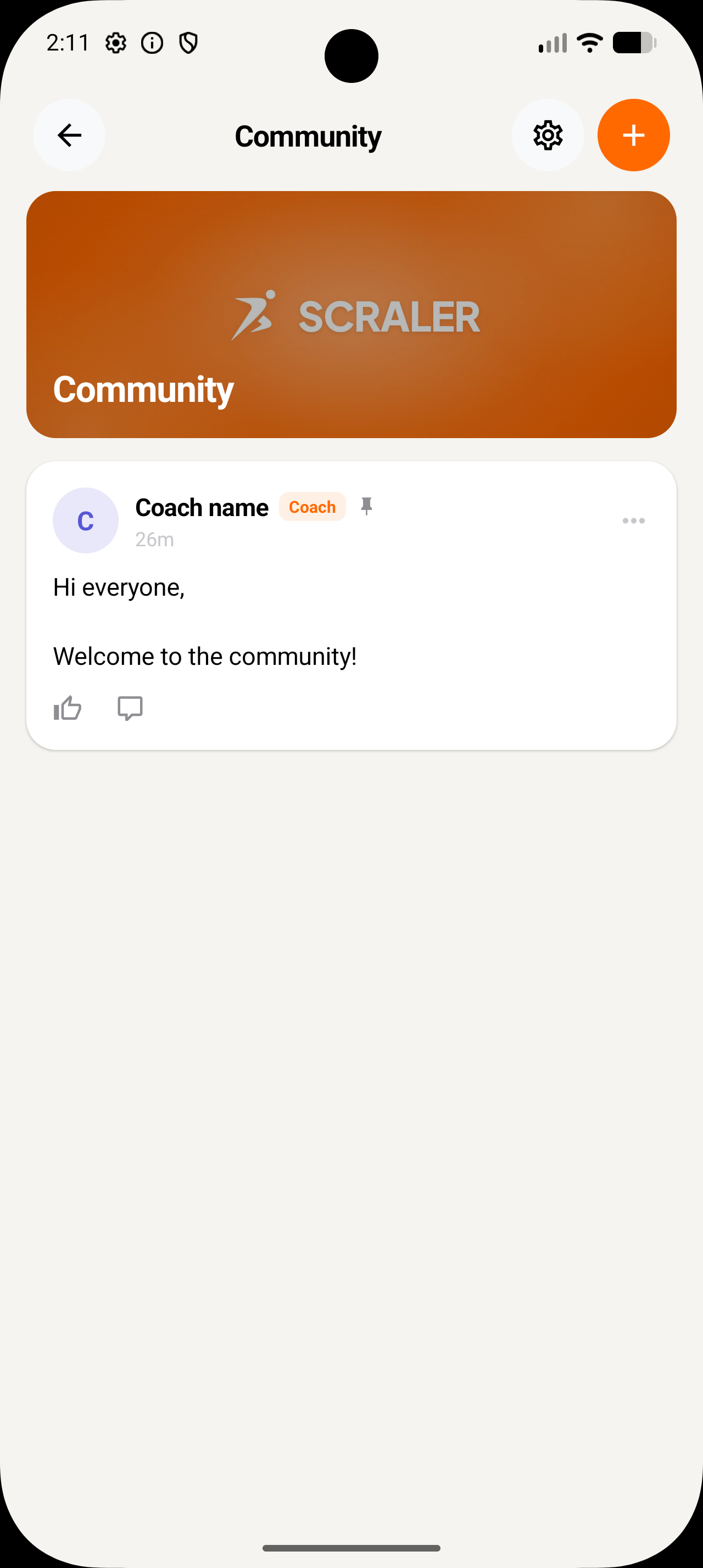
Your clients find it all in their app: your posts, the board, and the poll, one tap to vote.
More details and screenshots
Community
A private feed where your clients share wins, ask questions and cheer each other on. Community comes with the Premium plan. On Basic and Plus you see an upgrade prompt instead.
Overview
Only you, your studio team and your clients can see the community. It is never public. Active clients are members automatically, and archived clients lose access until they are reactivated. Clients open it from the Community tab on the web and in the app, and new posts, likes and comments appear live.
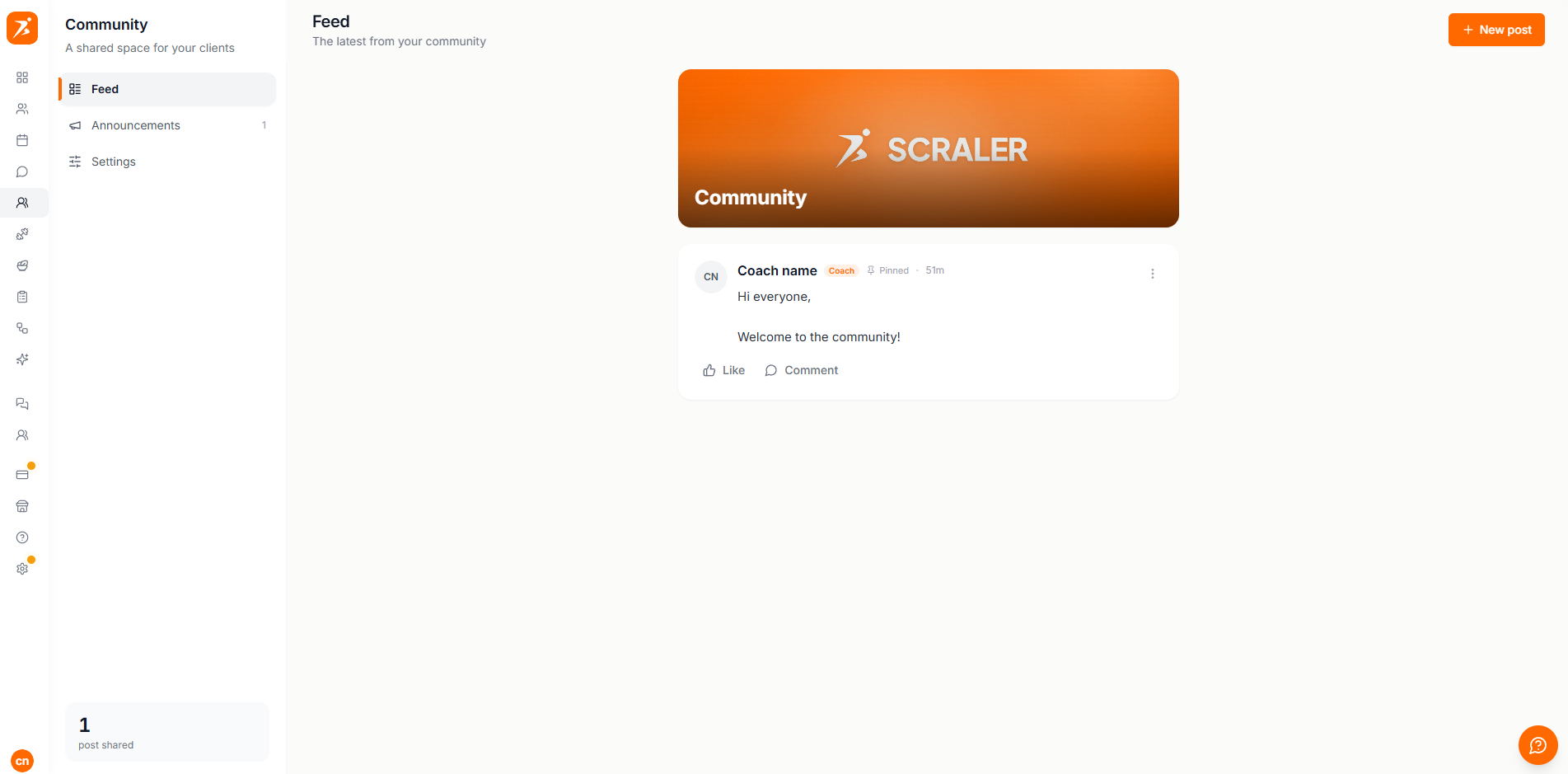
The first time you open Community, a short setup asks for a name, a cover image and headline, and your posting rules. Click Turn on for clients at the end. Clients see nothing until then. You can change all of it later in Settings.
- Feed
- Every post, newest first, with pinned posts on top. New post opens the composer.
- Scheduled
- Posts you queued for later.
- Members
- Who belongs to this community.
- Settings
- Name, cover, posting rules and notifications.
Clients. Clients see the same feed, with your cover and headline. They can like and comment, and post themselves if you allow it.
More than one community. New community in the sidebar adds another feed, for example a VIP group, each with its own name, cover and headline. Each one is either:
- All clients
- Every active client is a member, including new ones. This is the default.
- Invite only
- Only clients you add under Members. Removing a client from an all clients community switches it to invite only and keeps everyone else in.
Challenge board
Open the Challenge tab of a community to set up the leaderboard card at the top of the feed. Turn it on, give it a title, choose which rankings members can switch between (current challenge, this month, all time) and how many places it shows. The current challenge needs a habit with a rising target, so assign one first.
Clients are ranked by streak by default: days in a row without missing one. You can rank by days completed instead. On this month and all time, the streak is the longest run in that period. The top three stand on a podium with the leader in the middle, and a client below them still sees their own row. Clients join from the card with Join, and appear with their first name and last initial. Anyone who has not joined stays off the board.
How to set up a challenge: Habits and challenges
Posts
Click New post. Write up to 2,000 characters, then use the toolbar. Hover an icon to see its name.
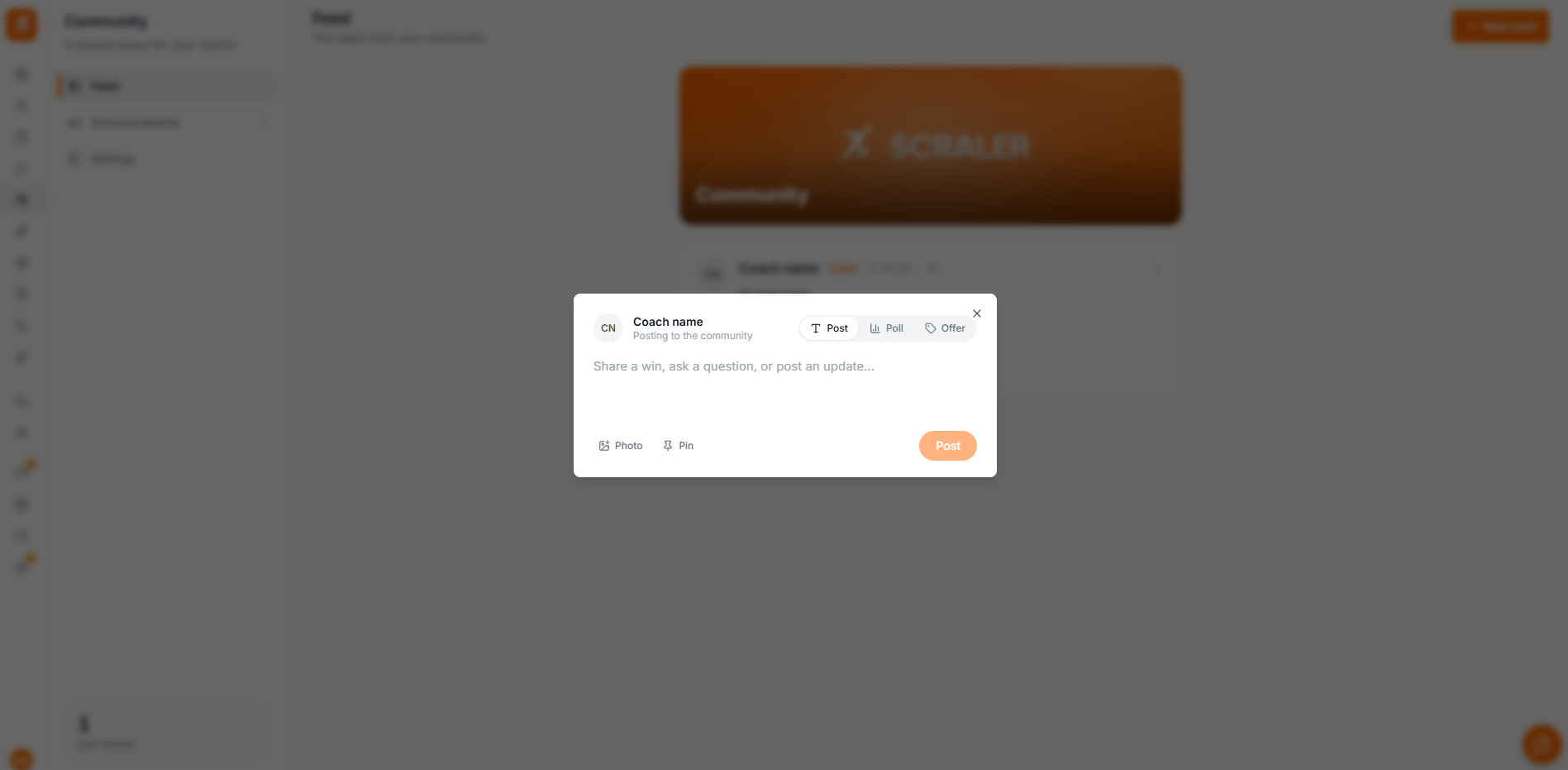
- Photo or video
- One file up to 100 MB, on a text post or a poll. You can also drop a file onto the post.
- Poll
- A question with 2 to 6 options. Members vote with one tap, see the results as percentages and can change their vote.
- Offer
- Promote a membership or a cookbook you sell. It shows as a card with a Subscribe or Get it button that goes to checkout. You can add a note.
- Pin to top
- Keeps the post at the top of the feed. Unpin it from the post menu.
- Schedule
- Text posts only. Pick a date and time and the post publishes by itself. The Scheduled tab lists what is queued.
Polls, offers, pins and scheduling are yours. Clients can attach a photo or video, and post anonymously if you allow it.
Members like and comment on every post. Your comments carry a Coach badge. Clients can edit their own text posts and delete their own posts and comments.
Settings
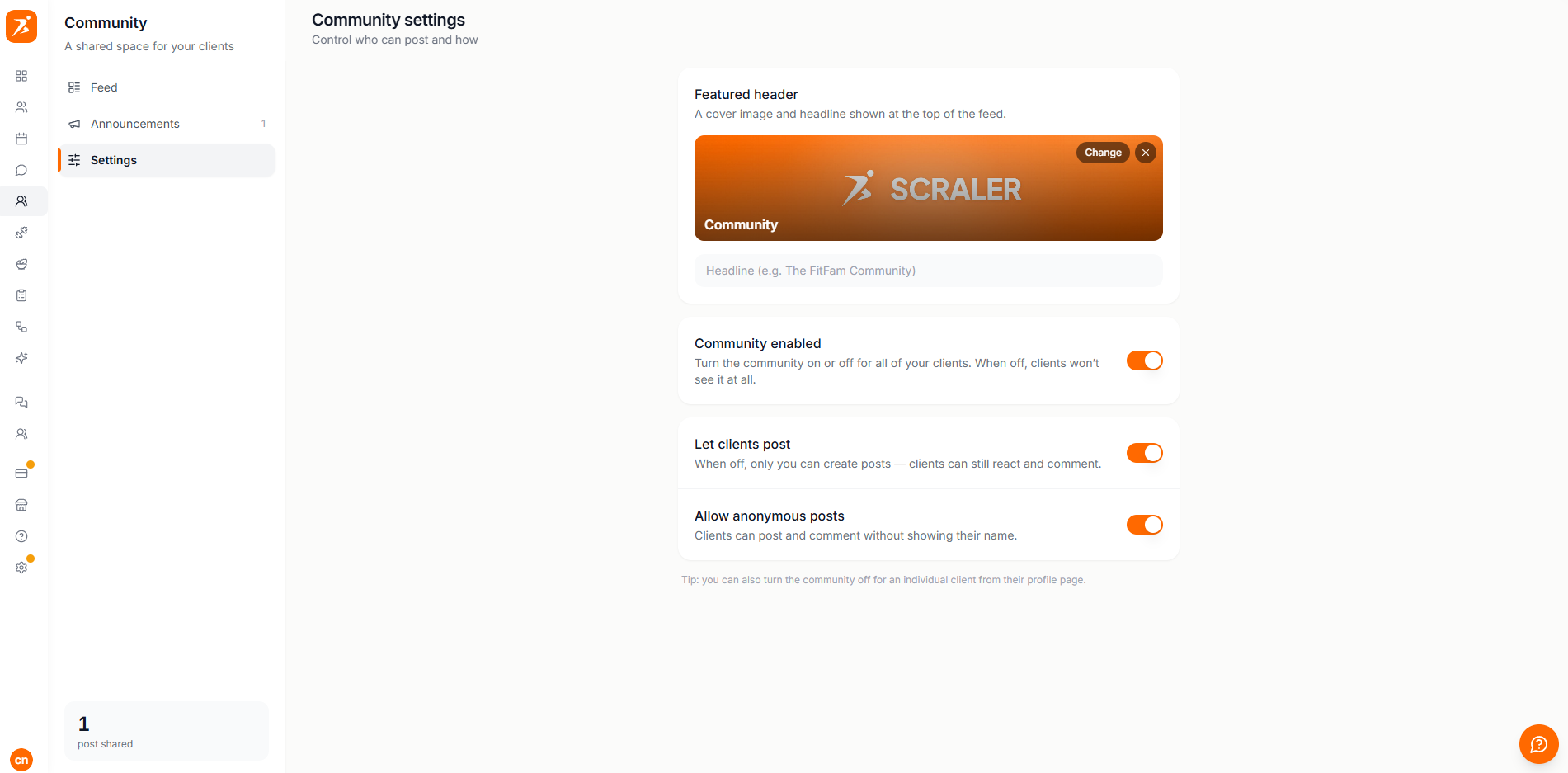
Changes save as you make them. Name & featured header sets the name in the sidebar switcher and the cover and headline at the top of the feed.
- Community enabled
- The master switch. When off, clients cannot see the community, and the switches below are locked.
- Invite only
- Only clients you add under Members can see it.
- Challenge board
- Shows the leaderboard at the top of the feed.
- Let clients post
- When off, only you can post. Clients can still like and comment.
- Allow anonymous posts
- Clients can post and comment without their name. It shows as Anonymous.
- Notify clients of your posts
- A push notification when you publish a post.
- Email clients about your posts
- A branded email with your post and a link to the community.
You can delete any post or comment from its menu, and pin or unpin posts. Delete this community at the bottom removes it with all its posts, comments and reactions.
To take one client out of every community, turn off Community in their profile under Settings, Features.