
On-Demand
On-Demand is training your clients start themselves, on any day they like. It sits next to the plans you schedule, and both can exist for the same client. There are two kinds: collections of single workouts, and programs, which are multi-week training plans. On-Demand needs a Premium or Ultimate plan.
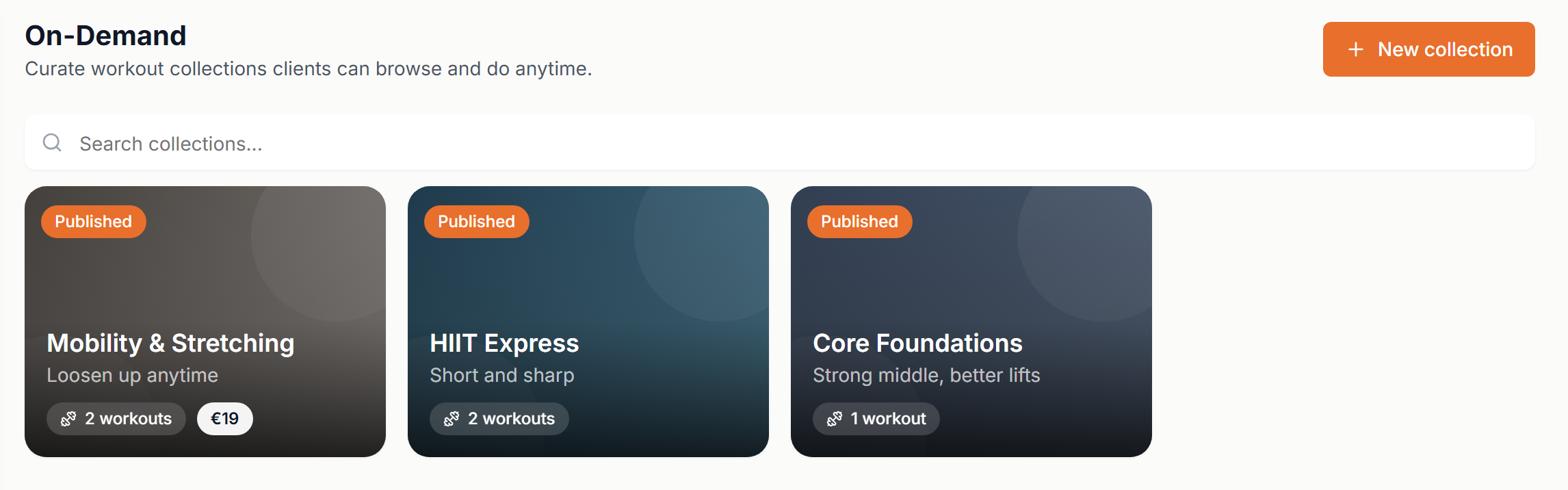
Collections
Open Workouts in the sidebar, choose On-Demand and click New collection. Give it a name, then build it in the editor.
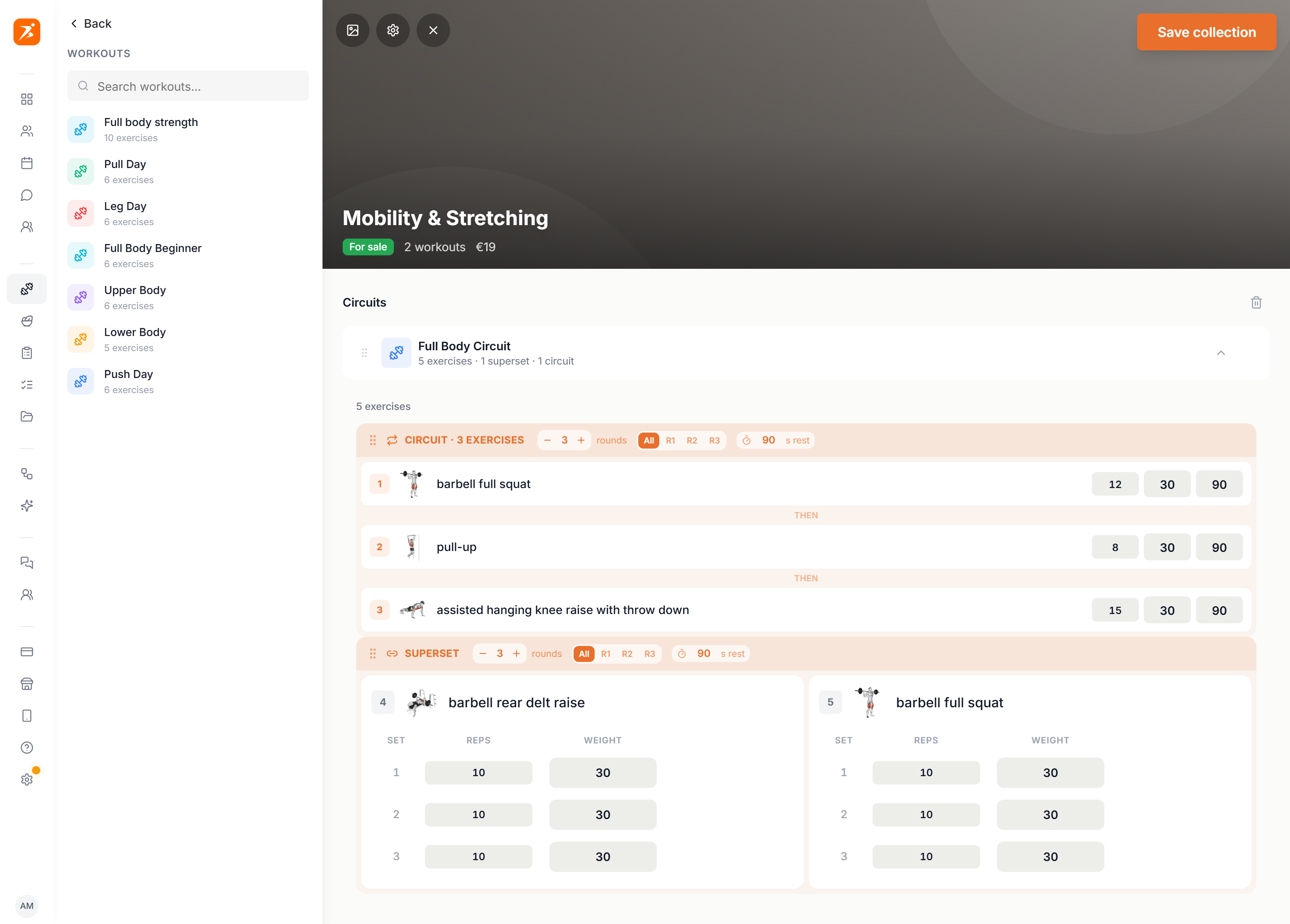
- Workouts
- Drag workouts in from the library on the left, or click one to add it. A default library workout is copied into your own workouts first.
- Sections
- Add section groups workouts under a heading, for example Conditioning or Mobility. Click a heading to rename it, and drag workouts to reorder them.
- Preview
- Click a workout row to expand it. You see its exercises with the per-set tables, read only. To change a workout, edit it in the Workouts tab.
- Cover
- The image button on the cover sets your own picture. Without one, Scraler tiles up to four workout thumbnails together.
- Settings
- The gear opens the name, description and availability. Nothing is stored until you click Save collection.
Who can see it
Every collection has one availability setting. It is the same card you use for programs and cookbooks.
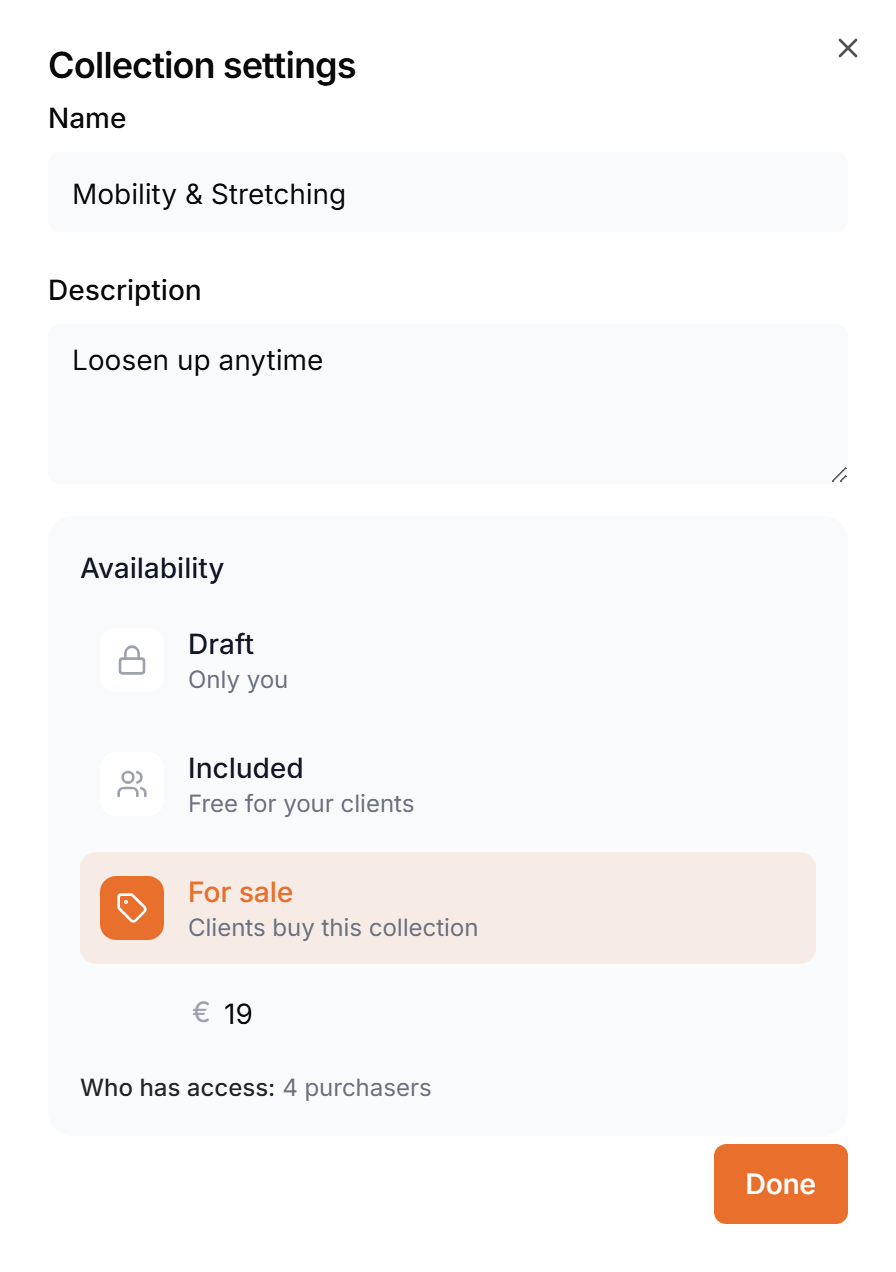
- Draft
- Only you can see it.
- Included
- Free for your clients. Every client can browse and start it.
- For sale
- Clients buy it. You set the price, in your account currency.
The Who has access line under the card shows who that reaches. In the collection list, a card shows Published or Draft, plus the price when it is for sale. If a collection with buyers goes back to Draft, Scraler asks first: it disappears for everyone, including the people who paid.
Programs
A program is a training plan your clients can start on their own. To publish one, open Training Plans, hover the plan and click the globe icon, Publish to clients.
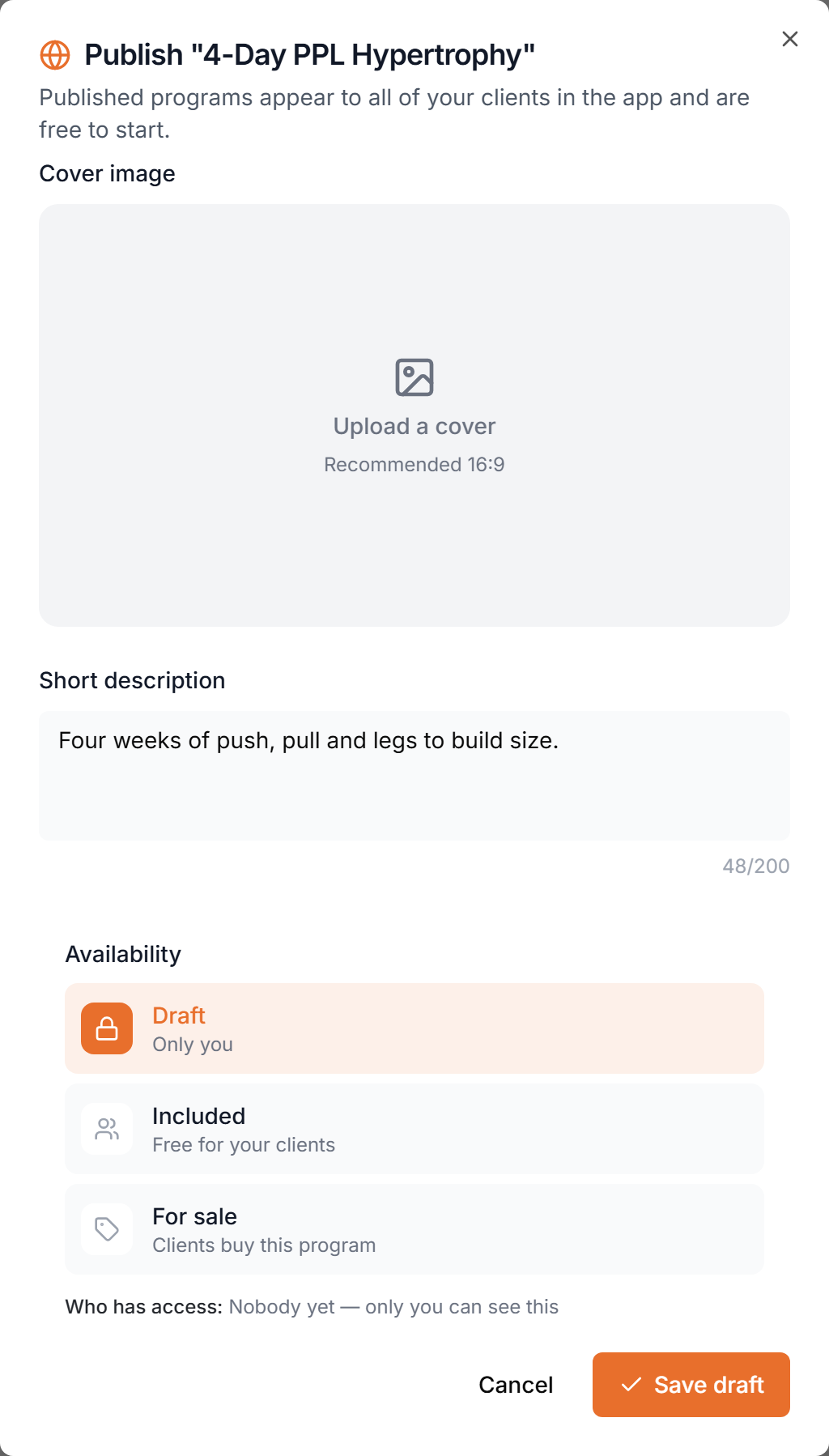
- Cover
- A 16:9 image. Optional.
- Description
- One or two lines, up to 200 characters. Clients read it before they start.
- Availability
- The same Draft, Included and For sale choice. Included makes it free for every client.
- Plan
- Publishing programs needs Premium or Ultimate. Other plans see an upgrade prompt instead.
Clients find programs under My Programs. Your programs holds the ones they bought, Available programs the free ones. Start program asks for a start date, suggests the next Monday, and schedules the workouts week by week from there. If it overlaps a plan they are already on, they can pause that plan and start this one. In the app, programs show on Home and open a detail screen with a Start Program button.
This is not the Programs panel on a client’s Training tab. That one holds the fixed programs you assigned. Fixed programs
What clients see
On the web, collections live in My Workouts under On-Demand, one card per collection. Opening one lists its workouts by section, and the play button starts a workout straight away, like any other workout. In the app, published collections appear on Home in an On-Demand card that opens the same list.
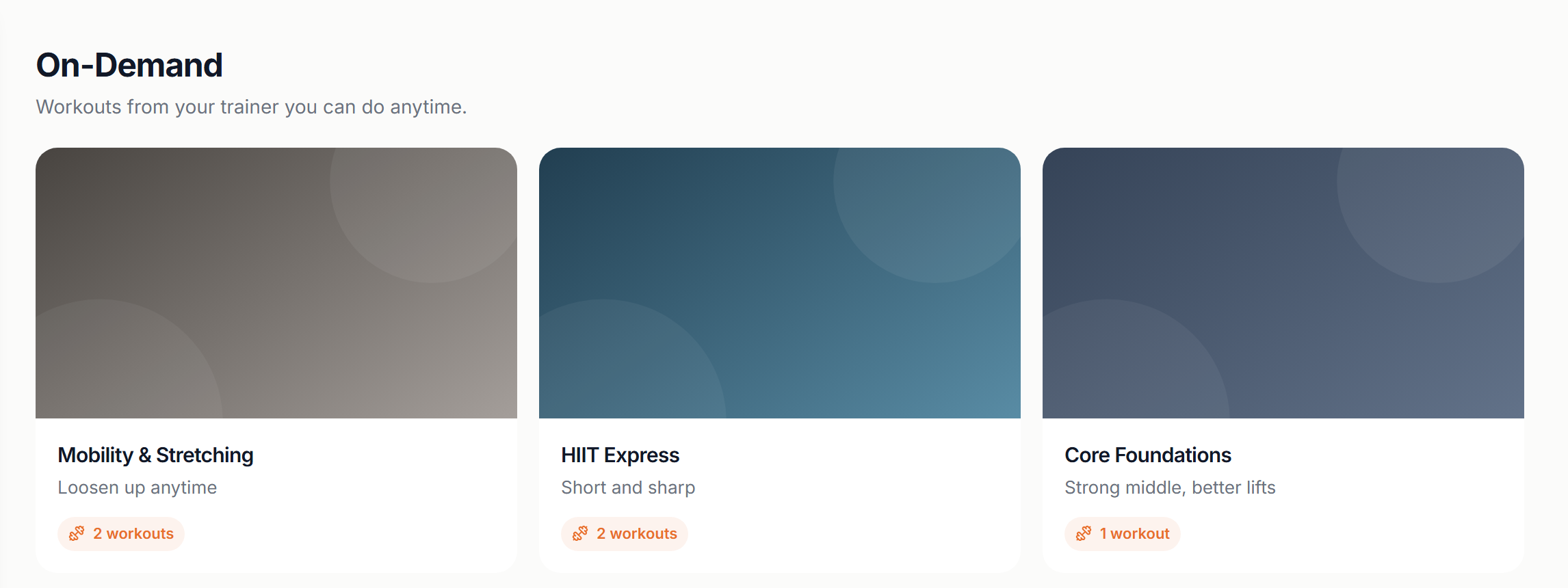
A collection that is for sale stays hidden until the client has bought it.
You can also build and publish collections in the trainer app: More, then On-Demand. It has the name, description, a Published switch, an optional price and the workouts grouped in sections.
Turning it off for a client
On-Demand is one switch on a client’s Settings tab, labelled On-Demand. It hides both collections and programs for that client.