
Clients list
Invite or import clients, find anyone fast, sort them into categories by hand or by rule, and archive the ones who stop.
Your client list
This is your Clients page: everyone you coach, in one list. The counter shows how many of your plan's clients are in use.
Add a client
To add someone, click Add New Client. A name and an email is all it takes. The rest, they fill in themselves when they sign up. Hit Invite client. They get an email to set up their account, and you land on their profile.
Find a client
Back in the list, search finds anyone by name or email.
Organise with categories
Categories keep the list organised. Open a client's menu, choose Add Category, and tick up to three.
Filter by status
The filter inside the search bar shows one status at a time. New clients stay under Invited until they sign up. Click a category in the sidebar to see only those clients.
Several clients at once
For several clients at once, turn on mass select. Tick who you need, then assign categories, move them to inactive, or delete them.
Import your list
Moving from another app? The arrow next to Add New Client opens your imports. Upload an Excel or CSV file, and everyone on it waits here for your review. Approve them, and choose whether they get an invite straight away.
Automatic categories
On Category assignment, a category can fill itself. Create one, give it a name and a colour, then add a rule under Joins when: a plan they buy, or an answer from your onboarding form. Clients who already match are one click away. Leaves when takes them out again: here, when the subscription ends.
Onboarding
Onboarding, in the same menu, sets what new clients fill in when they sign up, including forms of your own.
Archive and reactivate
When a client stops, move them to inactive from their menu. Their data is kept, and they no longer count toward your client limit. Reactivate brings them back any time.
More details and screenshots
Clients list
Everyone you coach is on the Clients page. Add clients one by one or from a spreadsheet, invite them, and archive the ones you stop coaching.
Managing clients
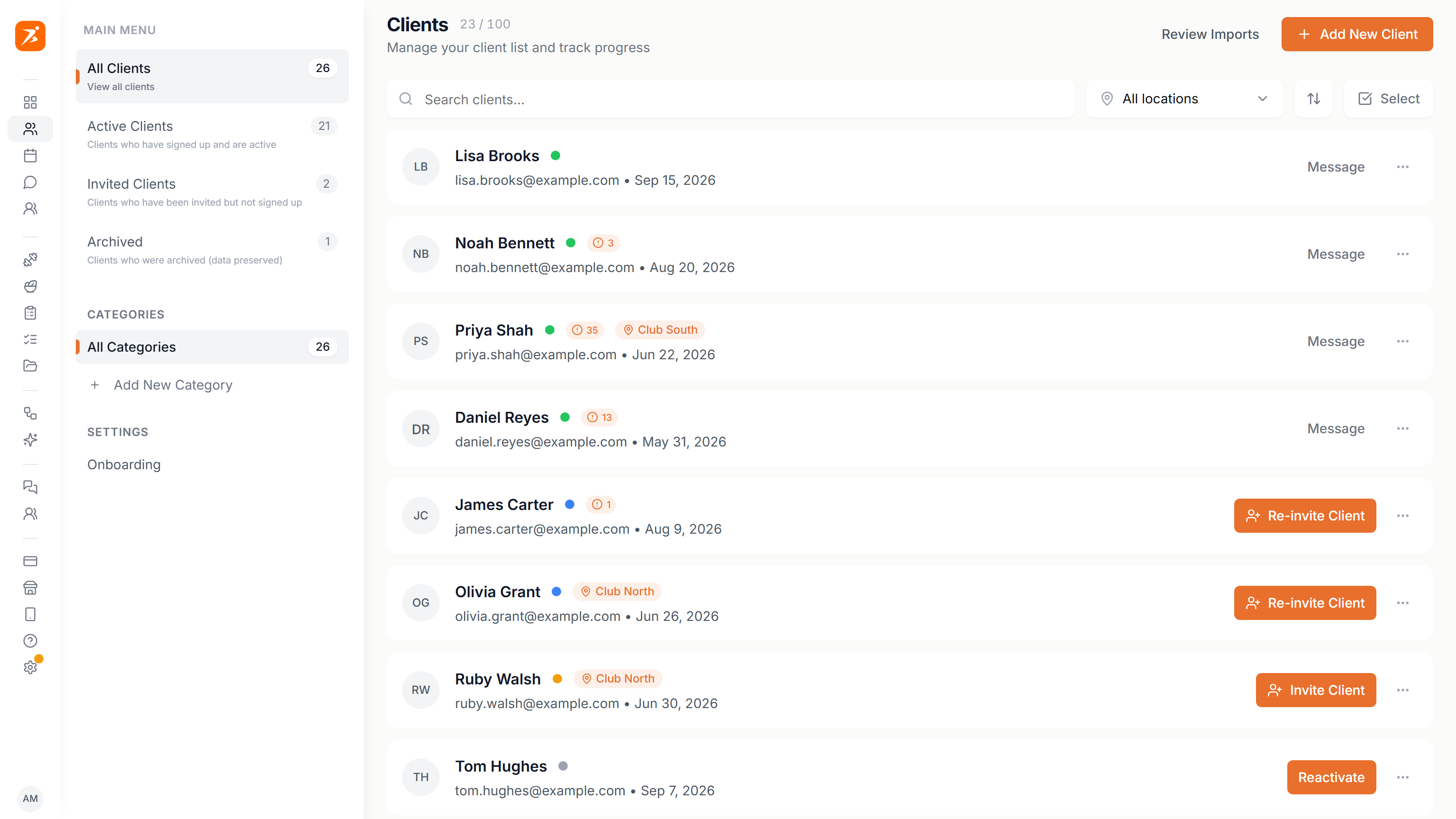
Click a client to open their profile. The dot next to a name shows their status, and the button on the right changes with it.
Active
Signed up and can log in.
Invited
Invite sent, no account yet.
Not invited
Added but never invited. New clients get their invite when you add them, so this is mostly older clients.
Awaiting payment
Signed up on your landing page or a buy link but never paid. Removed after 7 days unless you keep them from the ... menu.
Archived
Moved to inactive. Data kept, login blocked.
- Filters
- The left panel lists All Clients, Active Clients, Invited Clients and Archived, each with a count. Awaiting payment appears only while you have such signups. Not invited clients sit under All Clients.
- Search
- Finds clients by name or email. The arrows button sorts Newest First or Oldest First.
- Locations
- With two or more active studio locations you can filter by club, and each client shows their club.
- Limit
- The number next to the title is your clients against your plan limit, like 23 / 100. It turns red and says Full when you reach it.
- Badge
- The small orange badge counts missed workouts.
Categories. Create labels such as Online or Small group under Categories in the left panel with Add New Category. A client can have up to 3. Give them from the ... menu with Add Category, or to many clients at once with Select. Click a category to filter the list. Deleting a category never deletes clients.
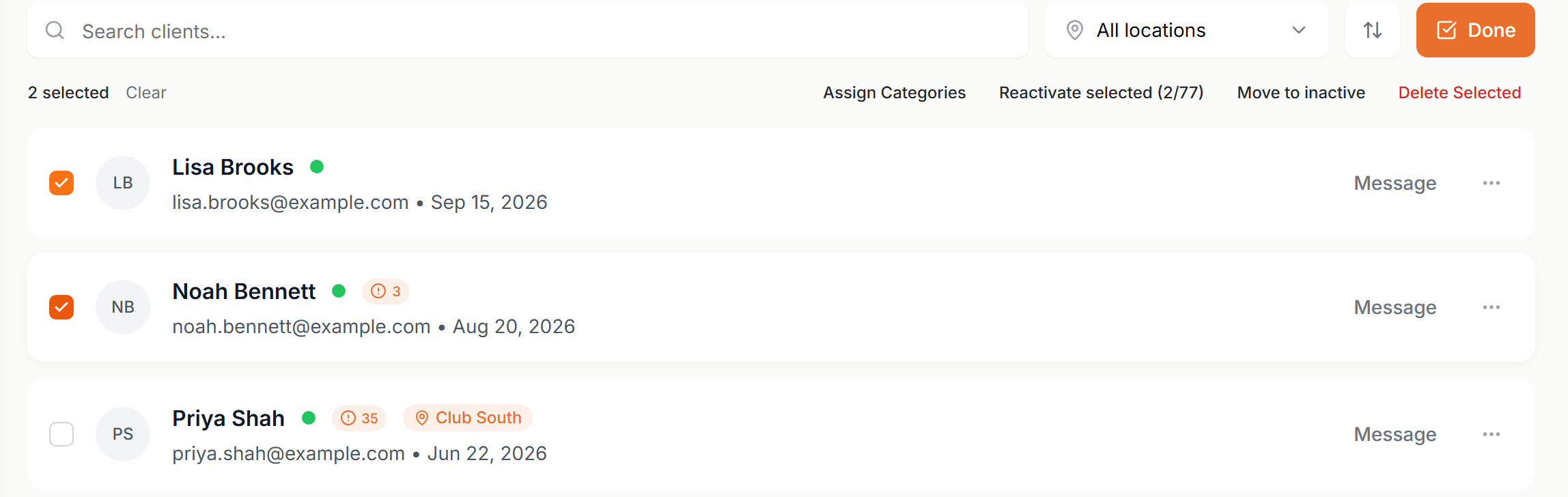
Select. Click Select, tick clients or use Select all, then act on all of them at once.
Reactivate selected shows how many you picked against your free places. Delete Selected is permanent.
The ... menu on a row has View Profile, Add Category, Move to inactive (or Reactivate) and Delete Client.
Adding a client
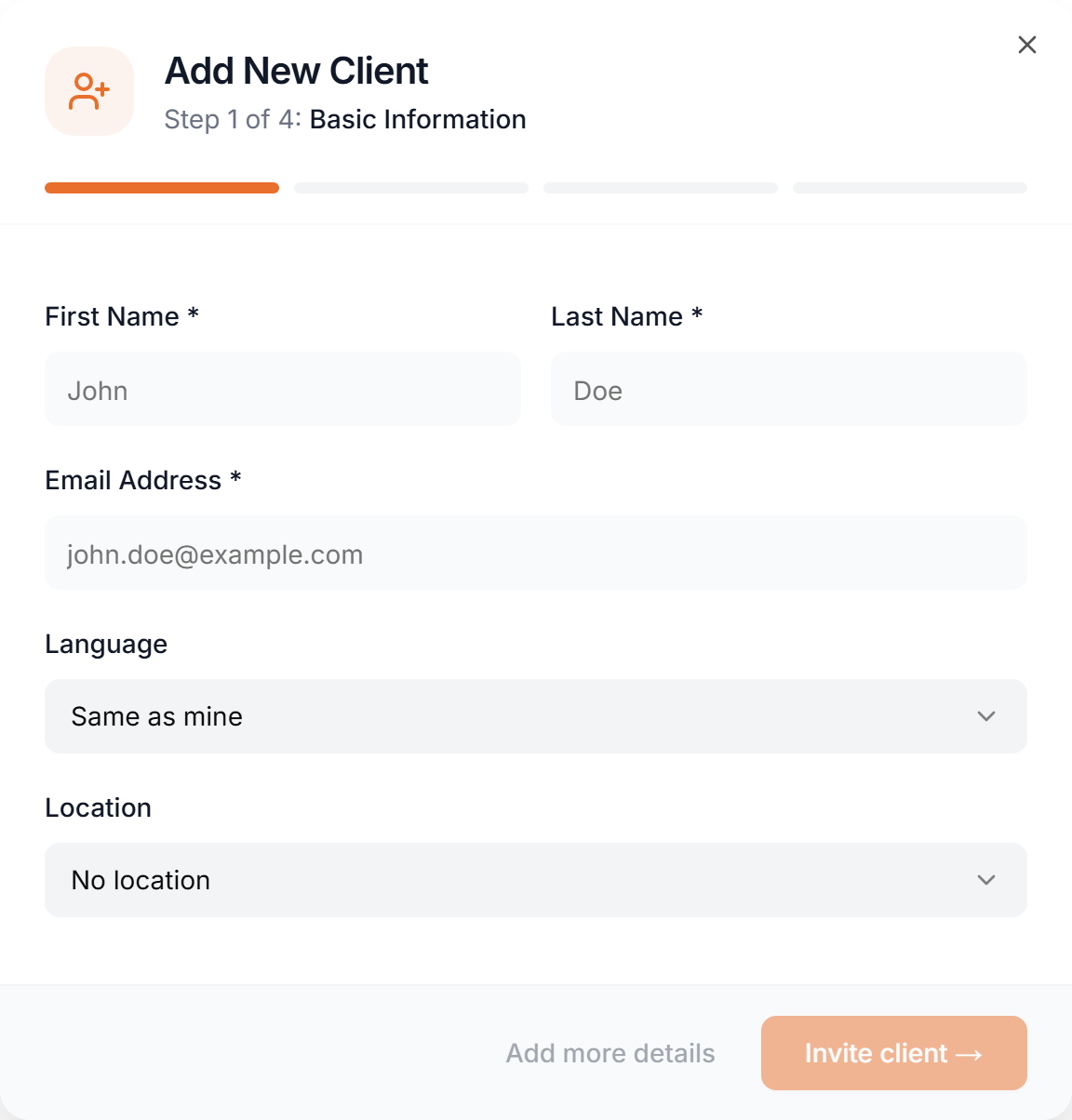
Click Add New Client. Only first name, last name and email are required.
- Step 1
- Name, email, the language for their emails and app (Same as mine by default) and, if you use studio locations, their club.
- Invite client
- Creates the client and emails the invite straight away. They fill in the rest during their own onboarding.
- Add more details
- Walks through Physical Information (date of birth, gender, height, weight), Fitness & Health (goals, activity level) and Review & Create. Everything there is optional, and Create Client also sends the invite.
At your plan limit the button reads Upgrade to Add Clients. An email that already belongs to a client can't be added again.
Importing from Excel
Bring a whole client list in at once. Import sits inside Review Imports at the top of the page.
1Upload
Click Review Imports, then Import, and choose an .xlsx or .xls file. Only the first sheet is read.
2AI reads it
AI finds first name, last name, email and phone in your rows, whatever your columns are called. Rows without a name or a valid email are skipped, and a repeated email is kept once.
3Review
The clients wait in Review Imports, not in your list yet. Tick the ones to keep, then Approve or Remove.
4Approve
You are asked whether to send invite links. Clients whose email is already in your list are skipped.
Good to know: Yes, send invites does not email anyone. It posts each client's signup link as a message in your chat with them, which they can't see before they have an account. To email the invite, use Invite Client or Re-invite Client on their row after approving.
Importing needs a free place on your plan, and approving checks you have room for every client you selected.
Invitations
The invite email has a link where the client sets a password and gets into your app. When they finish, their dot turns green.
- Send
- New clients get the invite when you add them. For anyone not invited yet, click Invite Client on their row.
- Resend
- Re-invite Client sends a fresh link and the old link stops working, so the client should use the newest email.
- No email
- If the email can't be sent from the list, the link is copied to your clipboard so you can share it yourself.
When an invite doesn't land
- Not received
- Check the address on their row and their spam folder, then Re-invite Client.
- Link fails
- They opened an older link. Re-invite and have them use the newest email.
- Still Invited
- They haven't finished signing up yet. Remind them, or re-invite.
- Email in use
- An email can belong to only one client account. Ask them for another address.
Archiving clients
Move to inactive archives a client you no longer coach. Use it from the ... menu or with Select.
- Kept
- All their data: plans, history, check-ins and chat.
- Blocked
- Their login on the web and in the app, changes to their data, and push notifications.
- Your limit
- Archived clients don't count toward your plan's client limit. Active, invited and not invited clients do.
- Subscriptions
- A client with a subscription that keeps billing can't be archived. Cancel it first. One set to end at the period end is fine.
- Reactivate
- One click. They count toward your limit again, so you need a free place.
Delete Client is different: it permanently removes the profile, training, meal plans, progress, chat and appointments.