
Schedule
Your week in one view: read every status, move things around and block time for yourself.
Your week
This is your week: sessions, events and your own notes.
Session statuses
Each dot is a status: confirmed, awaiting a response, or waiting for payment.
List view and weeks
Switch to a list view, or step through the weeks.
Drag to reschedule
To reschedule, drag a session to a new slot and confirm. Your client is told straight away.
Edit, remind or cancel
Click a session to open it. From the menu you can edit it, send a reminder or cancel, for this date only or the whole series.
Block time with notes
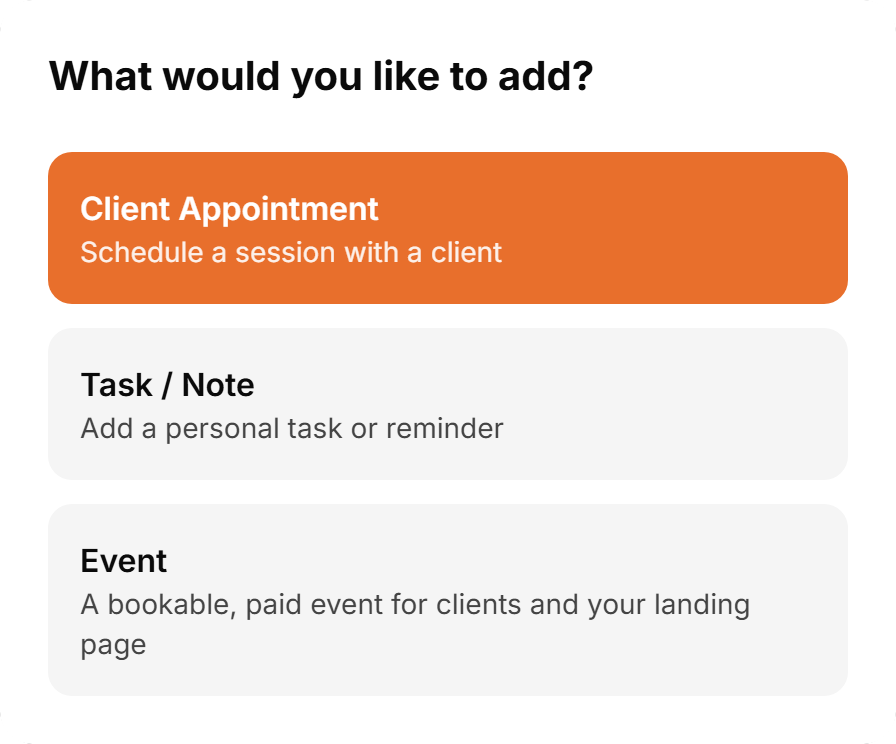
Click an empty slot to add a task or note. It blocks that time, so clients can't book over it.
More details and screenshots
Schedule
Your week in one calendar: client sessions, group sessions, tasks and events. Set your open hours and appointment types so clients can book themselves, and run repeating classes that people sign up for.
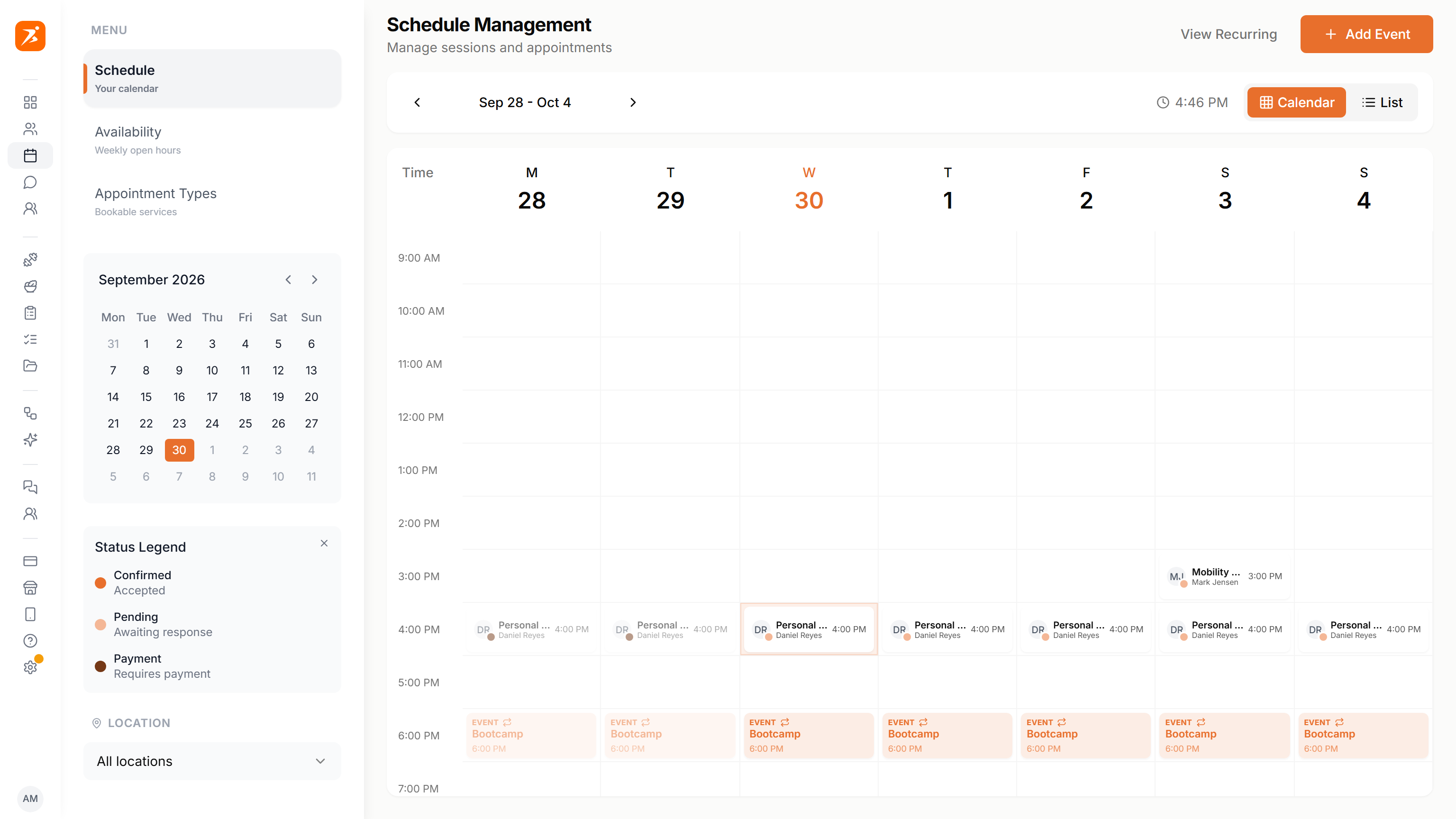
The calendar
Open Schedule from the sidebar. The calendar shows one week, Monday to Sunday. The arrows move a week, clicking the dates jumps back to today, and the small month on the left picks any day. Calendar and List switch between the grid and a list of the upcoming sessions that week. On a phone you always get the list.
The grid shows client sessions, group sessions, your tasks and notes, and events. It starts at your earliest open hour and grows to fit any session. Past sessions are faded. The dot on each session shows its status:
Studios on the Ultimate plan also get a Location filter (with more than one club) and a Coach filter (with team members) in the sidebar. Coaches only ever see their own sessions.
Managing the calendar
Click an empty slot, or Add Event at the top, to choose what to add.
Drag a session to another hour to move it. Reschedule Appointment opens so you can check the new time before you confirm, and warns you when it clashes with another session. Past and cancelled sessions cannot be moved.
Click a session to open it. From its menu you can Add Client, Send Reminder, Edit Session or Cancel Session. Edit Session changes the title, date, times and notes of that one session.
Creating an appointment
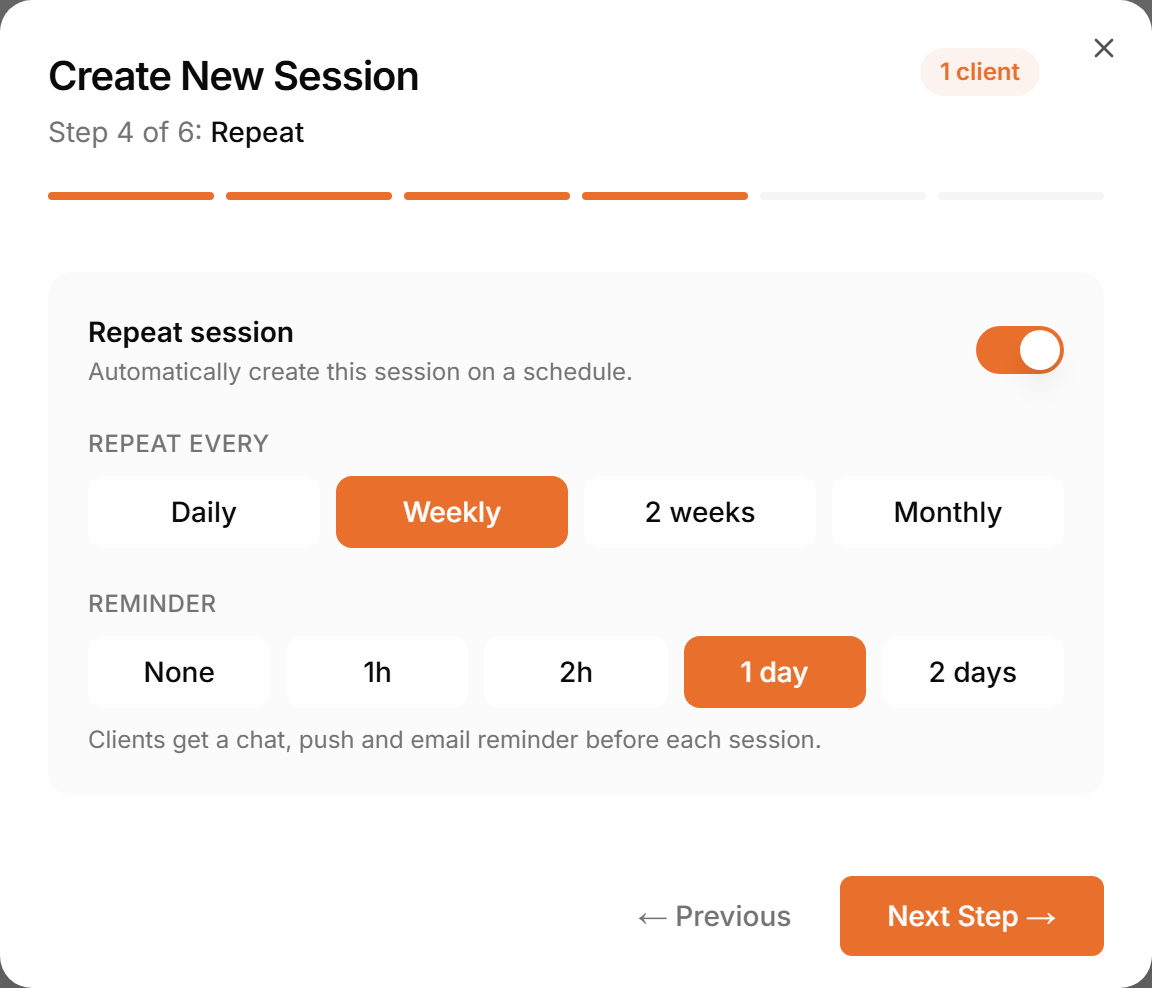
Choose Client Appointment to open Create New Session. It walks you through six steps:
Pick more than one client to make it a group session. A Session Type fills in the title, length and price for you. You get a warning when the time overlaps another session, and can still schedule it. Charging for a session needs the Premium plan and a connected Stripe account.
When you create it, the client gets a notification in their app and, if you have it switched on in your settings, an email. A paid session includes a link to pay.
Recurring sessions
In the Repeat step, switch on Repeat session and choose Daily, Weekly, 2 weeks or Monthly, plus when the client gets a Reminder. A series has no end date: new sessions keep being created until you stop it.
View Recurring at the top lists every series. Open one to change its day, time or reminder, or Delete recurring appointment to stop future sessions. Cancelling a single session from a series asks whether to cancel only that one or all of them.
Availability and booking
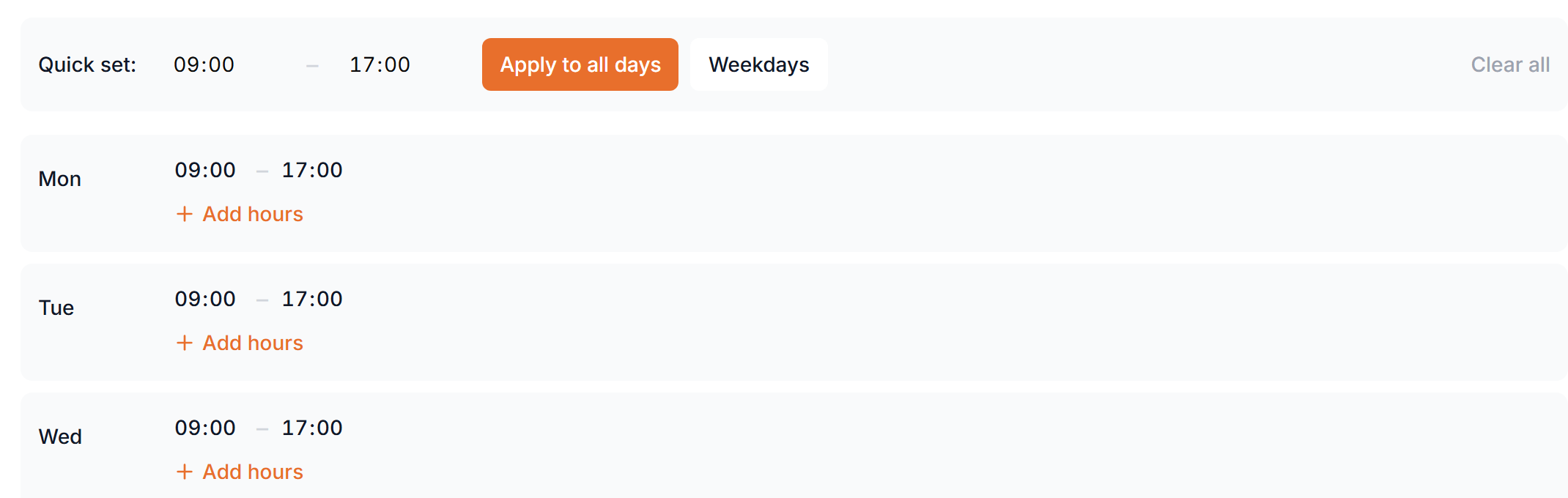
Under Availability you set your weekly open hours. Quick set fills every day or only weekdays at once, and Add hours adds a second block to a day, for example a lunch break. Click Save availability when you are done.
Under Appointment Types you create the services clients can book. Add type opens three short steps:
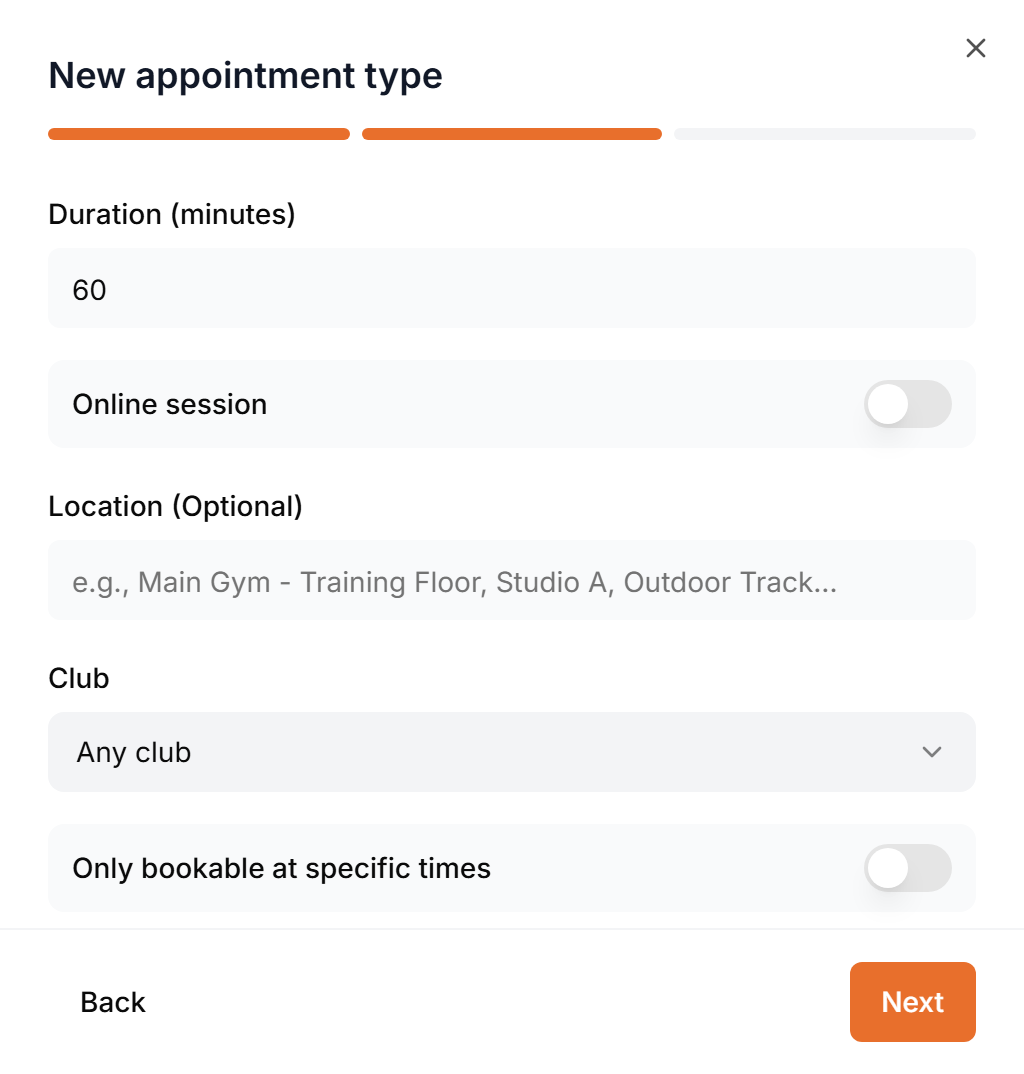
- Details
- Name, an optional description and a cover image.
- Where and when
- Duration, Online session or a location, the Club (studios with clubs), and Only bookable at specific times if this service has its own hours.
- Price
- Charge for this session and the price, in your account currency. Needs the Premium plan and Stripe.
Clients book with Book a session in their app. They see the types with Clients can book switched on and the free slots inside your hours. A booking goes straight into your calendar as confirmed. Visitors can also book from your landing page; their session is confirmed once they verify their email. Online booking needs the Plus plan.
Session requests that still wait for your answer show up under Attention Required on the dashboard, where you approve or decline them.
Events and classes
An event is a class or session many people can book, like a Saturday bootcamp. Choose Event in the add menu. Create event has five steps: Details, When & where, Capacity & price, Invite clients and Review.
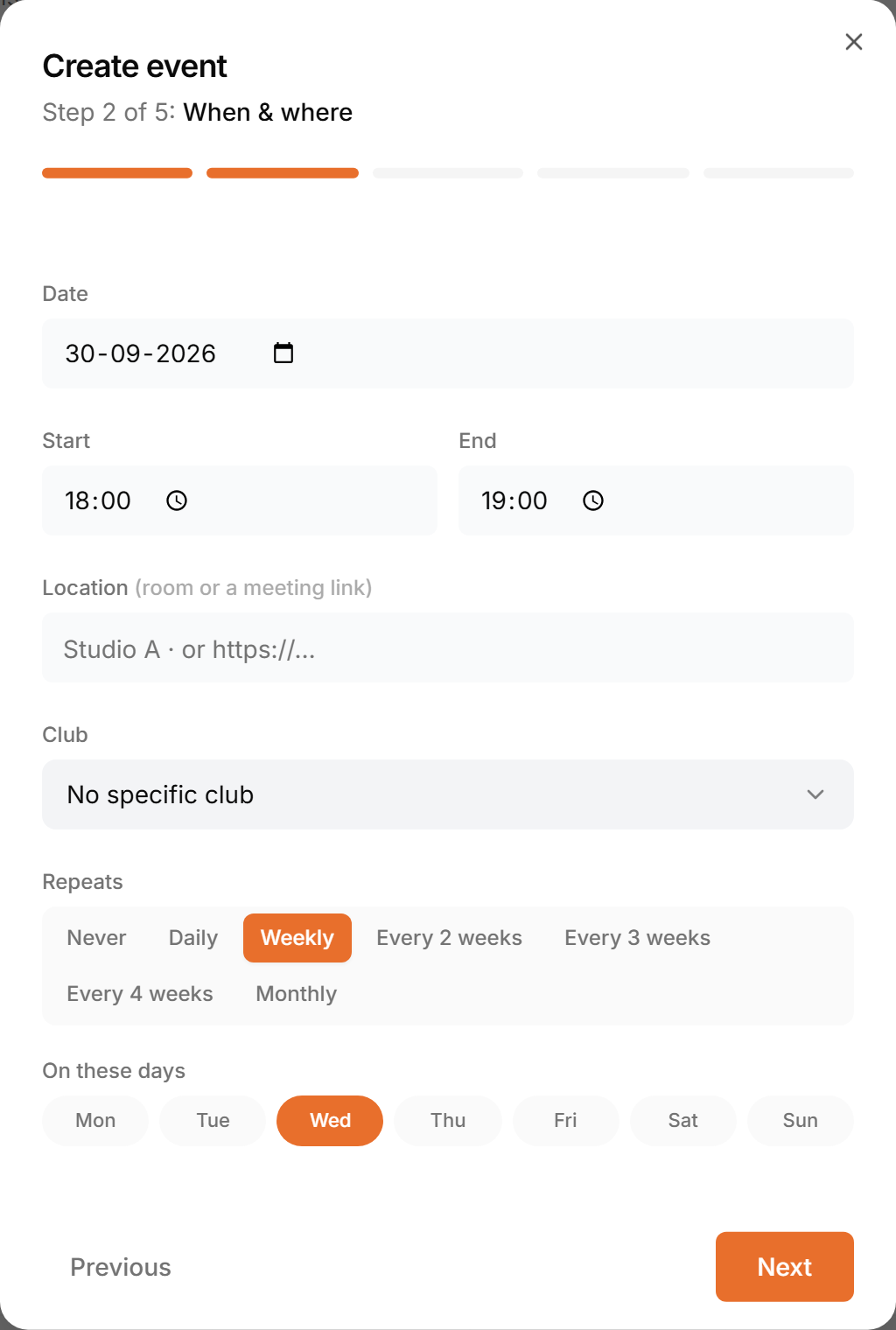
- Repeats
- Never, Daily, Weekly, every 2, 3 or 4 weeks, or Monthly. For weekly, pick the days. Leave Until empty and it keeps going, with about 12 weeks planned ahead. A series can have up to 52 sessions within 12 months.
- Club
- Studios with more than one location pick the club it runs at, or No specific club. Studio owners with a team also pick the Coach.
- Capacity & price
- Leave capacity blank for no limit, and price empty to make it free. Paid events use your account currency.
- Invite clients
- Book existing clients into every session straight away, for free, up to the capacity.
Events appear on your landing page, where visitors and clients book a spot. A free event books instantly, a paid one goes through Stripe checkout. In the landing page builder you choose which events the Events section shows.
Changing or deleting a repeating event asks whether it applies to this session only or to this and all later ones.