
Workflows
A reusable schedule of messages, plans, check-ins and payment requests, laid out week by week.
What a workflow is
A workflow is a schedule of things your clients receive, laid out week by week.
Create a workflow
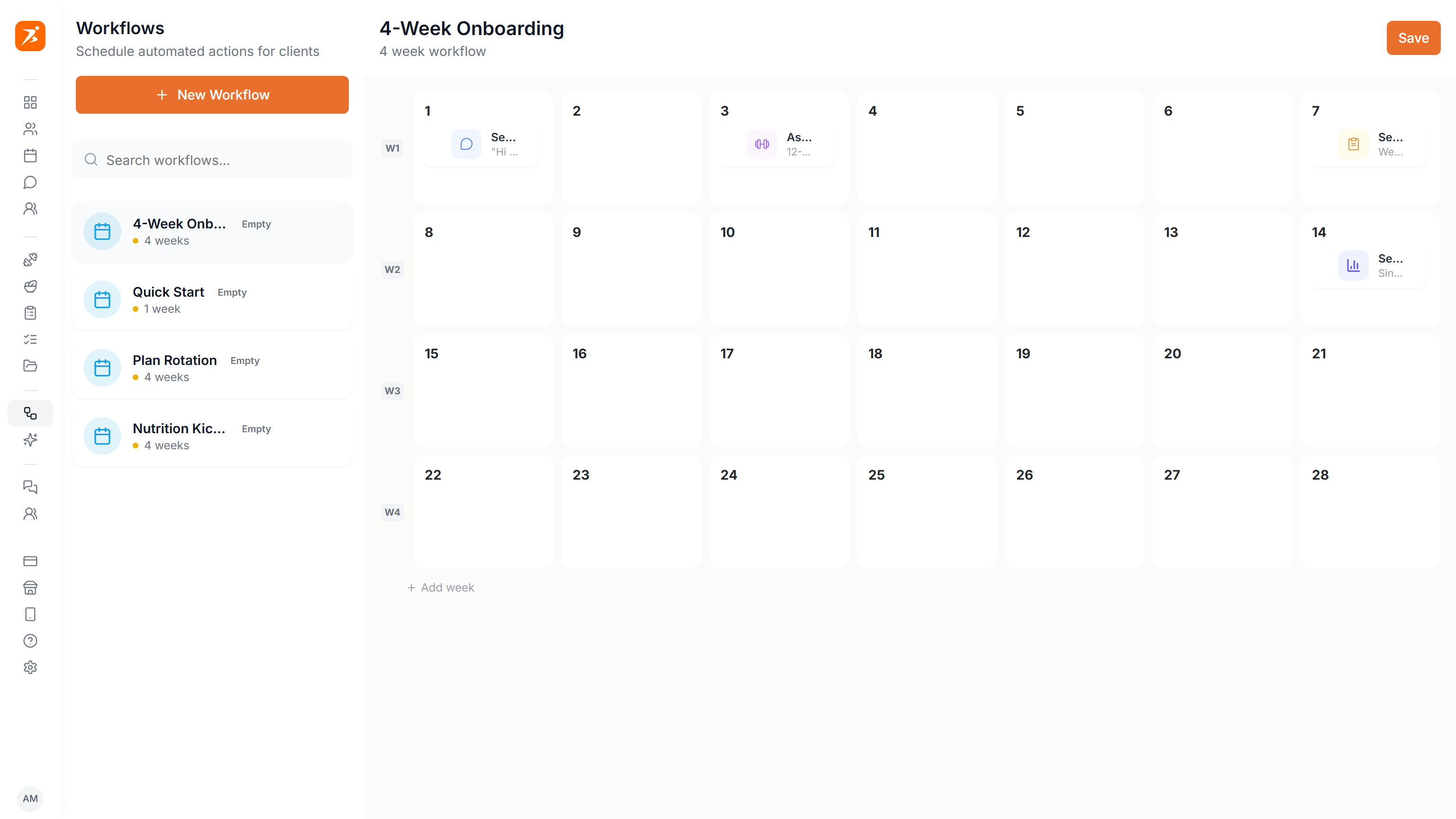
Create one, give it a name, and choose how many weeks it runs.
A welcome message
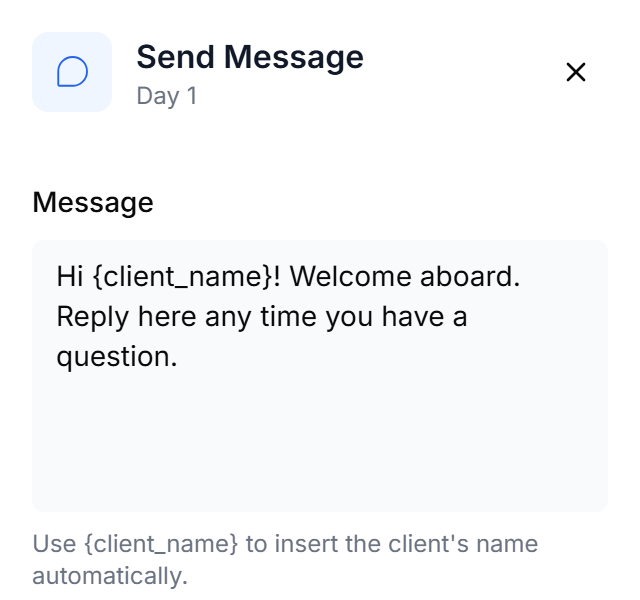
Then fill the days. On day one, a welcome message. The name placeholder is filled in for every client.
Assign a training plan
On the same day, a training plan from your library.
Add a check-in
A week in, a check-in.
Copy and paste steps
Right-click a step to copy it, and paste it on another day.
Progress summary
And at the end of the month, a progress summary.
Save
Save it, and the list shows it as ready.
Colour, icon and duplicate
Give it its own colour and icon, and duplicate it when your next workflow starts out the same.
More details and screenshots
Workflows
A workflow is a calendar of actions that start on the day you assign it. Build a template once, assign it to any client, and each action runs on its own day.
Workflows are on the Ultimate plan.
Building a template
Open Workflows in the sidebar. Your templates are listed on the left. Click New Workflow, enter a Template Name and a Duration (weeks), then click Create Template. You get an empty calendar with one row per week.
Days are numbered from the day the workflow starts for a client: Day 1, Day 8, Day 15. Add week makes it longer.
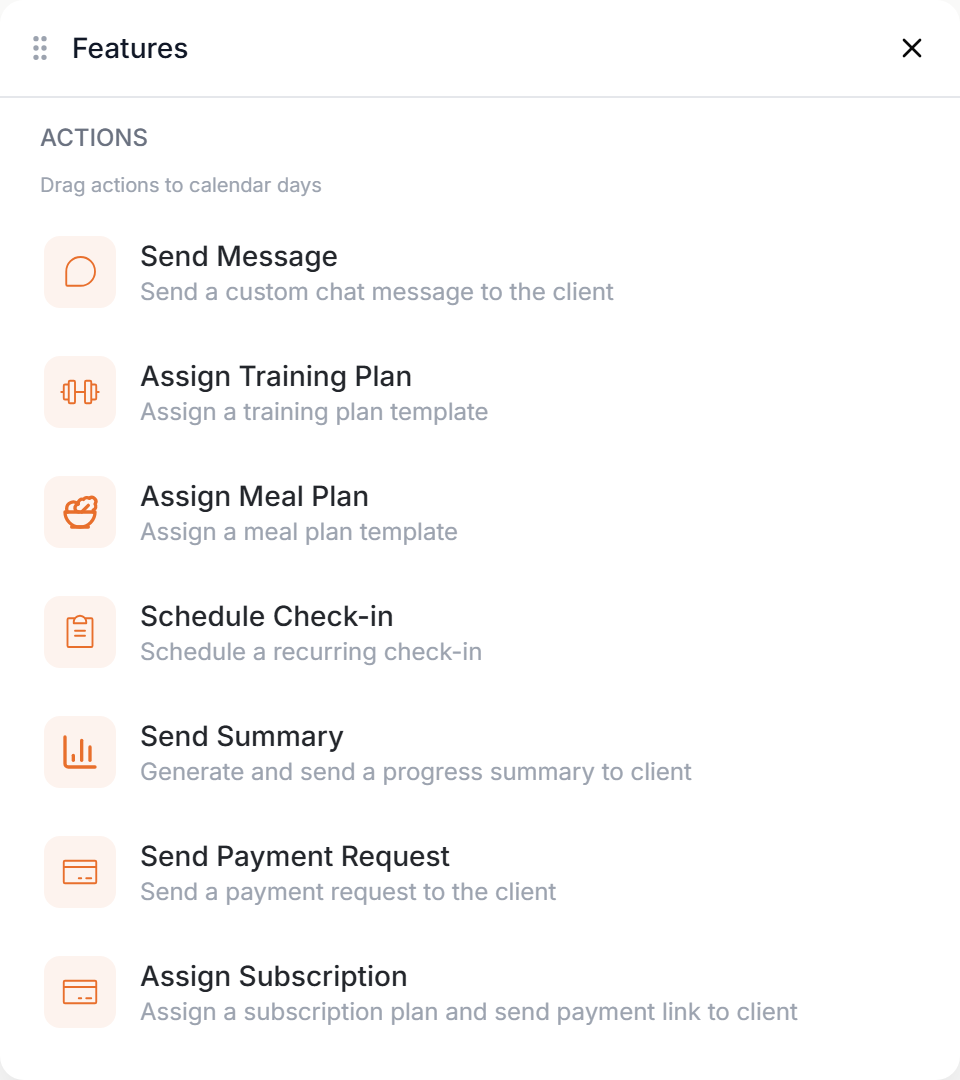
Click an empty day to add an action. A template can use these six:
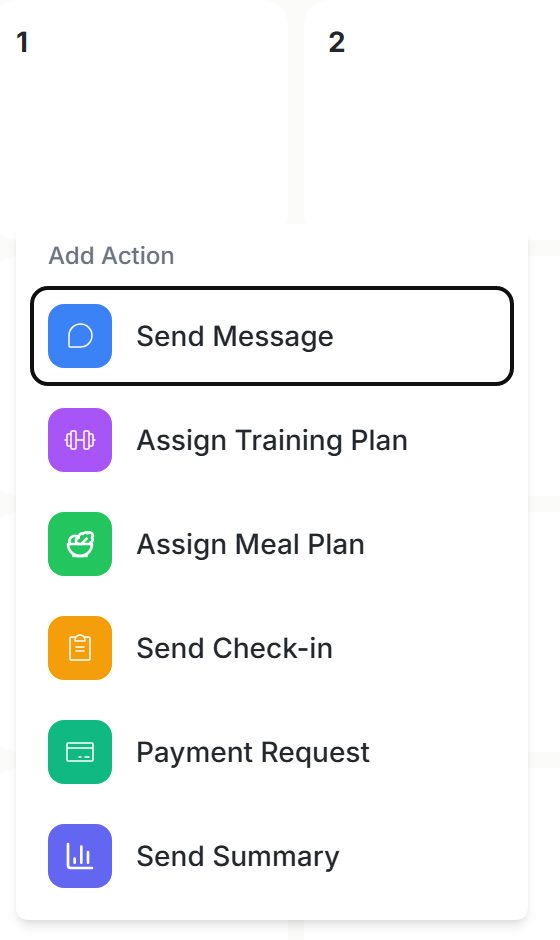
Click an action to set it up in the panel on the right, such as the message, the plan or the check-in template. An action that is not set up yet has an amber dot. In the list, a template shows Empty, a count of unconfigured actions, or Ready.
Drag an action to another day to move it. Use Select to pick several actions and delete or duplicate them. Ctrl+Z and Ctrl+Shift+Z undo and redo. Click Save when you are done.
Editing a template only changes future assignments. When you assign a workflow, Scraler freezes a copy of the template, so clients who are part-way through keep the schedule they started on. You cannot delete a template while it is still assigned to clients.
Assigning a workflow
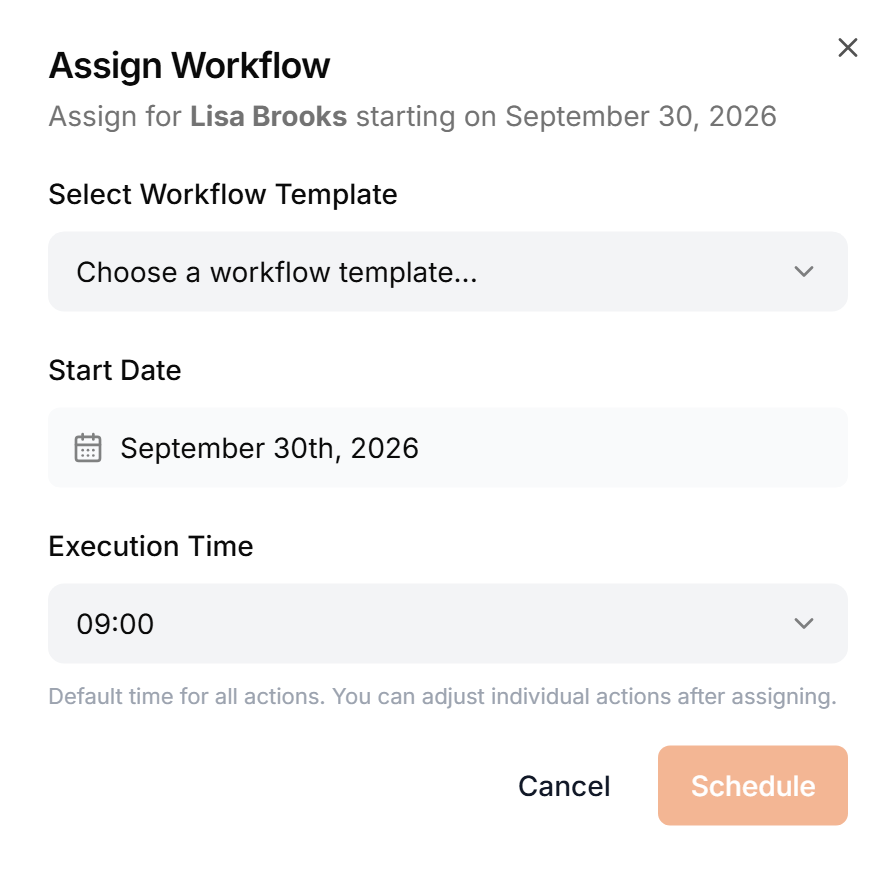
Open a client, go to the Workflows tab and click Assign Workflow. Pick a template, a Start Date and an Execution Time, then click Schedule. The execution time is the default for every action. You can change single actions afterwards.
You can also schedule single actions. Click a day on the client's calendar to open the Features panel, then drag an action onto a day and set it up. It has seven actions: the six above and Assign Subscription.
View Assigned Workflows lists every assignment with its status. Start Now starts a scheduled one early, Pause and Resume control an active one, and Remove takes one off the client.