
Training plans
Calendar plans and fixed programs, built by hand or with AI.
From workouts to a program
A training plan turns your workouts into a program.
Create a plan
Create one from scratch, give it a name, and pick how it's laid out.
Fixed or calendar
Fixed is a rotation of named days your client works through at their own pace. Calendar puts workouts on real weekdays.
Drag workouts onto days
In a calendar plan, drag workouts from your library onto the days.
AI Coach: copy weeks, add a deload
Need more weeks? Ask the AI Coach to copy the week forward and add a deload.
Excel export and import
Calendar plans export to Excel, and you can import one too.
Save the plan
Save it, and it's ready to assign.
Build a fixed program
A fixed program is a list of days. Add a day, name it, and drag in the exercises.
Categories
Categories keep a growing library tidy.
Draft a plan with AI
Or describe the plan you want, and let AI draft all of it. Review it, adjust anything, and save.
More details and screenshots
Training plans
A training plan is a template: weeks of workouts you build once and assign to any client. Every client gets their own copy, so changing one client’s plan never touches the others.
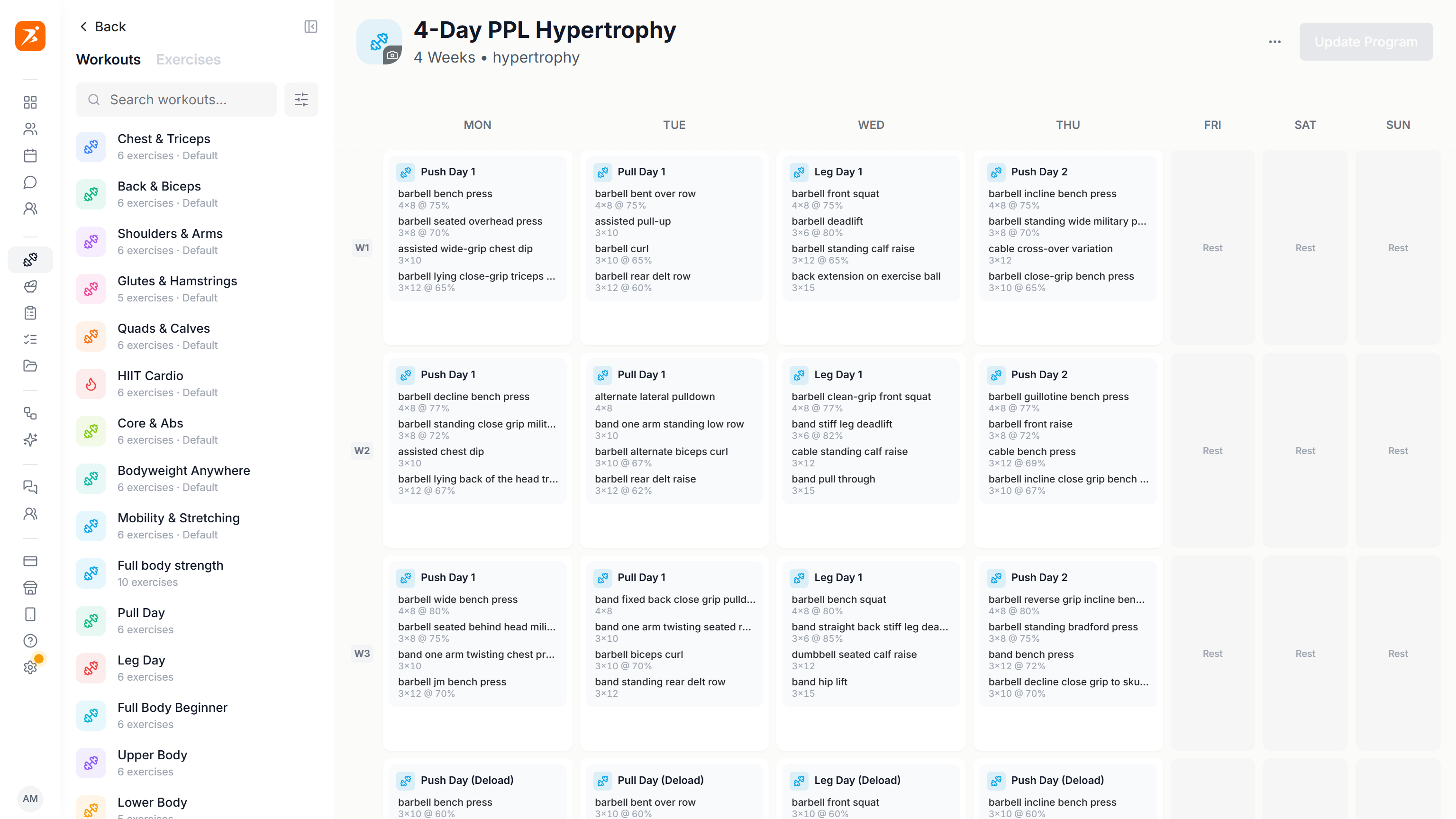
Build a plan
Open Training Plans and click Create Template. Build from Scratch opens the plan builder. Build with AI is covered on the AI training plans page.
First a small popup asks for the basics.
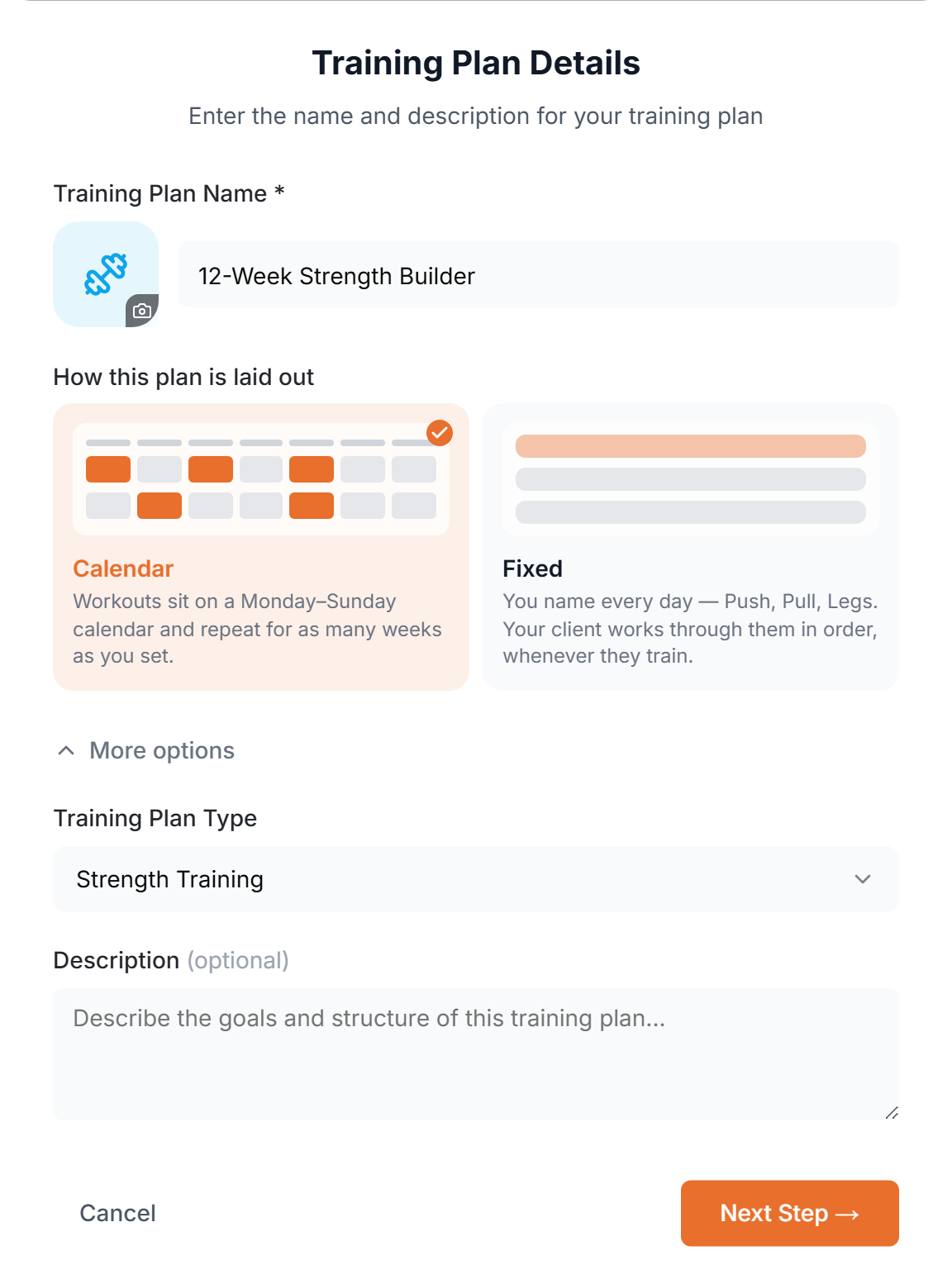
- Plan details
- A name and an icon, then the layout. Calendar puts workouts on a Monday to Sunday grid for as many weeks as you add. Fixed is a rotation of named days with no dates. The layout is chosen once and can’t be changed later. Type and description are under More options.
Fixed layout: read about fixed programs
The calendar has one row per week. Open the library with the panel button next to Back, then drag a workout onto a day.
- Move
- Drag a workout to another day. Hold Alt while dragging to copy it instead.
- Copy
- Right-click a workout and choose Copy workout, then right-click another day to paste it.
- Weeks
- Add week adds another row. The red x at the start of a week row deletes the week, and later weeks move up.
Click a workout to open it. Add exercises from the Exercises tab of the library, then fill in the sets. Sections, supersets and circuits work exactly as in the workout builder.
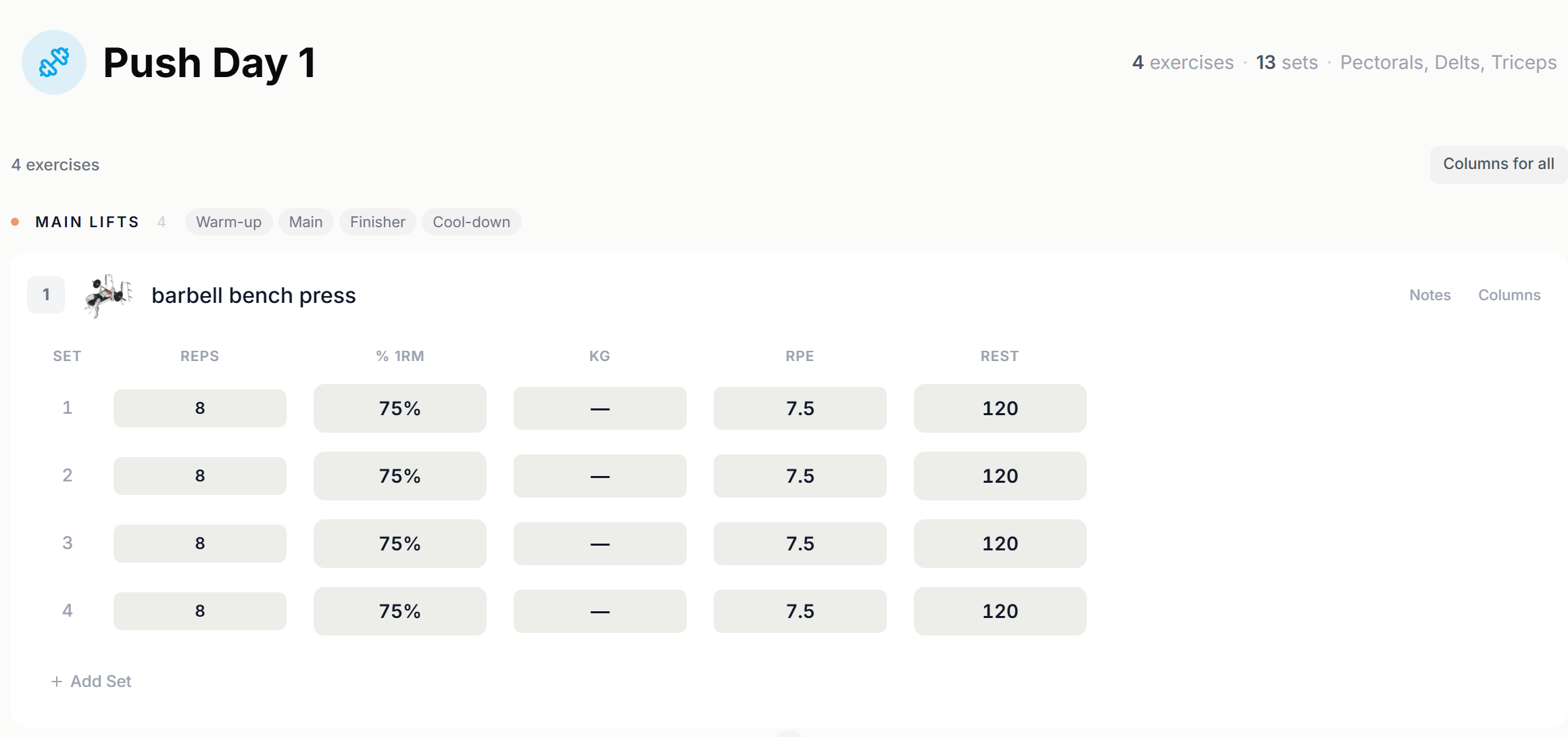
- Columns
- Every exercise has a Columns menu: Reps, Weight, % 1RM, RPE, Rest, Duration and Distance. Show what you prescribe and hide the rest. Columns for all applies your choice to the whole workout.
- % 1RM
- A percentage becomes a weight for each client from the 1RM on their profile. Use Weight instead for a fixed load, or when a client has no 1RM yet.
- Notes
- Notes on an exercise are visible to the client.
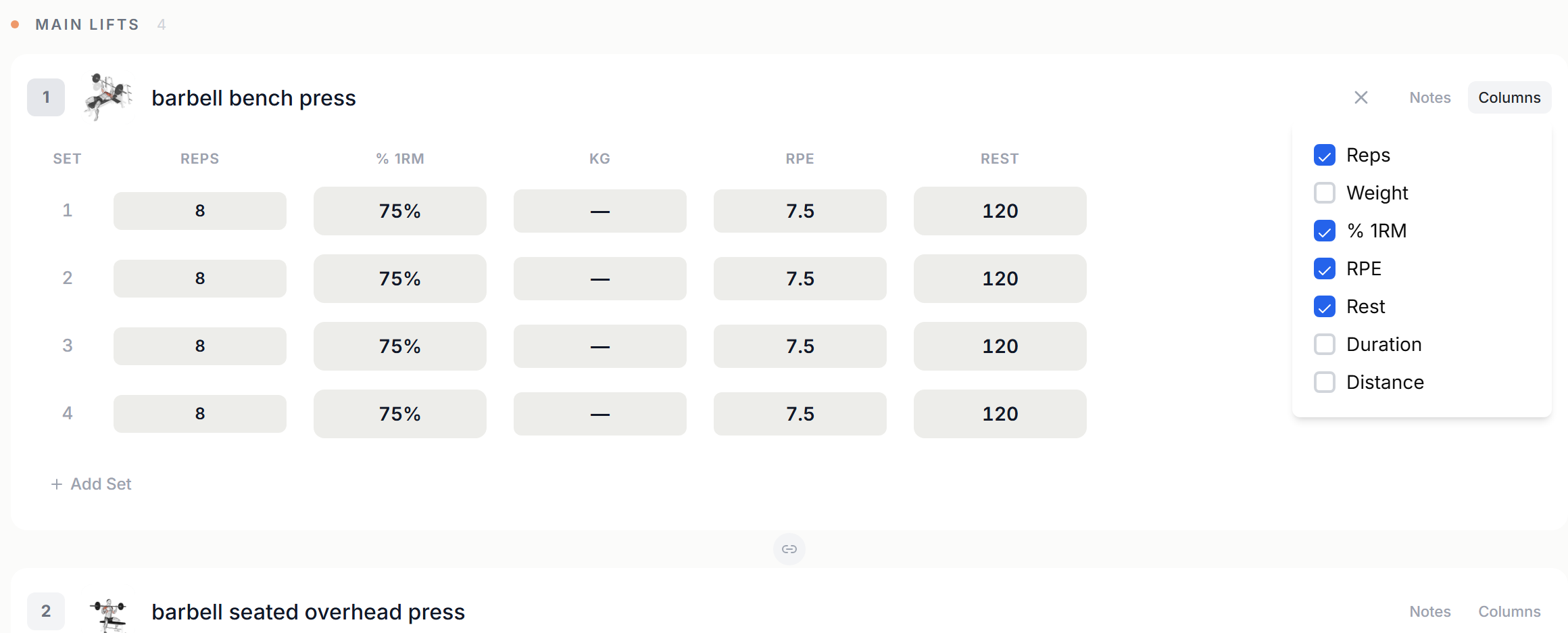
Sections are explained on the Workouts page
The button at the top right saves the plan (Update Program once it exists). It stays grey until you change something.
- Export Excel
- In the ⋯ menu of the builder. See Import and export.
- Publish to clients
- The globe icon on a plan in the list offers it to every client as a self-paced program. See Programs on the On-Demand page.
Export Excel · Publish to clients
Assign a plan to a client
Plans are assigned from the client’s Training tab: open the client, go to Training and pick a saved plan. Each client gets an independent copy. The assign dialog and moving workouts by drag and drop are covered on the client profile page.
Plan categories
Categories are your own labels for plans, such as Strength, Hypertrophy or Beginner. They sit in the sidebar under Categories while Training Plans is selected.
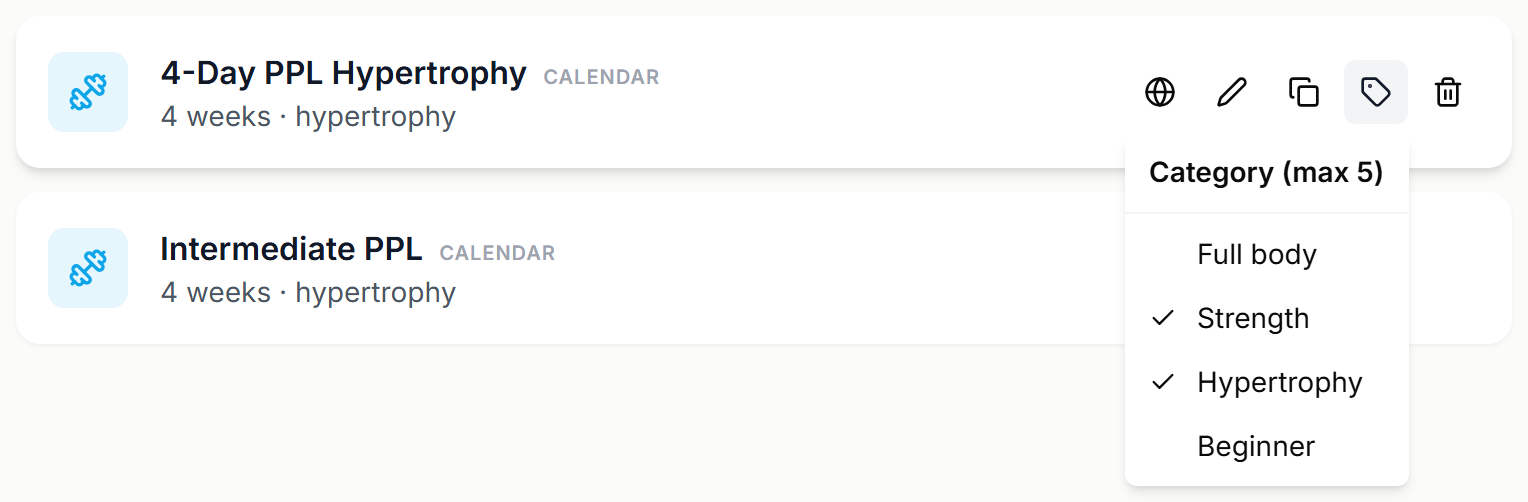
Category names in this picture are sample data.
- Create
- Click Add New Category at the bottom of the list, type a name and press Enter.
- Filter
- Click a category to list only its plans. All Categories shows everything again.
- Assign
- Hover a plan and click the tag icon. A plan can be in up to 5 categories.
- Remove
- Untick a category in the same menu to take the plan out of it.
Plan categories can’t be deleted, renamed or recolored yet.