
Earnings, analytics and payout settings
Revenue, subscriptions and every payment, with what you keep after fees.
Analytics
Analytics shows how the business is doing: revenue this month, active subscriptions, and churn. Change the period to look further back.
Earnings
Earnings lists every payment that came in, with Stripe's fees taken off the total. Switch between seven, thirty and ninety days.
Search payments
Search by client, description or amount, and open any payment in Stripe.
Payment notifications
And in your settings, under Notifications, choose to hear about every payment received, and every payment that fails.
More details and screenshots
Earnings, analytics and payout settings
Three items in the Finance sidebar show what you earn and how money reaches you.
Finance needs the Premium or Ultimate plan and a connected Stripe account.
Analytics
Open Analytics. Choose a period at the top right: Last 30 days, Last 3 months, Last 6 months or Last 12 months. Four cards give the summary: Revenue This Month, Active Subscriptions (with how many are new), Churn Rate (with how many canceled) and Period Revenue. The two charts show Revenue Trend and New Subscriptions by month.
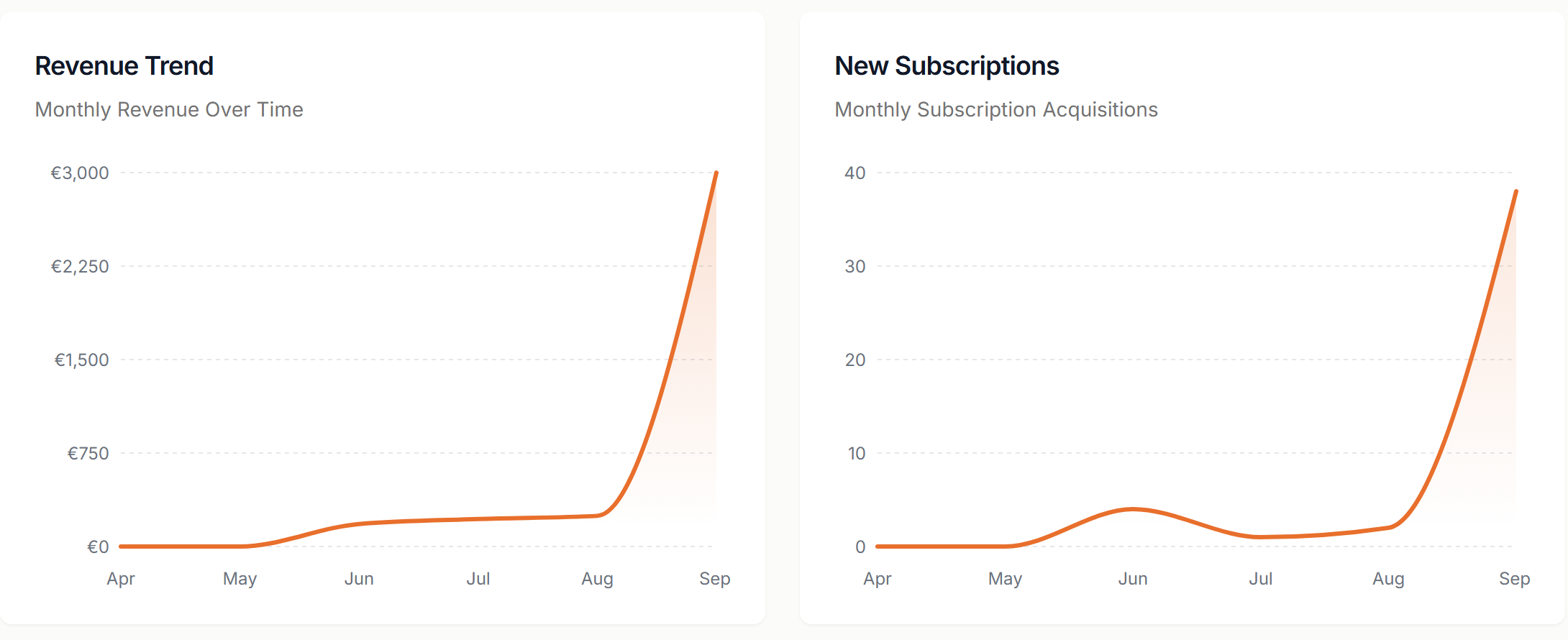
The top of the Finance sidebar also shows your active subscriptions and revenue on every Finance page.
Earnings
Open Earnings. The top card shows the last 7, 30 or 90 days: the net amount, the gross and the fees, and the number of payments. Below it, search by name, description or amount.
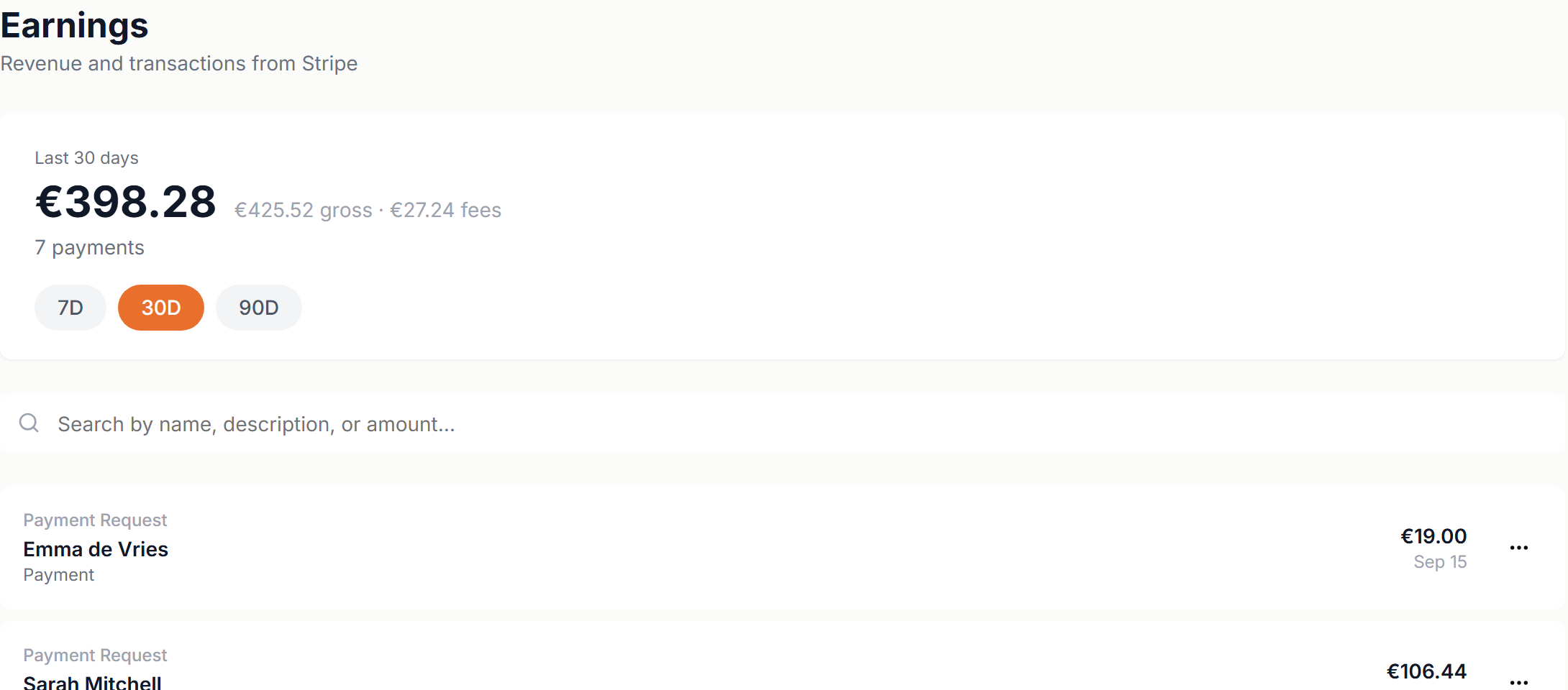
Each row shows the type (Subscription, Payment Request, Cookbook Purchase or Appointment), the client, the amount and the date. A refunded payment is marked as refunded. Open the ⋮ menu and choose View in Stripe to see the payment method, fees, receipt and refunds in your Stripe dashboard.
To refund a payment request, open it under Payment Requests. See Payment requests
Settings
Open Settings. The top card is your Stripe connection. The cards below open the matching page in your Stripe dashboard, where these things are set.
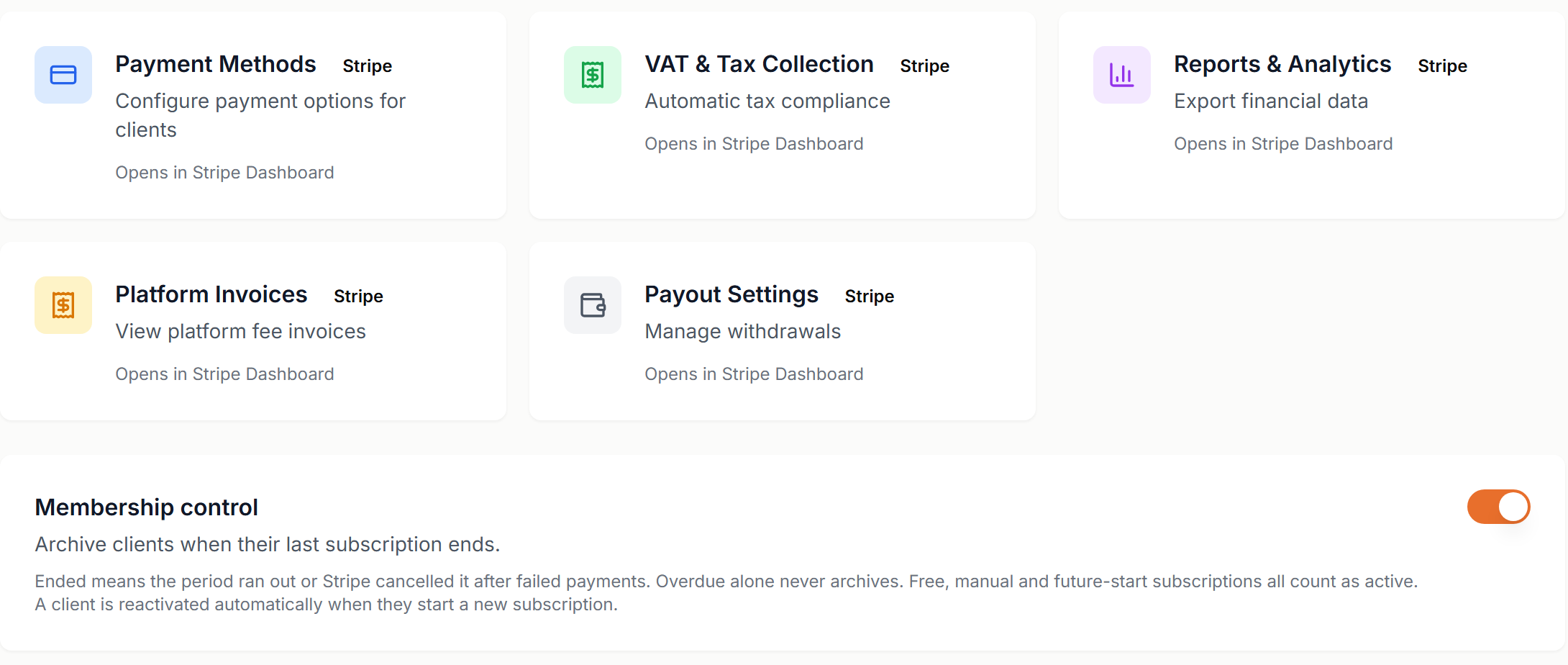
- Payment Methods
- Which payment methods clients can use.
- VAT & Tax Collection
- Tax rates, tax IDs and automatic tax collection.
- Reports & Analytics
- Export your financial data.
- Platform Invoices
- The invoices for platform fees.
- Payout Settings
- Your payout schedule, bank account and payout history.
Membership control archives a client when their last subscription ends. Ended means the period ran out, or Stripe cancelled it after failed payments. Being overdue alone never archives a client, and free, manual and future-start subscriptions count as active. A client comes back automatically when they start a new subscription. Only the account owner can change this.