
Studio Guide
Add a team, decide what each person can do and keep everyone in sync. Studio management is part of the Ultimate plan.
Team Management
Open Team Management in the sidebar. The page is called Studio Management and has four sections. Your studio name, logo and colors come from your own Settings and Branding.
Add managers
In Managers, click Add New Manager. Enter a name and email, choose how the account is set up and pick a role.
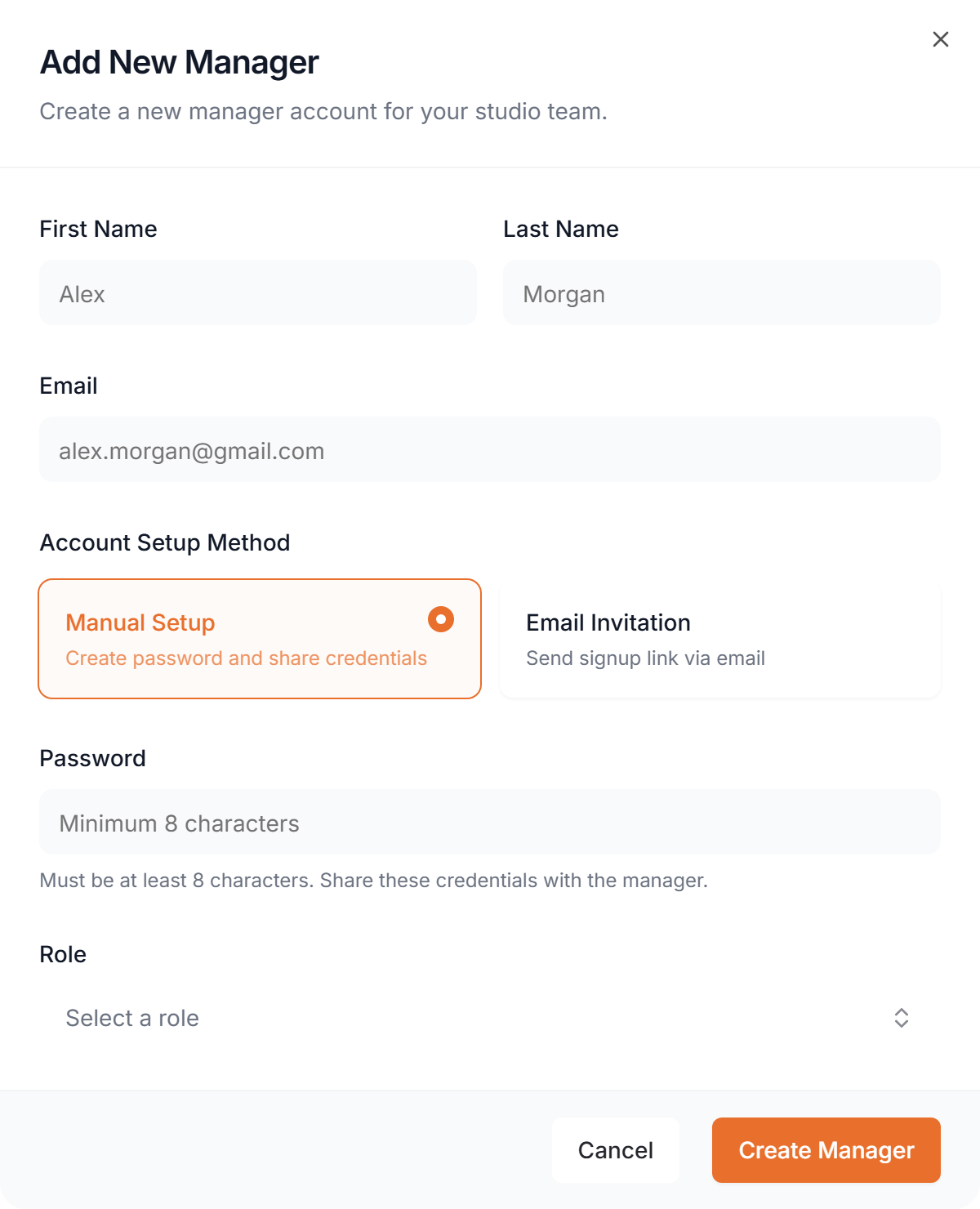
- Manual Setup
- You create a password and share it with them.
- Email Invitation
- They get a sign-up link and choose their own password.
Roles
Every manager has a role that decides what they can do. Four template roles come with your studio.
- Admin
- Full access to all studio features except owner settings. Can manage other managers and roles.
- Trainer
- Creates and manages workouts, meal plans and client sessions for their own clients.
- Finance
- Views and manages billing, payments and financial reports only.
- Nutritionist
- Creates and manages meal plans, recipes and nutrition tracking.
Custom roles
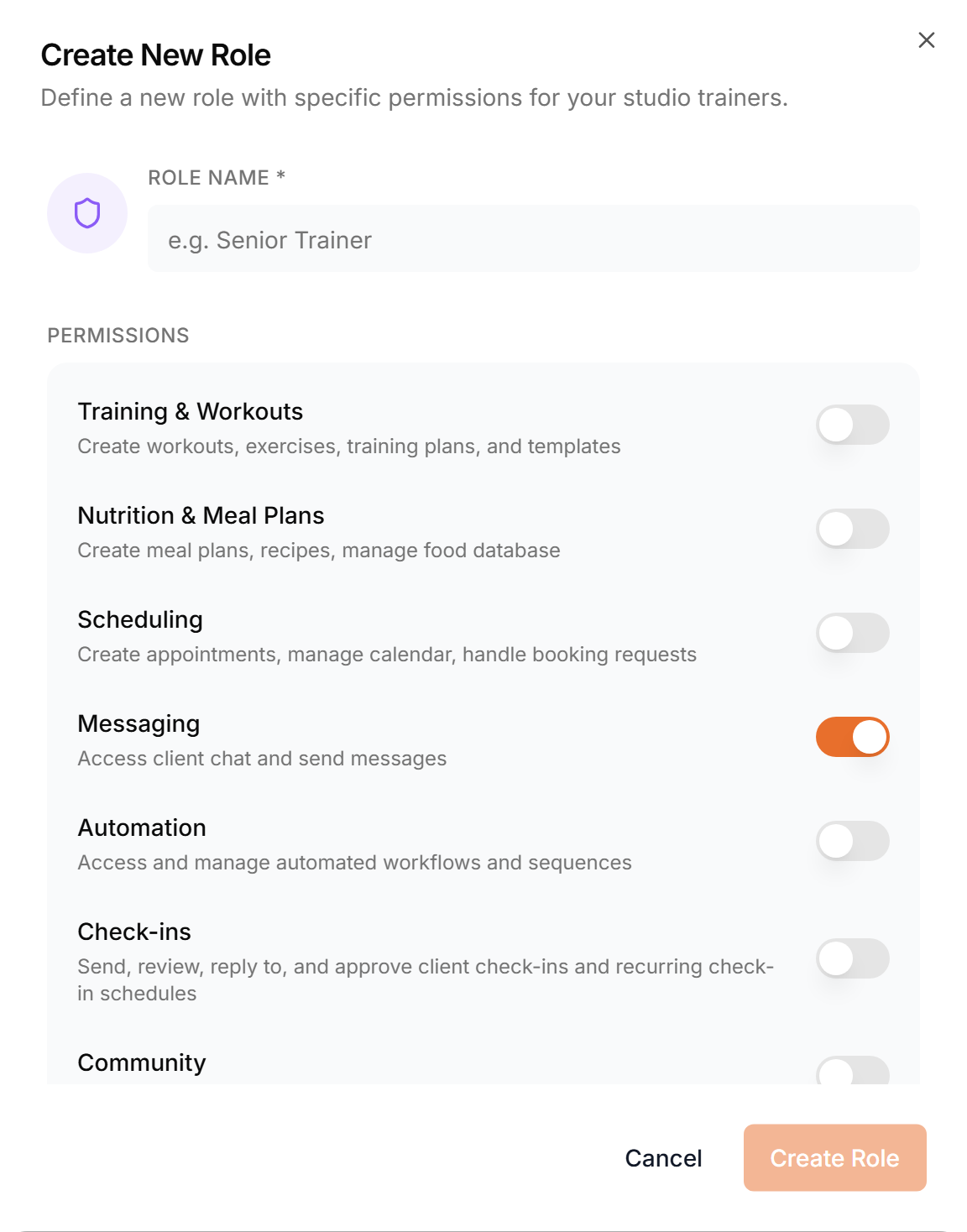
In Roles, click Add New Role, name it and switch on the permissions it should have. A custom role can be given to managers like any template role.
Assign clients
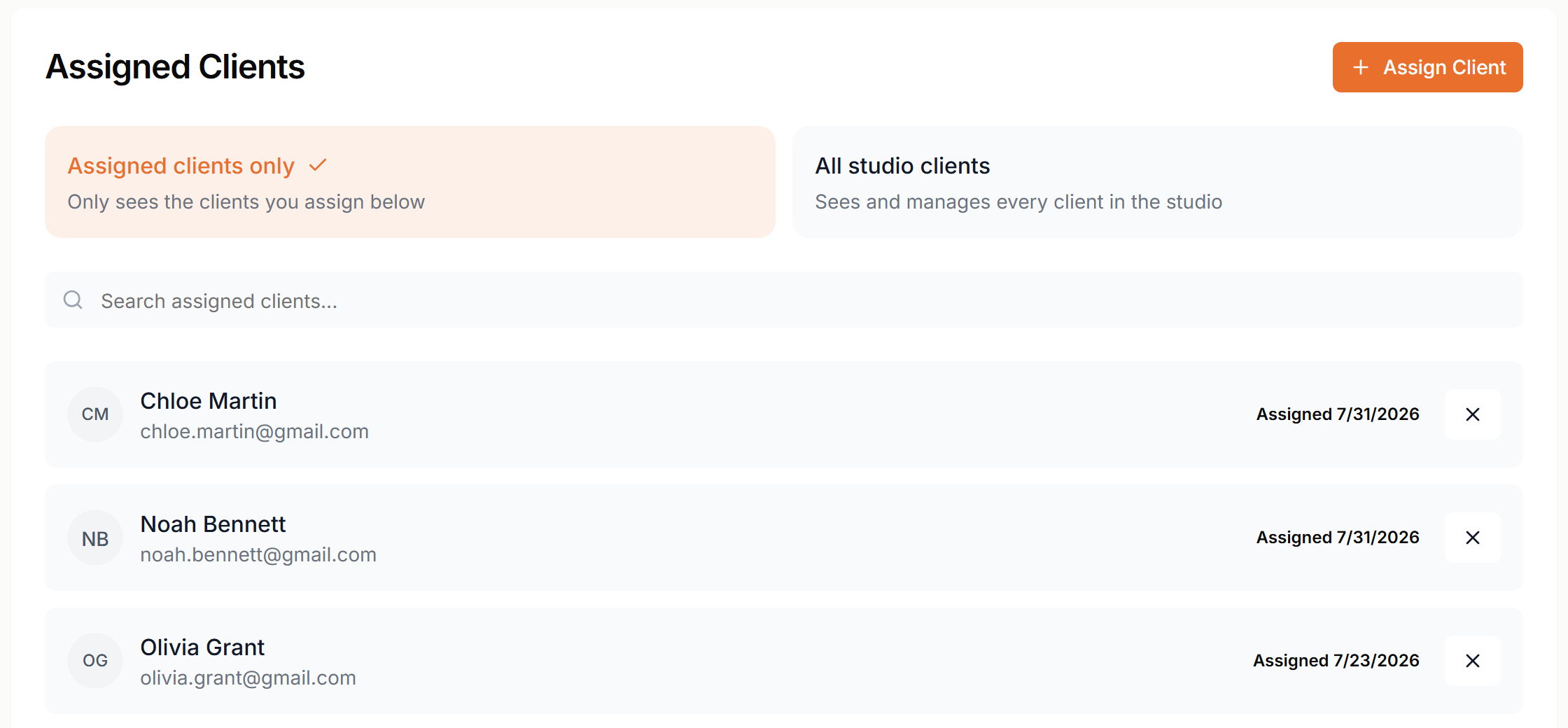
Open a manager and go to the Assigned Clients tab. Choose Assigned clients only or All studio clients, then click Assign Client to pick who they work with. You can change this any time.
Locations
Running more than one club? Add each location with its address in Locations. Give managers and clients a location, then filter your client list and calendar by it.
More about locations and to-dos
Team chat
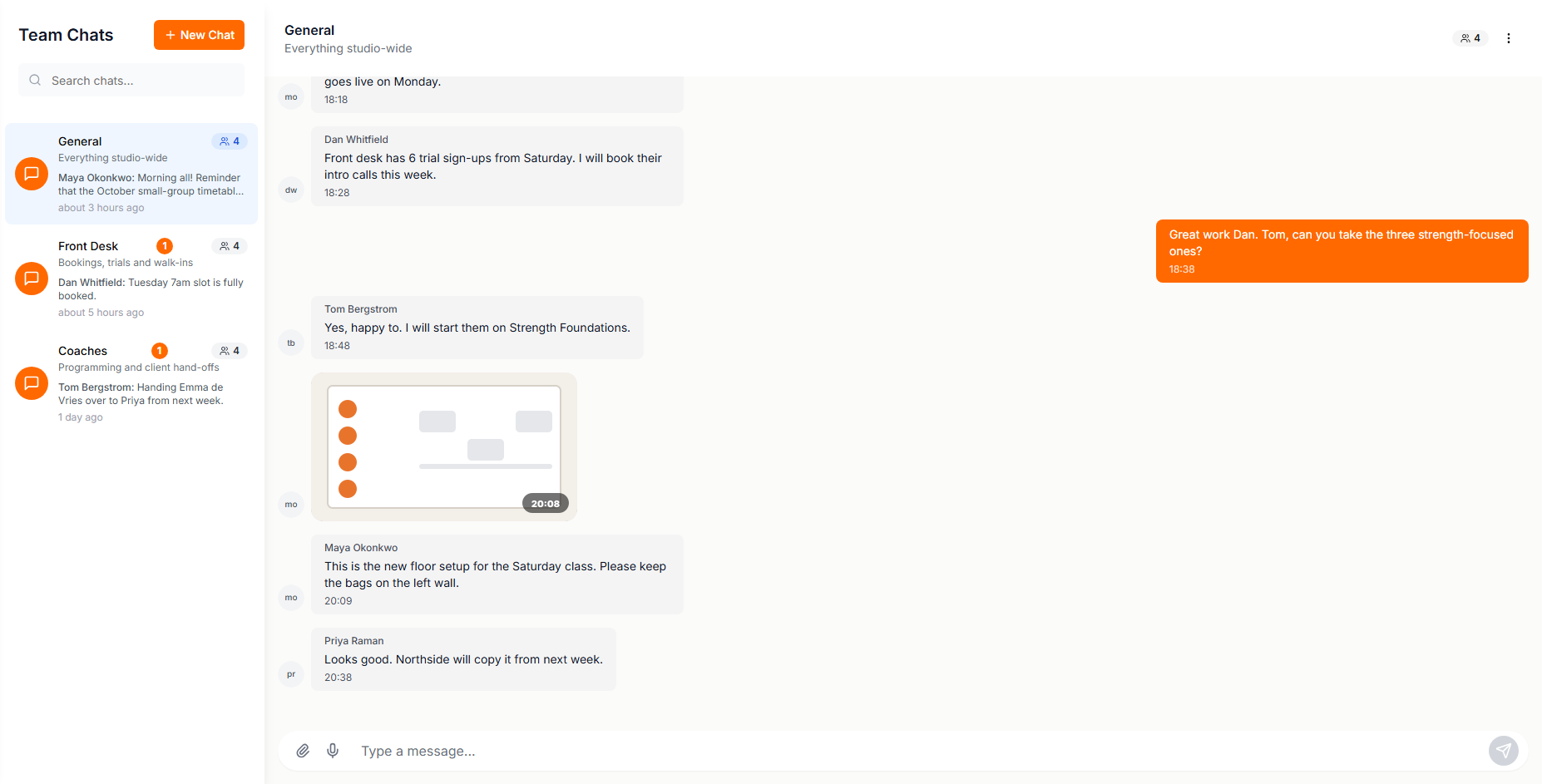
Go to Studio Chats to message your team. Create a chat for each topic. Every team member and the owner can read and write in every team chat, and share files.
To-dos
In To-Do's, manage studio tasks on a board with three columns. Managers see their own tasks under My Tasks.
Scale your fitness business
Add team members, assign roles, and manage your studio from one dashboard.
Start Free Trial