
Chat
Real-time chat that keeps coaching personal at scale.
Your conversations
Chats keeps every client conversation in one place, most recent first.
Reply to a client
Open a conversation and reply. Your client gets it in their app right away.
Files and voice messages
Use the paperclip to send images, videos or files, and the mic for a voice message.
Live replies
Replies come in live, typing indicator included.
Send a payment link
The plus button creates a payment link: set an amount and a title, and it lands in the chat.
Request a check-in
The same menu sends a check-in request from any of your templates.
New and group chats
Start a new chat with any client, or pick several to make it a group.
Search conversations
And search finds a conversation by name.
More details and screenshots
Chat
Message clients one to one or in groups. Send text, files, voice notes, payment requests and check-in requests without leaving the conversation.
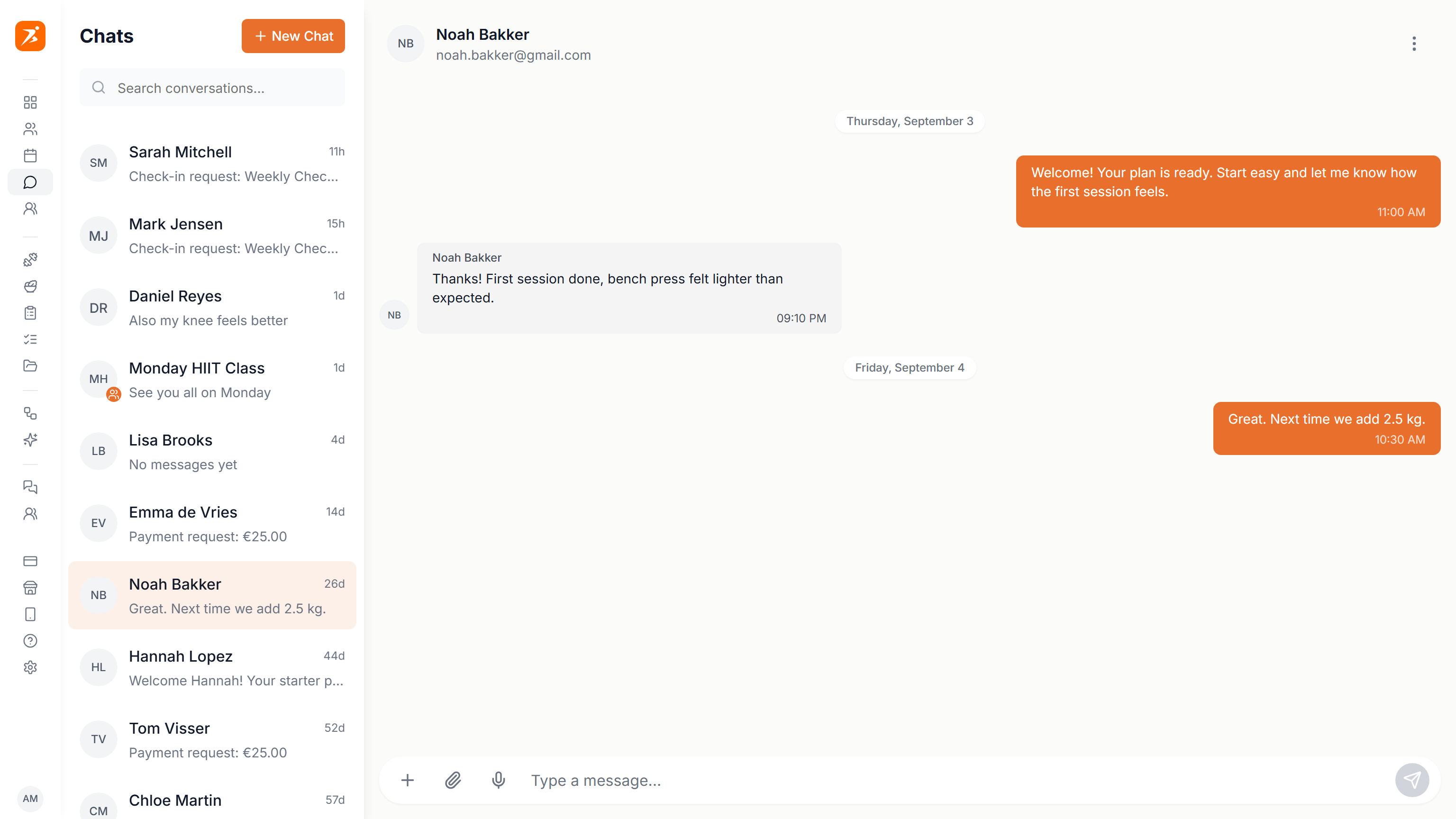
Direct messages
Open Chats in the sidebar. Your conversations are listed on the left, with a search box. Click New Chat and pick a client to start a one-to-one conversation.
Hover over a message to reply to it or react with an emoji. On your own messages you can also edit or delete. You see when the client is typing.
Everything you can send sits in the message bar.
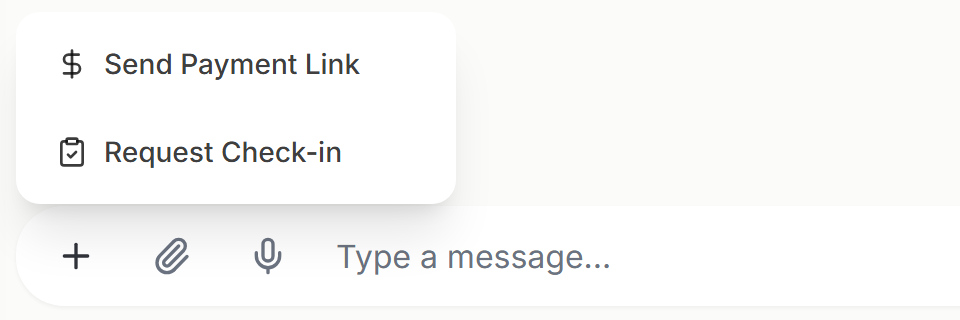
- + menu
- Send Payment Link and Request Check-in. Payment links need the Premium or Ultimate plan and a connected Stripe account. Request Check-in is only there in one-to-one chats.
- Attach file
- Images, videos, PDF, DOC, DOCX and TXT files. Images are compressed to about 1 MB. Videos can be up to 20 seconds. If your browser cannot compress video, send it from the mobile app.
- Voice message
- Record up to 2 minutes. You can send 5 voice messages per minute.
Payment requests, check-in requests, appointments and progress reports arrive as cards with a button for the client. The card shows the status.
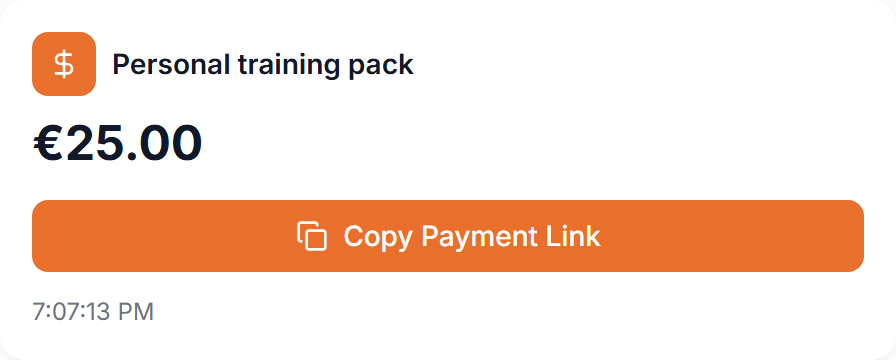
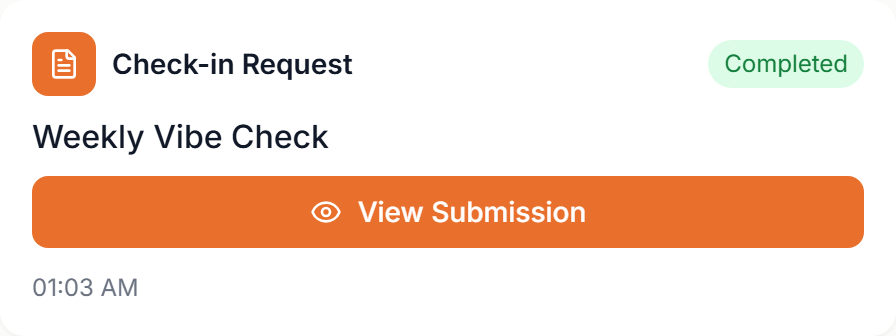
On a payment request you get Copy Payment Link and the client gets Pay Now. You can delete a request until it is paid, and its link stops working. A check-in card opens the answers with View Submission.
The ⋮ menu in the conversation header has Clear Chat, which removes all messages but keeps the conversation, and Delete Conversation, which removes it for good. Neither can be undone.
Group chats
Use a group for a challenge, a class or announcements to several clients at once.
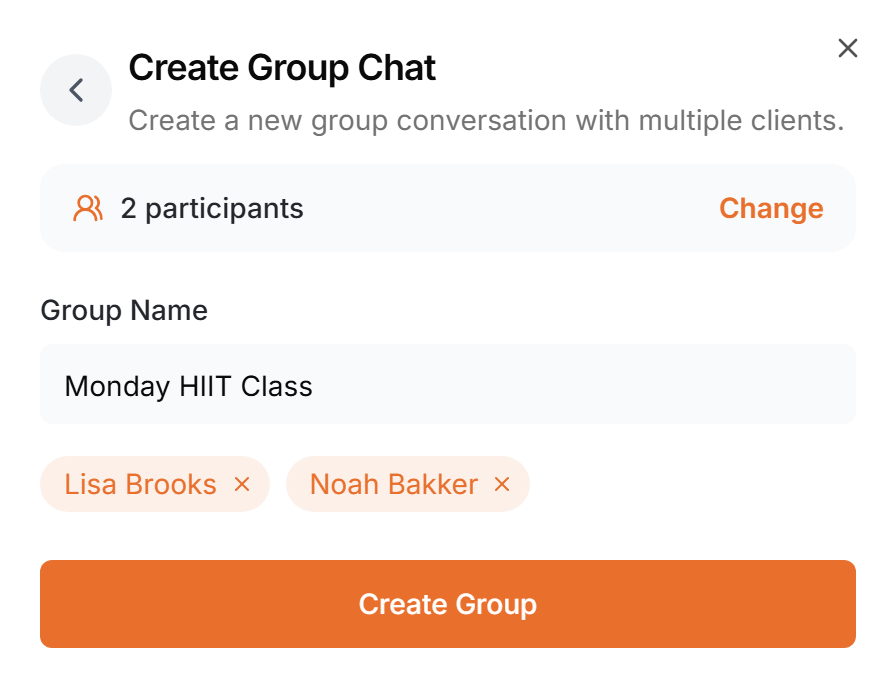
Click the group name in the header to open the group settings. Use Add Member to Group to add clients, and the X next to a member to remove them. You are listed as Group Admin.
Groups support payment requests but not check-in requests. A group payment request goes to every member at the same price.
Studio chats
Studio accounts also have team chats, separate from client conversations. Open Studio Chats in the sidebar. Everyone on the team is in every chat, so split chats by topic.