
Trainer Guide
A map of the platform in the order most trainers use it. Each part is short and links to the full page.
Get set up
Your profile, branding and payments are set up from the checklist on your dashboard. It lists the steps for your plan and ticks them off as you go.
Add clients
Go to Clients and click Add New Client. You only need a name and an email. Click Invite client and Scraler emails them an invitation so they can set a password.
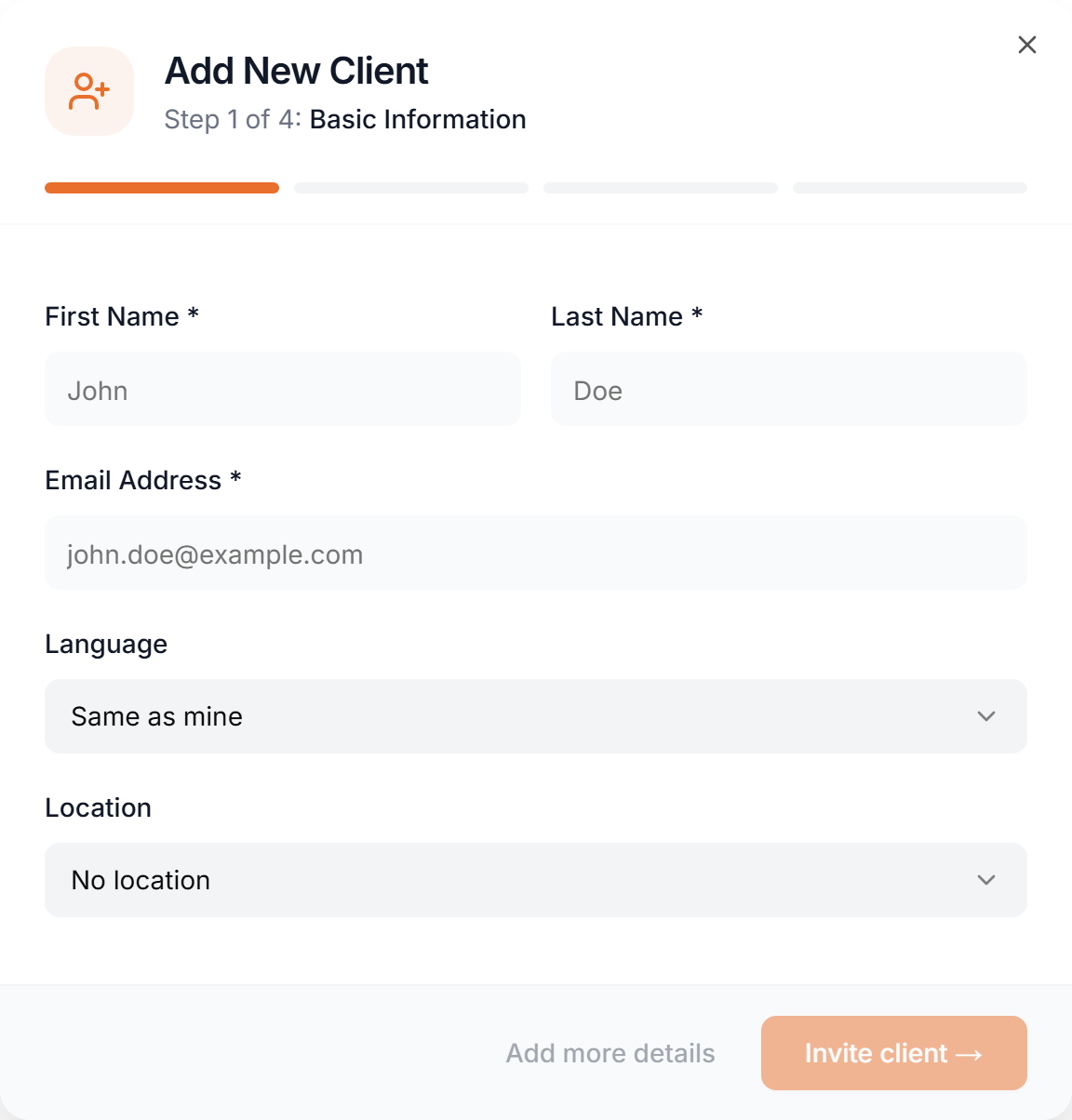
Need to send the invitation again? Open the client's profile and click Re-invite Client.
Training plans
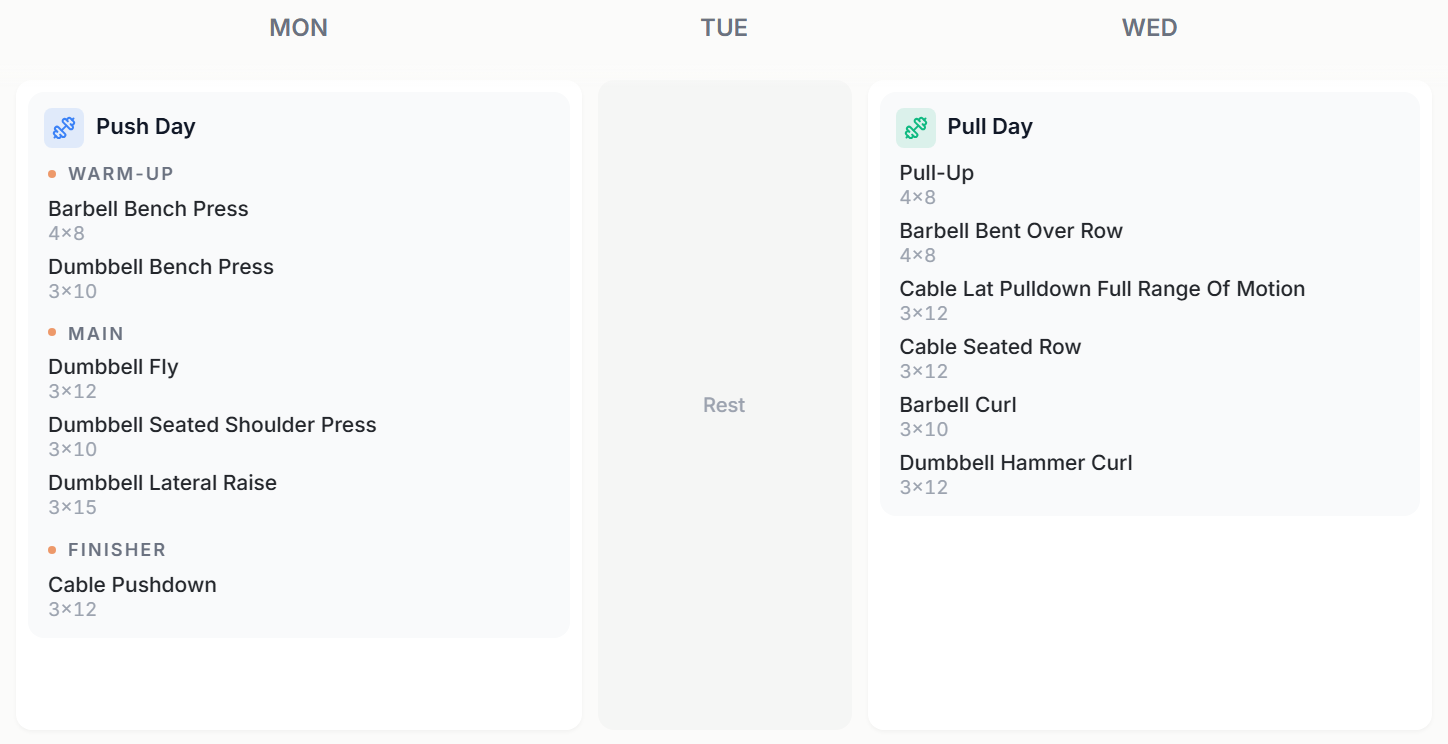
Go to Training to build workouts and plans. A plan is a set of weeks and days, and each day holds a workout.
- Build
- Pick exercises, set sets and reps, and arrange the days yourself. Split a workout into sections such as Warm-up, Main and Finisher. The plan days and your client's live workout show those section labels.
- AI
- Describe the goal and AI drafts the plan. Edit everything afterwards.
- Delivery
- Every client gets their plan in Calendar or Fixed mode. Calendar puts workouts on dates you choose. Fixed is a standing program with no dates. Calendar or Fixed delivery
Meal plans
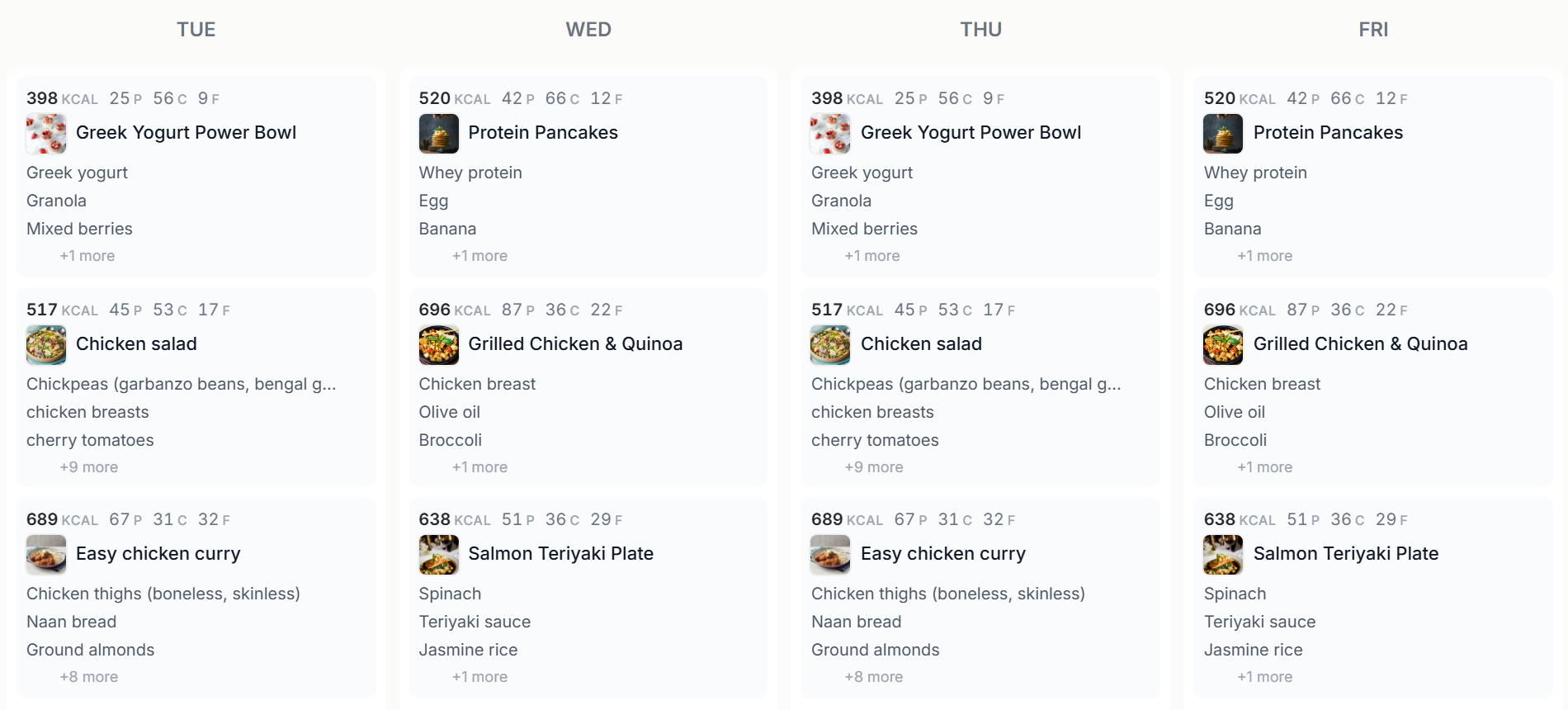
Go to Nutrition to build meal plans from your recipes and foods, day by day, with macros per meal. AI can draft one for you. Calendar and Fixed delivery apply here too. More about meal plans
Appointments
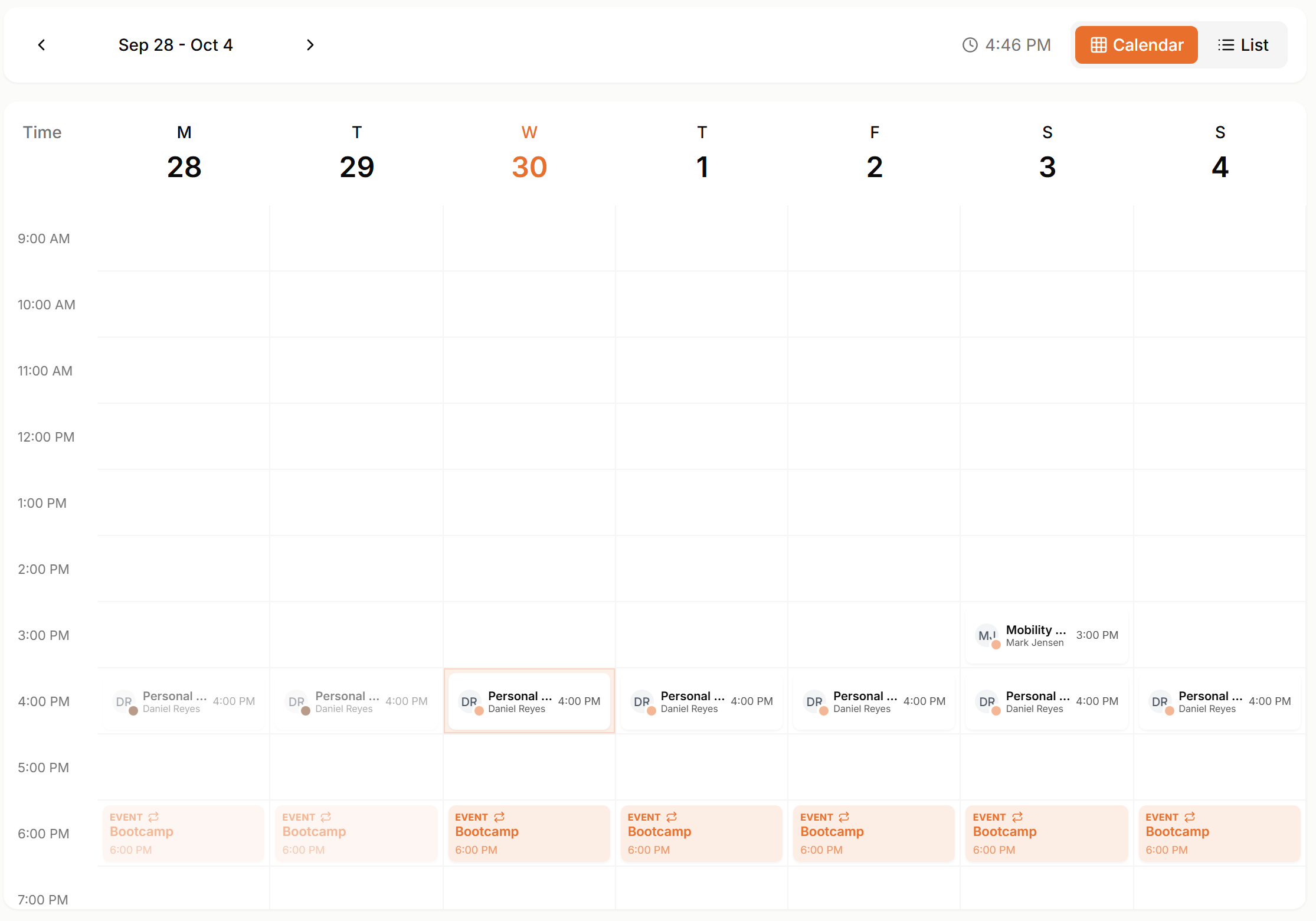
Go to Schedule to see your calendar and book sessions. Use Availability for your weekly open hours and Appointment Types for the sessions clients can book. Sessions can be one-on-one, group or recurring.
Chat
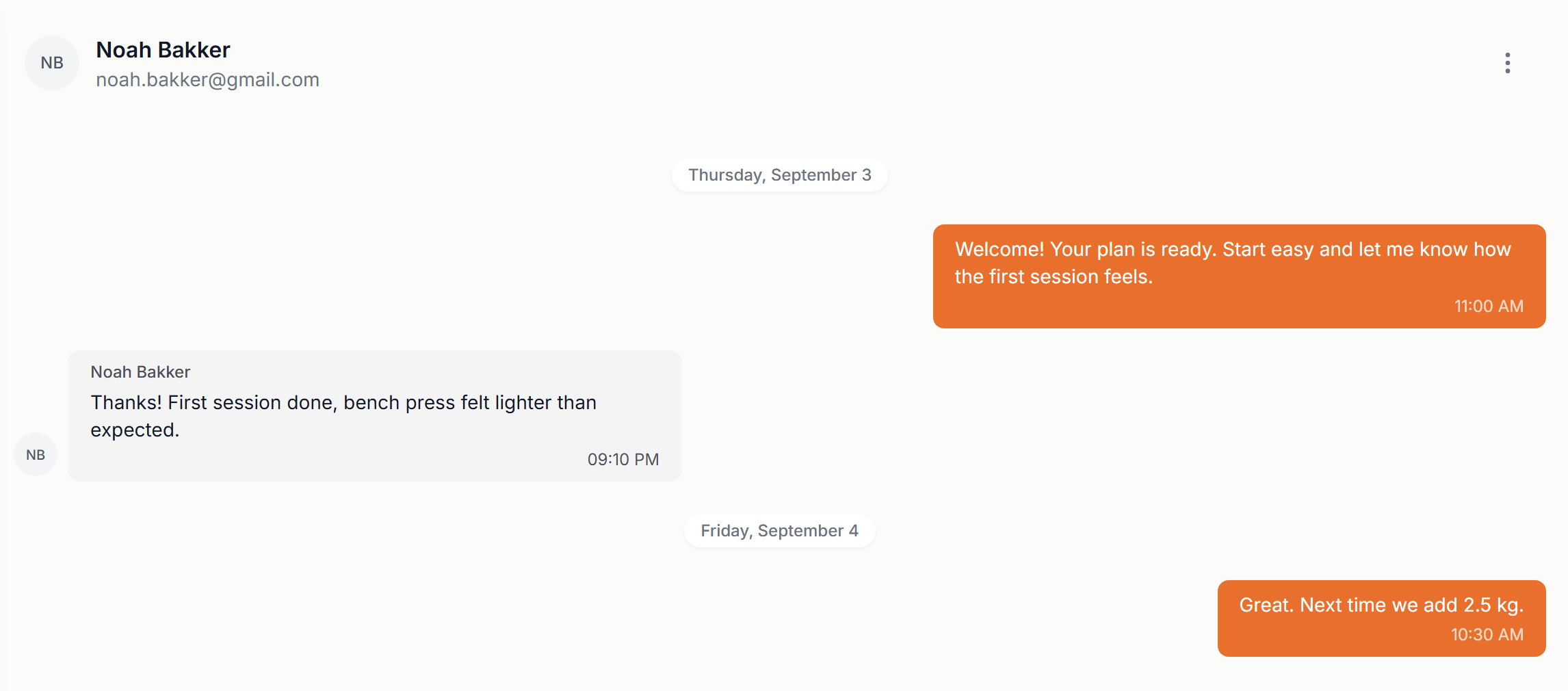
Go to Chats to message clients in real time. Send text, voice notes and files, or a payment request straight into the conversation.
Check-ins
Go to Check-ins to build templates with weight and measurements, your own questions, ratings and photos. Send them to clients and review the answers. More about check-ins
Automation and workflows
Part of the Ultimate plan. Automation runs when something happens, like a new client joining or a payment arriving: it sends a message, assigns a plan or requests a check-in. Workflows are multi-week programs of scheduled actions, like an onboarding sequence, that you assign from a client's profile.
About automationAbout workflows
Also in the platform
- Dashboard
- The Focus dashboard shows what needs your attention today.
- Habits
- Daily habits and challenges for your clients.
- Vault
- Files, guides and videos you share with clients.
- Community
- A feed, polls and challenge boards for your clients.
- Landing page
- A public page for your business.
- My App
- Design your clients' app: home screen, tabs and style.
Ready to start training?
Start your 14-day free trial and set up your fitness business today.
Start Free Trial