Create group conversations to communicate with multiple clients at once. Perfect for challenge groups, class participants, or team announcements.
Create a group chat by selecting clients, setting a group name, and starting the conversation.
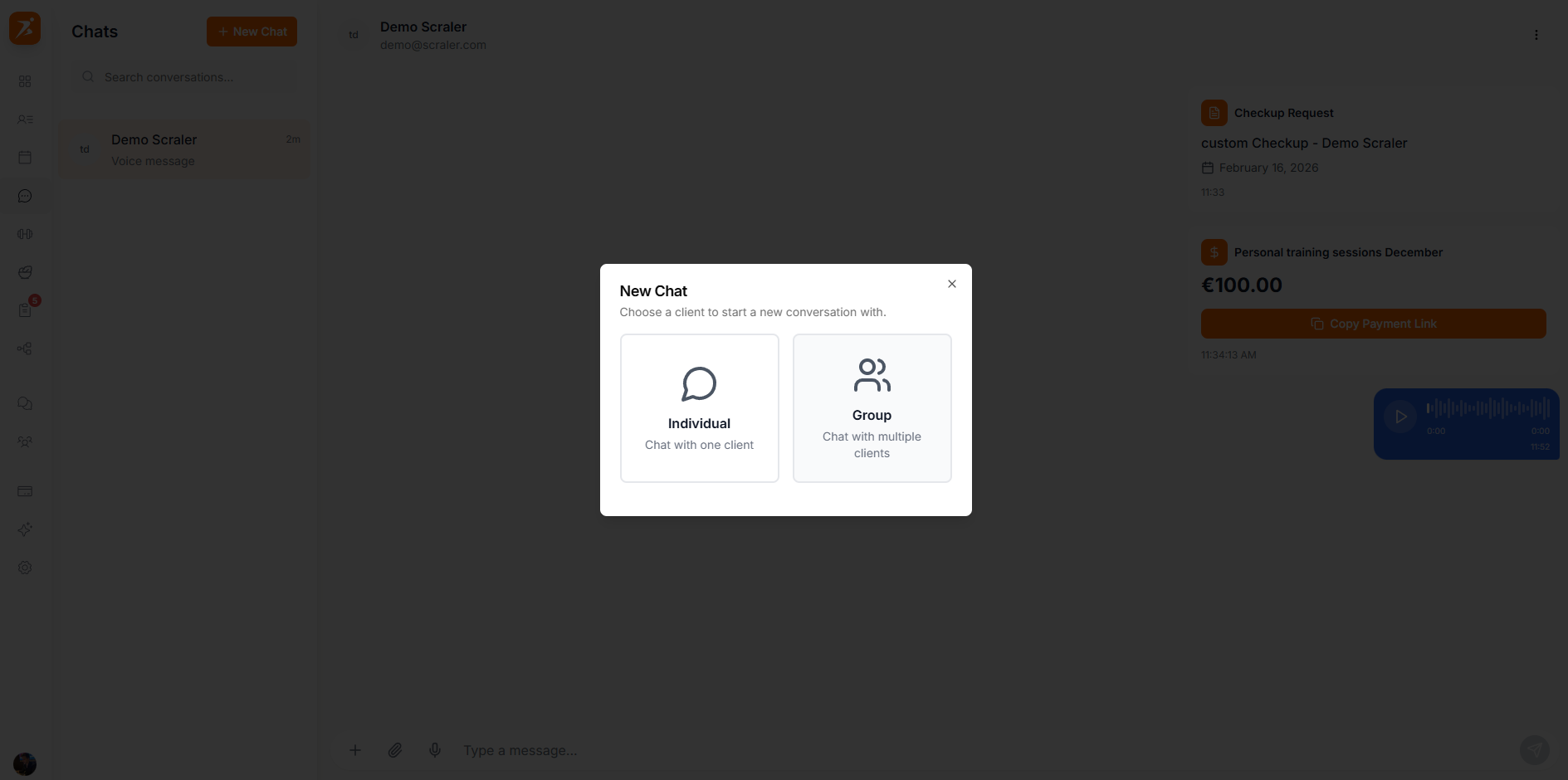
Follow these steps to set up a new group conversation:
Open the Chat section and click "New Chat."
Select two or more clients, then click "Next."
Enter a name for the group (e.g., "Monday HIIT Class").
Click "Create Group" to start the conversation.
You can manage your group members at any time from the group settings.
Invite new clients to an existing group chat at any time.
Remove clients who are no longer part of the group or program.
Clear a chat's message history while keeping the conversation, or permanently delete it for everyone.