Share a file with one client or many, and control whether it shows up on their side straight away.
Open the menu on any resource and choose Share. Toggle "Visible to Client" on to let the client see it on their Resources tab, or off to attach it without showing it yet. Search your client list, select as many as you need, and confirm. The card then shows "Shared with {count} client".
On a client's profile, open their Resources tab and click Add Resource. Pick From Vault to reuse something you already uploaded, or Upload New to add a fresh file. Either way it lands in your vault and is shared with that client using the visibility you choose.
From the client's Resources tab, use "Make Private" to hide a shared file from the client without deleting it. A private share stays attached to the client but is visible only to you while you are assigning resources. Use "Remove" to unshare it from that client entirely. Neither action deletes the file from your vault or from any other client it is shared with.
Clients open Resources from their sidebar and see only the files shared with them at "Visible to Client". They can filter by type, search, and download.
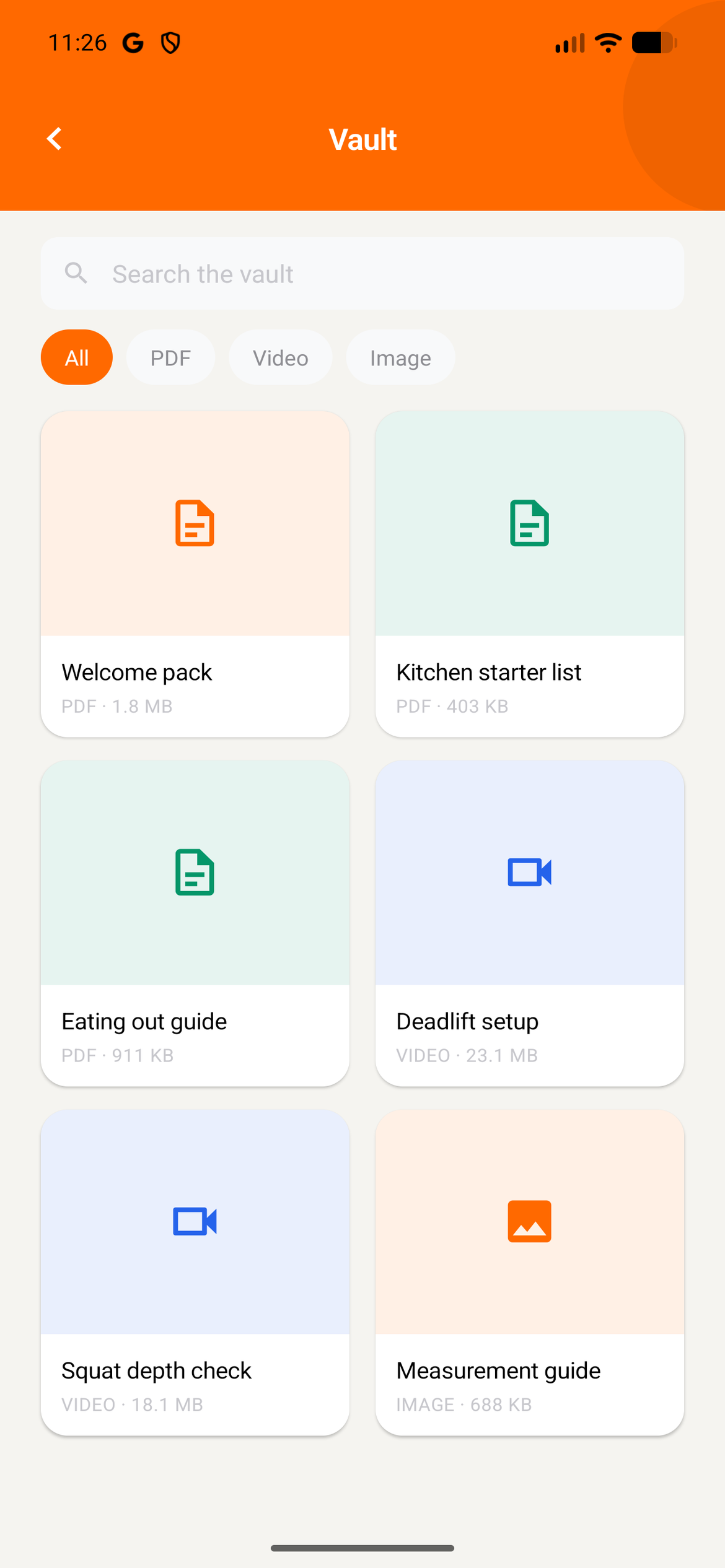
The Resources tab only appears for a client if the Vault feature is on for them. Turn it off from that client's profile, under Settings, Features, Content.
Give clients what they need, when they need it
Share once, from a library you already control.
Start Free Trial