Organize your training plans with custom color-coded categories. Filter and find plans quickly as your library grows.
Create custom categories to organize your training plans. Each category gets its own color for easy visual identification. As your plan library grows from a handful to dozens of templates, categories become essential for staying organized.
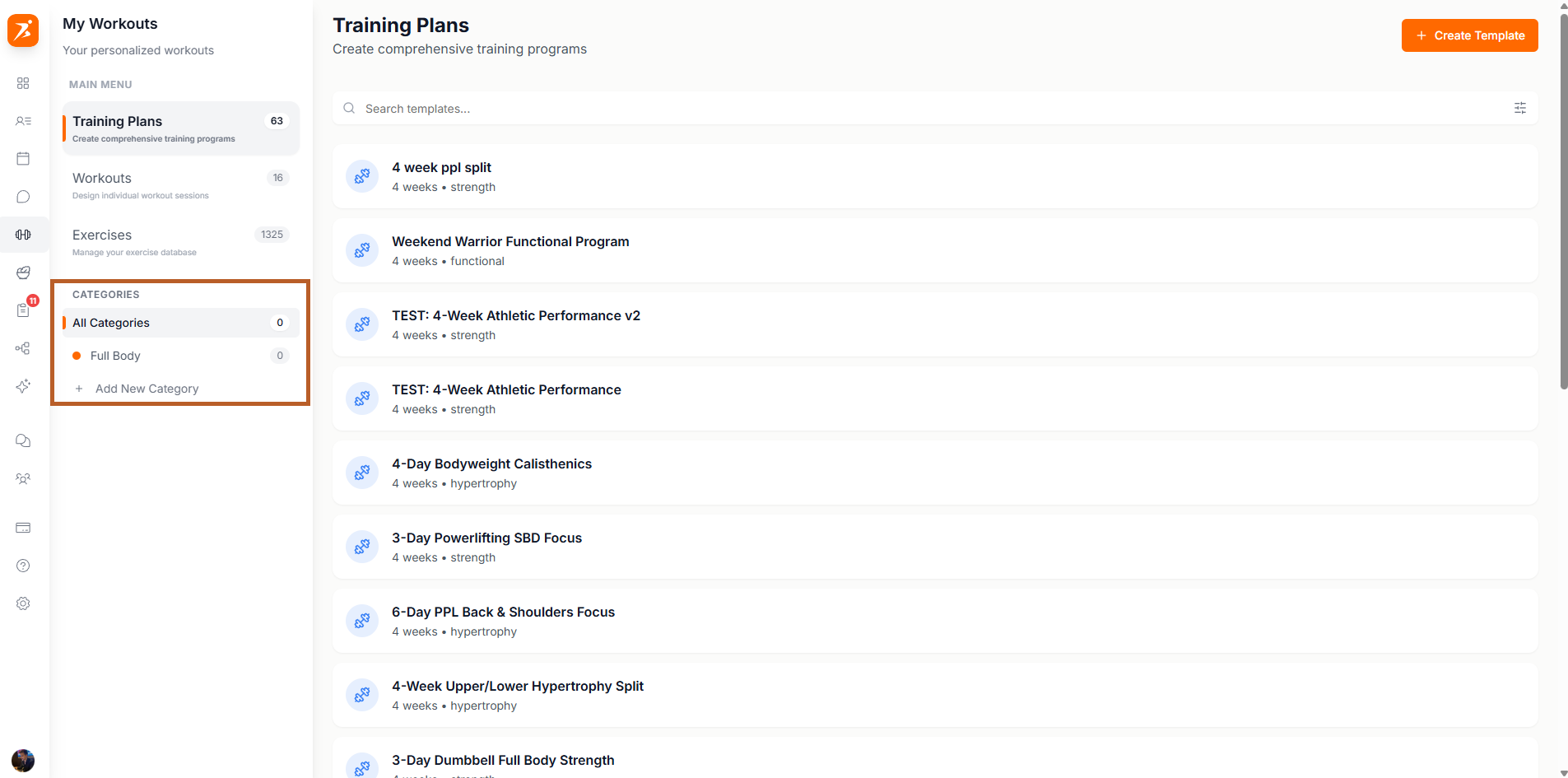
To create a new category, click the "Add Category" button in the plan categories section. Give it a name, pick a color, and you're done. Colors help you visually distinguish categories at a glance when browsing your plan library.
A clear label like "Strength", "Hypertrophy", or "Beginner"
Choose a color to make categories easy to spot
See how many plans belong to each category
Once you've set up categories, use the category filter on the training plans page to narrow your view. Click a category chip to see only the plans that belong to it. This is especially useful when you're looking for a specific type of plan to assign to a client.
You can rename a category, change its color, or delete it at any time. Deleting a category won't delete the plans inside it — they'll simply become uncategorized. You can always reassign them later.