You're in full control of your community — who can post, what appears at the top, and how it's moderated. Manage it all from the Settings tab.
The Settings tab lets you update the look of your community and the rules for who can post. Changes save instantly.
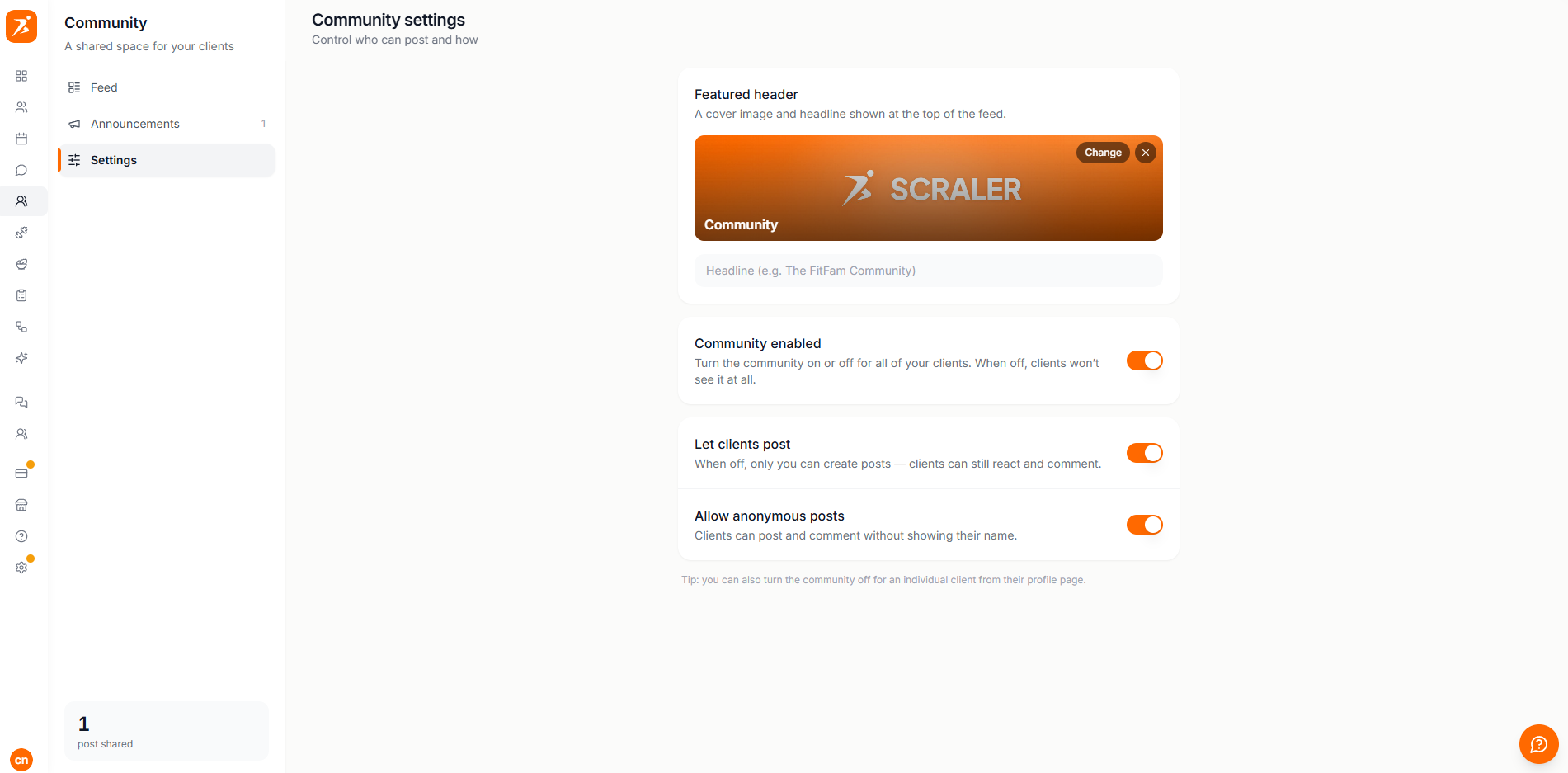
The master switch. Turn it off to hide the community from all clients at once.
When off, only you post. Clients can still like and comment on everything.
Let clients post and comment without showing their name — handy for sensitive questions.
Choose whether members get a push notification and/or an email whenever you post.
Pin important posts so they always sit at the top of the feed and appear in the Announcements tab.
As the owner you can keep the feed healthy and on-topic. You have full control over every post in your community.
When you allow anonymous posts, clients can choose to hide their name on a post or comment. Their name simply shows as Anonymous to everyone else, which encourages people to ask the questions they might otherwise hold back.
Anonymity is for other members only. For moderation, you can always remove a post that breaks your rules.
Need to remove a single client from the community without changing it for everyone? Open that client's profile and toggle the community feature off for them. They'll lose access while everyone else keeps theirs.
