Add team members to your studio. Invite managers by email, assign them a role, and give them access to manage clients and features.
Invite new managers to your studio and assign them roles with specific permissions.
Send an invitation to any email address. The manager creates their account through the invite link.
Give each manager a role title like Personal Trainer, Nutritionist, or a custom role name.
Control exactly what each manager can access — clients, workouts, finances, and more.
Follow these steps to add a new manager to your studio:
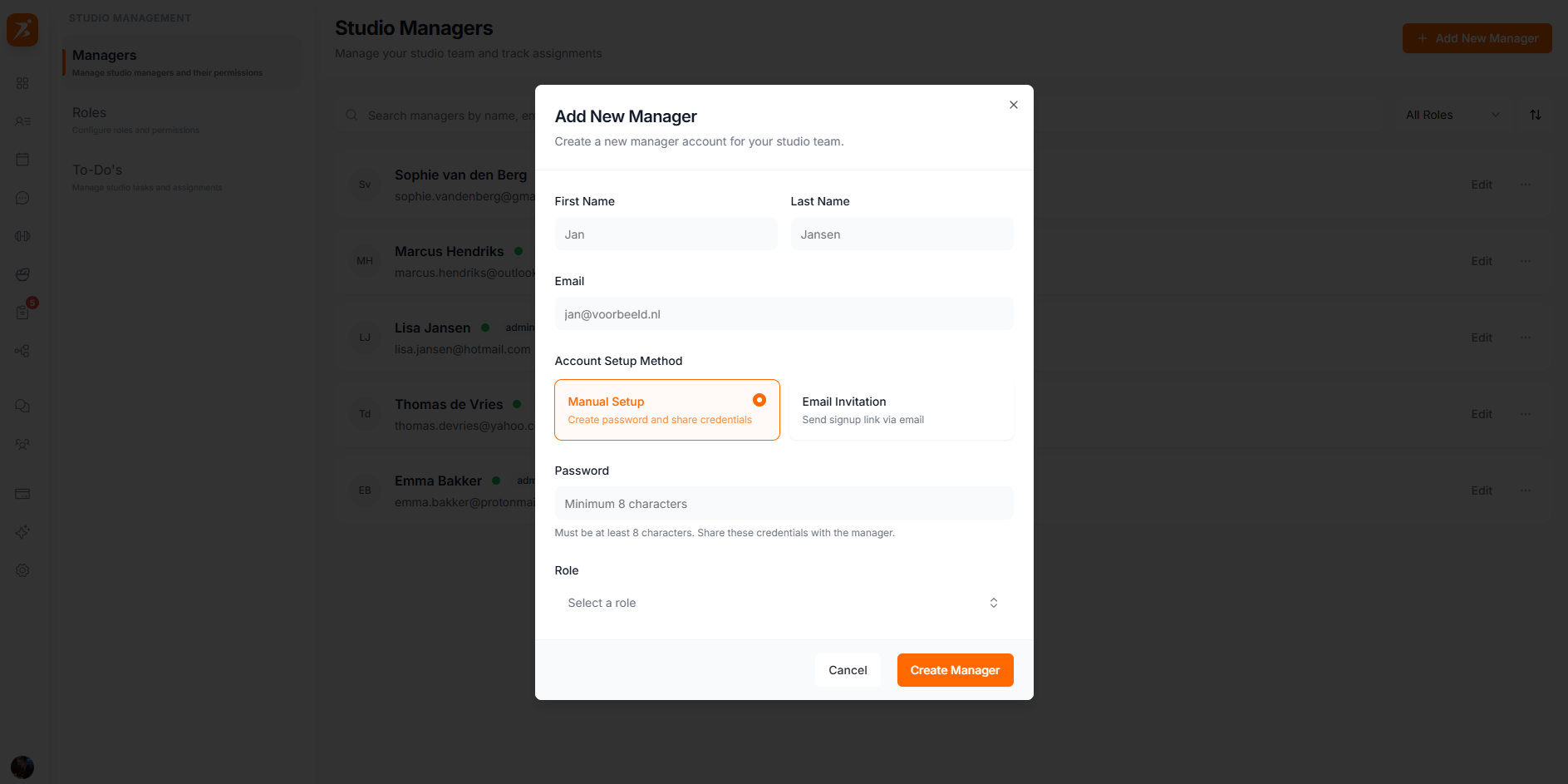
The manager will receive an email with login instructions. They can change their password after first login.
Roles help organize your team and determine the default set of permissions for each manager.
Choose from built-in roles like Personal Trainer or Nutritionist. Each comes with sensible default permissions.
Enter any role title that fits your team structure. Permissions are configured separately regardless of role name.
Each manager's access can be configured granularly. Toggle individual permissions on or off:
Client Management
View, add, edit, and manage assigned clients.
Workouts & Training
Create, edit, and assign training plans and workouts.
Meal Plans & Nutrition
Create, edit, and assign meal plans and recipes.
Schedule & Appointments
View and manage the studio calendar and client appointments.
Chat & Messaging
Send and receive messages with assigned clients.
Automation
Access and manage automated workflows and sequences.
Check-ins
Send, review, and approve client check-ins.
Community
Create communities, post updates, and moderate content.
Habits
Create habits and assign them to clients.
Finances & Payments
View earnings, create payment requests, and manage subscriptions.
Studio Administration
Manage team members, roles, and studio settings.
Branding & Customization
Manage logo, colors, and brand identity.
After creating a manager account, here's what happens: