Create custom roles with specific permission sets. Define what each role can access so you can quickly onboard new team members.
Create named roles with a specific set of permissions. Assign roles to managers for quick setup.
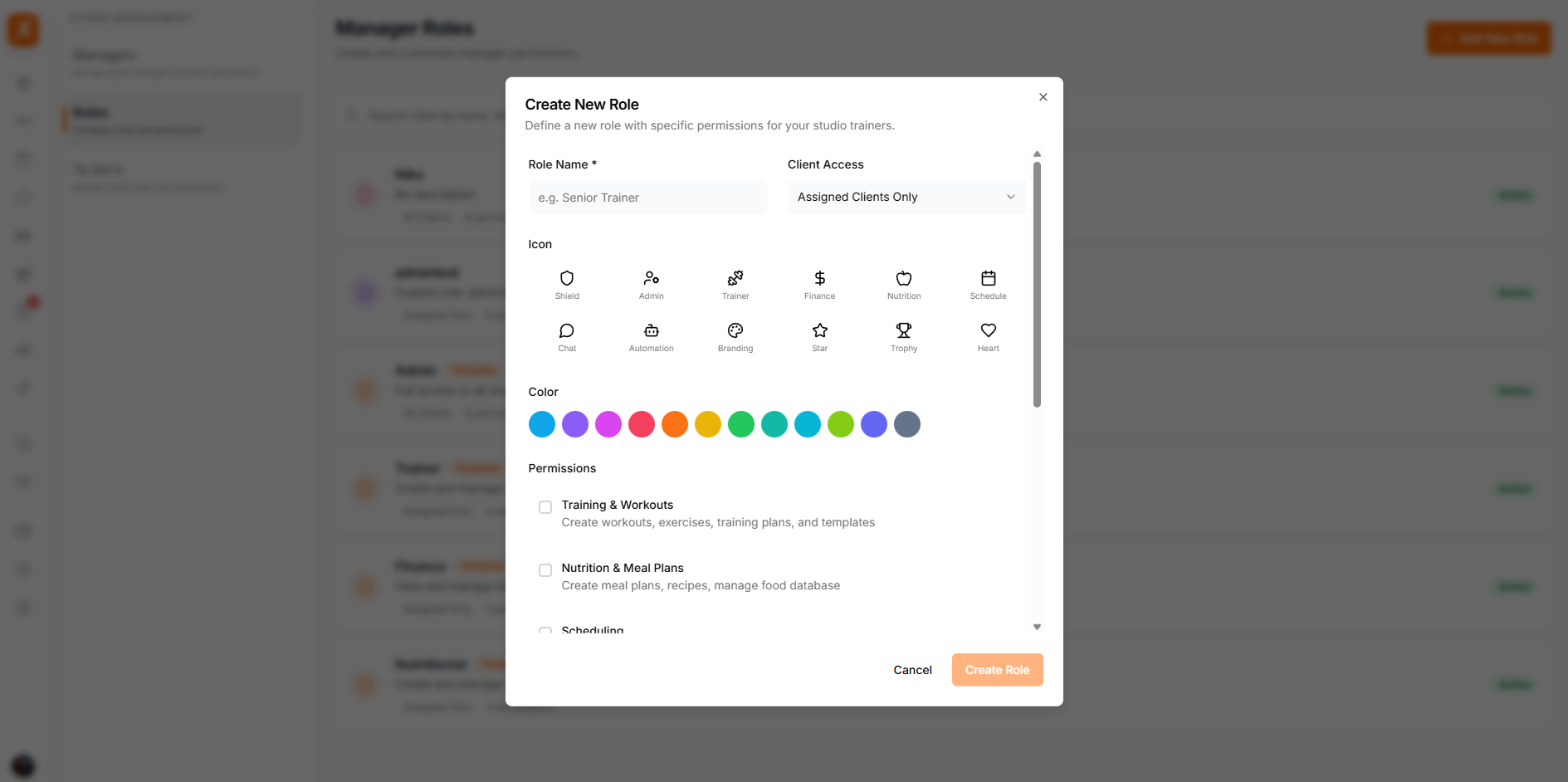
Follow these steps to create a custom role:
Start from a preset and customize — it's faster than building from scratch.
Use presets as starting points to save time. You can customize any preset after applying it.
All permissions enabled except the studio owner's personal settings. For senior managers or co-owners.
Clients, workouts, meal plans, schedule, and chat. No finance or studio settings.
Finances only. No Clients, Workouts, Meal Plans, Schedule, Chat, Check-ins, Studio, or Settings.
Meal plans, recipes and nutrition tracking, plus schedule, chat, check-ins, community and habits. No workouts and no automation.
Presets are starting points — always review and adjust permissions to match your specific needs.
Modify existing roles or remove ones you no longer need.
You cannot delete a role while it's assigned to active team members. Reassign them first.
Only grant permissions that a role actually needs. You can always add more later.
Use clear names like "Senior Trainer" or "Front Desk" so roles are self-explanatory.
Review roles quarterly to ensure permissions still match team responsibilities.
Use presets as a base and customize — it's faster and less error-prone.