Custom Domain Ultimate
Instead of a long URL, your clients can go to something like app.yourname.com. This guide shows you how, step by step.
What Is a Domain?
A domain is the address people type to visit a website. Like google.com. When you set up a custom domain, your clients visit your own address instead of ours.
Your 3 Options
Pick one. You can always change later.
Default (Free)
Clients use app.scraler.com. No setup needed.
app.scraler.comYour Name on Scraler (Free)
Clients use yourname.scraler.com. You pick the name.
yourname.scraler.comYour Own Domain (Ultimate)
Clients use app.yourname.com. Needs an Ultimate plan and your own domain.
app.yourname.comHow to Set Up Your Subdomain
The easiest option. Here is how:
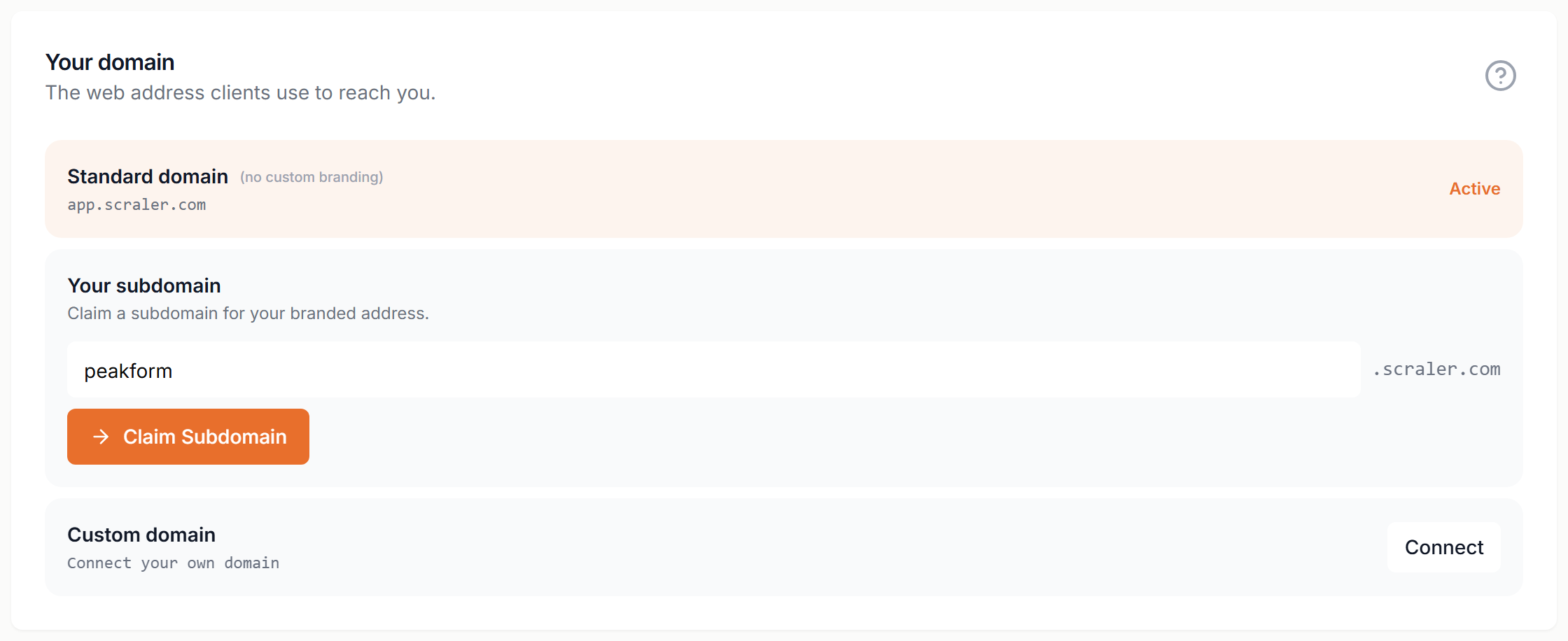
yourname.scraler.com/trainer/settings - Log in to your trainer dashboard.
- Click Settings (the gear icon).
- Click the Custom Domain tab.
- Find the "Platform URL" box.
- Type the name you want. Letters, numbers, and dashes only. Example: johndoe or my-gym.
- Click Claim Subdomain (or Save if changing it).
yourname.scraler.com/trainer/settings Done! Clients can now go to yourname.scraler.com.
Want to change it later? Click the pencil icon next to your subdomain.
How to Set Up a Custom Domain
A few more steps, but your clients will never see "scraler" anywhere. It looks 100% yours.
What You Need
1
An Ultimate subscription on Scraler.2
Your own domain (if you don't have one, see Step 1 below).3
Access to your domain's DNS settings (where you manage your domain).Step 1: Buy a Domain
Already have one? Skip to Step 2. If not:
- Go to a domain seller like Namecheap, GoDaddy, or Cloudflare.
- Search for the name you want (example: yourname.com).
- Buy it. Usually costs about $10-15 per year.
- After buying, you get a dashboard to manage your domain. This is called the DNS panel.
cloudflare.com/products/registrar We recommend Cloudflare - it's free for DNS and easy to use.
Step 2: Type Your Domain in Scraler
Tell Scraler which domain you want to use.
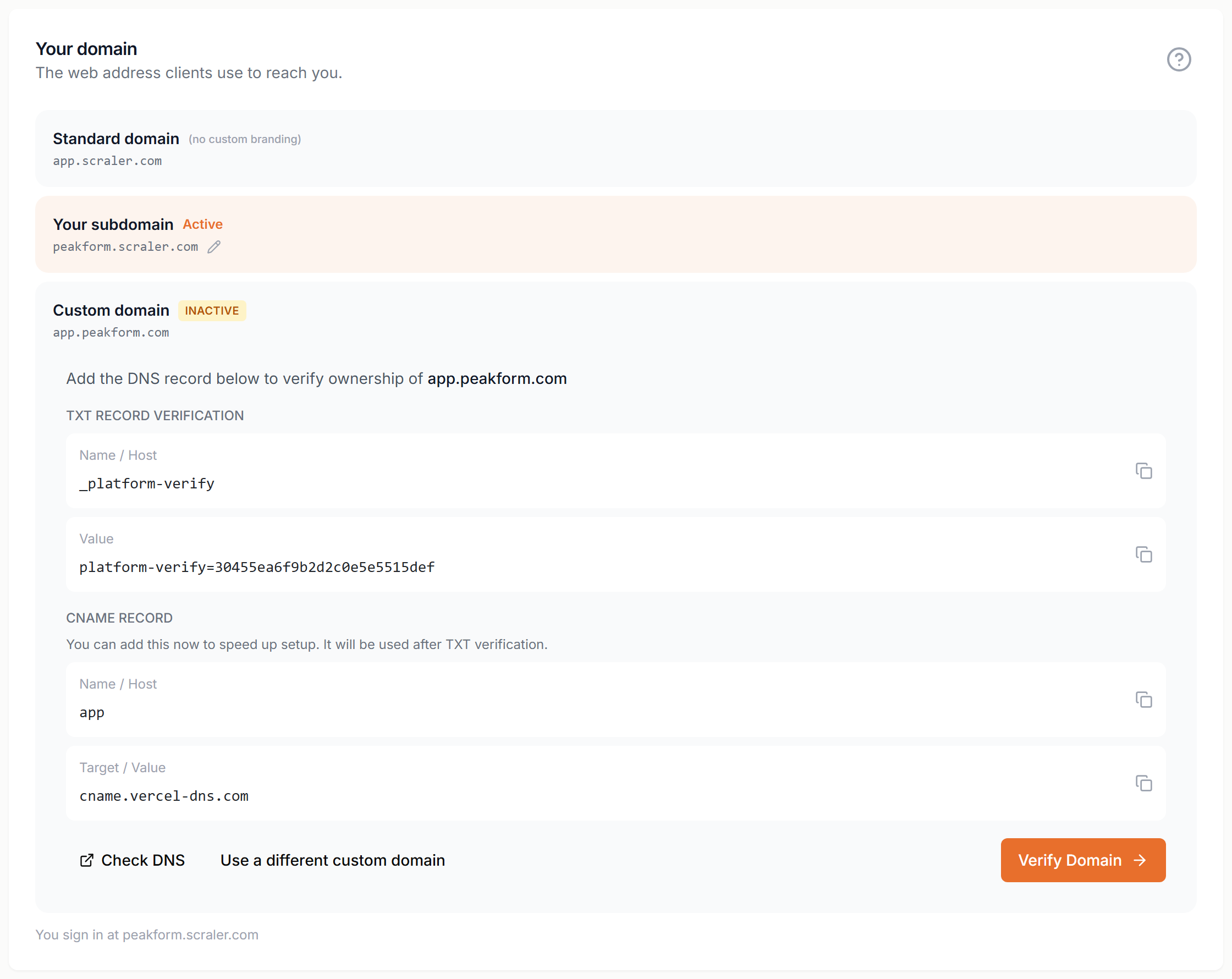
- Go to Settings > Custom Domain in your trainer dashboard.
- Find the "Custom Client Domain" section.
- Type your domain. Use a subdomain like app.yourname.com (not just yourname.com).
- Click Add Domain.
yourname.scraler.com/trainer/settings Scraler shows you a special code. You need it for the next step. Keep this page open!
yourname.scraler.com/trainer/settings Why app.yourname.com?
Your main domain (yourname.com) might be used for your website already. Using app.yourname.com keeps things separate.
Step 3: Add the TXT Record
This proves you own the domain. You do this at the website where you bought your domain.
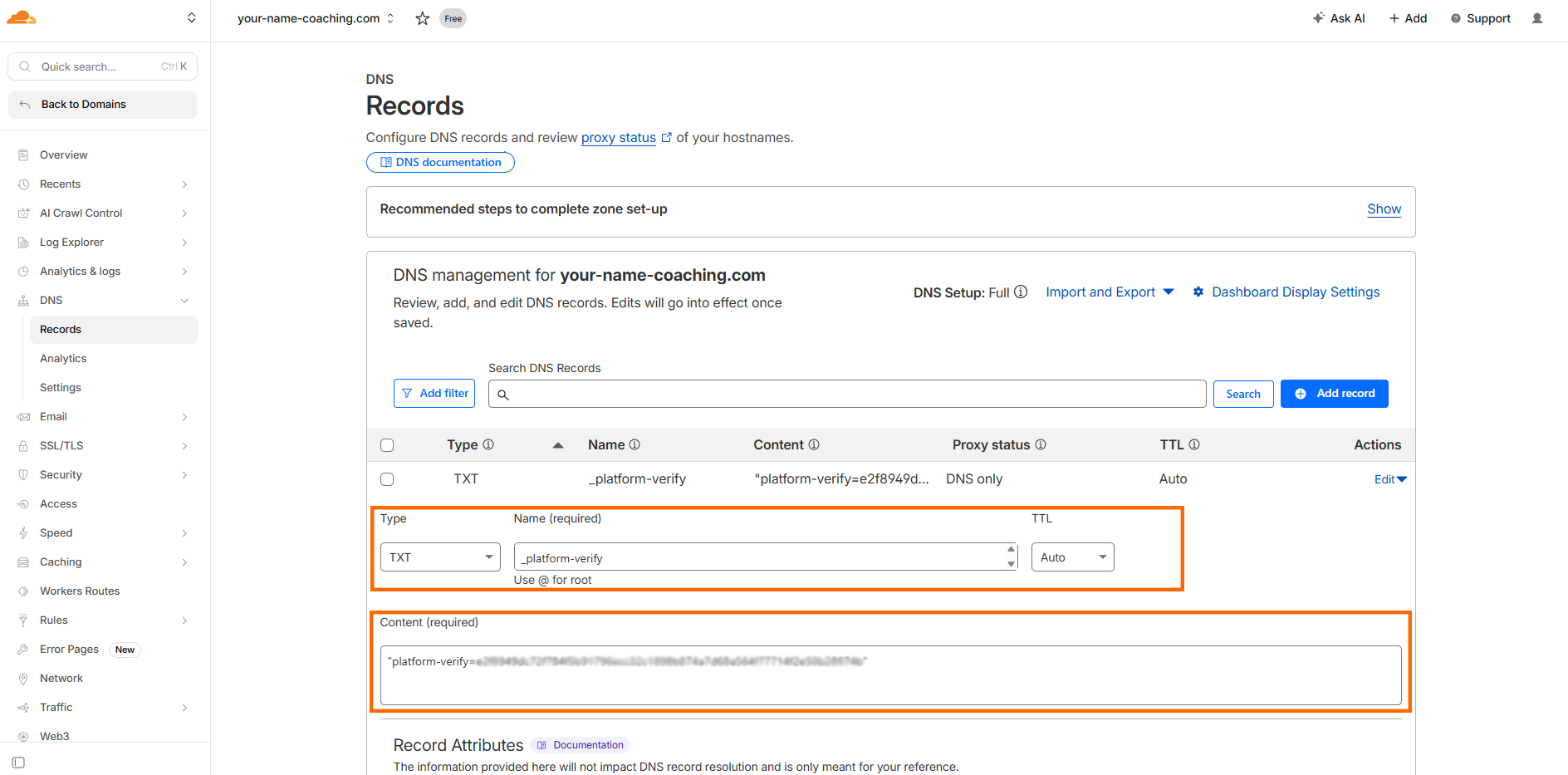
- Log in to your domain provider (where you bought the domain).
- Find the DNS settings. Look for "DNS", "DNS Records", or "Advanced DNS".
- Add a new TXT record with these values:
Type: TXT
Name: _platform-verify
Value: platform-verify=your-code-from-scraler
TTL: 3600
dash.cloudflare.com/dns/records - Save it.
- Wait 5-10 minutes. It takes a moment to spread across the internet.
Can't find DNS settings? Search for "DNS" in your provider's help section, or look under your domain's management page.
Step 5: Add the CNAME Record
One more record. This sends your visitors to our servers so the app loads.
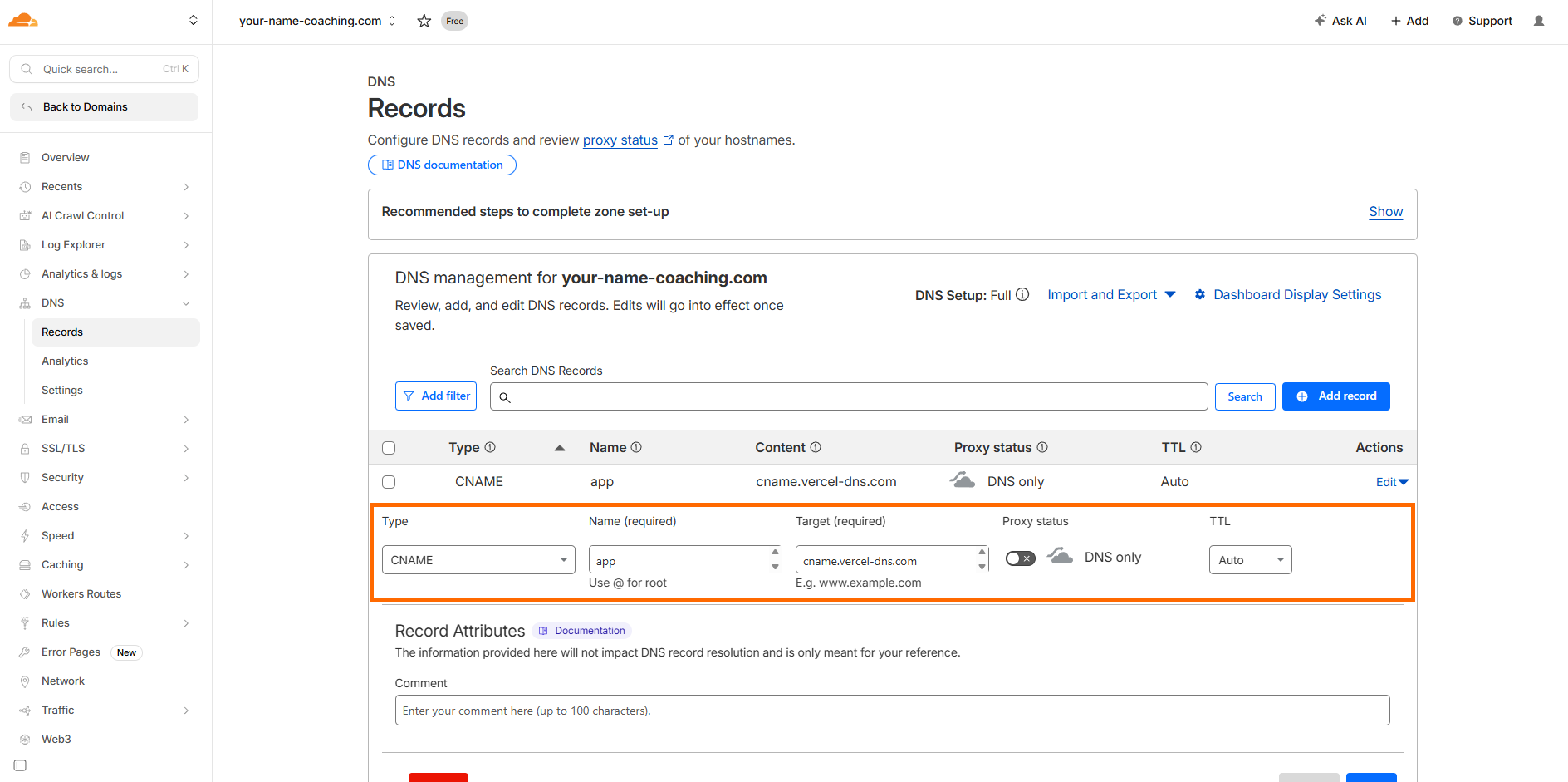
- Go back to your domain provider's DNS settings (same place as Step 3).
- Add a new CNAME record:
Type: CNAME
Name: app (or your chosen subdomain)
Value: cname.vercel-dns.com
TTL: 3600
dash.cloudflare.com/dns/records - Save it.
- Wait a few minutes.
Step 4: Click Verify in Scraler
Go back to Scraler and click "Verify Domain". If everything is right, you'll see a success message.
yourname.scraler.com/trainer/settings Not working?
- - Wait at least 5-10 minutes after adding the record.
- - Check the name is exactly _platform-verify (starts with underscore).
- - Make sure the value matches exactly. Copy-paste it to avoid typos.
- - Click "Check DNS" in Scraler to see if the record has spread yet.
Step 6: Done!
That's it! After a few minutes your domain is live. These things happen by themselves:
SSL (the lock icon in the browser) is set up for free. Your site is secure.
Clients can now visit app.yourname.com.
Scraler redirects you to your new domain automatically.
Switching Between Domains
You can switch anytime. Scraler remembers everything.
- Go to Settings > Custom Domain.
- Click the pencil icon next to "Custom Client Domain".
- Pick the one you want (subdomain, custom domain, or default).
- It switches right away.
yourname.scraler.com/trainer/settings Good to Know
Free SSL
Every domain gets a free security certificate. The lock icon shows up in the browser automatically.
Fast Everywhere
Your app loads fast no matter where your client is in the world.
Private Settings
Only you can see domain settings. Clients never see this page.
We Remember
Switch away and come back anytime. Your domain settings stay saved.
Ready for your own domain?
Give your clients a professional, branded experience.
Get Started Free