
Client profile: admin tabs
These tabs cover the business side of a client: sessions, conversation, automation, billing and access. The tabs you coach with are on the coaching tabs page.
Schedule
The Schedule tab shows this client's sessions in a week calendar. Switch to List to see every session in order. It also shows sessions where the client is a co-participant, and the client's own calendar events: shared events appear in full, private ones only as busy time.
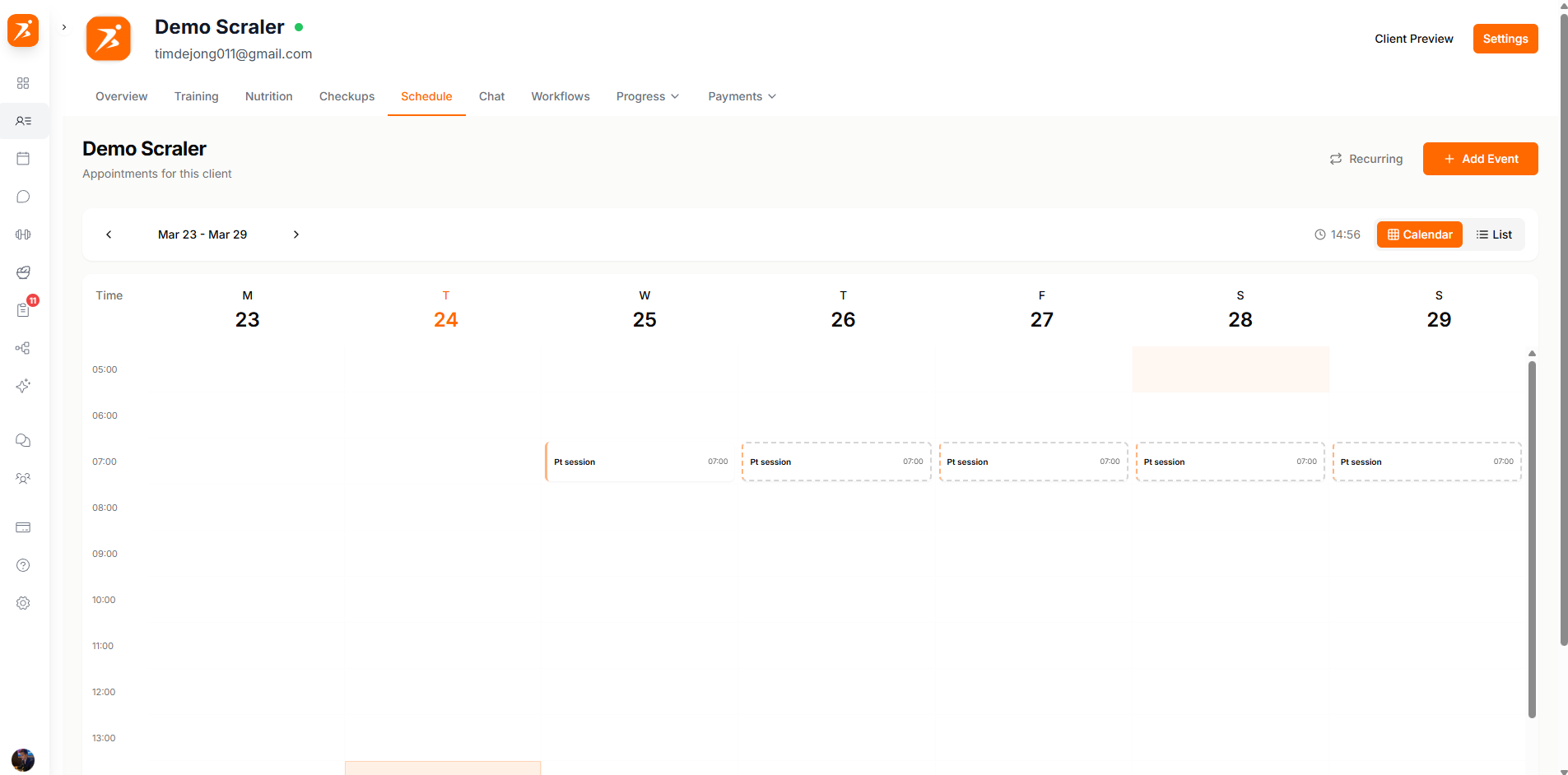
Add Event opens the session form with this client already selected, and View Recurring lists repeating sessions. Session types, statuses and recurring events are covered on Schedule.
Chat
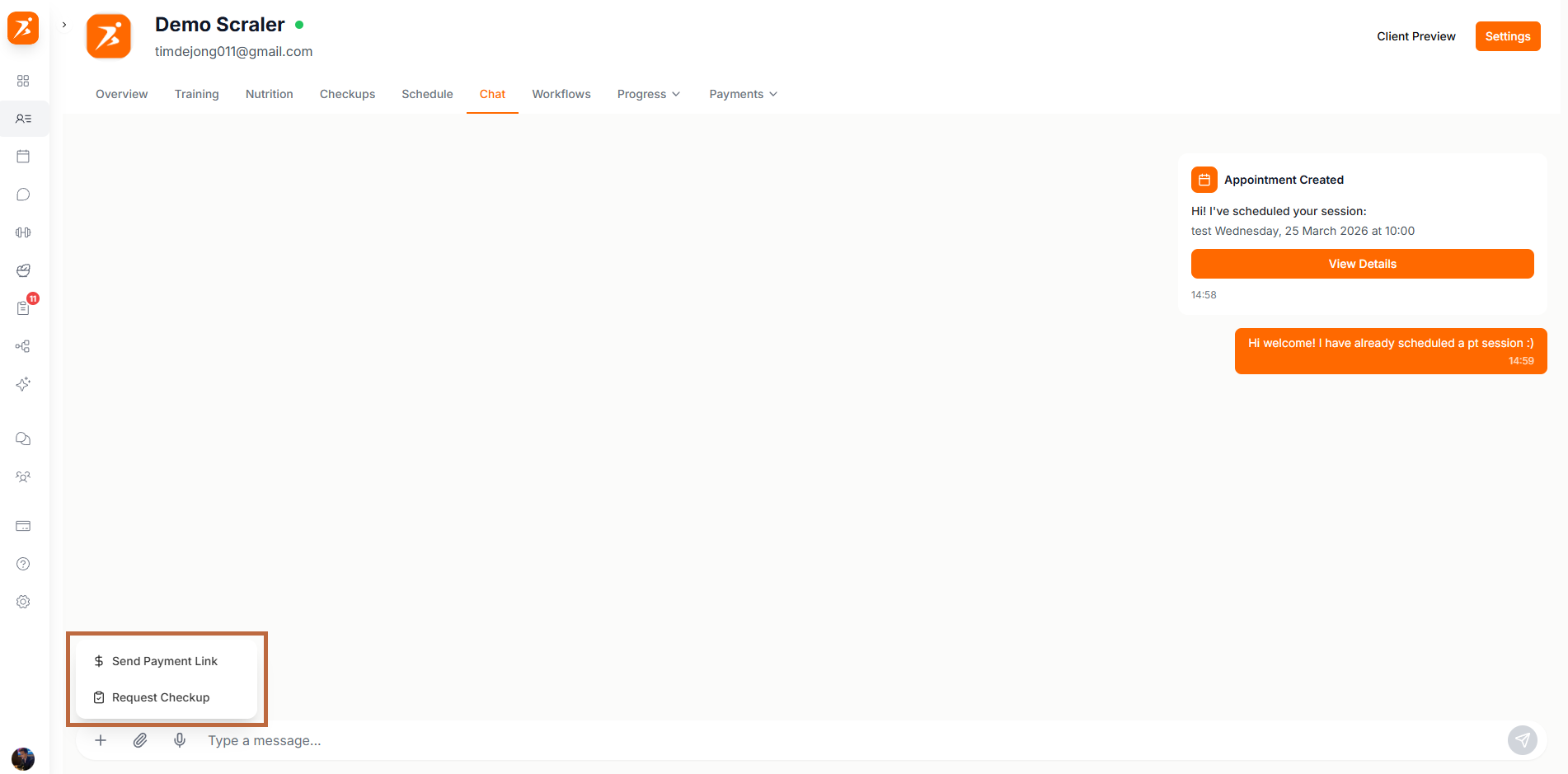
The Chat tab is your conversation with this client, the same one you see in Chats, without leaving the profile. Tap + next to the message box for Send Payment Link and Request Check-in, which arrive as cards. The paperclip attaches files and the microphone records a voice message. Messages, groups and security are covered on Chat.
Workflows
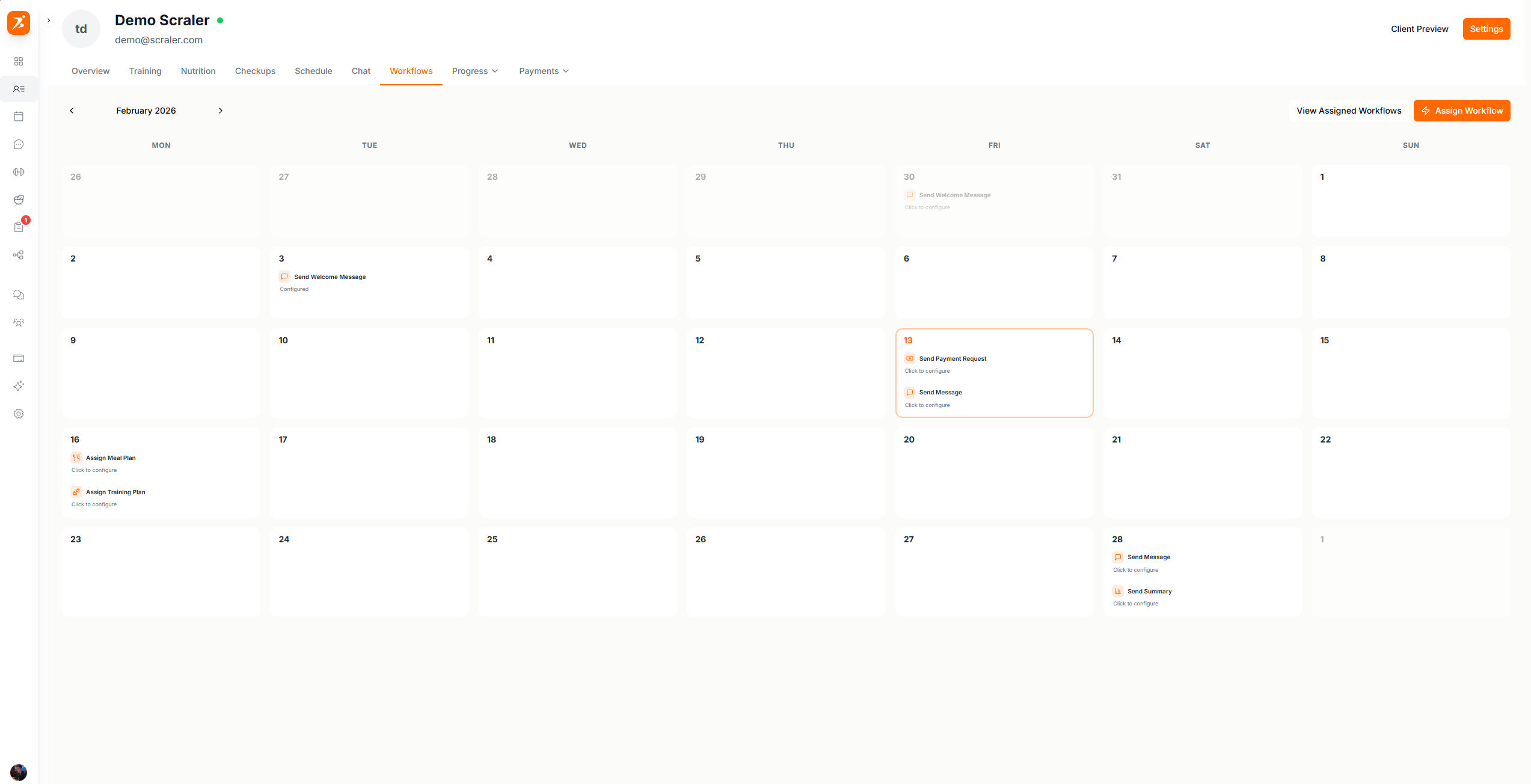
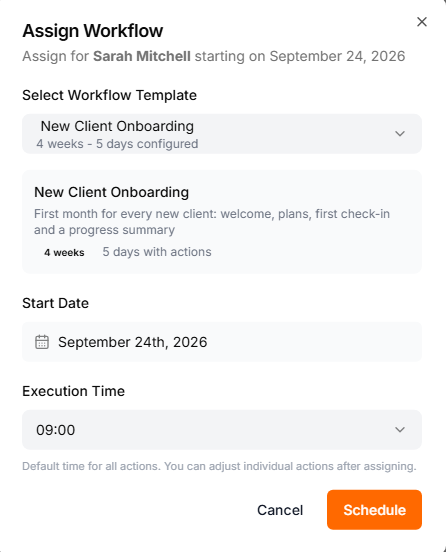
Workflows schedule actions for this client on set dates: a message, a training or meal plan, a check-in, a progress summary, a payment request or a subscription. The tab shows them on a month calendar. Assign Workflow picks a template and a start date. Once workflows are assigned, View Assigned Workflows lists them with their status, and you can pause, resume or cancel one.
Workflows need the Ultimate plan, and studio managers need automation access. Templates are built under Workflows: see Workflows.
Payments
Payments is always visible to the account owner, so you can manage existing billing on any plan. Studio managers need the finance permission. Creating new subscriptions, payment requests or products needs the Premium plan or higher and a connected Stripe account.
The tab opens a menu with three views:
- Subscriptions
- The client's recurring plans with their status. Add Subscription picks one of your plans. Keep its price or set a custom price for this client (0 makes it free), and choose when it starts. With Online the client gets a Stripe checkout link and renewals are charged automatically. With Manual you collect the money yourself and mark each period as paid.
- Single Payments
- Titled Payment Links on the page. Send Payment Request with an amount and a title. It arrives in the client's chat as a card they tap to pay, and you are notified when they do.
- Products
- One-time purchases this client made, like cookbooks. Add Product grants one by hand, for free or recorded at a price.
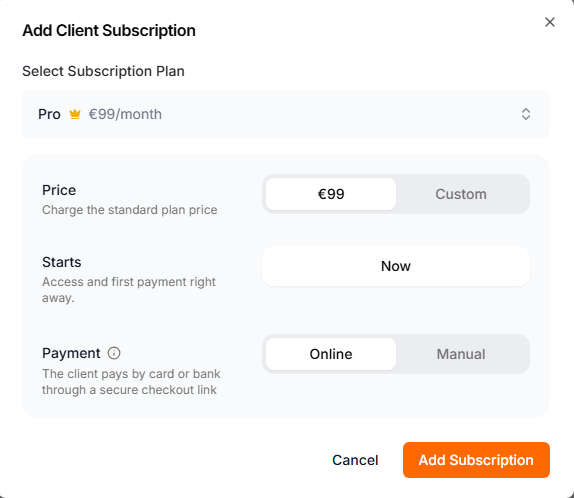
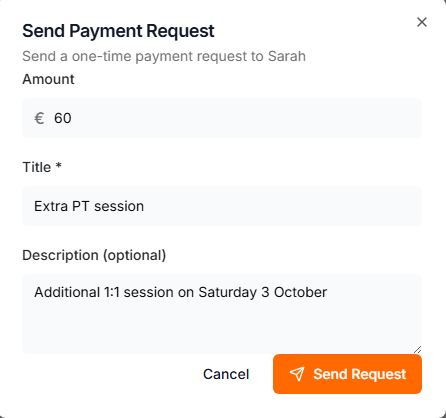
Each view lists its entries with a status badge, such as paid, pending or failed.
Plans, products and Stripe setup are covered under Finance.
Settings
Settings is not a tab. It is the button at the top right of the profile, next to the client's name. You find these there:
- Delivery
- Calendar or Fixed, for training and nutrition. Switching deletes nothing, so a client can move back and find everything as it was.
- Features
- Every feature by category, each with a toggle for this client. Under it you see why it is on: Via subscription, Enabled by default, or Enabled for this client. The toggles change what the client sees in their dashboard and app. You keep full access to their profile.
- Profile
- Name, email, phone, date of birth, gender, height, weight, activity level, unit system, dietary restrictions, allergies and app language, plus goals: target weight, body fat, measurements and strength targets. This needs the Edit Client Profiles permission, and you save with Save Profile.
- Export Data
- Downloads the client's full record as an Excel file, for GDPR requests.
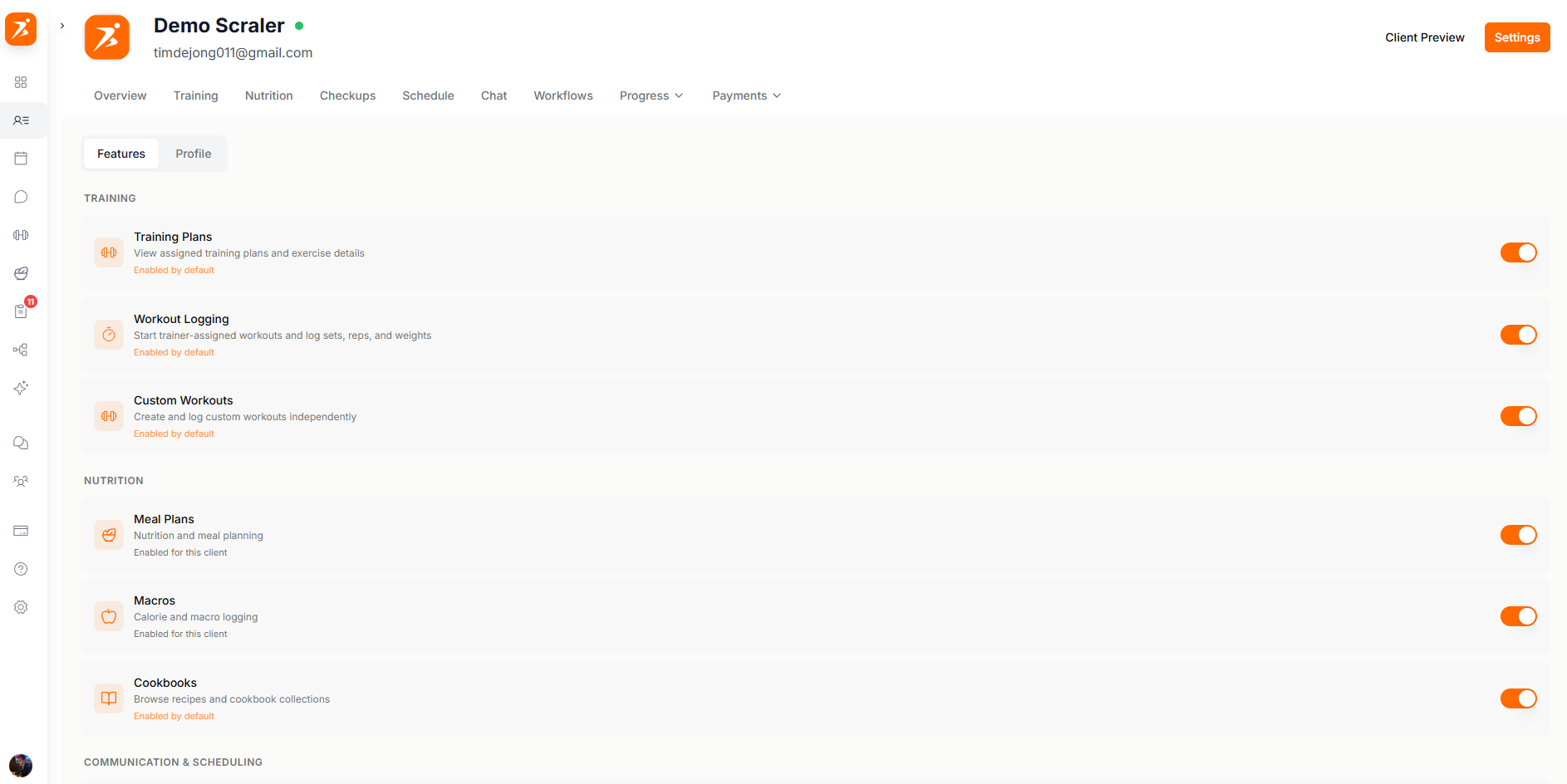
See Delivery modes for how Calendar and Fixed differ.