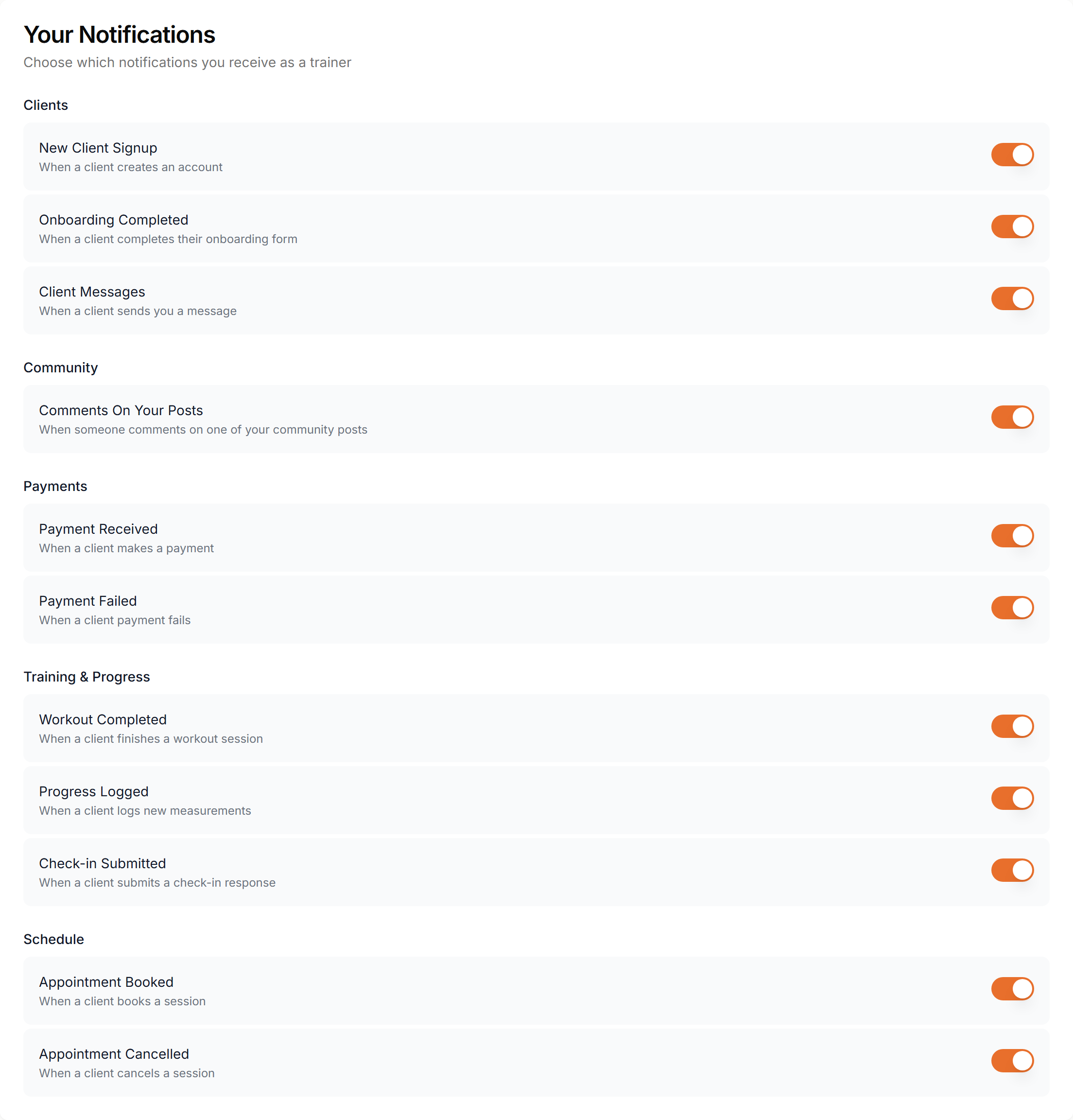
Configure how and when you receive notifications. Control email alerts, push notifications, and in-app notification preferences.
Toggle notification types on or off and set your preferred notification frequency.

Screenshot: Notification settings
Show: notification preferences page with a table of event types (rows) and notification channels (columns: Email, Push, In-App) with toggle switches for each combination
public/docs/notification-settings.png
Choose how you want to be notified. Each event type can be configured independently per channel.
Receive notifications in your inbox. Great for non-urgent updates you can review later.
Instant alerts on your phone or desktop. Best for time-sensitive events like new messages.
Notifications inside the Scraler dashboard. Always available when you're working in the platform.
Control which events trigger notifications. Toggle each event type on or off per channel.
New Client
When a new client signs up or is added to your roster.
Payment
When a payment is received, fails, or a subscription changes.
Checkup
When a client submits a checkup or a checkup is due.
Chat Message
When you receive a new direct message or group chat message.
Appointment
When an appointment is booked, cancelled, or upcoming.
Workout
When a client completes a workout or logs a session.
Customizing your notification preferences takes just a few steps:
You can always come back and adjust your preferences as your needs change. Turning off a channel for one event doesn't affect other events.
Push and in-app notifications are delivered instantly. Email notifications may take a few seconds.
Each event type can be configured independently for each channel — full flexibility.
Push notifications respect your device's Do Not Disturb settings.
Critical notifications like payment failures are always sent via email, regardless of your preferences.