
Stripe setup
Connect Stripe once, and everything you sell is paid out to you.
Why connect Stripe
Before you can charge a client, connect Stripe. It takes the card payments, runs your subscriptions, and pays out to your bank.
Choose your payout country
Start with your payout country. Stripe locks it once the account exists, and it decides the currency you bill in.
Verify your business
Then continue to Stripe to verify your business. If you stop halfway, this page lists what Stripe still needs.
Stripe's review
After that, Stripe reviews your details. That usually takes a day or two.
Account, currency and settings
Once you're connected, the rest of Finance opens up. Settings shows your account and currency. Payment methods, tax, payouts and reports open in your Stripe dashboard.
Membership control
And with membership control on, a client is archived automatically when their last subscription ends.
More details and screenshots
Stripe setup
Connect your Stripe account so clients can pay you. Stripe handles the payment and pays out to your bank account.
Taking payments needs the Premium or Ultimate plan.
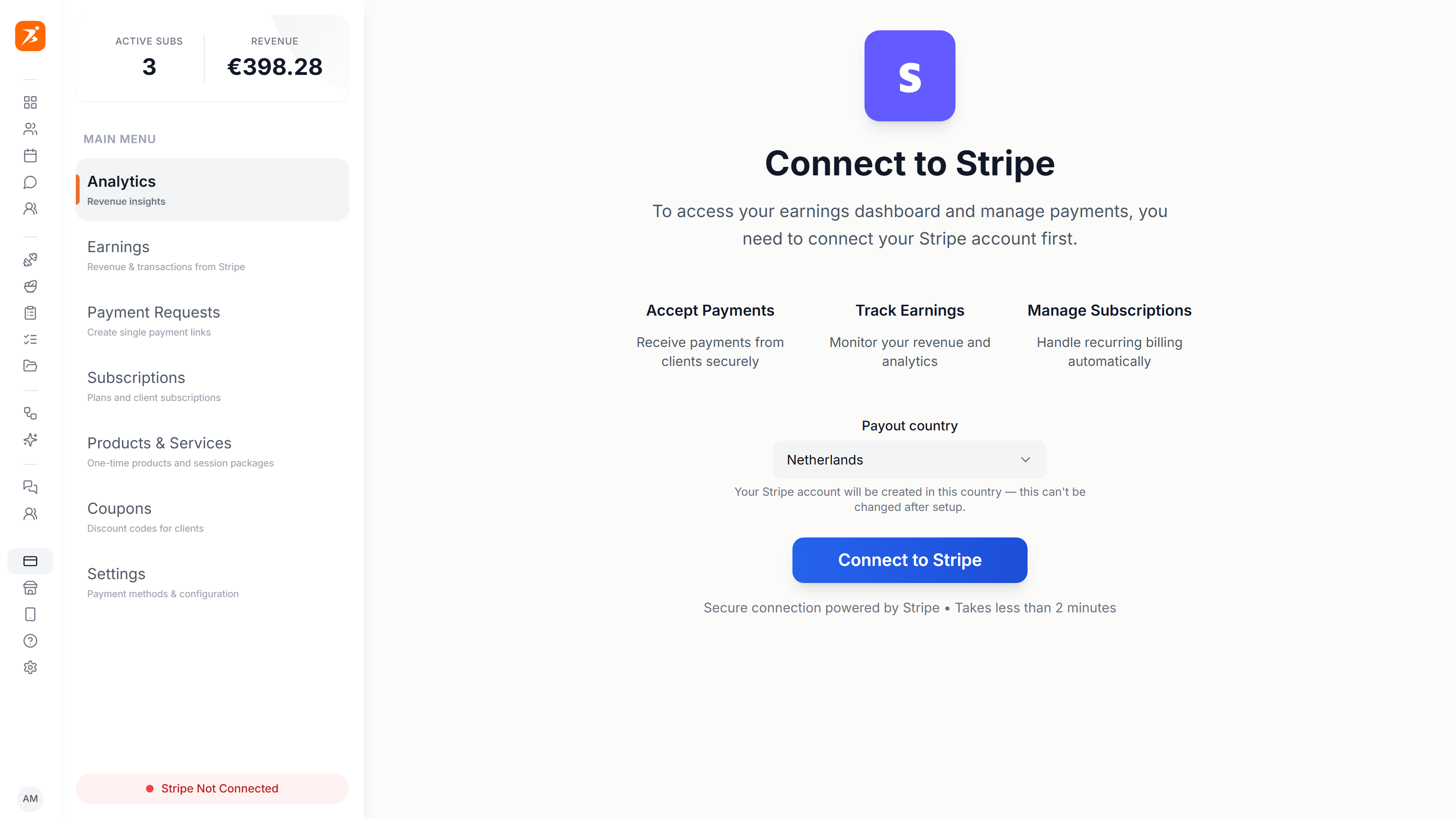
Connecting Stripe
Have an ID document and your bank account number (IBAN) ready.
Your currency comes from the Stripe account and is the only currency you bill in. Plans, products and payment requests all use it, and clients pay in it.
Under Settings the Stripe Connect card shows the status, your currency and payout country. View Stripe Dashboard opens your Stripe dashboard.

Disconnect unlinks Stripe. Clients can no longer pay you through Scraler, your Stripe account stays yours, and you can connect it again later. You cannot disconnect while client subscriptions still bill through Stripe.
The other cards under Settings open your Stripe dashboard. Payout settings
Verification
After you submit, Stripe verifies you. Finance shows where you are.
- Verification in progress
- Stripe is checking your details. You do nothing. It usually takes 1 to 2 business days. Payments and payouts stay paused until it finishes, and running setup again will not speed it up.
- More information needed
- Stripe lists what is missing, for example an identity document or bank details. Click Complete Stripe setup and add it.
- Finishing your account setup
- Stripe is finishing your account. This can take a few minutes. Click Refresh status to check again.
- Active
- Everything is verified. Payments and payouts work.
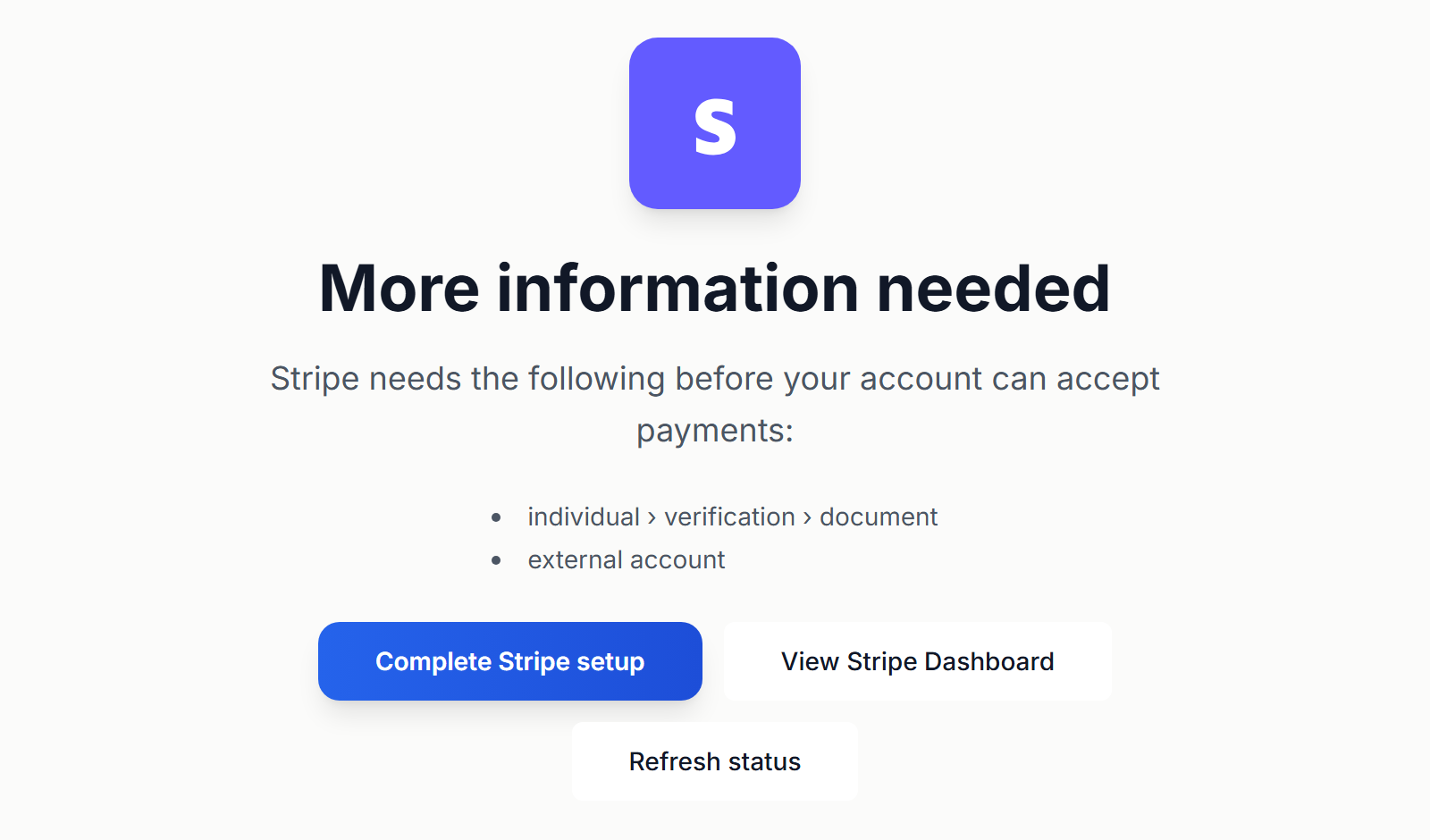
View Stripe Dashboard opens your Stripe dashboard, where you see the details.