
Client profile: coaching tabs
Give each client a plan, a program or a single workout, and log sessions with them.
Calendar or fixed
Every client gets their training one of two ways. On a calendar, you plan the dates. Fixed, the program is always there.
Assign a plan
On a calendar, assign one of your plans. You can still adjust it for this client, then pick the start date.
Adjust the schedule
Plans change. Drag a workout to another day, or add a single workout on top.
Coach a workout live
Training together? Open the workout, start it, and tick off the sets as you go. Finish, and it's in their history.
Switch a client to fixed
To switch a client to Fixed, open their settings. Nothing is deleted. The same screen decides which features they get.
Assign a program
Then assign a program, and they train it whenever they want.
On-demand collections
On Premium and Ultimate, you can also publish On-Demand collections that clients start themselves.
More details and screenshots
Client profile: coaching tabs
Open any client from the Clients page to land on their profile. The tab bar holds everything for that client. This page covers the tabs you coach with.
Tabs in dark text are explained on this page. Grey tabs link to the page that covers them. Progress and Payments open a menu with more views.
Some tabs only show when they apply. Habits and Cycle need the feature to be on for that client and included in your plan. Workflows needs automation access. Studio managers need the finance permission to see Payments.
Settings is not a tab. It is the button at the top right of the profile, covered on the admin tabs page.
Overview
Overview shows where this client stands. The cards on top give current weight and change, goal weight, training over 28 days, nutrition over 7 days, habits over 28 days, and when they last logged something. A card only shows once there is data for it.
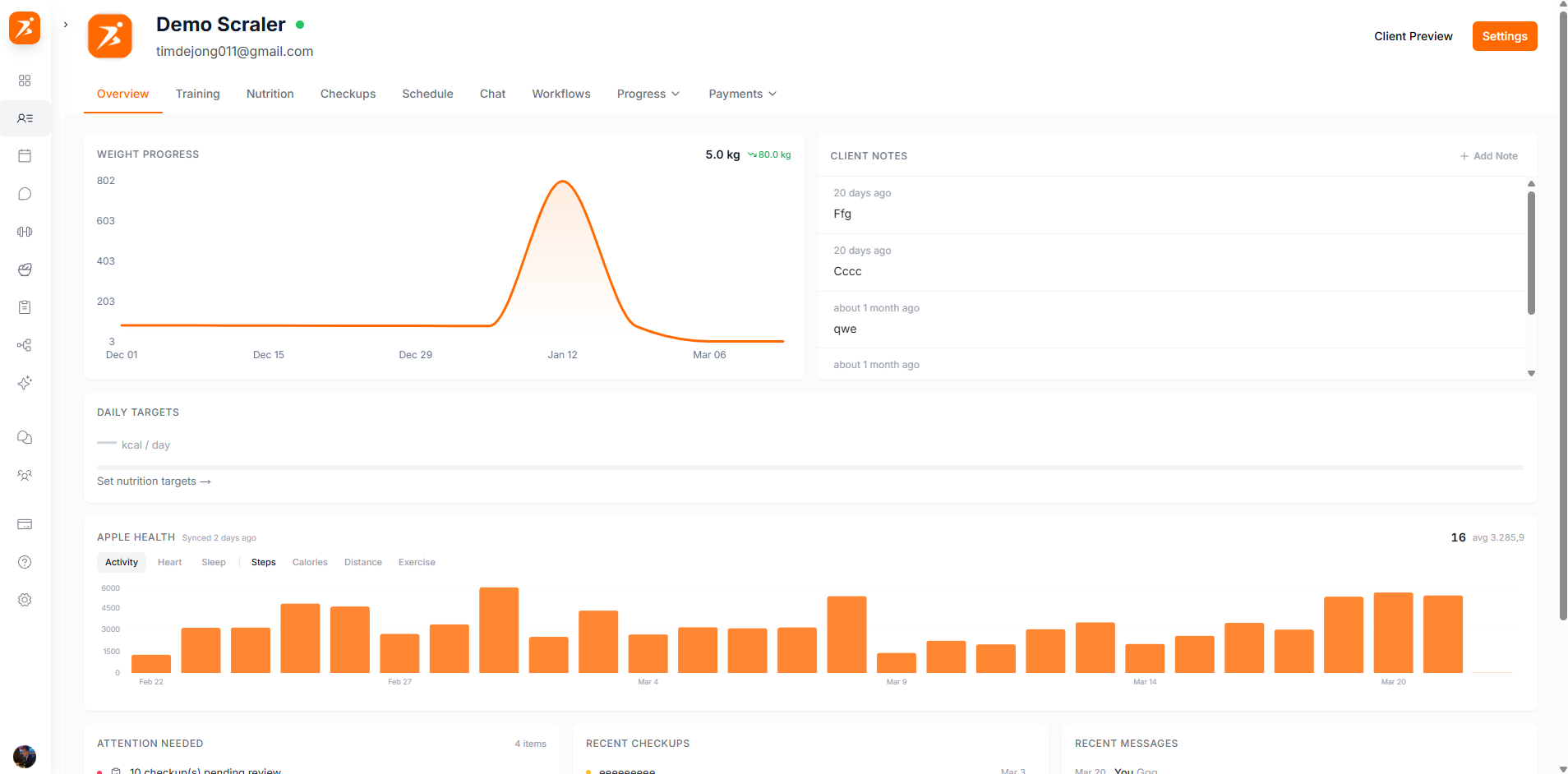
Attention Needed lists what needs you. A flag only shows while it applies:
Below that you get nutrition targets next to this week's intake, the current training plan and next workout, today's habits, and steps and sleep from check-ins or the client's phone health sync.
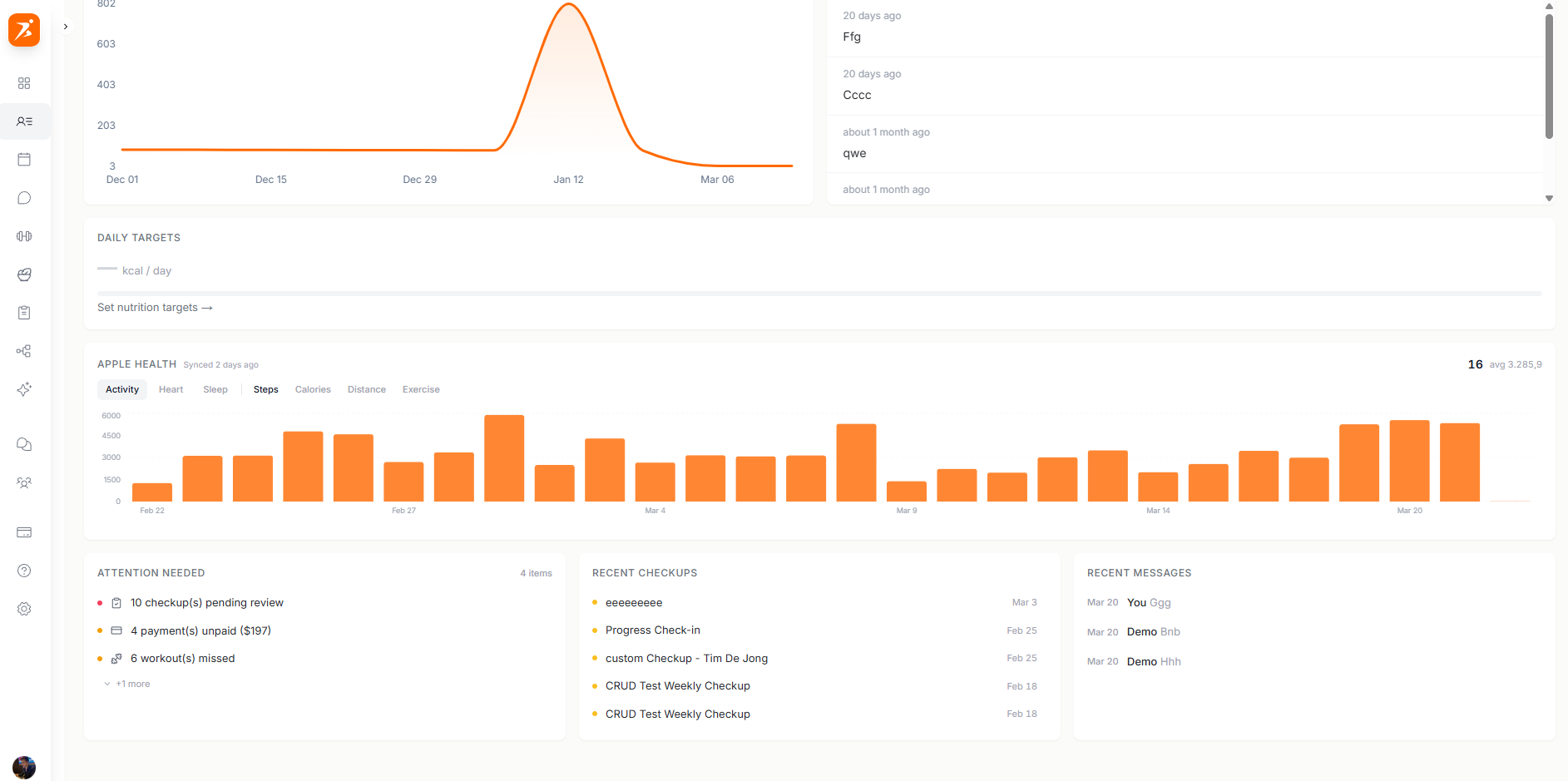
Client Notes are private. The client never sees them, and you can pin a note to keep it on top. Onboarding Answers shows what the client filled in during onboarding, and you can edit or delete the answers there. To set up the questions, see Client onboarding.
Training
The first time you open this tab for a client, you pick how they get training: Calendar or Fixed. Switch below to see the tab in each mode. Delivery modes explains the difference.
The calendar shows one row per week, labeled with the plan week and the plan name. A check mark means the workout is done. A warning icon means its date passed without a logged session. When the client logs a session in the app, it updates here.
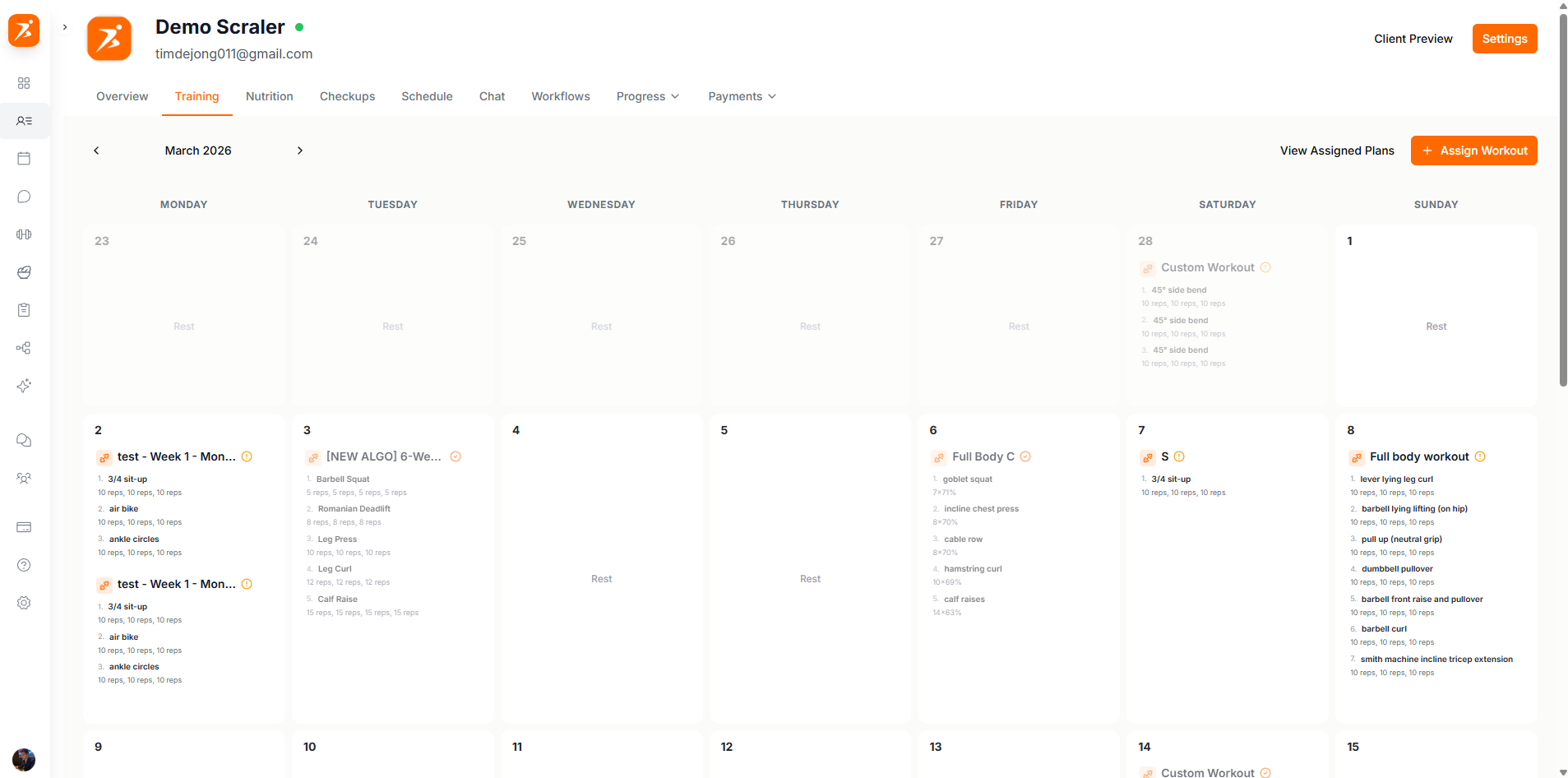
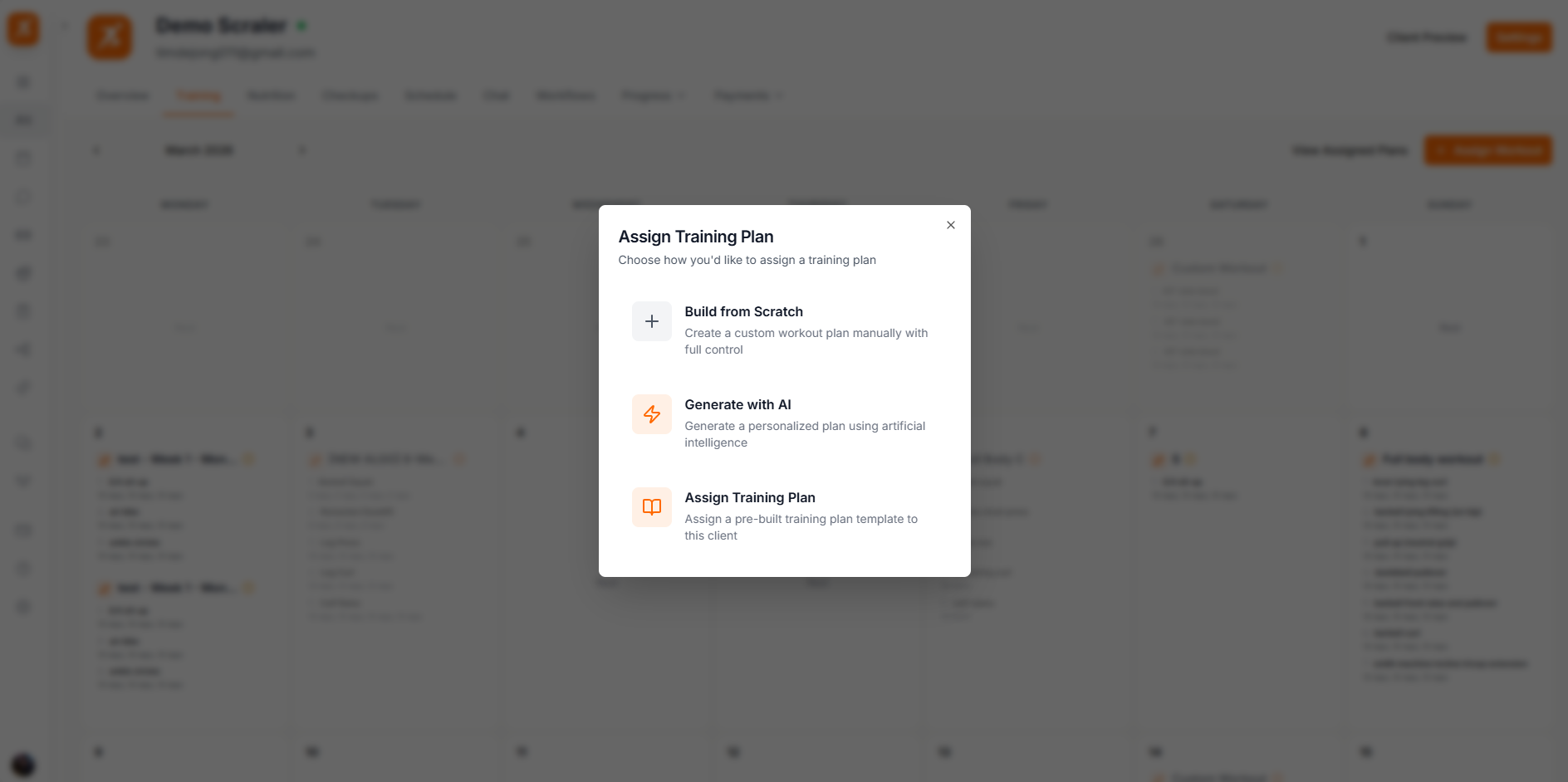
Click View Assigned Plans to see this client's plans, then Assign New Plan. Choose Build from Scratch, Generate with AI, or Assign Training Plan to use one of your templates, and set the start date. Assign Workout puts a single workout on one day instead.
To move a workout, drag its card to another day. The client's app updates right away.

Once a program is assigned, the client’s Training tab becomes a Programs panel. The current program is open with its days. Other assigned programs are collapsed under N other assigned programs.
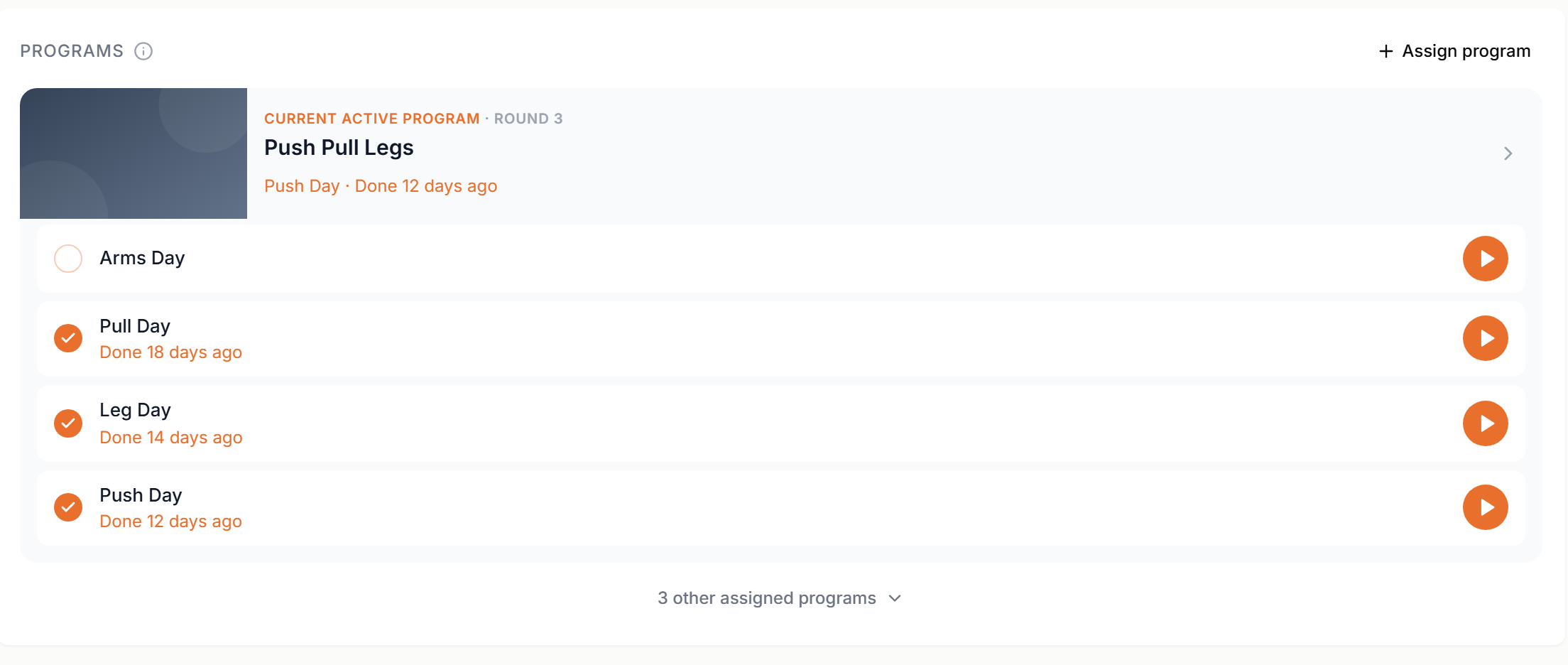
Open the client's Training tab and press Assign program. You pick a program and that's the whole flow. There is no start date, because a fixed program doesn't have one.
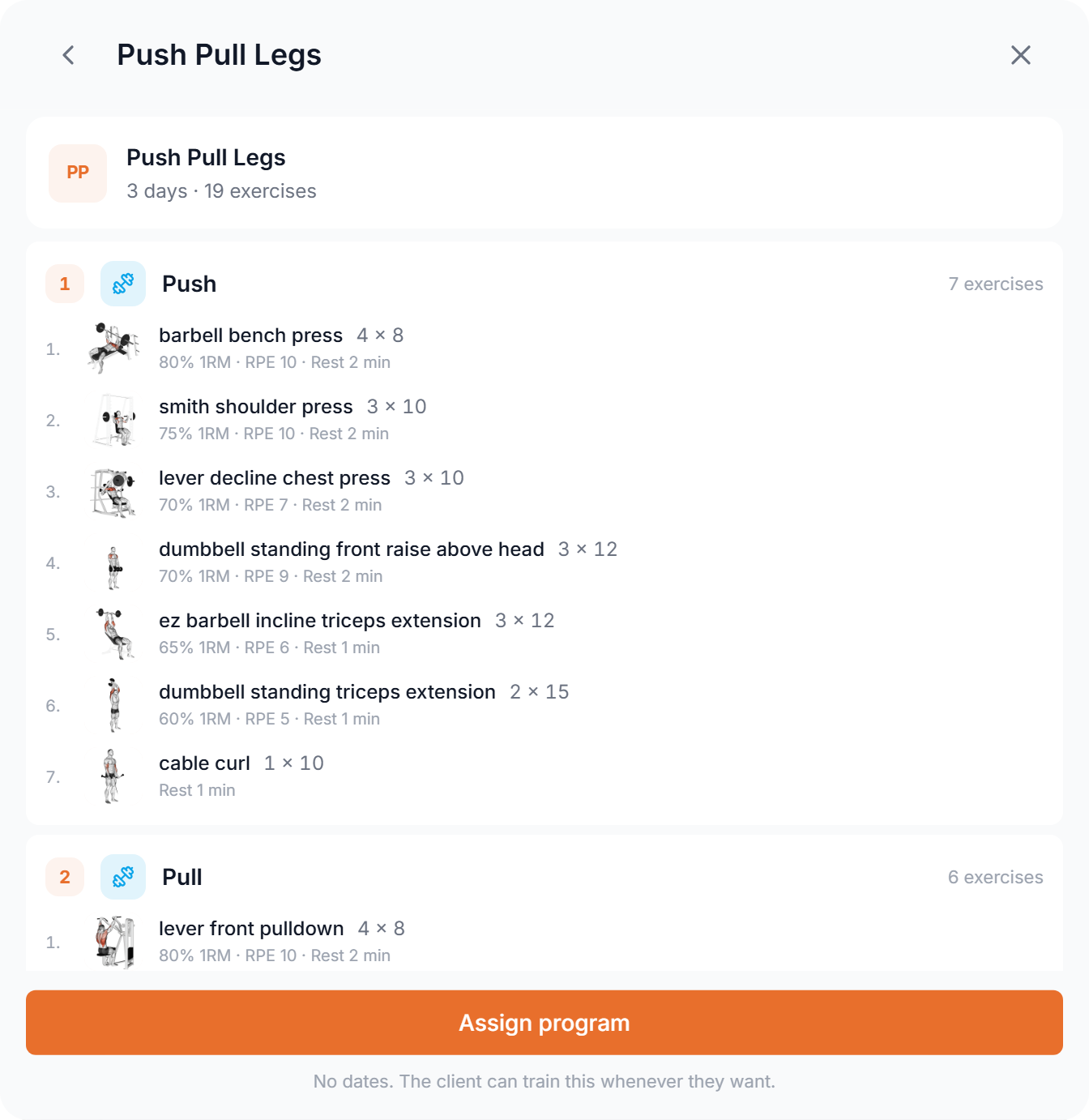
Fixed programs covers building programs, rounds and tracking.
Plans and templates are built in Training plans.
Nutrition
Nutrition has the same Calendar or Fixed choice as Training. Switch below to see the tab in each mode.
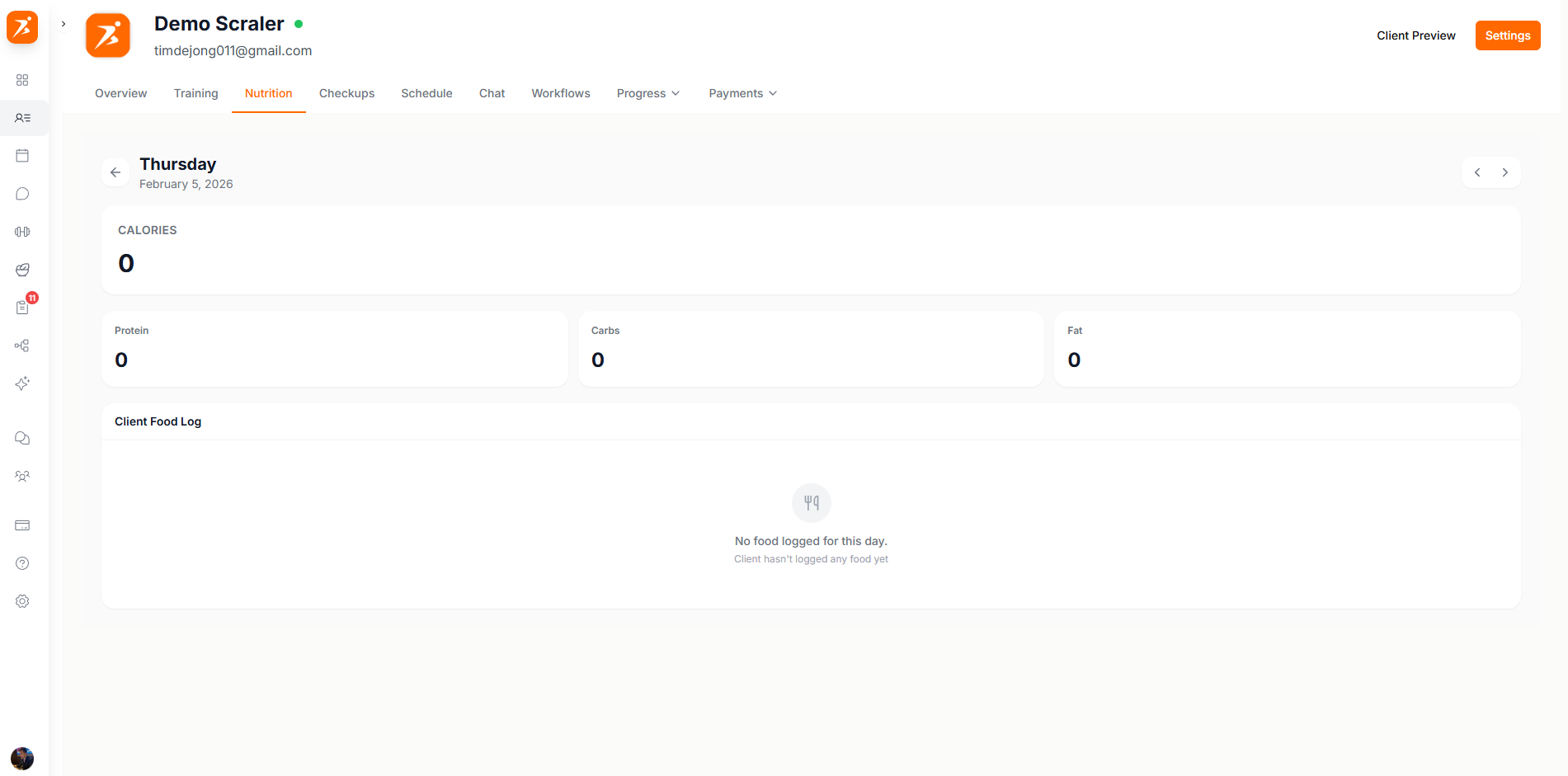
The calendar shows each day's logged calories against the target. A green apple marks a day with a meal plan. Click a day to open the food diary for that date.
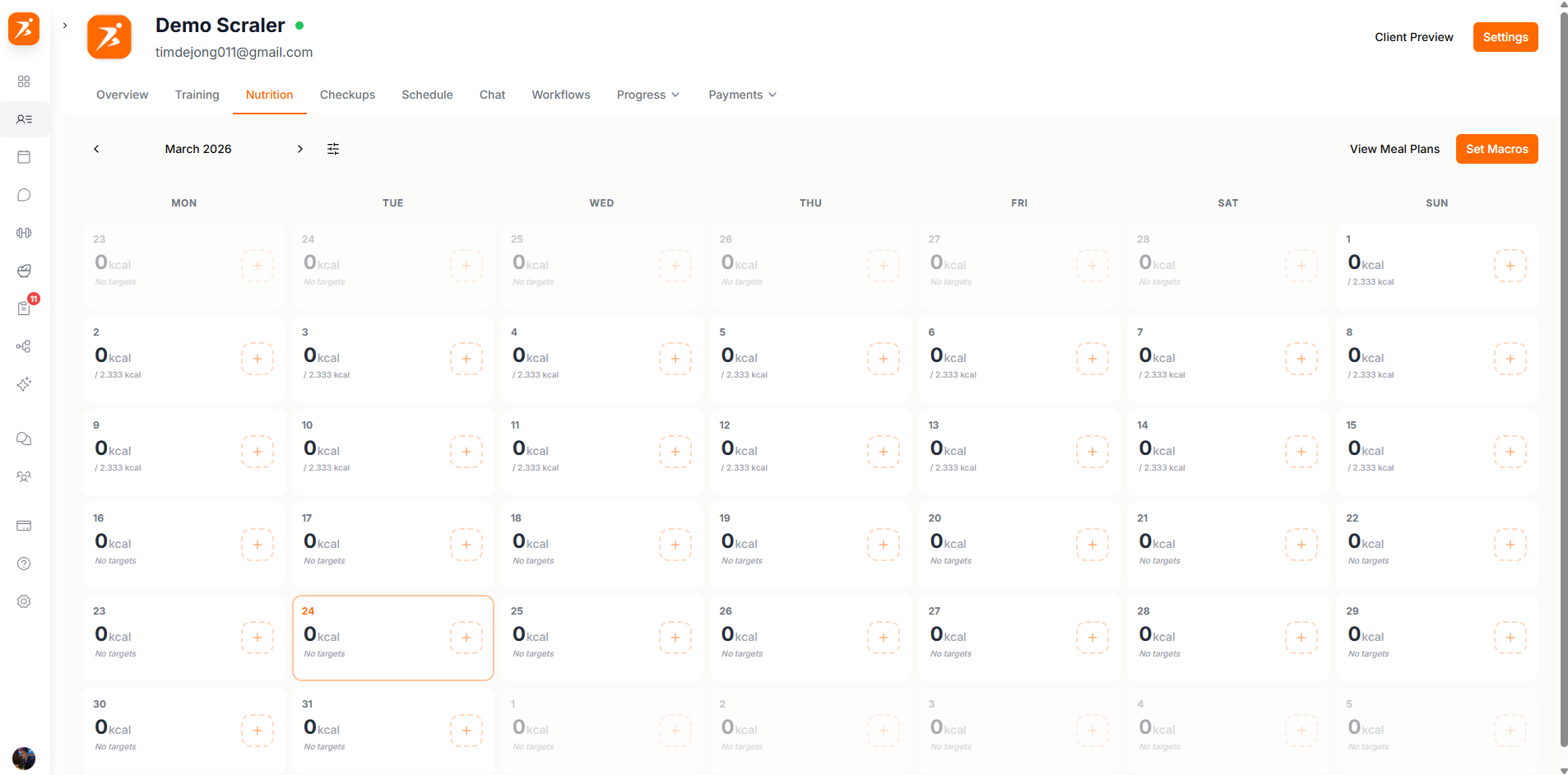
View Meal Plans lists this client's plans, and Assign New Meal Plan adds one. Start from a template, build one from scratch, or generate one with AI, then pick the start date. Set Macros sets the daily calorie and macro targets.
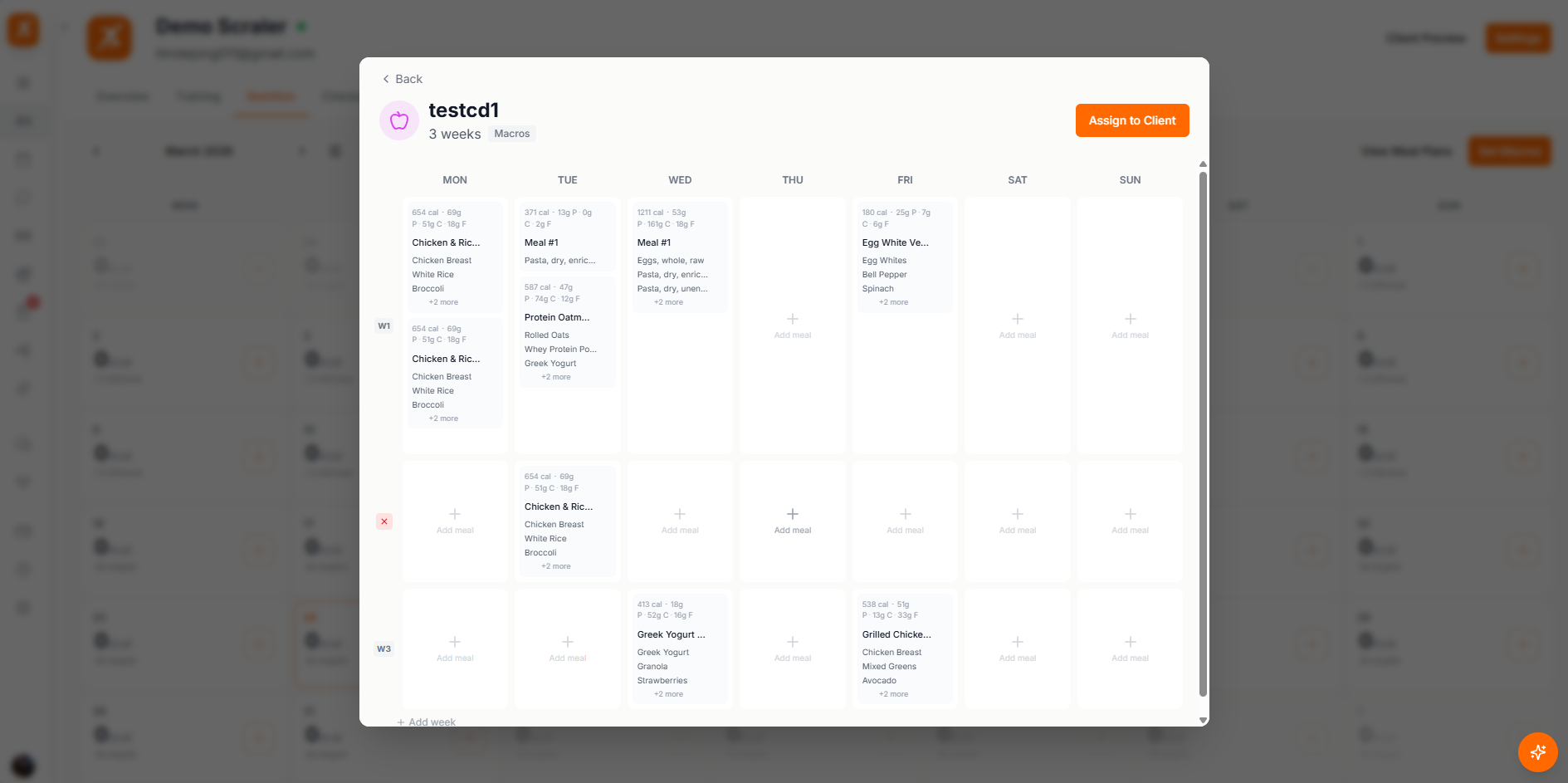
Fixed nutrition replaces the dated week with a short list of named days, like Training day and Rest day. Each day has its own targets and its own menu, and they apply until you change them.
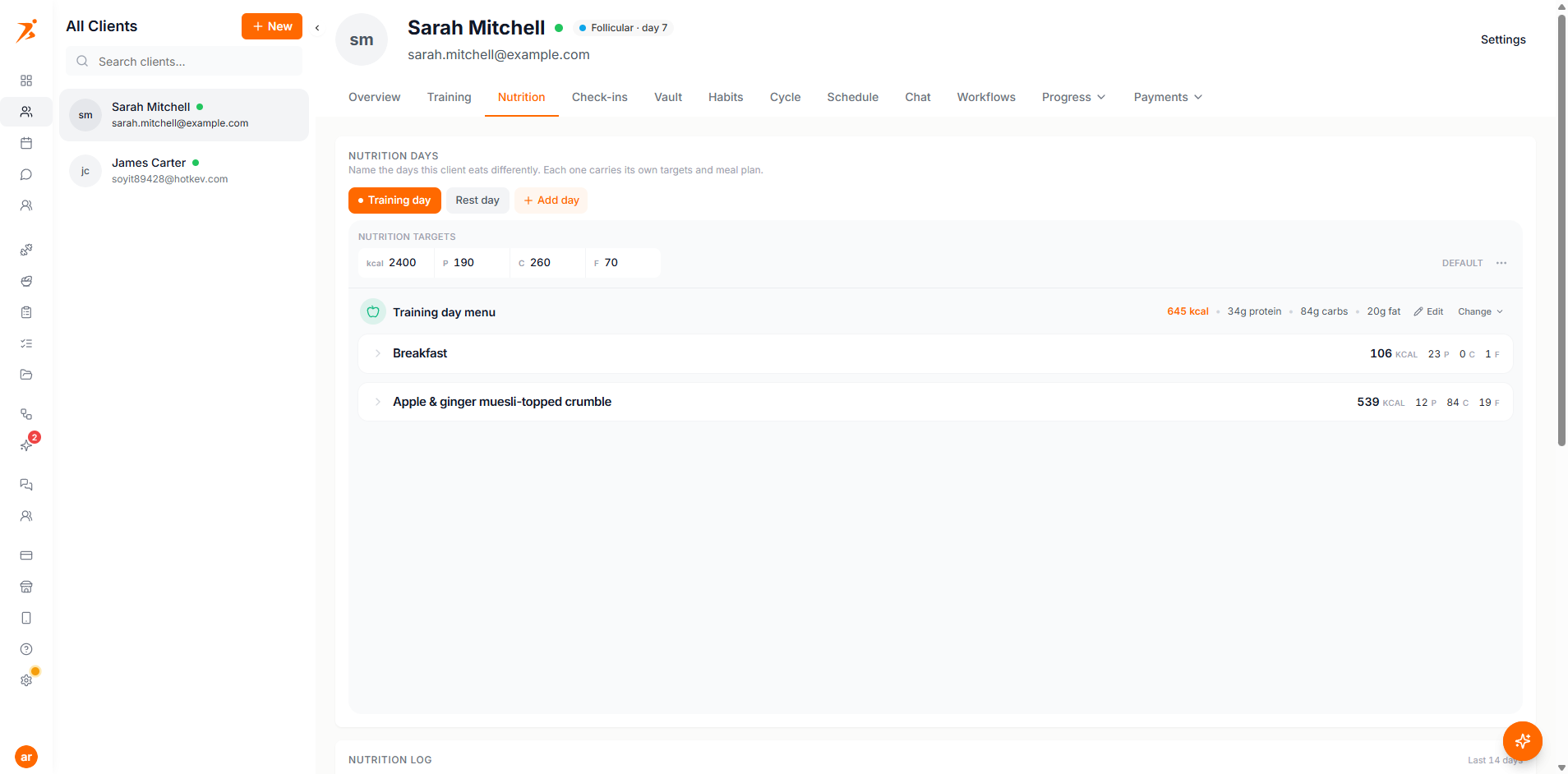
Under the days sits a log of what the client ate, newest first. Show more goes further back. Days with nothing logged still get a row, so a missed week is easy to spot.
Fixed meal plans covers setting up the days, targets and menus.
When food tracking is on for the client, they log meals in the app. Each entry in the food diary shows the food, the portion and its macros, so you can compare what was planned with what they ate.
Meal plans and recipes are built in Meal plans.
Check-ins
This tab shows the client's check-ins on a calendar. Switch to List to see them in order, and use View Recurring for the ones that repeat. A dot on each check-in shows its state: scheduled, pending or completed.
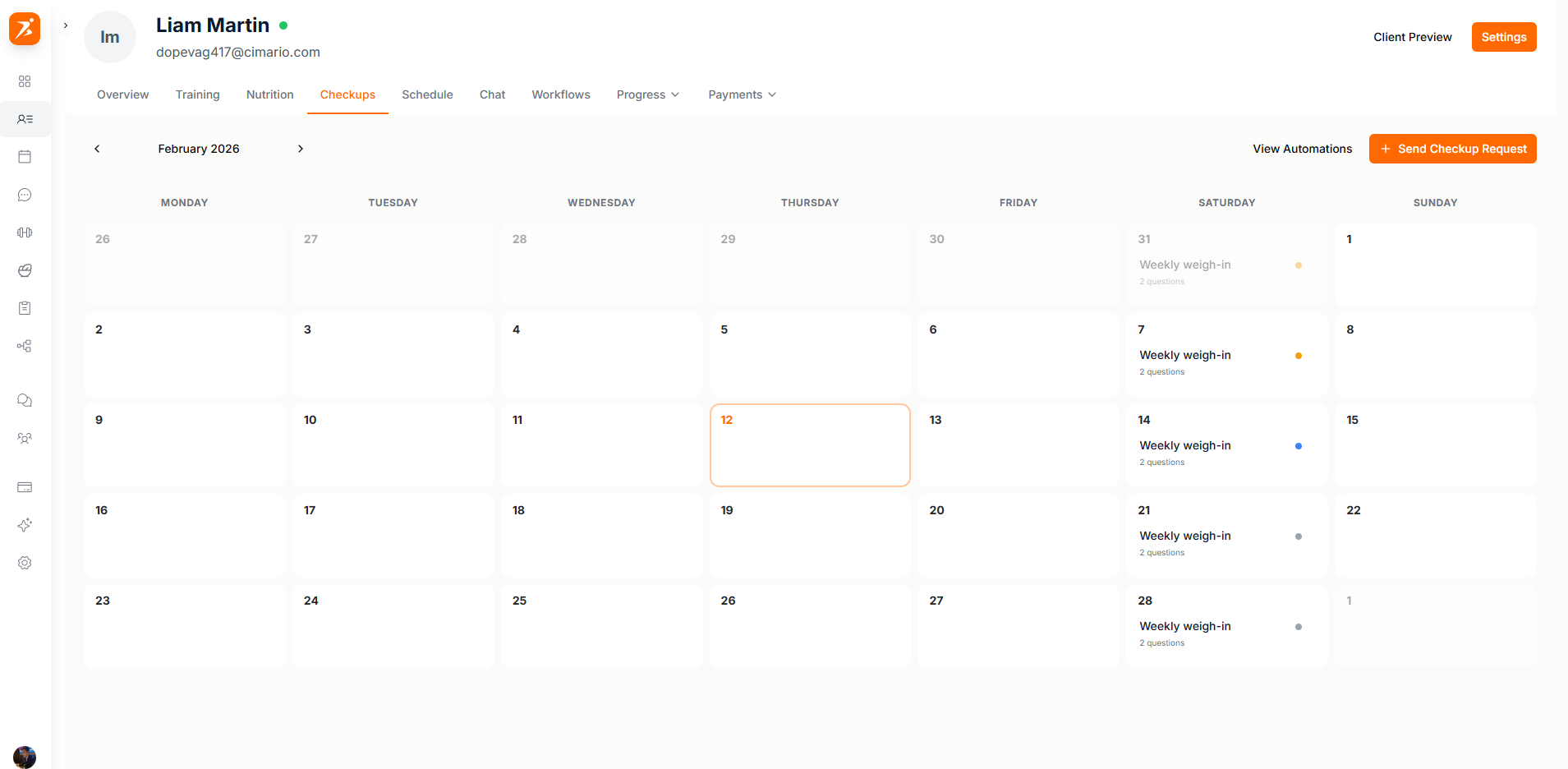
Send Check-in Request at the top right sends a new check-in to this client. Build it from scratch or start from a saved template, then send it now, schedule it, or repeat it.
When the client submits, open the check-in to see every answer. You can add the data to their progress charts, reply with text or a video, send it back for changes, or leave a private note. Templates, sending options and reviewing are covered on Check-ins.
Vault and Habits
Vault holds the files and documents you share with this client. See Vault.
Habits shows the habits assigned to this client and how they are doing. See Habits.
Cycle tracking
Cycle tracking is a private, opt-in tracker for your clients. It is a client feature, not a habit. The client decides whether to track and exactly what you get to see.
Clients log their period, flow and symptoms in the app or on the web. Scraler estimates the current phase (menstrual, follicular, ovulation or luteal) and predicts the next period once a couple of cycles are logged. These are estimates for planning, not medical advice.
Two things need to line up. Your plan must be Plus or higher, and the feature must be on for the client. Open their Settings, go to Features, and find Cycle tracking under Health. It is on by default for female clients, and you can switch it on for any client. The toggle only makes the feature available. It does not start tracking or share any data.

The client chooses what to share. They do it on the Cycle page of their dashboard or in the mobile app:
- Private
- You see nothing. The Cycle tab says the client is not sharing.
- Share cycle phase
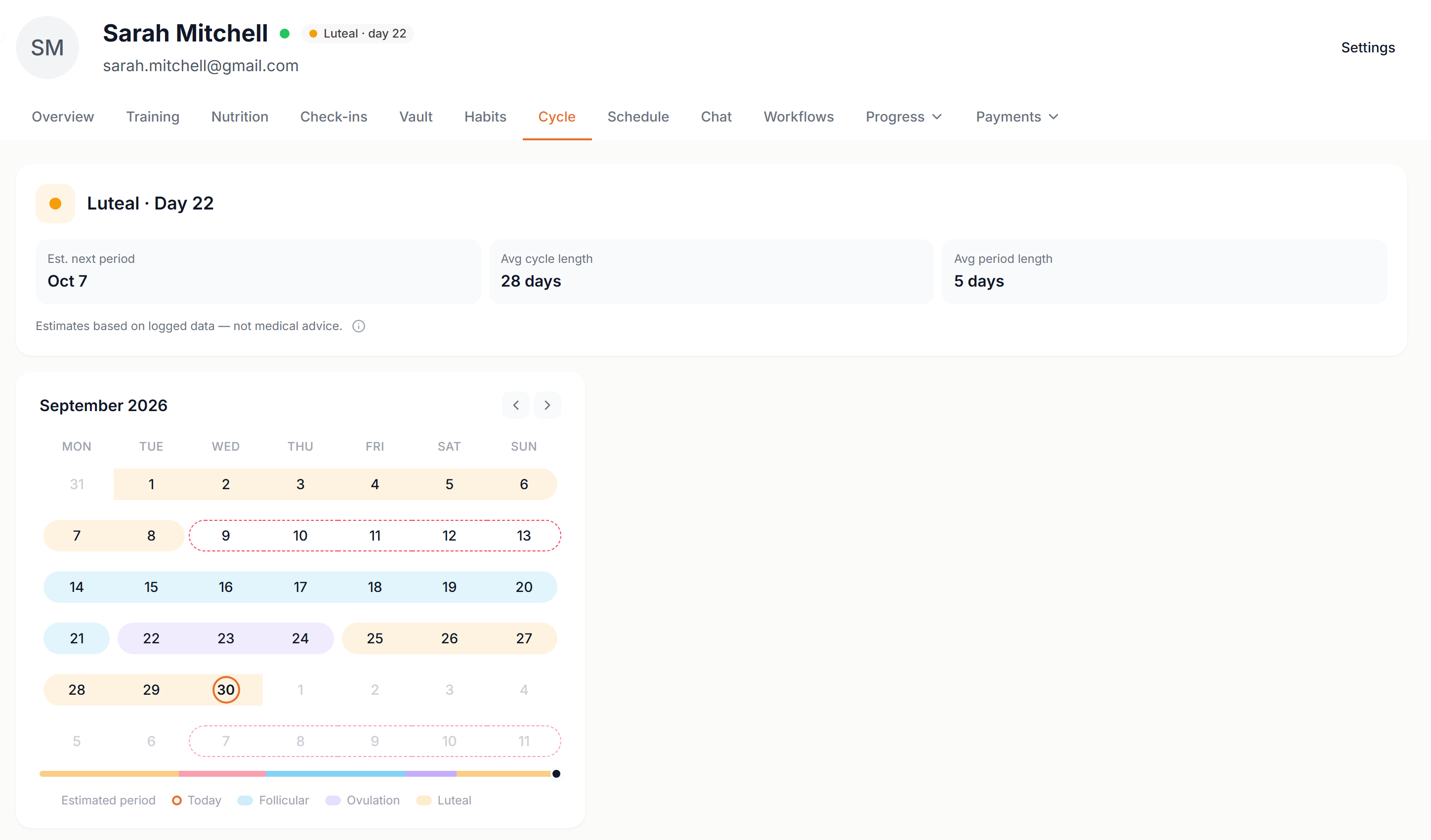
- You see the current phase and cycle day, the estimated next period, the average cycle and period length, and a month calendar with estimated phases.
- Share full details
- You also see the periods they logged, the symptoms logged this month, and their recent periods.
With a phase shared, the tab looks like this. The small chip next to the client's name in the profile header shows the same phase.
Clients can change the level, pause tracking or delete their data at any time.
Progress
Progress opens a menu with three views: General Progress, Training Progress and Progress Reports. The data fills in by itself from check-ins, workouts, food tracking and the client's health sync.
General Progress. Pick a range: 1M, 3M, 6M, 1Y or All. Each metric gets a card with a trend chart and its change over that range, from weight and body fat to measurements, custom metrics, nutrition and health data. Drag a card to reorder it, or drag its edge to resize it. Customize turns any card on or off. Health metrics without data stay hidden until the client syncs.
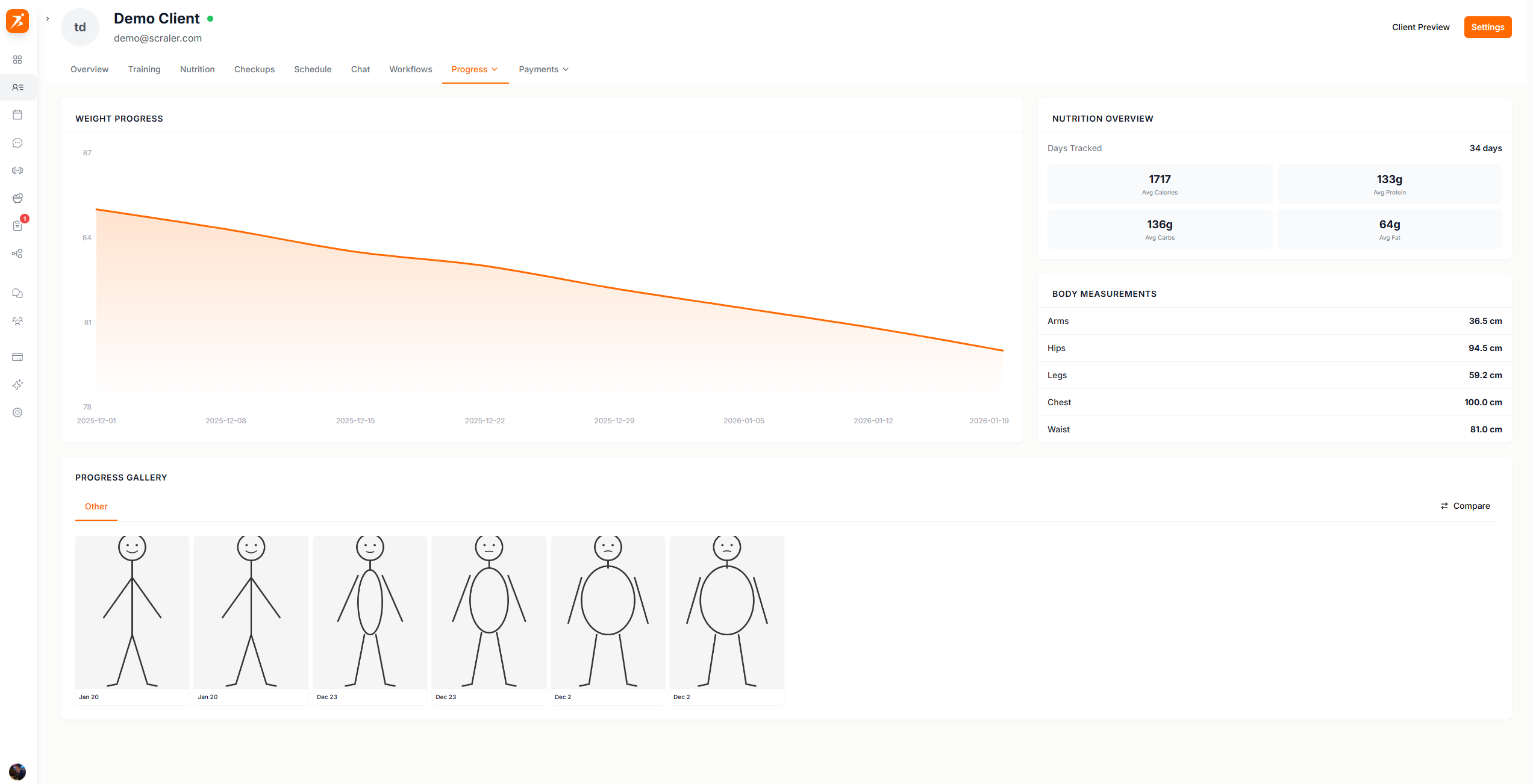
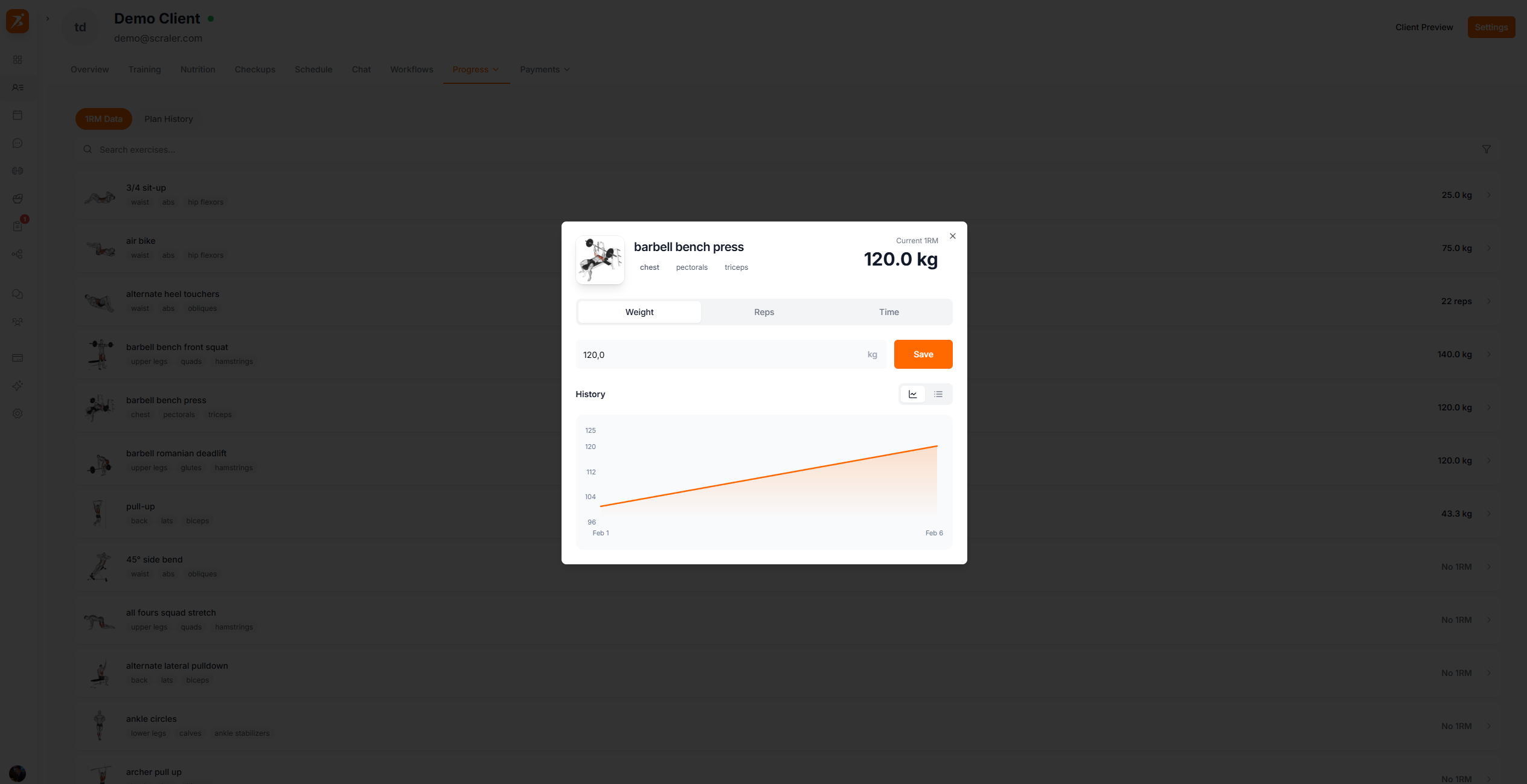
Training Progress. An overview of the selected range (1M, 3M, 6M or 1Y): adherence, completed against missed workouts, volume per session and session duration. 1RM Data shows each exercise's best lift with a history chart, and Plan History lists past and current training plans.
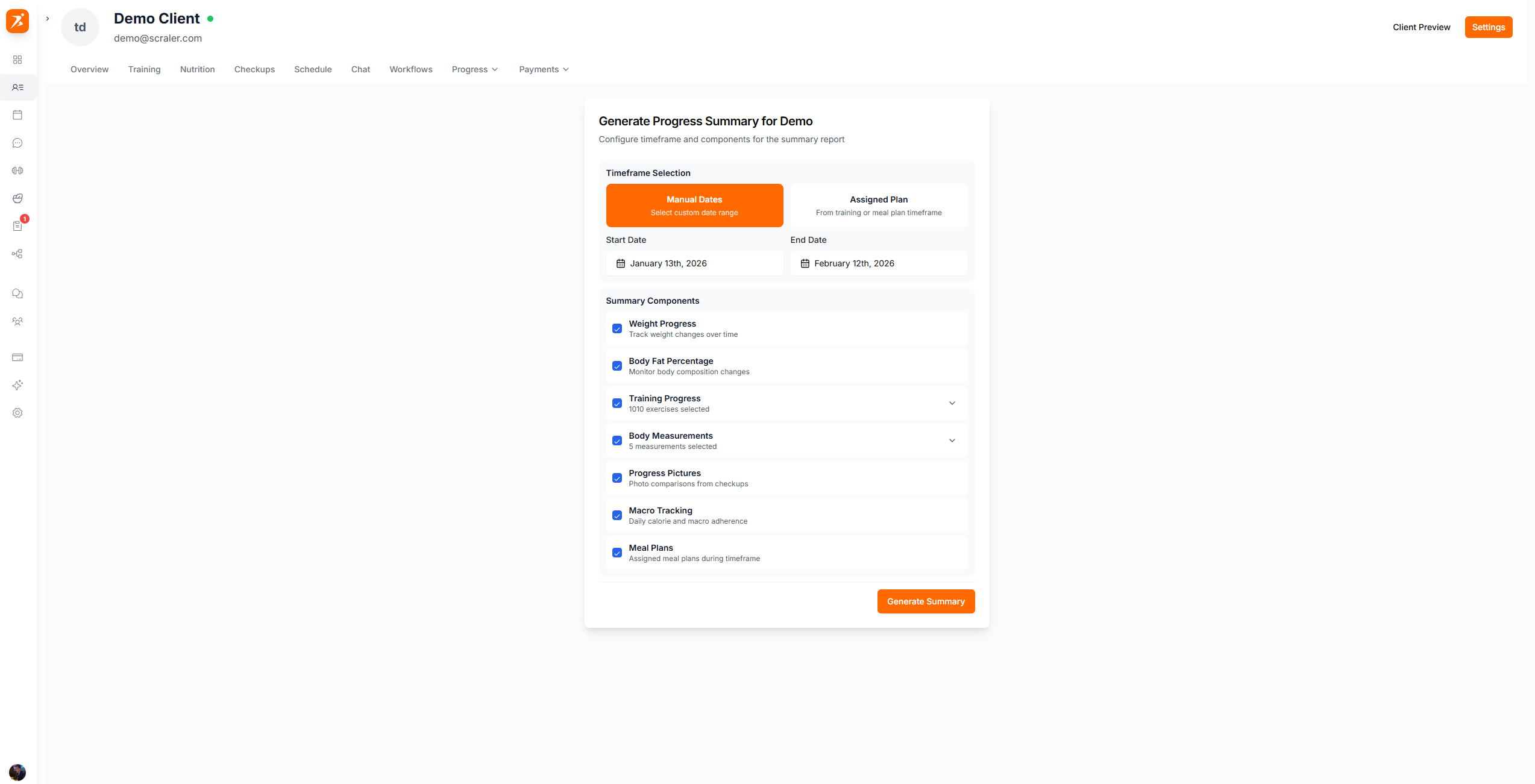
Progress Reports. Make branded reports for a client here. Each report is saved, so you can reopen it, resend it, or compare it over time. Click New Report, set the timeframe with manual dates or from an assigned plan, and choose what to include. Generate Summary builds and saves it.
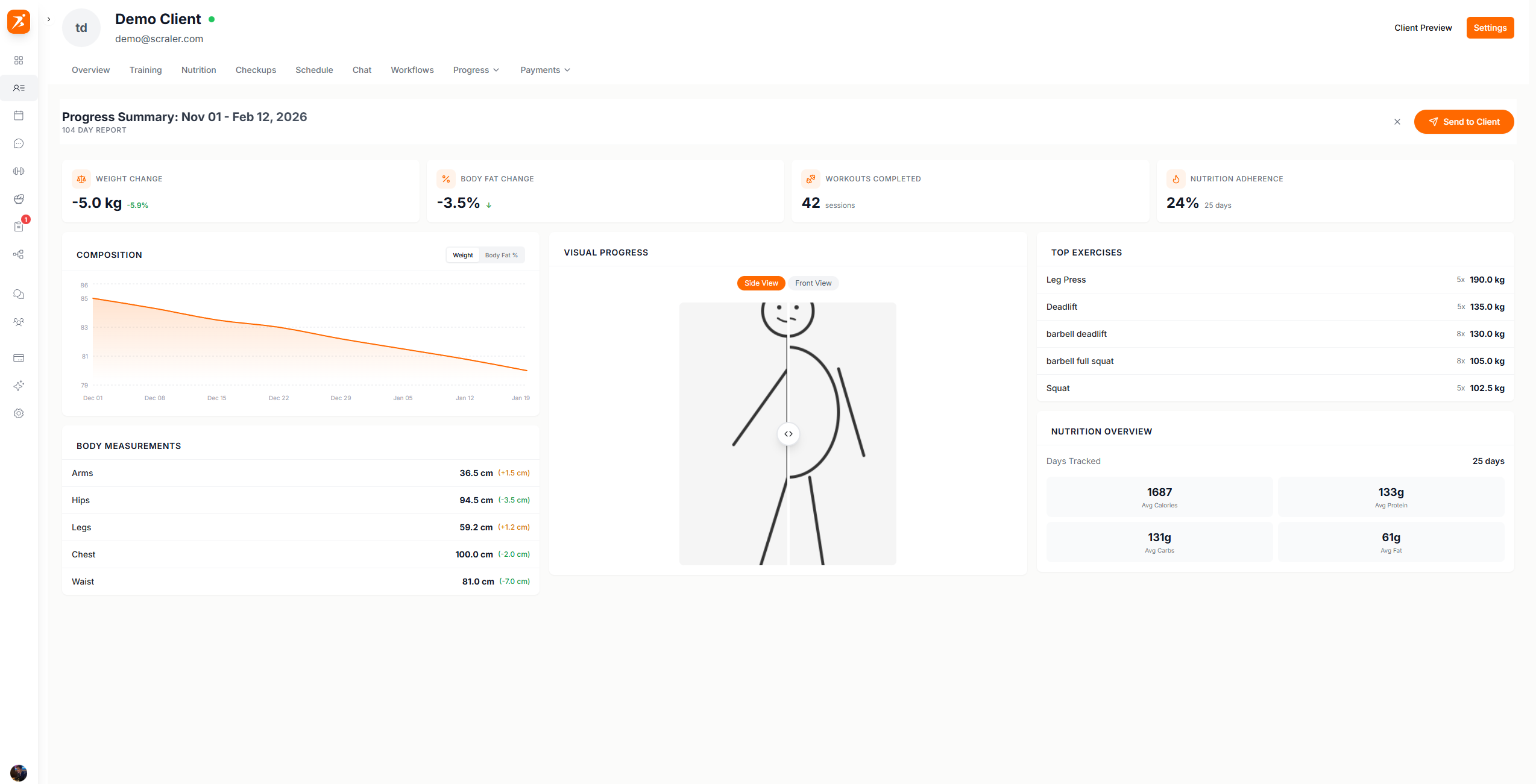
Send to Client delivers the report as a card in chat. The client taps it to open a full screen, Stories-style slideshow. View Recap plays the same slideshow for you. The last slide offers a branded results image the client can save and share.
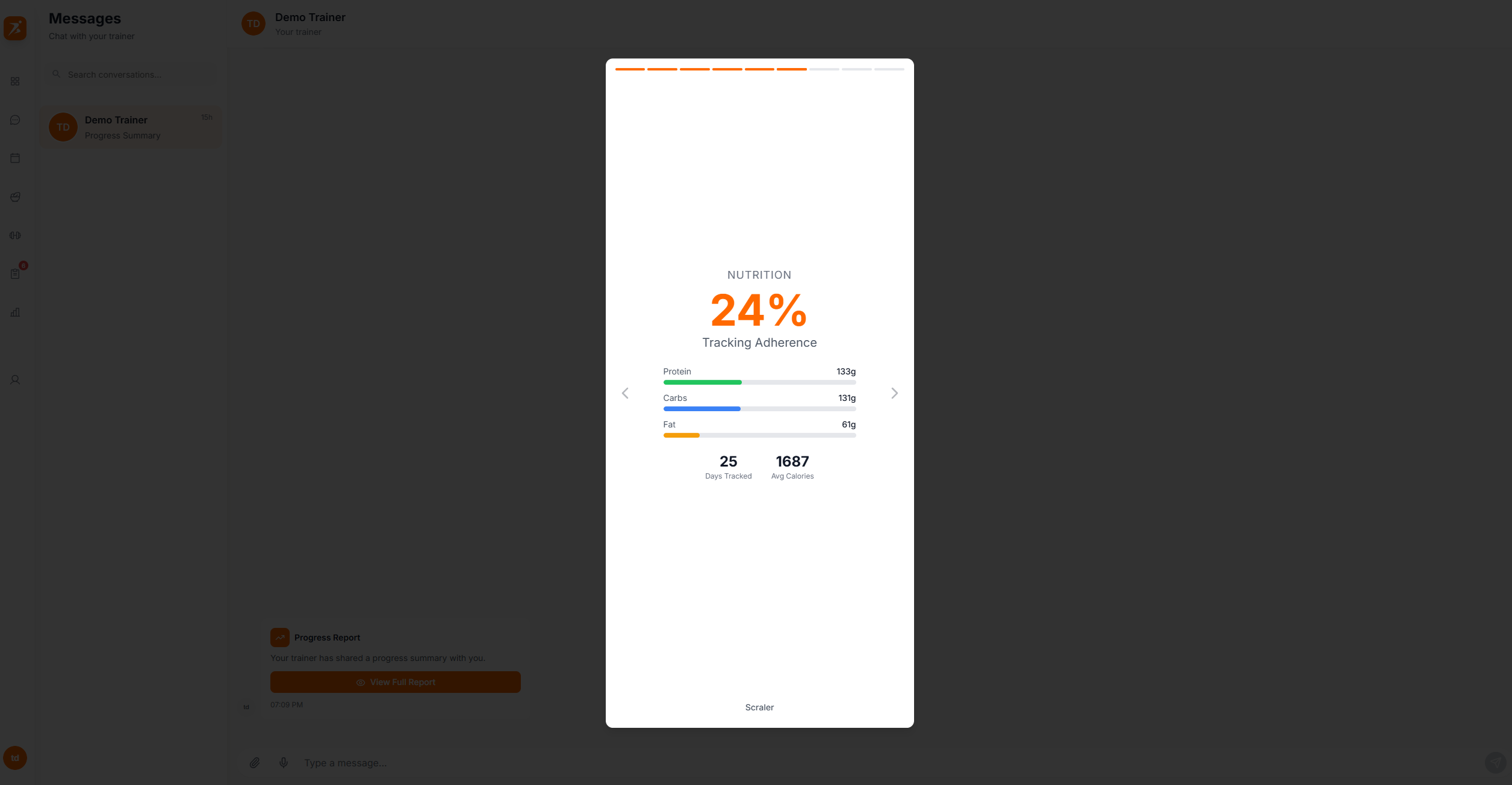
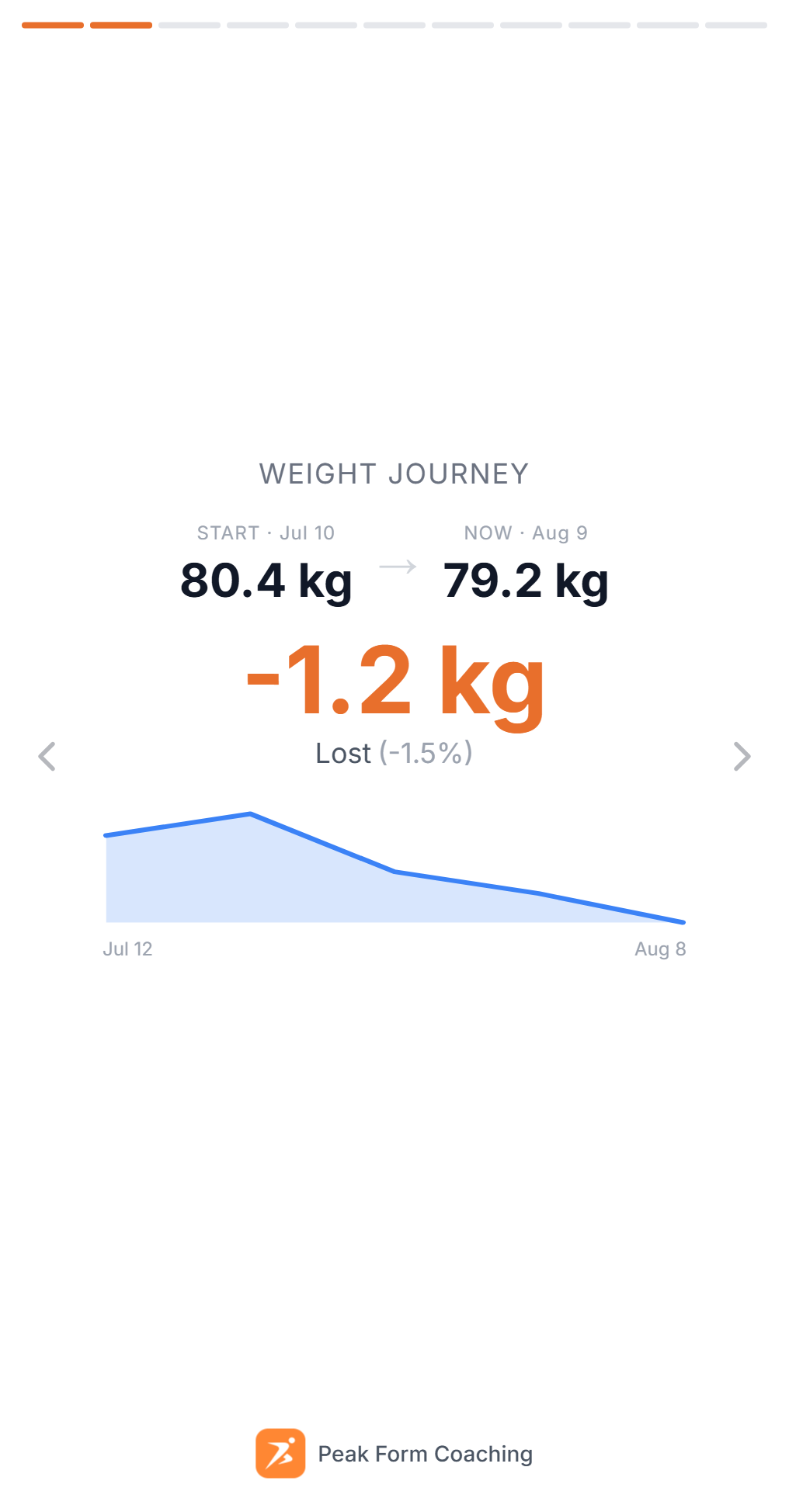
The slides follow what you included: