
Client Onboarding
Configure the questions a new client answers, and decide whether they need to pick a plan, before they reach their dashboard. Open it from the Clients page.
Where to find it
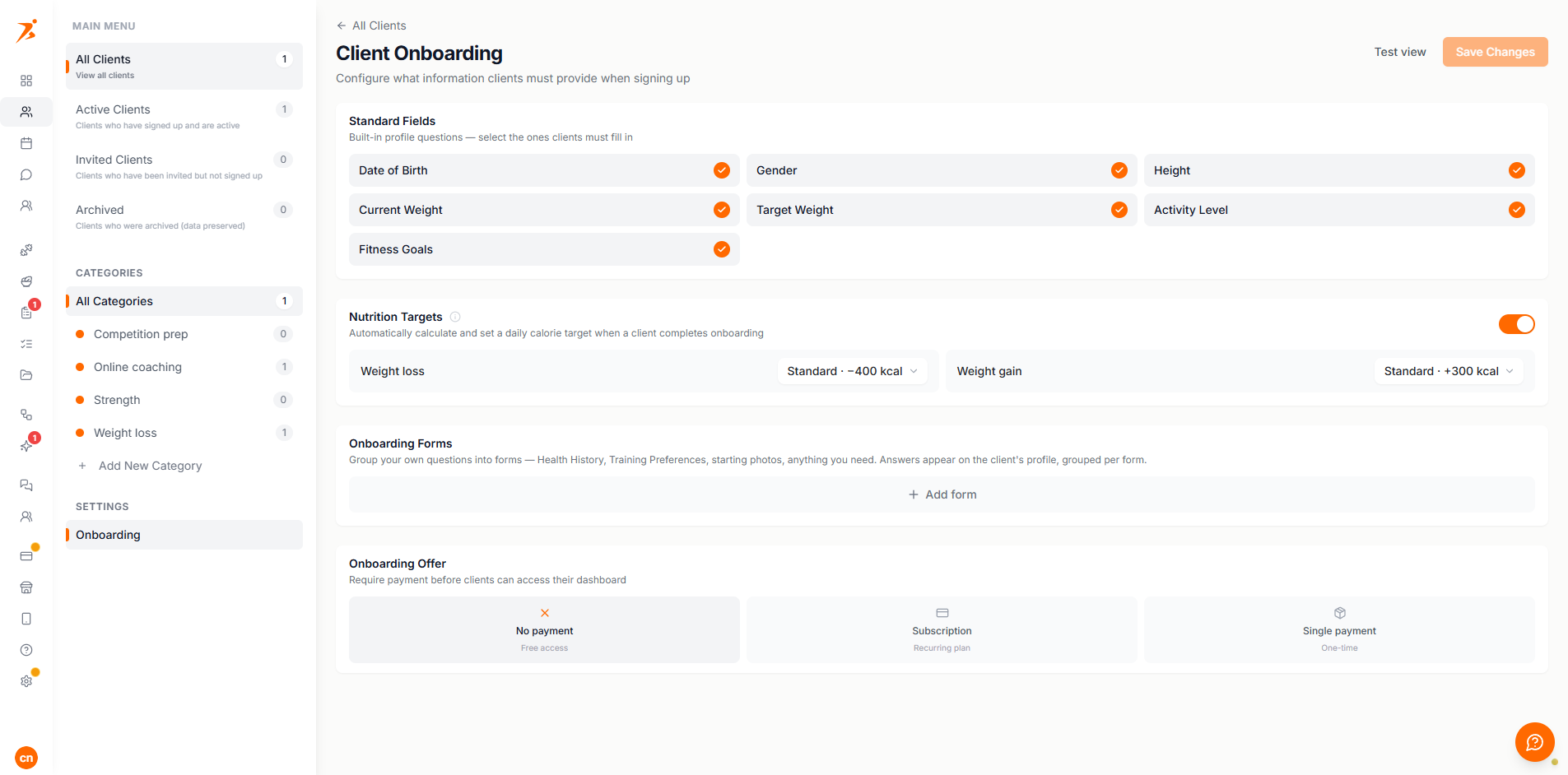
Open Onboarding under Settings in the Clients side menu. Toggle which fields are required, add your own questions, then use "Test view" to preview exactly what a client will see before you click "Save Changes".
What clients see
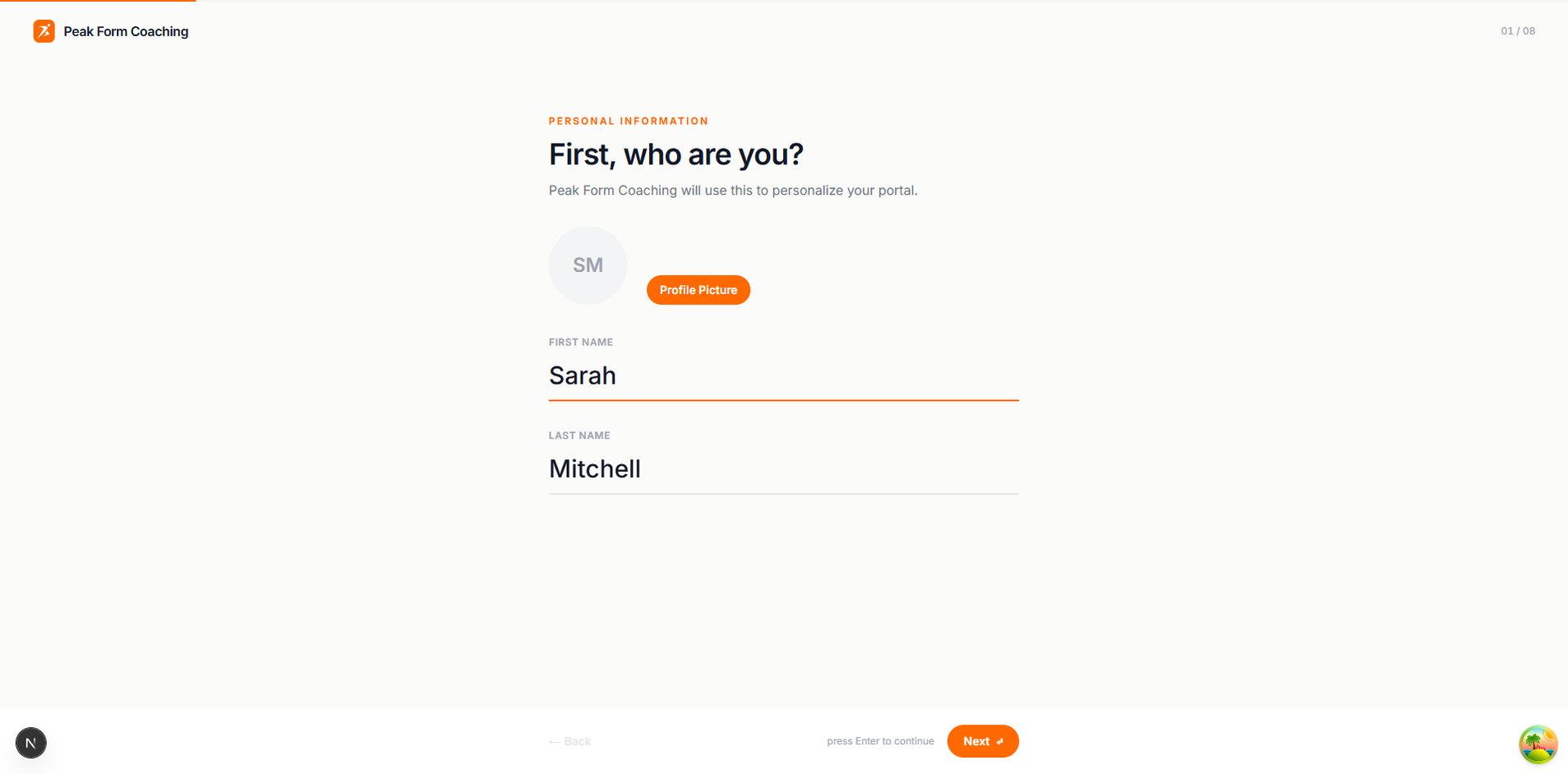
The onboarding wizard shows one question per screen. The first screen asks for the client's first and last name, and an optional profile picture. Both names are required to continue.
After that, each screen is tagged with the phase it belongs to:
- Personal Information
- Language (unless you preset it), date of birth, and gender.
- Physical Information
- Height, current weight, target weight, and activity level.
- Fitness Goals
- What the client wants to achieve.
- Payment
- Only appears once you've set up an onboarding offer and connected Stripe.
- Questions
- Your own custom forms, one screen per question.
Standard fields
Under "Standard Fields", select which built-in questions are required: Date of Birth, Gender, Height, Current Weight, Target Weight, Activity Level, and Fitness Goals. A field shown greyed out is required by the automatic nutrition target formula and can't be turned off while that's on.
Client language
Preset the language new clients get, detect it from their browser, or let each client pick one during onboarding (the default).
Your own questions
Under "Onboarding Forms", group your own questions into forms: Health History, Training Preferences, starting photos, anything you need. Start from a blank form or one of five templates: "Pre-Exercise Health Screening (PAR-Q)", "Goals & Motivation", "Injury & Medical History", "Lifestyle & Habits", and "Training Preferences". Each question is a short answer, long answer, number, yes/no, single choice, multiple choice, date, or photo upload, and can be marked required or optional. You can add up to 10 forms and 30 questions in total. Answers show up on the client's profile, grouped by form.
Requiring paymentPremium
Under "Onboarding Offer", choose No payment, Subscription, or Single payment, then pick one of your existing subscription plans or products. The client has to complete that payment before reaching their dashboard. On Basic and Plus this section shows an upgrade prompt instead: charging clients during onboarding needs Premium or Ultimate.
Onboarding for online purchases
Under Onboarding Offer, "Collect onboarding after purchase" decides whether people who buy through a payment link, landing page or community offer fill in your onboarding after paying. Turn it off to send them straight to their dashboard.
Automatic nutrition targets
Turn on Nutrition Targets to set a client's daily calorie target the moment they finish onboarding, using the Mifflin-St Jeor formula: BMR from weight, height, age and gender, multiplied by an activity factor, then adjusted by your deficit or surplus preset for weight loss or gain, or left at maintenance if their goal is within 1 kg of their current weight. The target never drops below 1,200 kcal. Only the calorie target is set this way; you configure macros per client afterwards. While this is on, the fields the formula needs are locked to required.
Nutrition delivery
Choose how new clients receive meal plans: Per client (you decide later), Calendar or Fixed. You can auto-assign a meal plan template, and turn on "Adjust portions to the client's calorie target" to scale it to their calculated calories. If an automation also assigns a meal plan to new clients, you'll see a warning so they don't get two. Existing clients are not affected.
Training delivery
Choose how new clients receive training: Per client, Calendar or Fixed, and optionally auto-assign a program. For Calendar programs, pick whether the plan starts on signup day or next Monday. A warning appears if an automation already assigns a plan to new clients.
Where the answers land
Every client's answers appear under Onboarding Answers on their profile overview, where you can edit or delete them.