
Your Dashboard
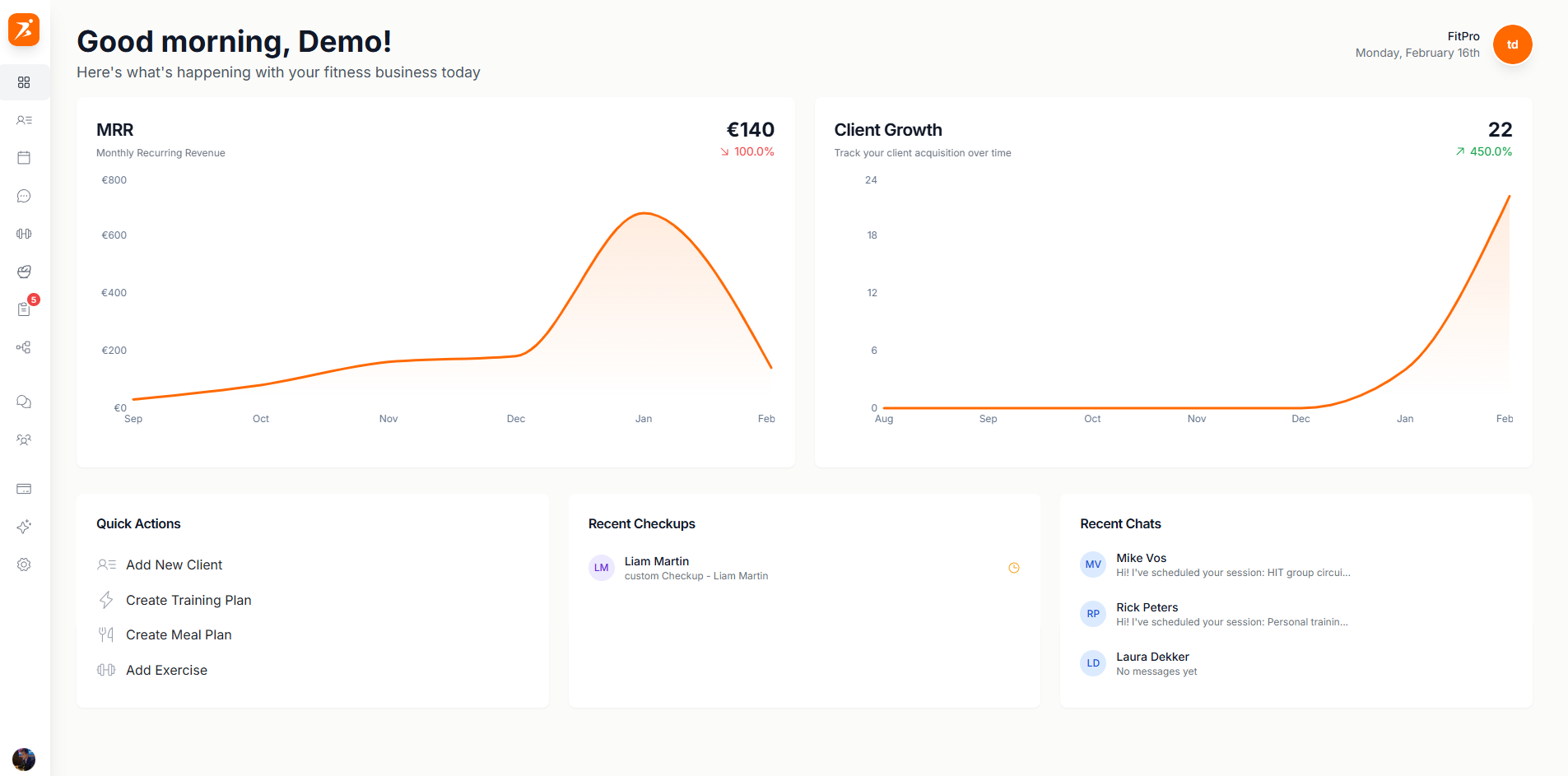
The dashboard is the first thing you see when you log in. It shows how your business is doing and what needs you right now.
Get set up
New accounts get a checklist at the top. Click the row to see every step, or Set up to jump to the next one. It disappears once every step for your plan is done, or when you dismiss it.

Every plan
Plus
Premium and Ultimate
Ultimate
Charts
Two charts show how your business is doing. Click one to open the page behind it.
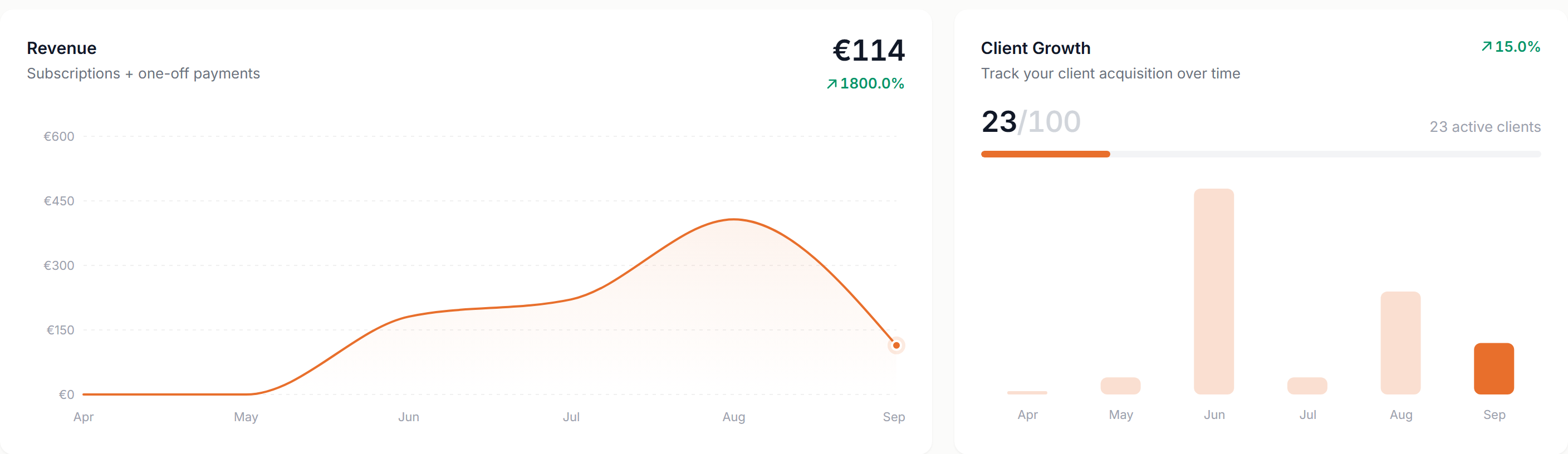
- Revenue
- Subscriptions and one-off payments over the last six months. Until money comes in, it shows your sessions instead.
- Client Growth
- Clients against your plan's limit, how many are active, and new clients per month.
Attention Required
Everything that's waiting on you, in one list, most urgent first. Click an item to open it right where you can handle it. Once it's handled, it leaves the list.
Emma's payment failed
A subscription payment didn't go through
Review Sarah's check-in
A check-in was submitted and you haven't opened it
Daniel requested a session
A client asked for a session
New message from Priya
Unread messages, one line per conversation
Automation suggestion
An automation is waiting for your approval
Olivia hasn't paid yet
A payment request is still unpaid after 3 days
James's plan ends Sun, Oct 4
A training plan ends within 7 days
Mark hasn't accepted the invite
An invite is still open after 3 days
3 check-ins to review
Three or more of one kind become a single line
All caught up
Shown when nothing is waiting
Studio managers only see items for their own clients, and only for the areas their role gives them access to.
Also on the Dashboard
Recent Chats shows your four latest conversations. Click one to open it.
Quick Actions are shortcuts to add a client, a training plan, a meal plan or an exercise.