
Exercises
1,300+ ready-made exercises, plus your own with demo videos and cues.
The exercise library
Your library starts with more than thirteen hundred exercises, each with an animated demo.
Search and filter
Search by name, then narrow it down by type, body part or equipment.
Edit into your own copy
Open any exercise and edit it to add your own cues. Saving keeps your version as a personal copy.
Create your own exercise
For a movement that isn't there, create your own. Name it, then pick the muscles and the equipment.
Instructions and form tips
Add instructions and form tips.
Add a photo and demo video
Then a photo, and your own demo video, uploaded or linked from YouTube or Vimeo.
Organise with categories
Categories keep it organised. Add one, tag the exercise, and open the category to see everything in it.
More details and screenshots
Exercise library
Every exercise your workouts and plans use lives here. You start with 1,300+ library exercises with animated demos, and you can add your own.
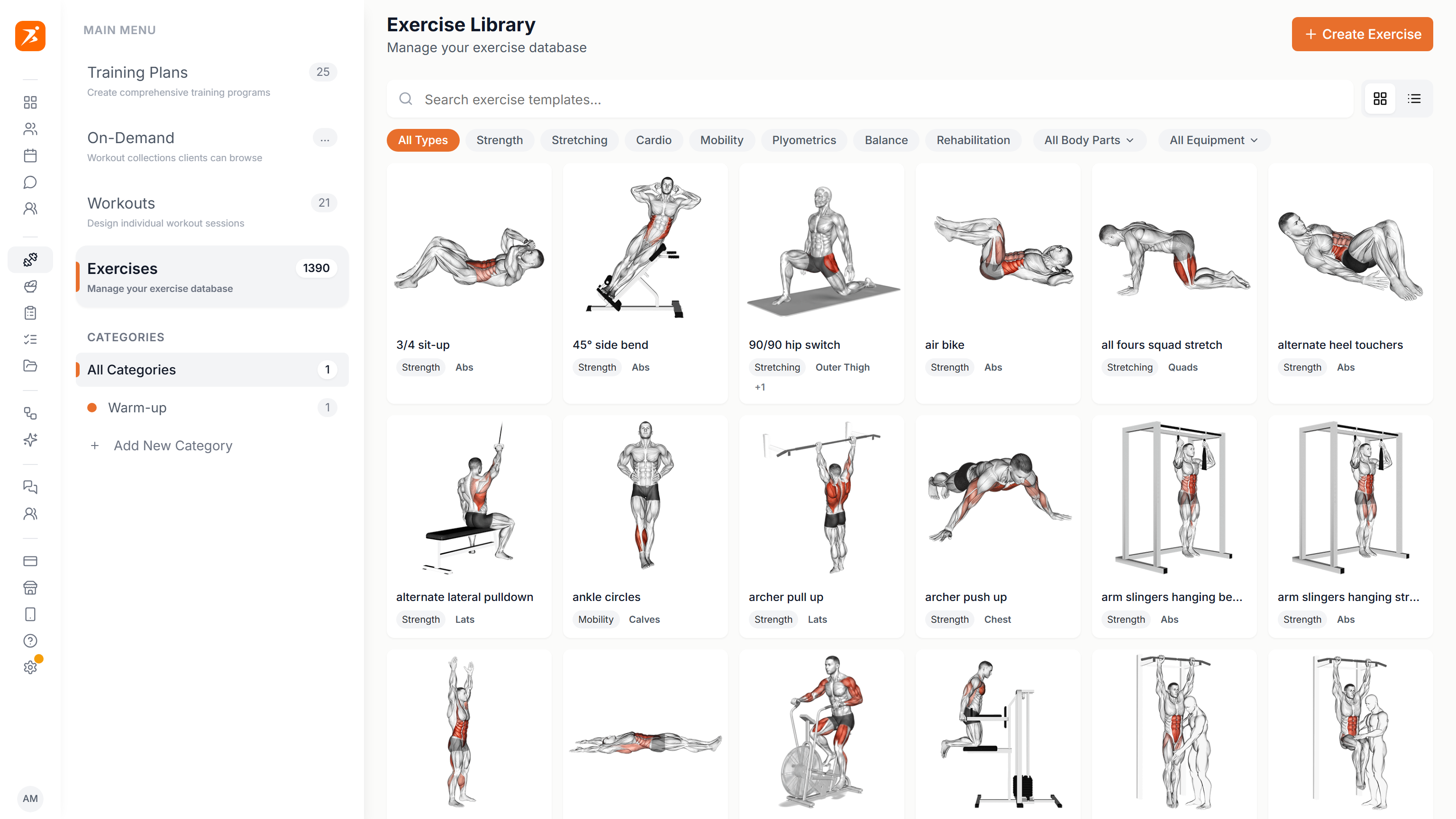
Find an exercise
Search by name, then narrow the list with the filter row. Use the two icons next to the search bar to switch between grid and list.
- Type
- The pills: Strength, Stretching, Cardio, Mobility and more. Click one to filter, click it again to clear.
- Body part
- All Body Parts opens a list of muscle groups. Pick a whole group or one muscle inside it.
- Equipment
- All Equipment lists what your exercises use: barbell, dumbbell, cable, machine, body weight and more.
Hover a thumbnail to play its animation. Hover an exercise to edit it, duplicate it, change its category or delete it. Delete only appears on exercises you created.
Editing a library exercise saves your own copy, so the original stays untouched. Reset to Original puts the library version back.
Create your own exercise
Click Create Exercise to open a three-step dialog. A name, at least one muscle group and equipment are required. Everything else is optional.
- 1 Exercise
- Name it the way clients say it, then pick the type: Strength, Cardio, Stretching, Mobility and more.
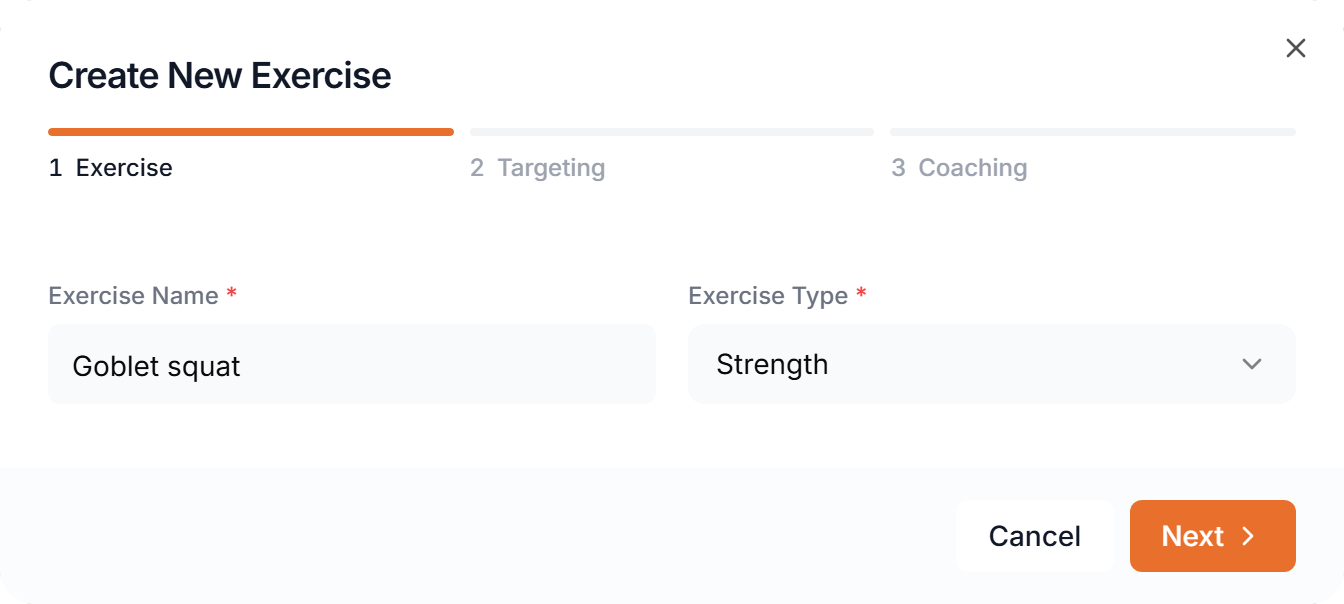
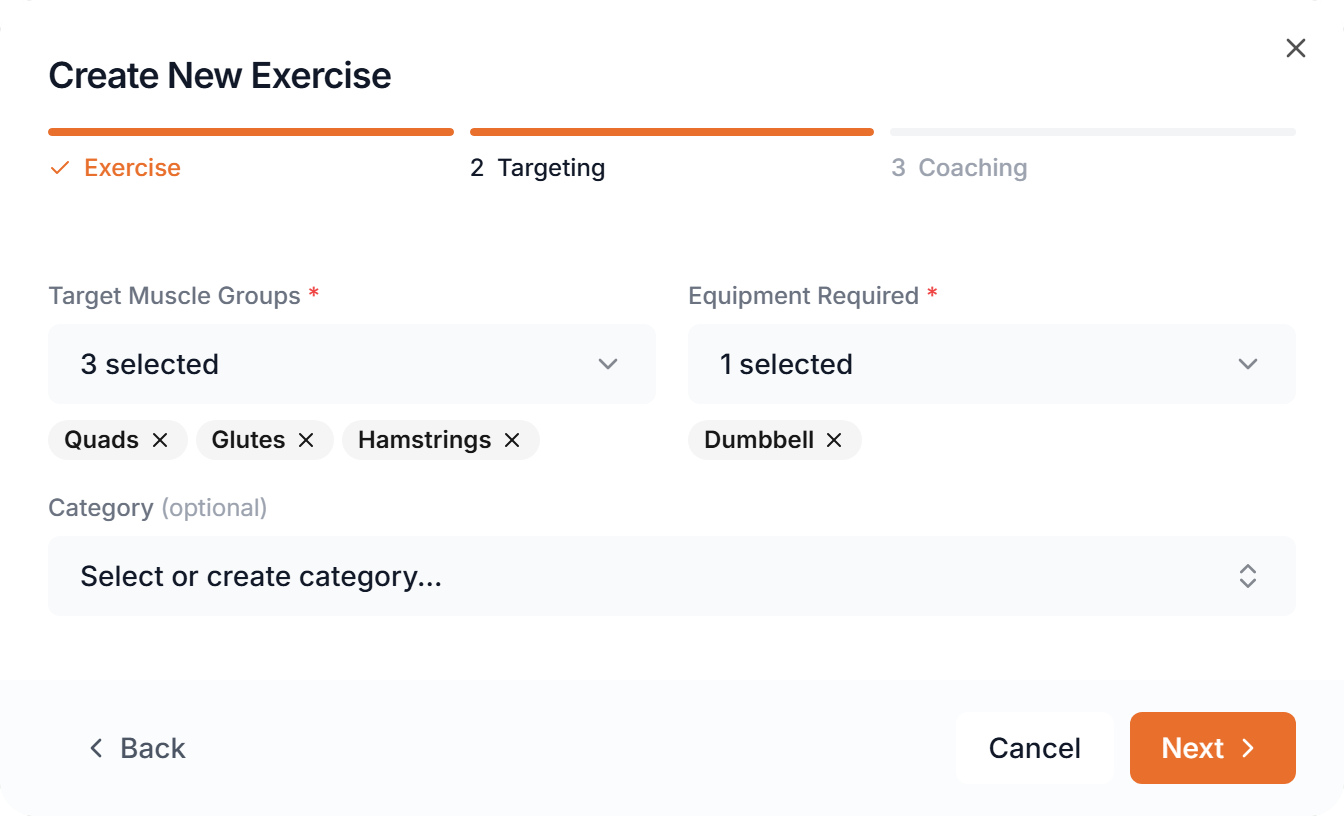
- 2 Targeting
- Pick every muscle group it trains and the equipment it needs. Category is optional: choose one of yours, or type a new name to create it.
- 3 Coaching
- Written instructions, form tips, an image, and a video. Upload an MP4, WebM or MOV up to 50 MB, or paste a YouTube or Vimeo link.
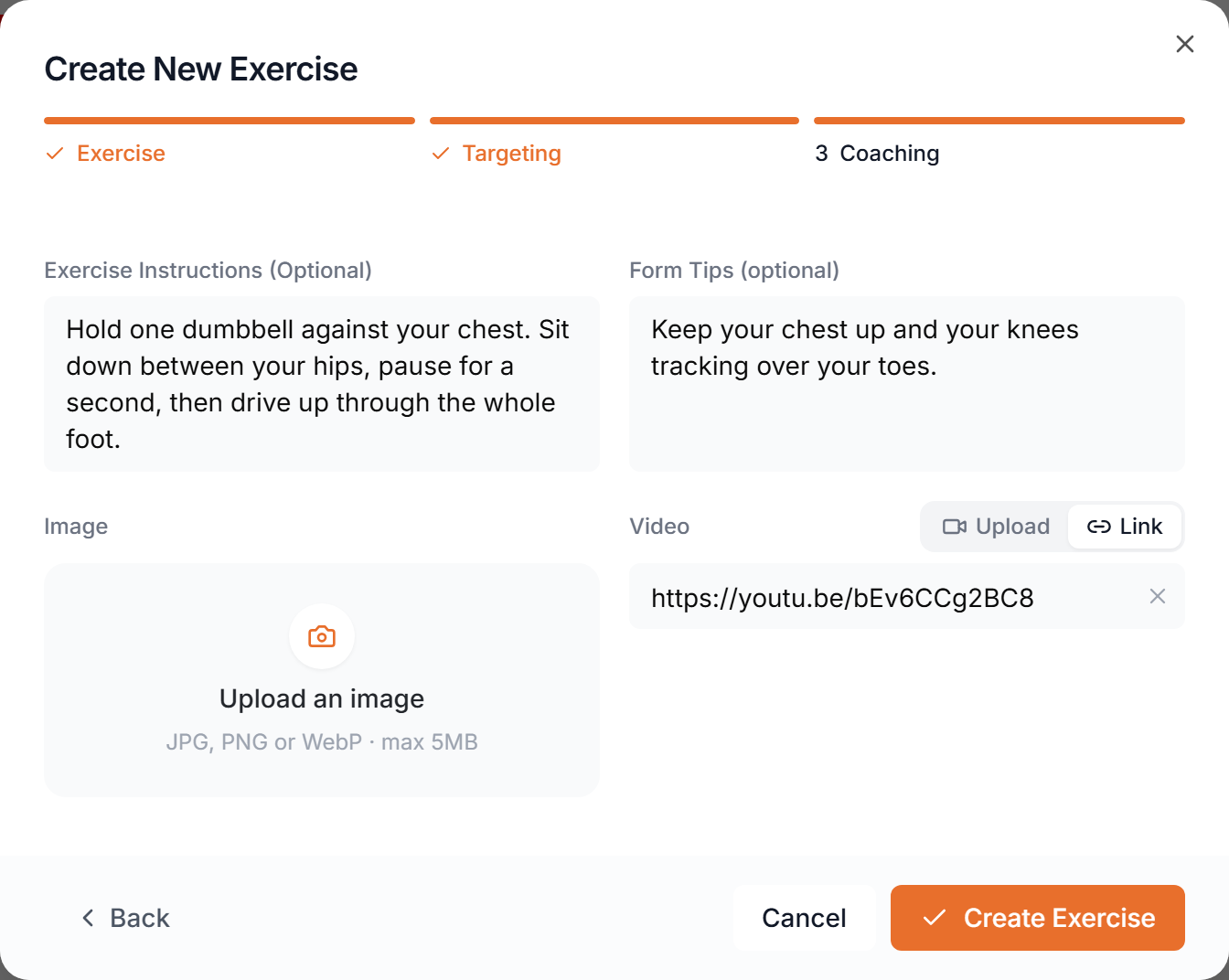
The image and video show wherever the exercise appears: in workouts, in plans and in your clients’ app. Clients get a play button when an exercise has a video.
Tag every muscle an exercise trains, so the body part filter finds it.
Categories
Type, body part and equipment are built in. Categories are your own labels on top, such as Warm-up, Home or Machines. They live in the sidebar under Categories.
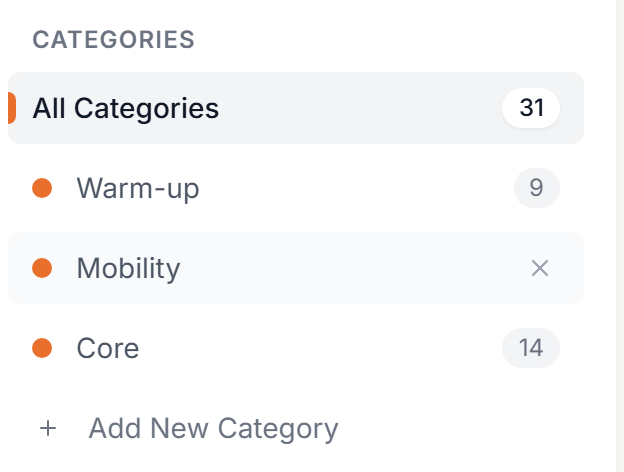
Category names and counts in this picture are sample data.
- Create
- Click Add New Category at the bottom of the list, type a name and press Enter.
- Filter
- Click a category to show only its exercises. All Categories shows everything again.
- Assign
- Each exercise has one category. Set it in step 2 of the create dialog, or hover an exercise and use the tag icon.
- Delete
- Hover a category and click the x. The exercises inside are never deleted: they move to another of your categories, or to Uncategorized.
Categories can’t be renamed or recolored. To rename one, create a new category and move the exercises over.