
Quick start
From the pricing page to your dashboard in a few minutes. Your 14-day free trial starts when you add your card.
Pick a plan
On the pricing page, choose monthly or yearly billing and a plan: Plus, Premium or Ultimate. For Ultimate, also pick how many active clients you need. Then click Start free trial on that plan.
Create your account
Continue with Google or Apple, or enter your email and a password. The plan you picked shows at the top. Change plan takes you back to the pricing page.

Add your card
Stripe Checkout opens for your plan. Add a card to start your 14-day free trial. Nothing is charged today. If you cancel in Settings before the trial ends, you are never charged.
Confirm your email
If you signed up with email, we send you a confirmation link. Click it to activate your account.
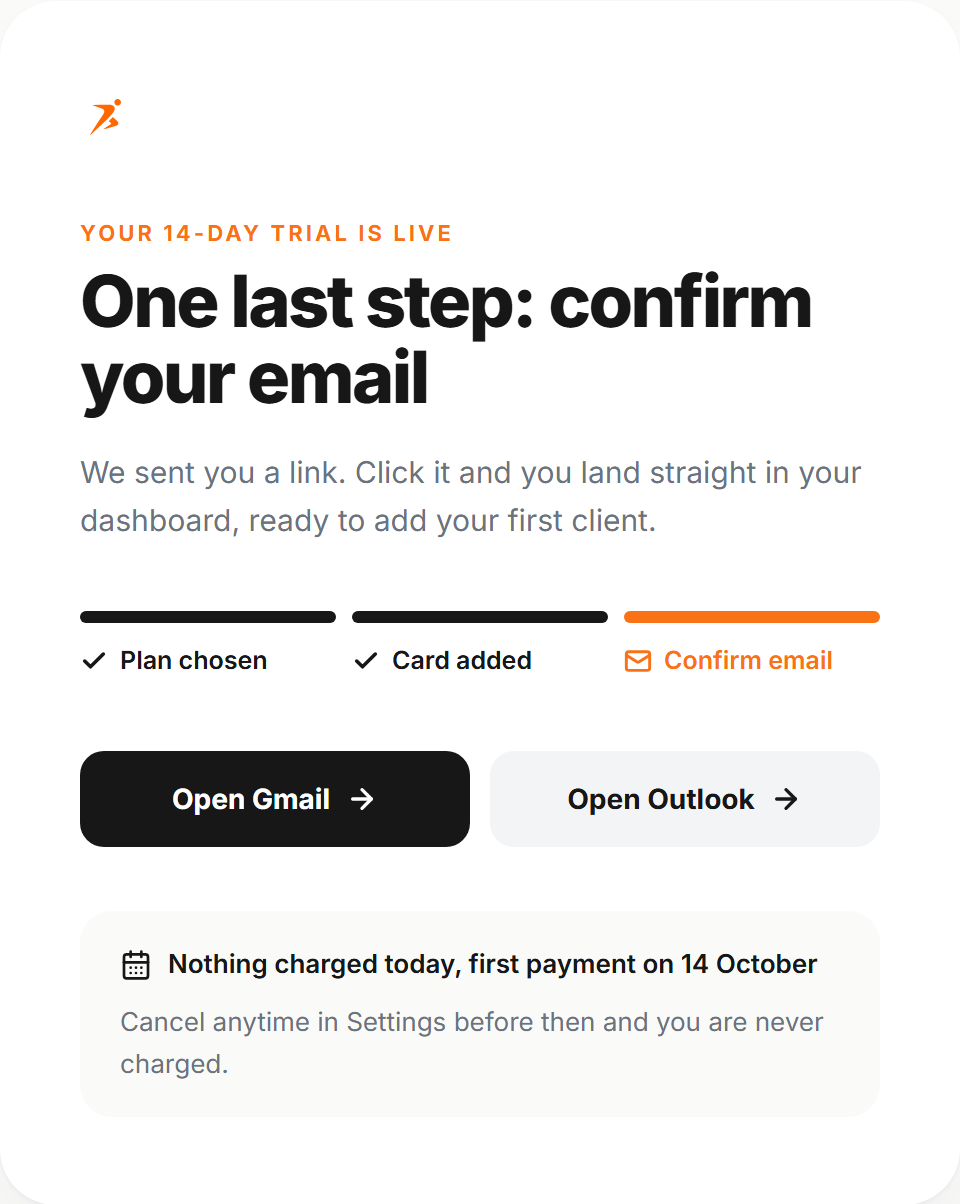
No email, or the link expired? Try to sign in. The sign-in page then offers Resend confirmation email.
Signed up with Google or Apple? You skip this step.
Tell us about you
A short onboarding asks for your name, a profile photo (optional), your business name, your language and how you found Scraler. You can change all of it later in Settings.
Follow Get set up
Your dashboard opens with the Get set up checklist: branding, your first client, your first training plan and your first meal plan, plus the extra steps your plan unlocks.
See every step per plan