
Check-ins
Set a check-in rhythm and respond fast without doing it all manually.
Check-in templates
Check-ins start with a template: a form you build once and reuse.
Create a custom metric
Want to track something of your own, like daily steps? Create a custom metric. Give it a name, a type and a unit.
Add it to a template
Back in your forms, open a template to see what it asks: ratings, measurements, photos or open questions. Add your metric as a field, and every answer is charted on the client's progress.
Send a check-in
To send it, click Send Check-in and start from a template. Pick the template and choose who gets it.
Make it recurring
Set it to recurring, and it goes out every week on its own.
Review submissions
The answers land in Recent Submissions.
Reply to your client
Reply right there, so your client knows you read it.
Add answers to progress
Then add the numbers to their progress with one click.
More details and screenshots
Check-ins
A check-in is a form your clients fill in on a schedule. Build it once as a template, send it to one or more clients, and review each submission when it comes in.
Templates
Click Create Template, name it and add fields. Click a field type to add it, or drag it into place. Each field shows where its answer is saved.
Tracked over time
Saved to the client's progress
Body Measurement
Weight, body fat, waist, arms, sleep, steps and more, in the unit you pick.
Custom Metric
Any number you want to chart, like visceral fat or resting heart rate.
Rating
A scale for energy, mood or motivation. 1 to 5 unless you change it.
Exercise 1RM
One-rep max for an exercise. Or max reps, or best time.
Progress Photo
Front, side left, side right or back.
Check-in only
Answers stay in the check-in
Open Question
A free-text answer.
Rating and Custom Metric have a Track in progress chart switch. Turn it off and the answer stays in the check-in. Height, gender, activity level and date of birth update the client profile instead.
Custom Metrics. Every Rating and Custom Metric field links to a metric, so it charts as one line across all your templates. Open Custom Metrics in the sidebar to add, rename or hide them. A rename applies everywhere. Hiding only removes it from suggestions; recorded answers stay.
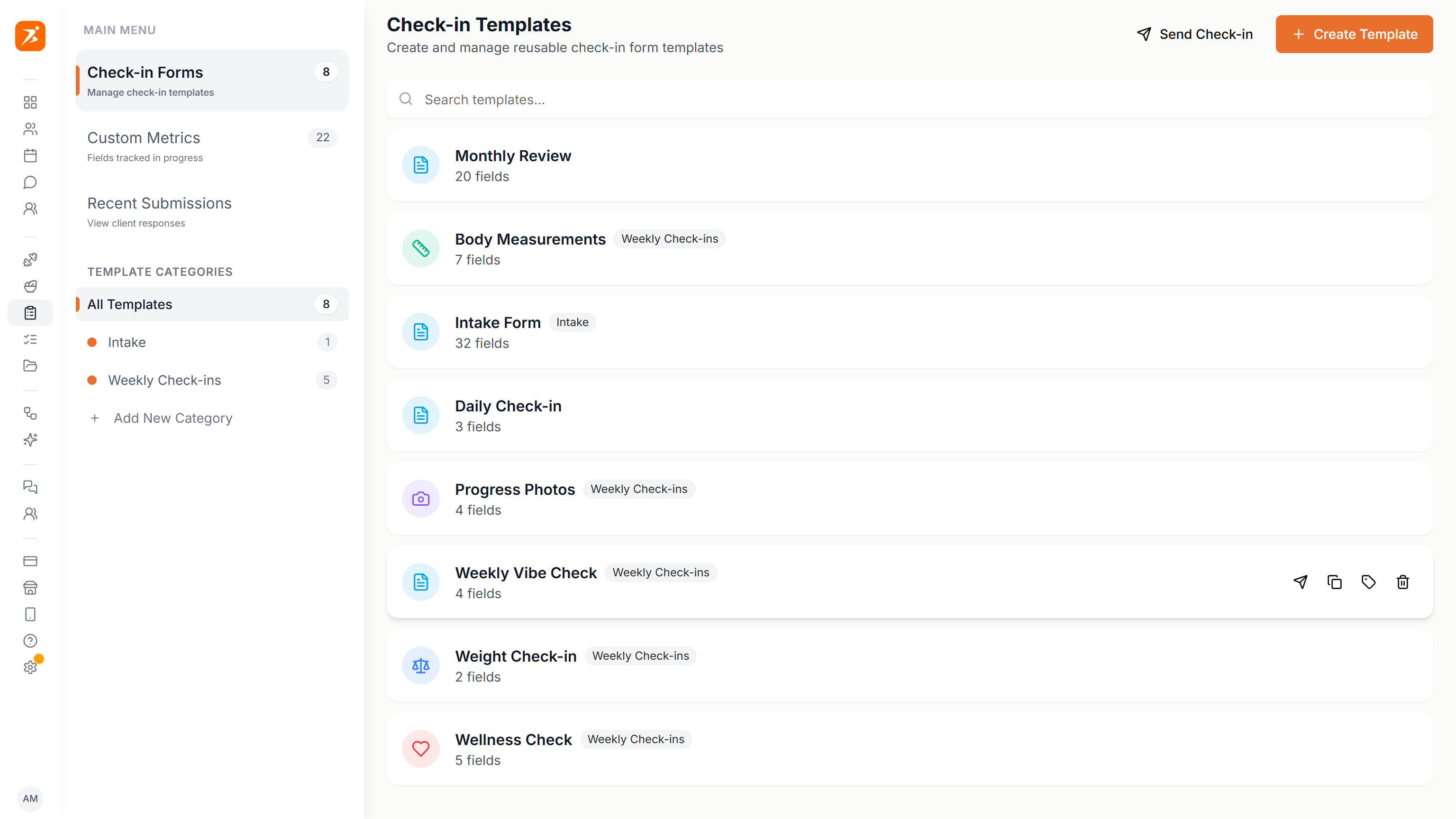
On a template. Click it to edit. Hover it to send, duplicate, move to a category or delete.
Categories
Group templates under Template Categories in the sidebar. Click Add New Category, then use the tag icon on a template to move it there. Deleting a category moves its templates to All Templates.
Sending
Click Send Check-in and pick From Scratch for a one-off form, or From Template. The send icon on a template skips this step.
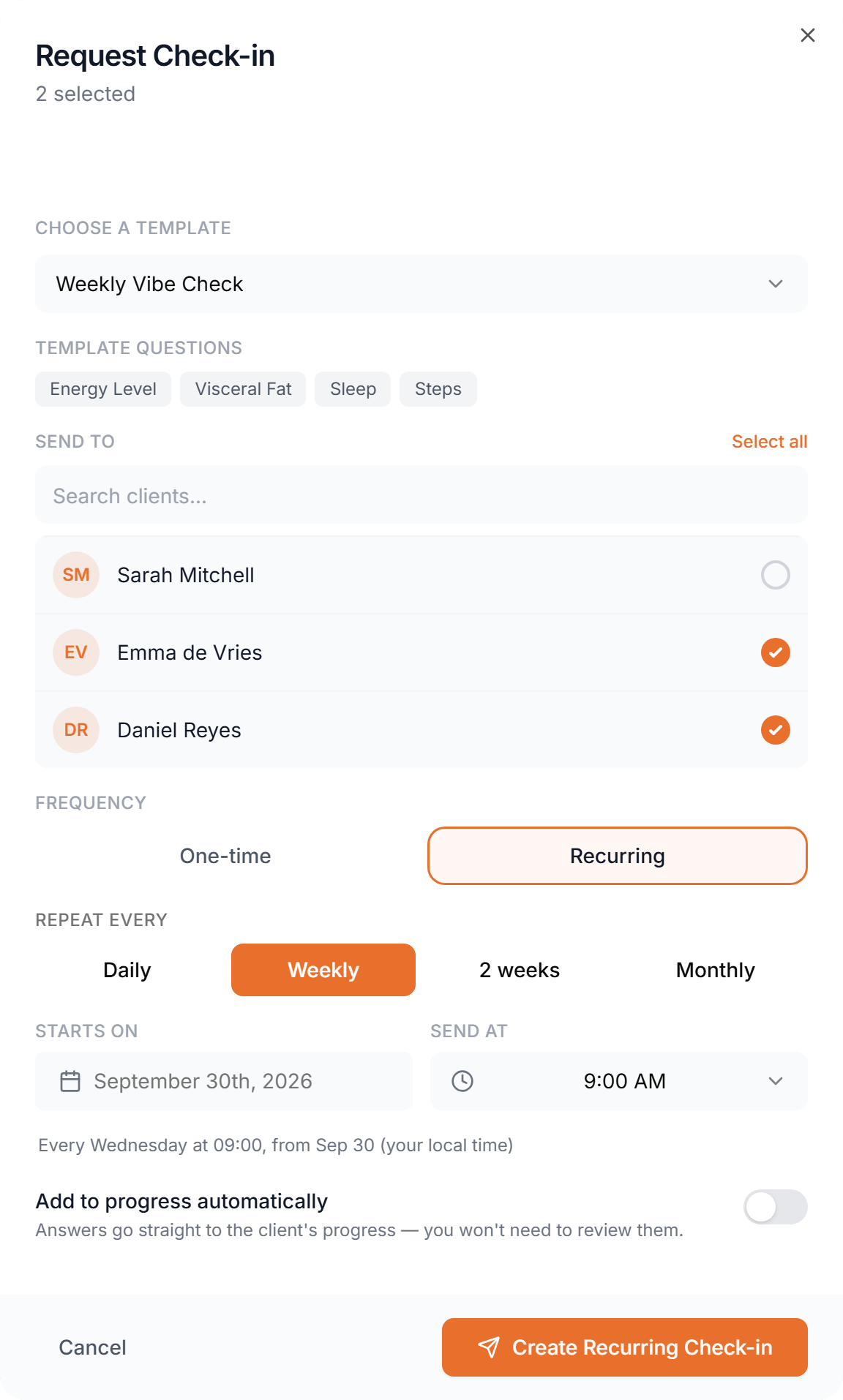
- Send to
- One or more clients. Select all picks everyone.
- One-time
- Sends now. Turn on Schedule for Later to pick a date and time.
- Recurring
- Repeats Daily, Weekly, every 2 weeks or Monthly, from the Starts on date at the Send at time (your local time).
Add to progress automatically. Answers go straight to the client's progress, so there is nothing to review. Leave it off to check each submission first.
The client gets a notification and fills in the check-in in the app or on the web.
Reviewing
Open Recent Submissions in the sidebar. The newest are on top, the sidebar badge counts the ones you have not opened, and a green tick marks those already added to progress. Click one to see the answers, grouped into photos, measurements, 1RM, ratings and questions.
Compare puts progress photos next to earlier ones. View Progress charts a field over time. View Client opens the client profile next to the submission.
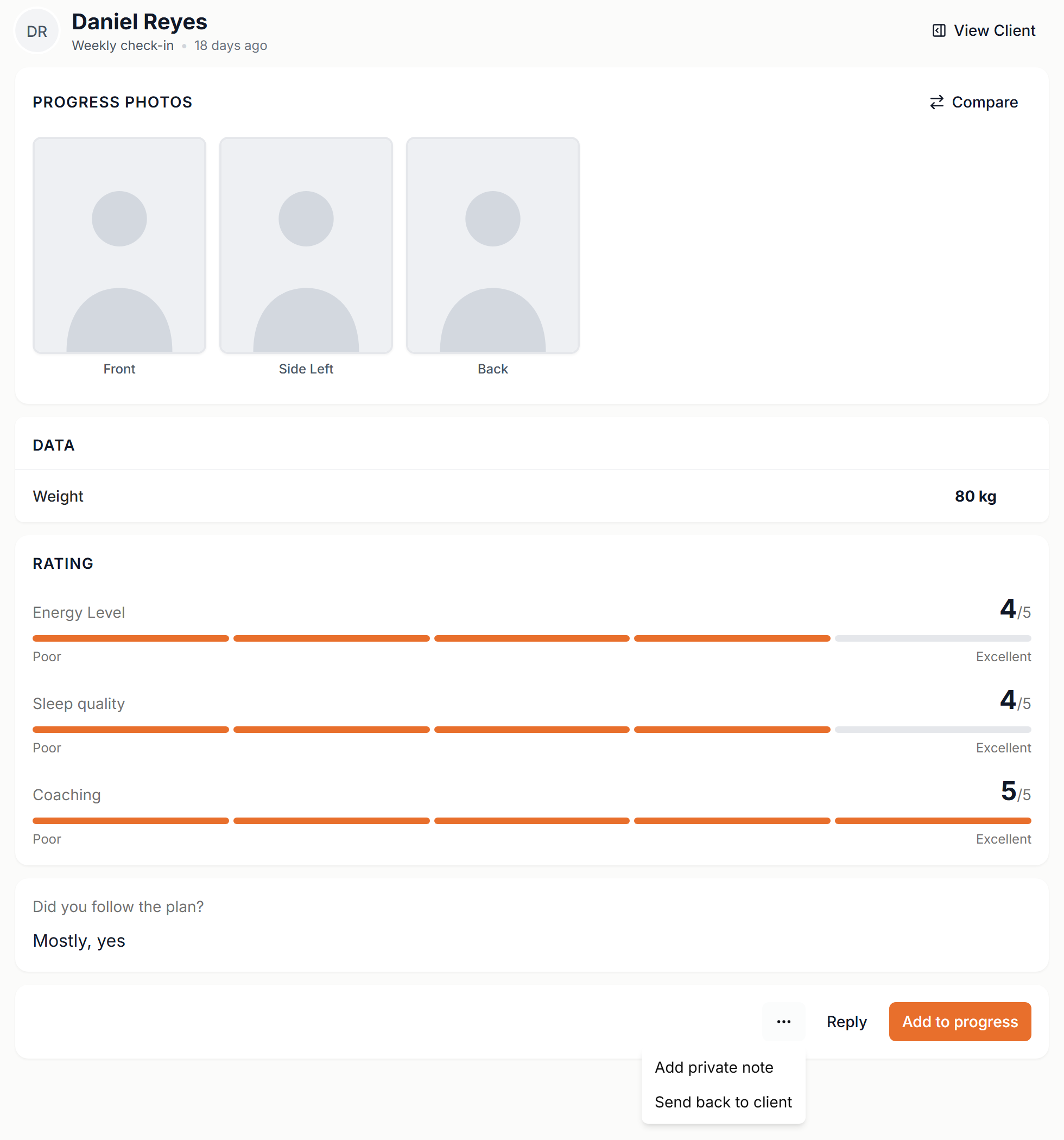
- Add to progress
- Saves the measurements, metrics, 1RM results and photos to the client's progress. The submission stays in the list, marked as done.
- Reply
- A message the client sees on the check-in. Add a video by recording one here or pasting a Loom link.
- Send back to client
- In the ⋯ menu. Say what to fix. The client gets a notification and resubmits. Only shown until the submission is added to progress.
- Add private note
- In the ⋯ menu. Only you see it. It is also added to the client's notes.
Video replies. Pick Camera, Screen, or Screen + camera. A video can be up to 3 minutes and the client can watch it for 90 days. A floating panel lets you pause, switch mode or stop, and the recording keeps going while you open other pages.