Right now, emails to your clients come from noreply@scraler.com. With a custom email domain, they come from something like hello@yourfitness.com instead. This guide shows you how to set it up, step by step.
Every time Scraler sends an email to one of your clients — a welcome email, a payment receipt, a checkup reminder — the "from" address shows your domain instead of ours. Your clients see your brand, not Scraler.
You can always switch later.
Emails come from noreply@scraler.com. No setup needed.
noreply@scraler.comEmails come from your domain. Needs a Premium plan + your own domain.
hello@yourfitness.comShort answer: it looks more professional and your emails are less likely to land in spam.
Every email reinforces your brand. Clients see your name, not ours.
Authenticated domains are trusted by email providers. Less spam, more inbox.
Clients open emails from a name they recognize. Open rates go up.
From signup to payment receipts — everything comes from your brand.
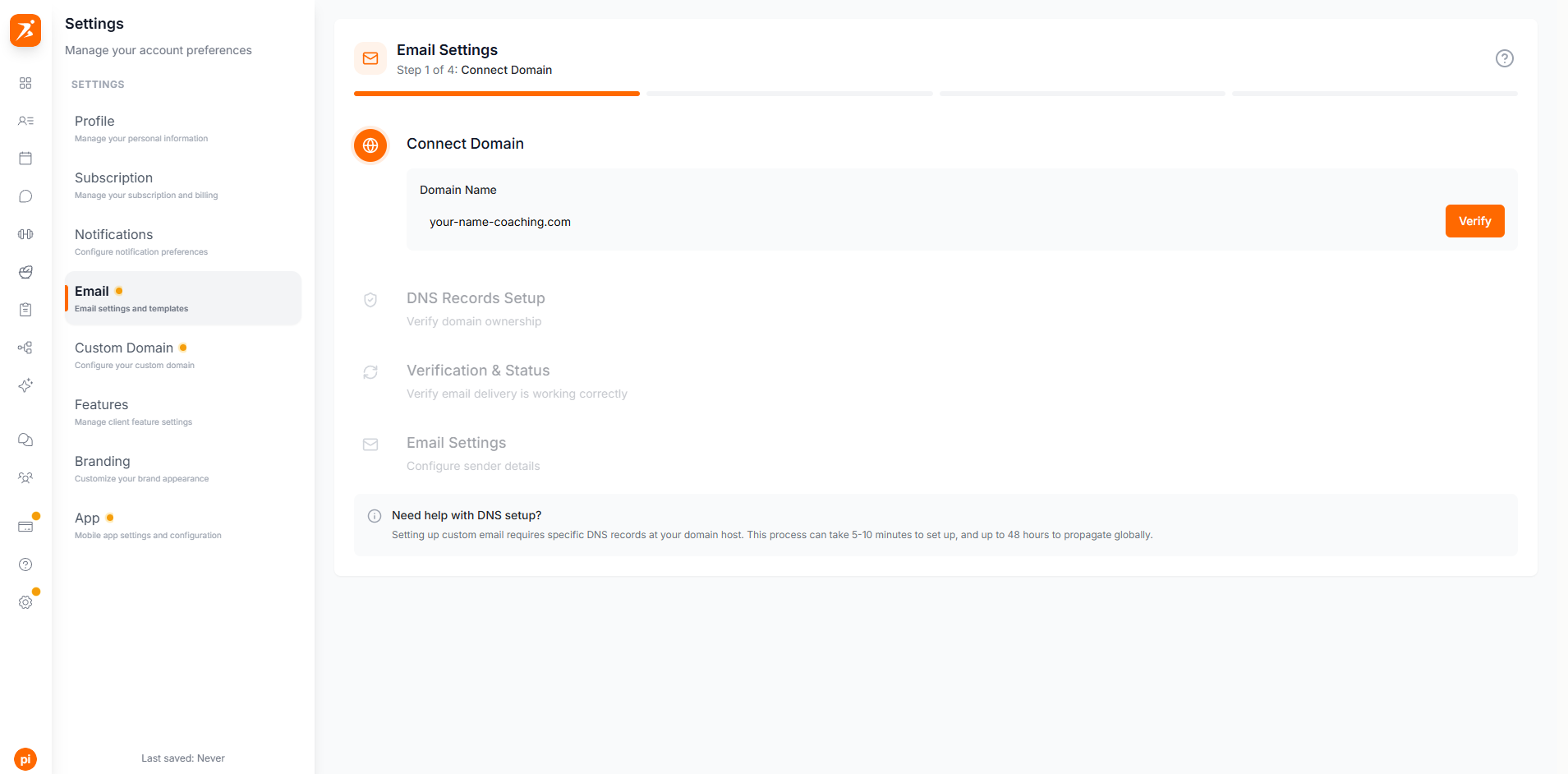
Tell Scraler which domain you want to send emails from.

Screenshot: Email domain settings
Show: the Custom Email Domain settings tab with an input field for the domain (e.g. yourfitness.com) and a Verify button
public/docs/ed-enter-domain.png
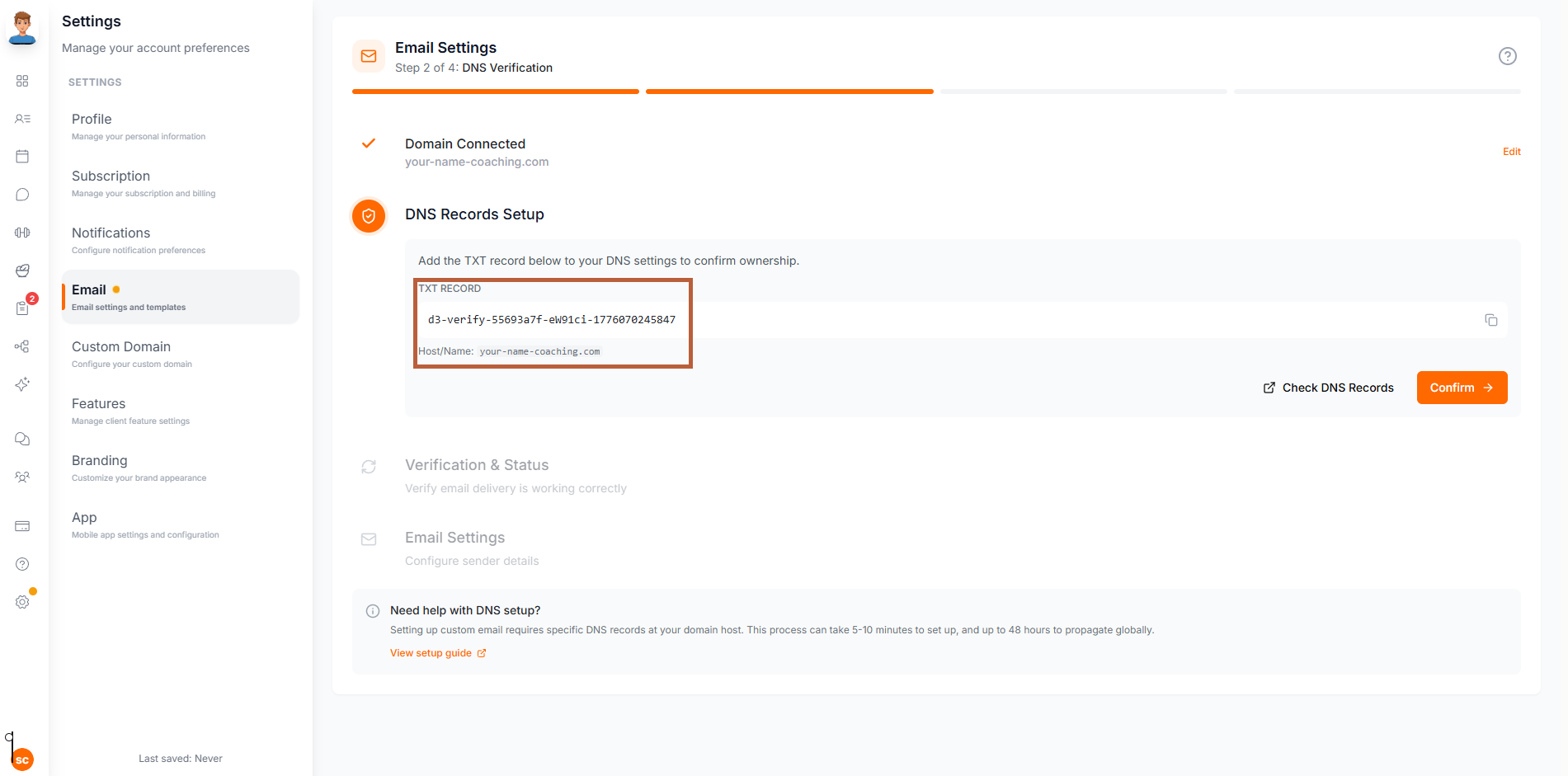
After clicking Verify, Scraler generates a TXT record to prove you own the domain. You need to add this record at your domain provider.

Screenshot: TXT ownership verification record
Show: Scraler displaying a TXT record with a copy button that the user needs to add to their DNS to prove ownership, plus a Confirm button
public/docs/ed-txt-record-shown.png

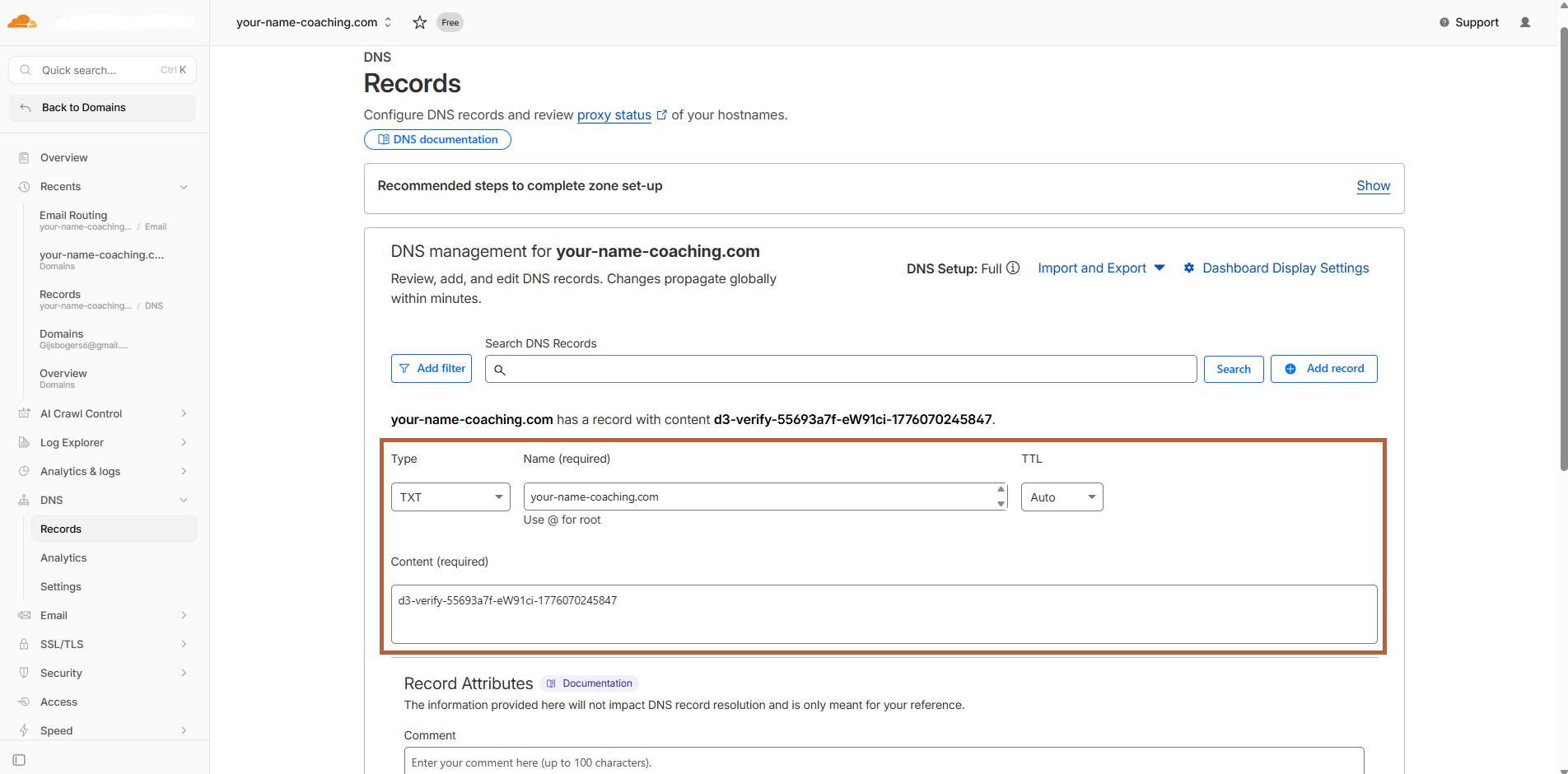
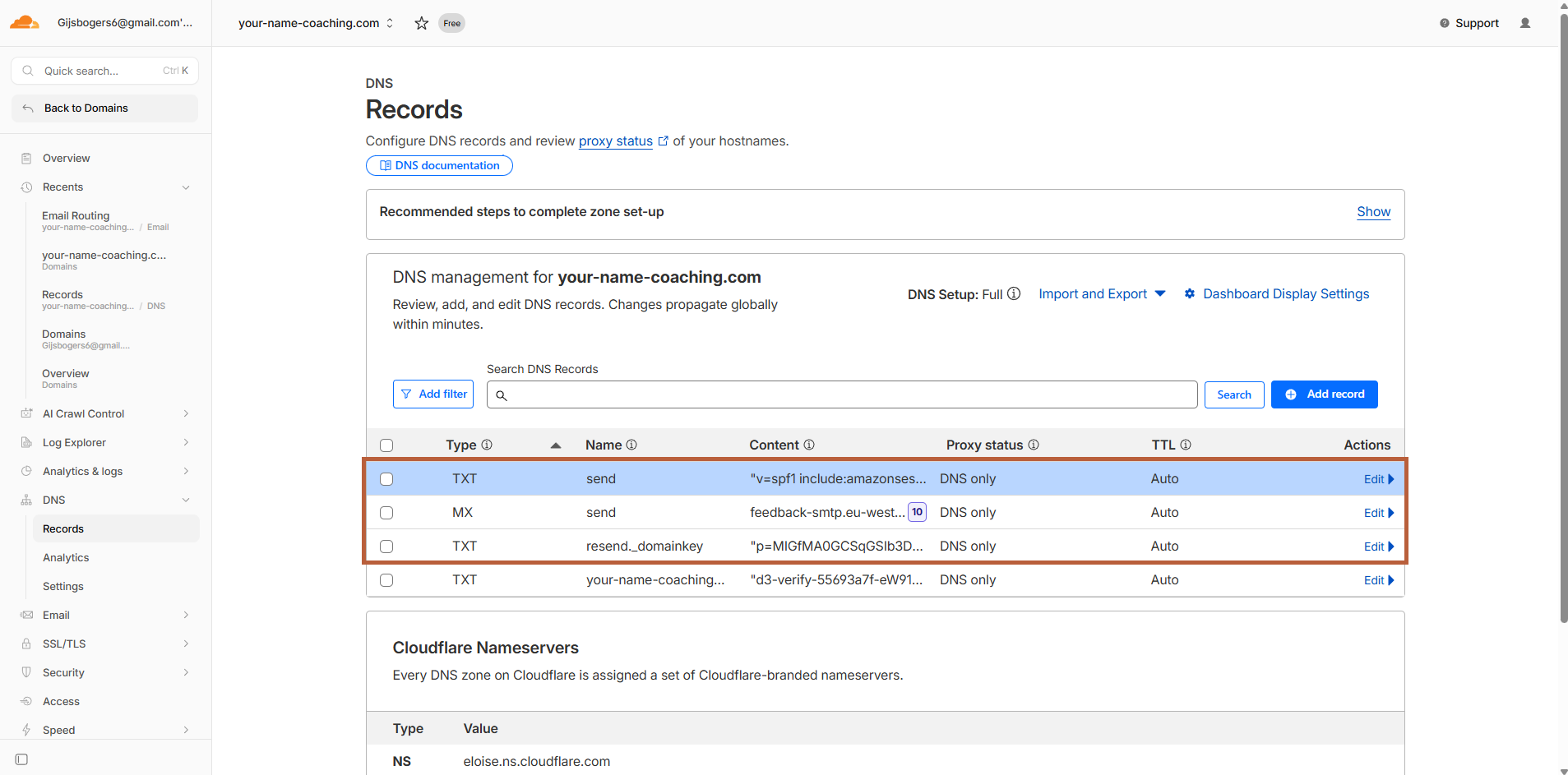
Screenshot: Adding TXT record in Cloudflare
Show: the Cloudflare DNS management panel with a form to add a new record. Fields filled in: Type=TXT, Name=yourfitness.com (the domain from Scraler), Content=scraler-verify=abc123... (the verification token from Scraler), TTL=Auto. The Add Record button is highlighted.
public/docs/ed-cloudflare-txt-record.png
Can't find DNS settings? Search for "DNS" in your provider's help section, or look under your domain's management page.
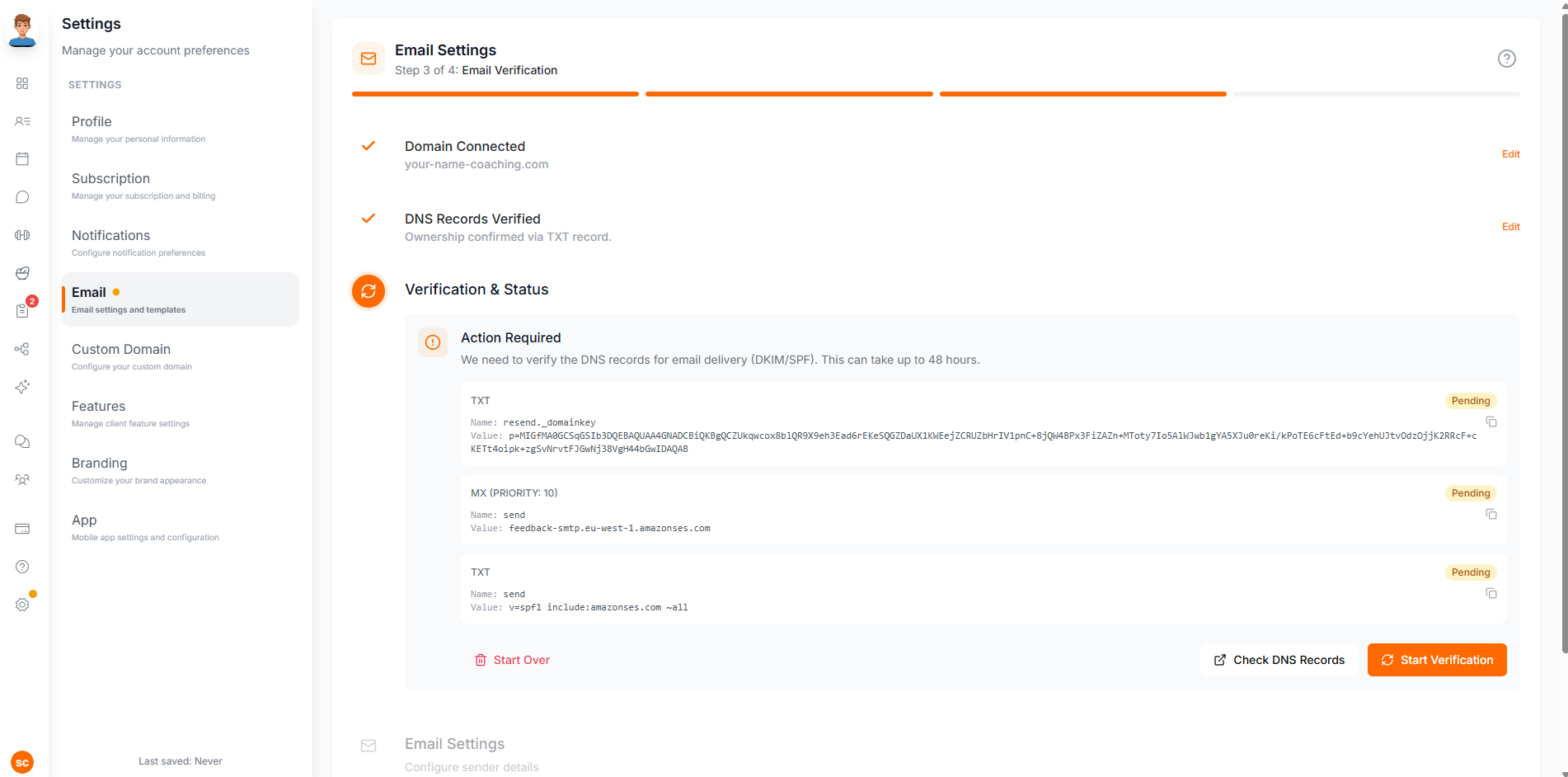
Once ownership is confirmed, Scraler moves to the "Verification & Status" step. You'll see an "Action Required" notice with DNS records needed for email delivery (DKIM/SPF). These records authenticate your emails so they don't end up in spam.

Screenshot: Verification & Status - Action Required
Show: the Verification & Status step with an 'Action Required' heading, a description about verifying DNS records for email delivery (DKIM/SPF), a list of DNS records (CNAME type) each showing Name and Value with copy buttons and pending/connected status badges, and a 'Start Verification' button at the bottom
public/docs/ed-verification-status.png

Screenshot: Adding CNAME record in Cloudflare
Show: the Cloudflare DNS management panel with a form to add a new record. Fields filled in: Type=CNAME, Name=resend._domainkey (the DKIM name from Scraler), Target=(the DKIM value from Scraler), Proxy status=DNS only (gray cloud), TTL=Auto. The Add Record button is highlighted.
public/docs/ed-cloudflare-cname-record.png
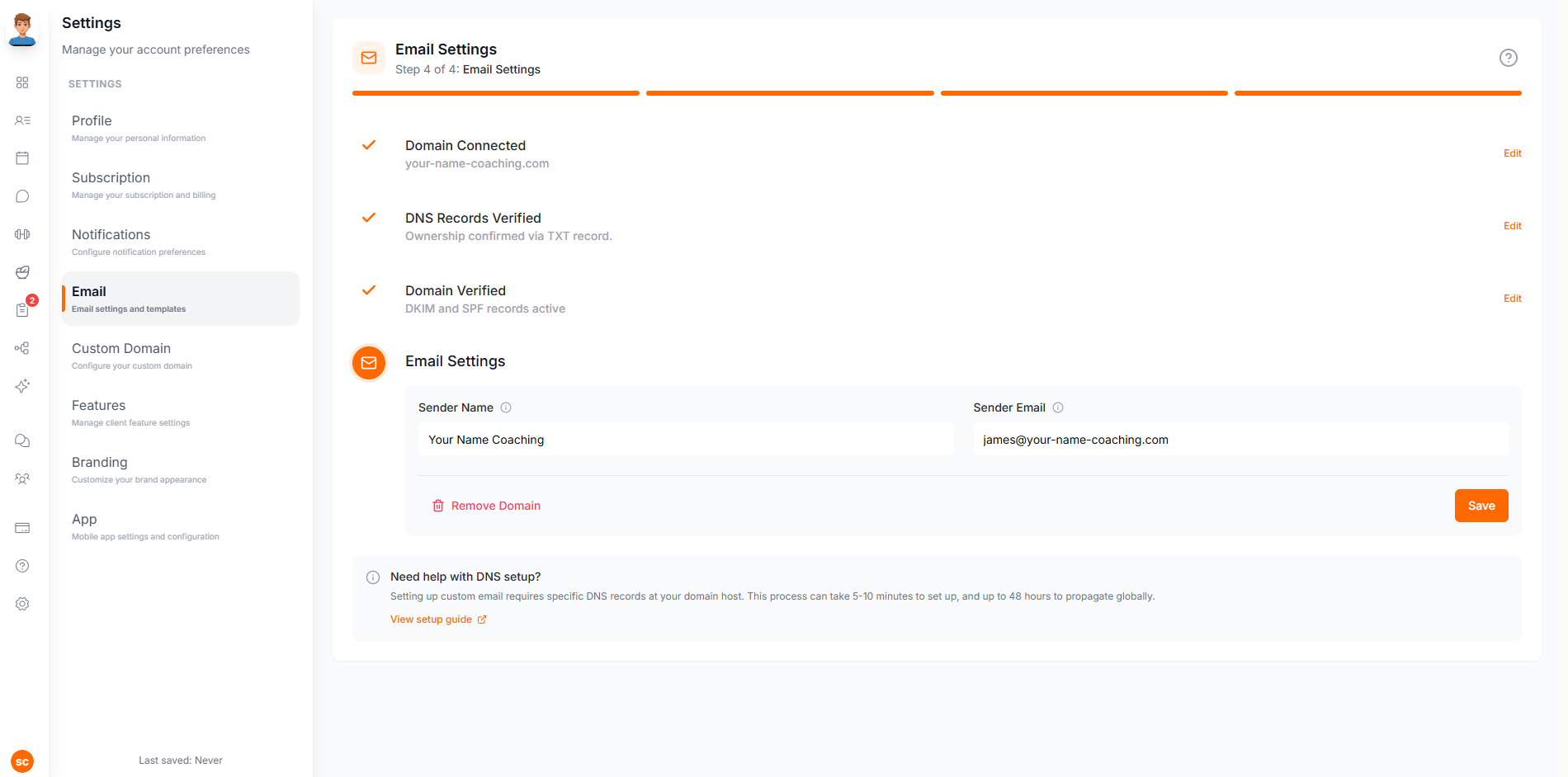
Now choose the name and email address your clients will see when they receive emails from you.

Screenshot: Sender details configuration
Show: the sender details form with fields for Sender Name (e.g. John's Fitness) and Sender Email (e.g. hello@yourfitness.com), plus a Save button
public/docs/ed-sender-details.png
About the sender name
The sender name is what shows up before the email address. For example: "John's Fitness ‹hello@yourfitness.com›". Pick something your clients will recognize.
That's it! Once your sender details are saved, these things happen automatically:
All future emails to clients come from your domain.
Your sender name and logo appear in every email.
Email deliverability improves because your domain is authenticated.
Once verified, all of these automated emails use your custom domain:
Sent when a new client signs up or is invited.
Sent when you invite a client to join your roster.
Sent when a client requests a password reset.
Sent when a payment is successfully processed.
Sent when a payment request or invoice is created.
Sent to remind clients about upcoming checkups.
All emails are automatically branded with your logo, colors, and custom from-address. You can preview how your emails look before sending.

Screenshot: Email template preview
Show: email template preview panel with tabs for different email types (Welcome, Invitation, Password Reset), showing a branded email with the trainer's logo, colors, and from-address using their custom domain
public/docs/email-template-preview.png
Once verified, every email switches to your domain. You don't have to change anything else.
If you remove your domain or it expires, emails automatically go back to noreply@scraler.com. Nothing breaks.
You can update your from-name or switch domains whenever you want from Settings.
You don't need a mailbox or email hosting. Scraler only sends from your domain — it doesn't receive mail.