
Locations, scheduling and to-dos
Decide which clients each coach works with, and run more than one location.
Clients per coach
Decide which clients each coach works with, and where they work.
Assigned clients
Open a team member. Under Assigned Clients you choose: every client in the studio, or only the clients you give them.
Assign clients
Assign a few, and those are the clients Nadia sees.
Locations
Locations sit right next to your team.
Add a location
Add one with its name and address. Each location shows how many clients and coaches it has.
Coaches and clients per location
Then open it, and add the coaches who work there, and the clients who train there. Their upcoming sessions move along with them.
More details and screenshots
Locations, scheduling and to-dos Ultimate
Run several clubs from one studio and keep your team on the same page. Locations and To-Do's live under Studio Management. Studio features need the Ultimate plan and the studio management permission, which the owner has by default.
Locations
A location is a name and an optional address. Coaches, clients and sessions attach to it. There is no primary location. The location filters on the calendar and the clients list only appear once you have more than one active location.
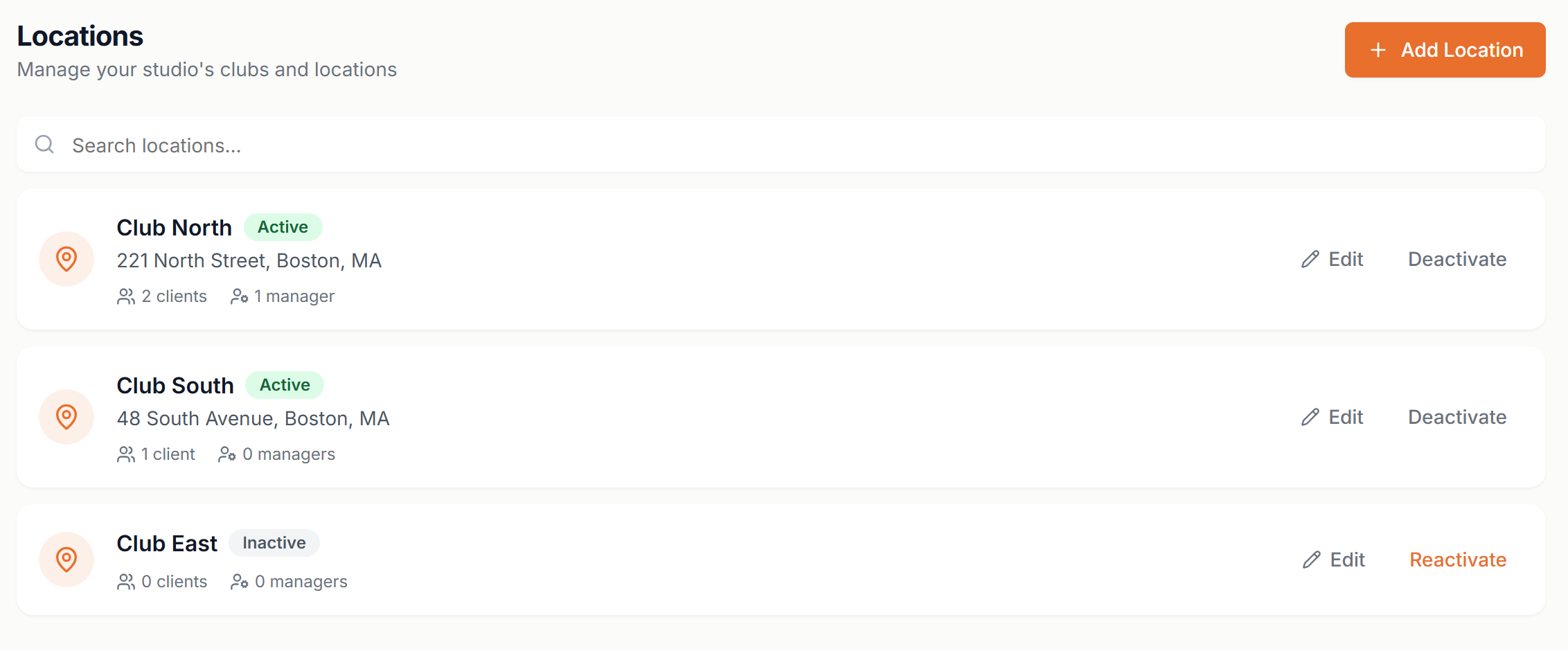
- Add a location
- Open Studio Management, then Locations, and click Add Location. Enter a name and, if you like, an address, then click Create Location.
- Coaches and clients
- Click a location to open it. The Coaches and Clients tabs list who is assigned there. Use the Add button to assign more and the cross on a row to remove someone from the location, not from your studio. A client belongs to one location or none. Moving a client brings their upcoming sessions along.
- Manager access
- Set a manager's locations when you add or edit them, or from the Coaches tab of a location. With no location the manager sees every location. With one or more they only see clients and sessions from those, and records without a location are hidden from them. The server enforces this.
- Client location
- Set it when you add a client, on the client's record or from the Clients tab of a location. The clients list gets a location filter with All locations, each location and No location. A manager tied to one location has it applied to every client they add. A manager tied to several chooses one first.
- Edit
- Open a location and use Location Settings to change its name or address at any time.
- Deactivate
- Locations are deactivated, not deleted, so past sessions keep their label. You choose where the clients and upcoming sessions move: another active location or No location. The move covers clients, upcoming sessions, active recurring sessions, upcoming events and bookable services. A deactivated location stays in the list as Inactive, and Reactivate brings it back. Nothing that moved comes back on its own.
Scheduling per location
Sessions, recurring sessions and bookable services all carry a location. That gives each club its own calendar.
- Calendar filter
- Once you have more than one active location, Schedule gets a Location dropdown: All locations, each location, or No location for sessions you never tagged. It filters on the server. Your choice also becomes the default location for the next session you create.
- Tagging a session
- The new appointment form has a Location field. It is preselected: the club the calendar is filtered to, otherwise the first client's own location. You can always change it, including back to No location. Recurring sessions work the same way. Changing the location of a recurring session applies to its future sessions. Past ones keep theirs.
- Group sessions
- A group session has one location, so every client on it is booked at that club. Add more clients while you create it or later with Add Clients to Session. Make it repeat to get a standing class on that location's calendar. Clients never see who else is on a group session.
- Bookable services
- In Schedule, open Appointment Types, create or edit a service and set its Club. Leave it on Any club if it is not tied to one. Turn on Only bookable at specific times to give the service its own booking hours. Clients see the club name on the service. They pick a service and the service decides where it happens.
- Weekly hours
- The weekly hours under Availability belong to the whole studio, not to a location. For per-club hours, pin the service to the club and use Only bookable at specific times.
- Coaches at one club
- A coach tied to locations only sees sessions at those locations, in a calendar narrowed on the server with no location dropdown. A coach tied to one location has it applied to the sessions and clients they create. One tied to several picks one first.
To-dos
- Team Tasks board
- To-Do's opens Team Tasks with three columns: To Do, In Progress and Completed. Drag a card between columns or use the Mark as options in the card menu. Search, and filter by status, priority or team member, including General Tasks.
- Add Task
- Enter a title (required) and an optional description. Assign the task to a team member or to Everyone (General), set a priority (Low, Medium, High or Urgent) and add a due date if you like.
- What managers see
- Managers see My Tasks: the tasks assigned to them and the general ones. When a manager moves an unassigned task to In Progress, it is assigned to them.