Manage subscriptions, one-time payments, and products for this client. View payment history, create payment requests, and track billing status.
Payments requires the Premium plan or higher. Studio managers also need the finance permission to see this tab, even on a plan that includes it.
Create and manage recurring billing with monthly or weekly intervals.
Send payment requests for individual sessions, products, or custom amounts.
One-time purchases like cookbooks or add-ons this client has bought.
At the top of the payments tab you'll see any active subscriptions for this client. Each subscription card shows the plan name, price, billing cycle, next payment date, and a button to cancel or modify it.
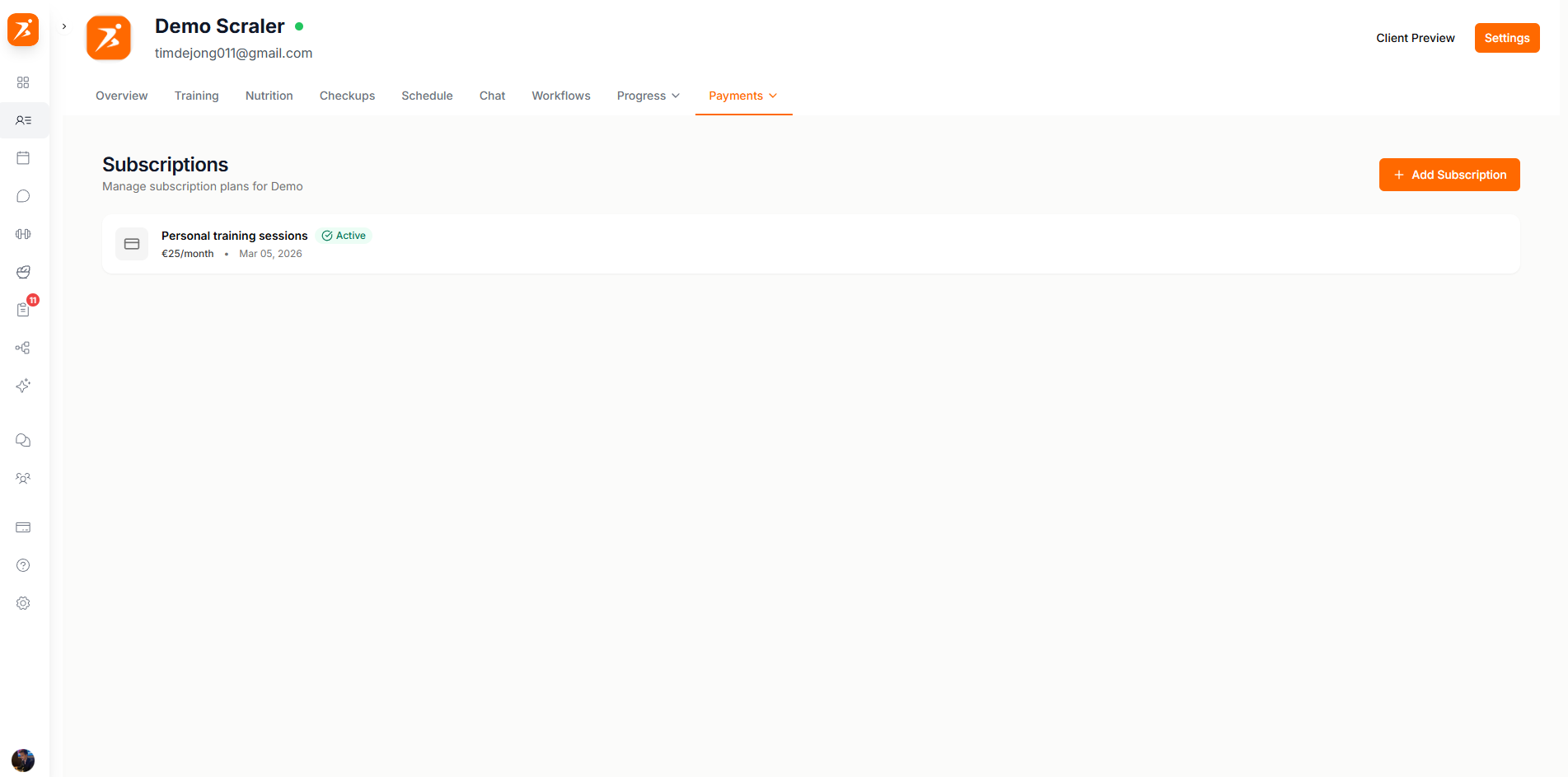
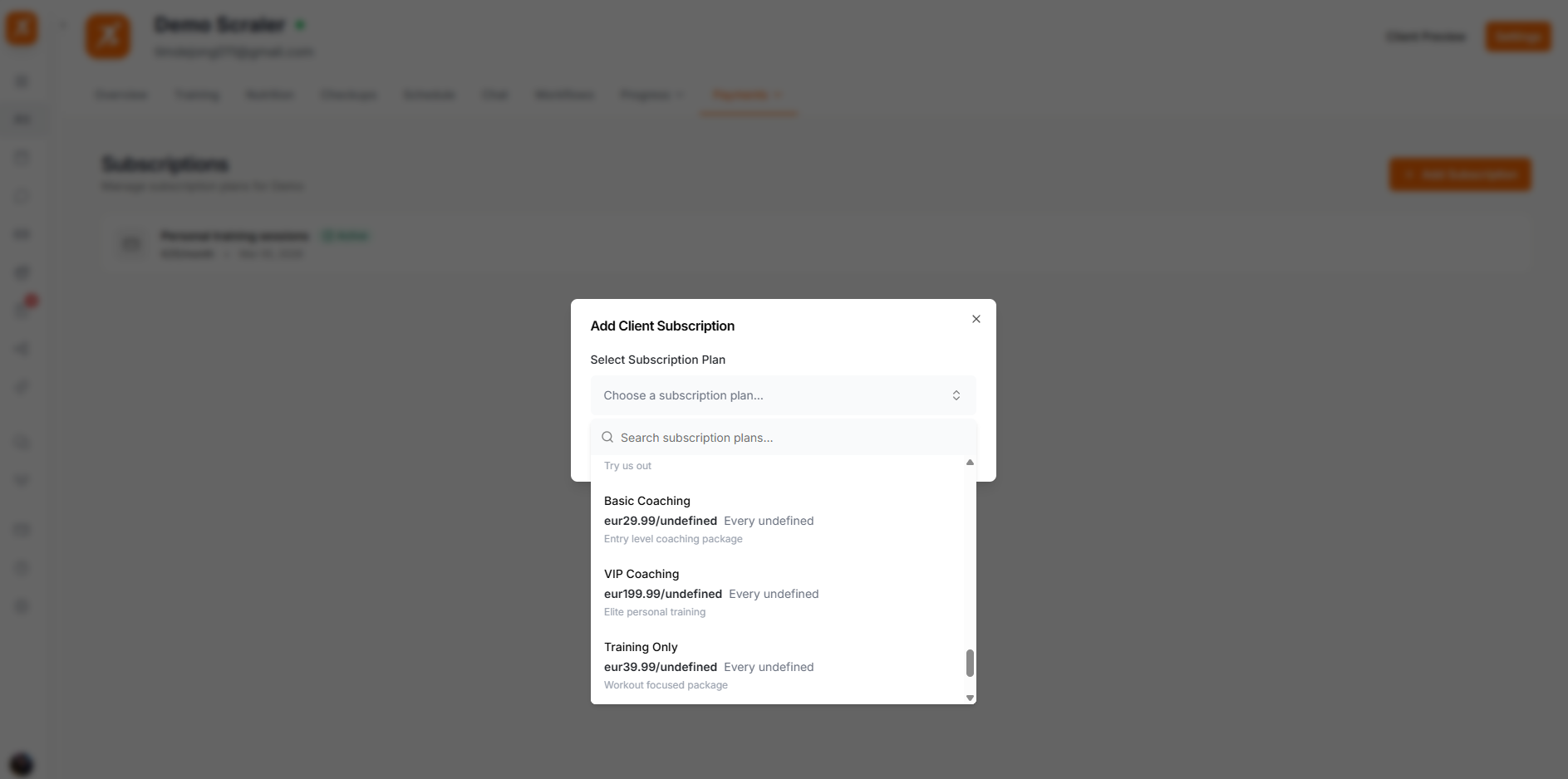
From the Subscriptions view, click Add to set up recurring billing for this client. Pick from your product catalog or enter a custom amount — the client gets a payment link and billing starts automatically once they pay.
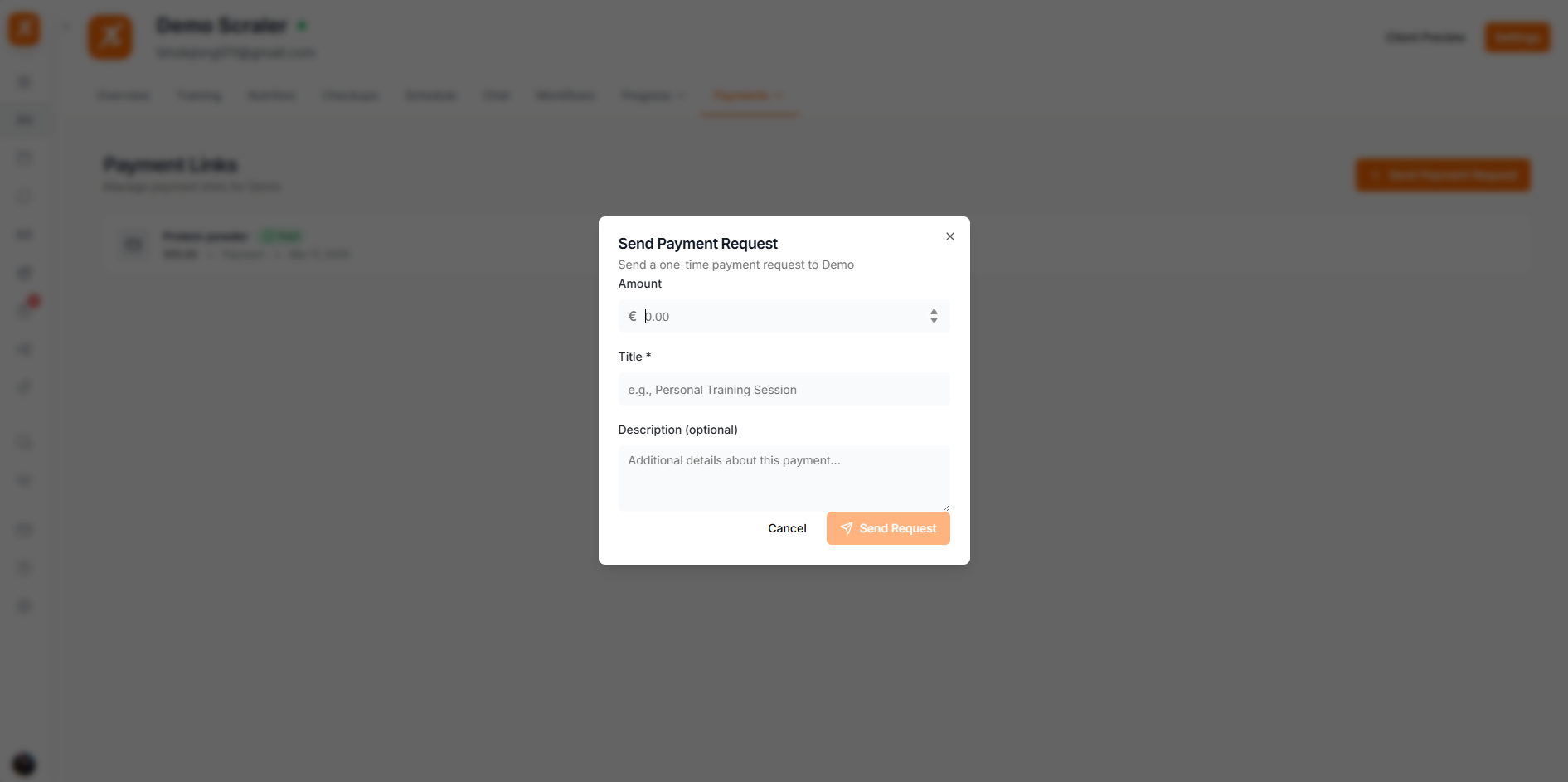
Switch to the Single Payments view to collect a one-off payment. Send a request with an amount and description — it shows up in the client's chat as an interactive card they can tap to pay. You're notified the moment they complete it.
The Products view lists one-time purchases this client has made, like cookbooks or other paid add-ons. These are separate from subscriptions and single payments — a client buys once and there's no recurring charge.
Each view — Subscriptions, Single Payments, and Products — lists its own entries with a status badge, so you can see what's paid, pending, or failed at a glance.
Paid
Payment was successfully processed and the funds are on their way to your Stripe account.
Pending
The payment request has been sent but the client hasn't completed it yet.
Failed
The payment attempt was declined. You may need to ask the client to update their payment method.
All payments are processed through Stripe. You need to connect your Stripe account — see Connecting Stripe — before you can accept payments.