Edit, duplicate, and organize your workout template library. Keep your templates up to date as your coaching evolves.
The workouts page is your central hub for all workout templates. Browse your full library, search by name, and filter by category to quickly find what you need.
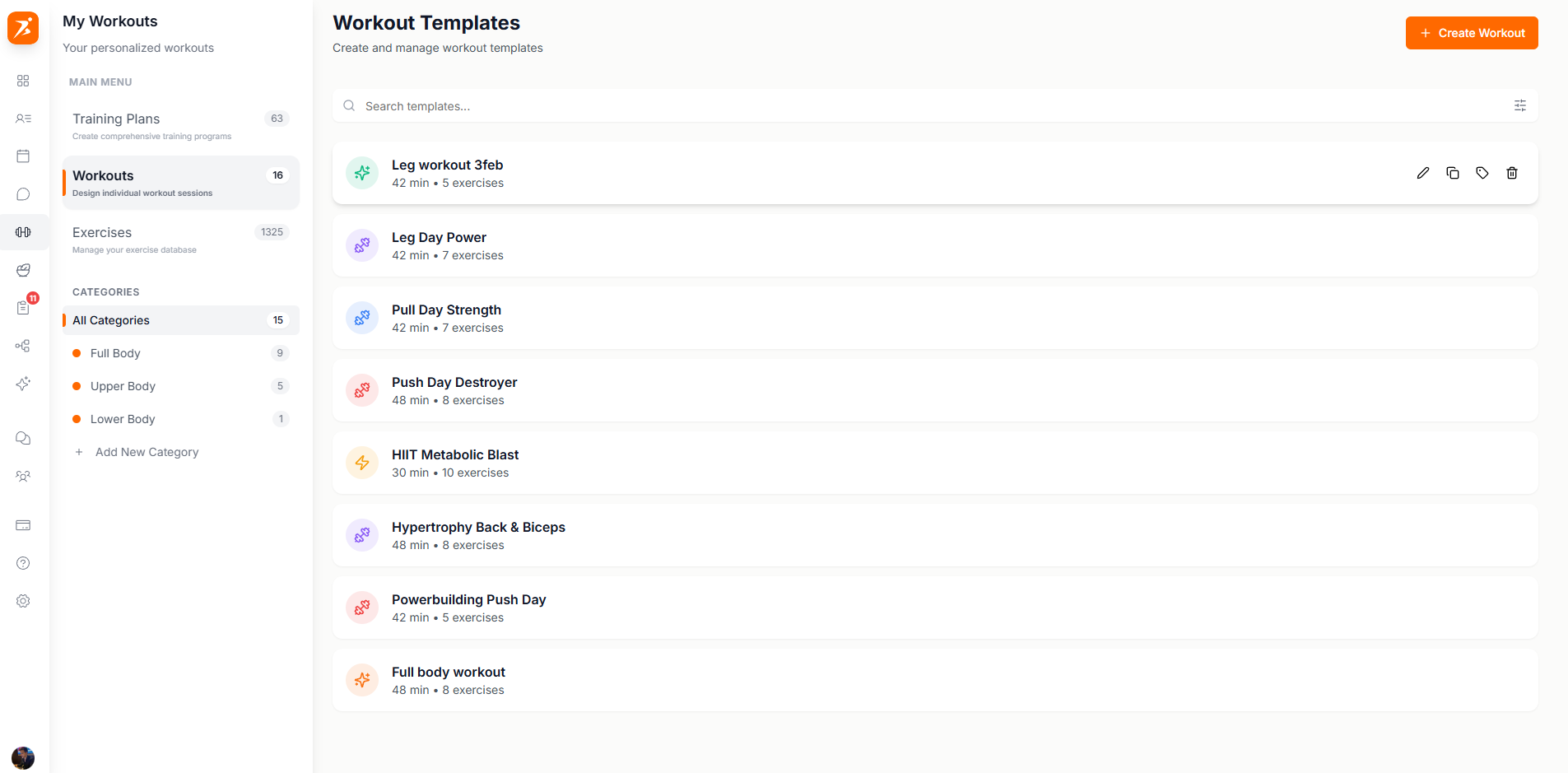
Your workout library shows all templates in a clean list view. Use the search bar to find workouts by name, or apply category filters to narrow things down. Each workout card shows the template name, exercise count, and assigned categories.
Every workout template has a set of quick actions available from the list view. Hover over a workout or click the menu icon to access these options.
Edit
Open the workout builder to modify exercises, sets, and reps
Duplicate
Create an instant copy to use as a starting point for variations
Categorize
Assign or change the categories for this workout
Delete
Remove the template permanently (with confirmation)
Click "Edit" to open a workout in the builder. You can add or remove exercises, adjust sets and reps, reorder the exercise list, and update the workout name. Changes are saved to the template and will apply to future assignments — existing client assignments are not affected.
Duplicating a workout creates an exact copy with "(Copy)" appended to the name. This is a great way to create workout variations without starting from scratch. Edit the copy to make adjustments while keeping the original intact.