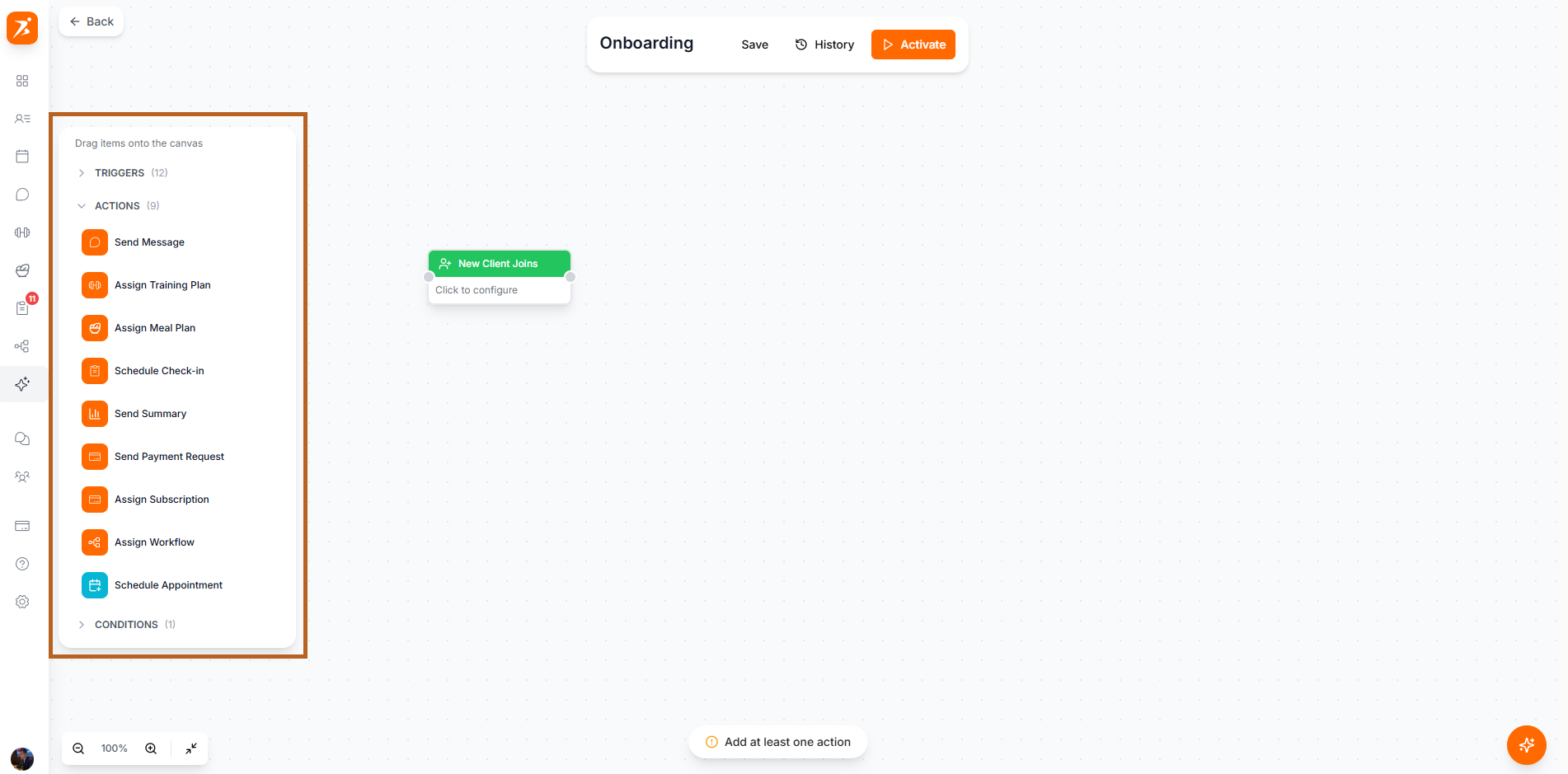
Actions are what your automation does when a trigger fires. Send messages, assign plans, create check-ins, and more.
Explore the different action types you can add to your automation workflows.
Automatically reach out to clients when a trigger fires.
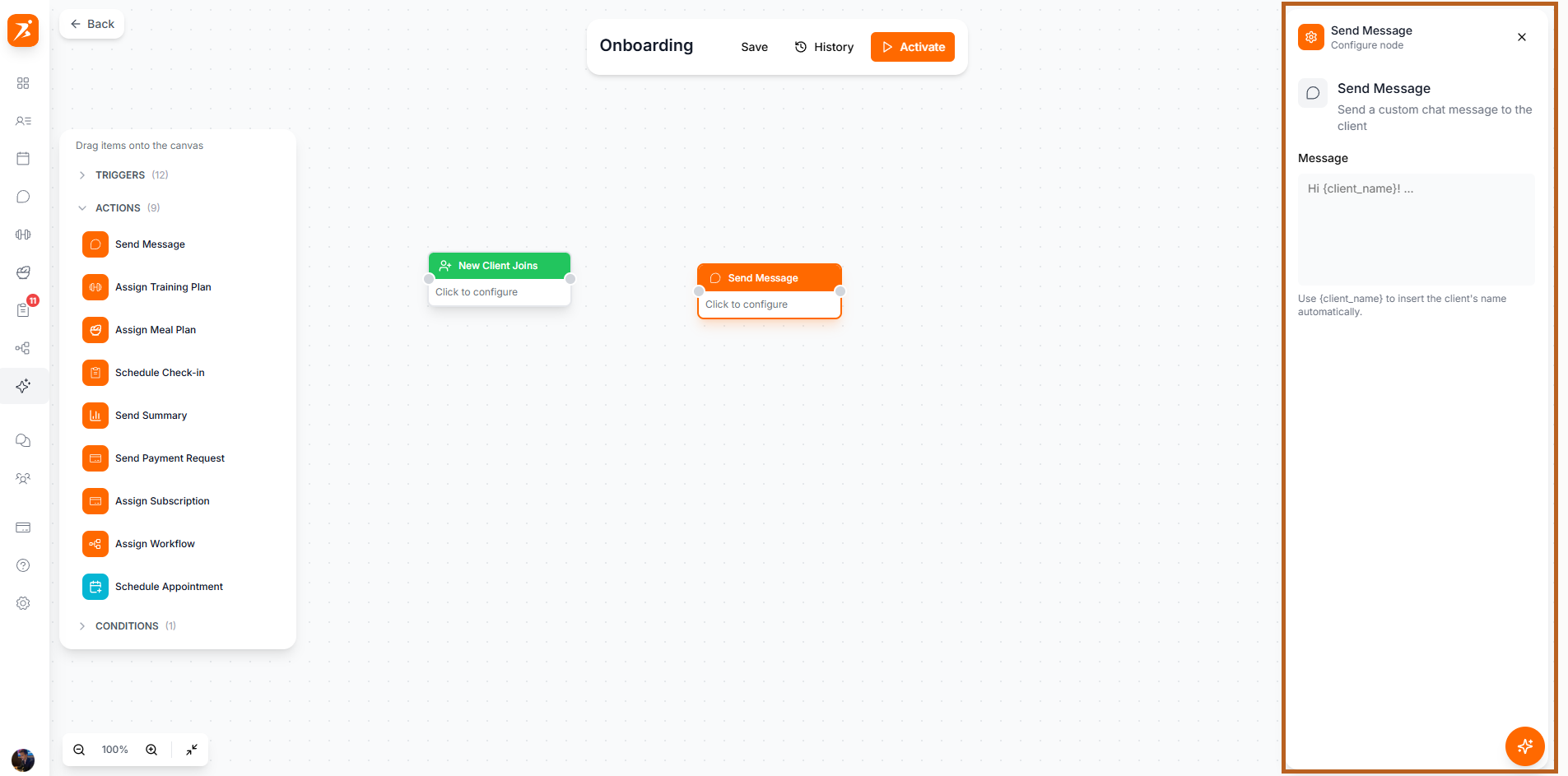
Send Message
Send a chat message to the client with support for dynamic variables like {client_name}.
Send Summary
Generate and send a progress summary to the client.
Automatically assign plans and programs to clients.
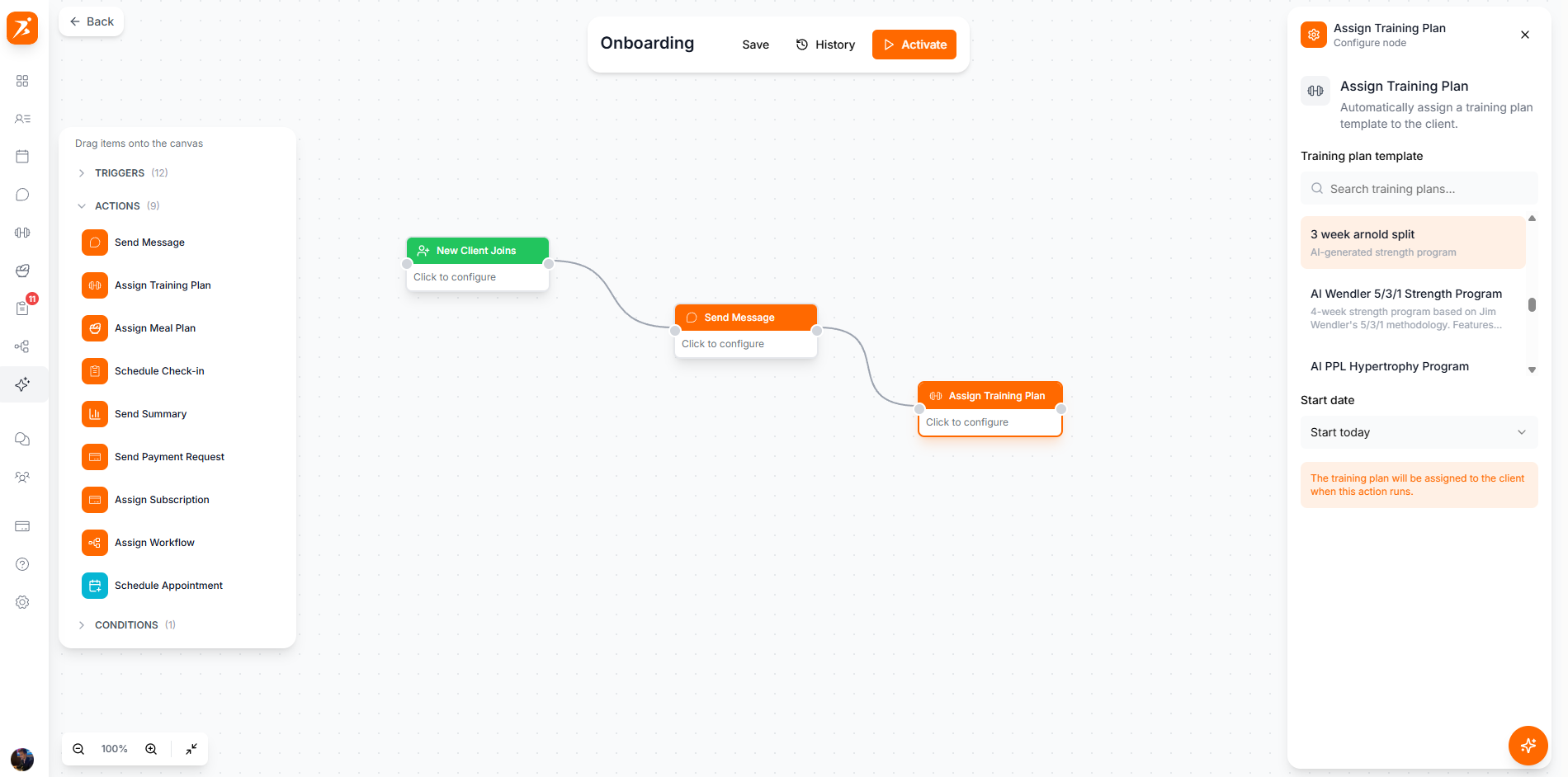
Assign Training Plan
Assign a training plan template to the client — optionally replace any existing plan.
Assign Meal Plan
Assign a meal plan template to the client's nutrition section.
Assign Habit
Assign an existing habit to the client for them to track.
Keep clients engaged with check-ins, appointments, and payments.
Schedule Check-in
Send a check-in template for the client to fill out and submit.
Schedule Appointment
Automatically book a session on the client's calendar.
Send Payment Request
Send a payment request to the client for a specific amount or product.
Add Tag
Add a tag to the client's profile for categorization and filtering.
Assign Subscription
Assign a subscription plan and send a payment link to the client.
Assign Workflow
Assign a workflow template to the client.
Stay on top of your client list and let AI suggest what to do next.
Notify Me
Send yourself a notification about this client.
Update Status
Change the client's status so you can spot who needs attention.
Share Resources
Share one or more resources from your vault with the client.
AI Analyzer
Reviews the client, then offers you a few directions you could take. You approve before anything changes.
Each action can be customized to fit your specific workflow needs.
Use {client_name}, {trainer_name}, and other tokens in messages and emails.
Choose which training plan, meal plan, or check-in template to assign.
Add delays between actions — e.g., wait 2 days before sending a follow-up.
Run multiple actions in sequence from a single trigger.