The support page shows all your tickets in a list on the left side. You can search by keyword, and filter by status — Active, Needs Reply, or Resolved. Click any ticket to see the full conversation.
The support page shows all your tickets in a list on the left side. You can search by keyword, and filter by status — Active, Needs Reply, or Resolved. Click any ticket to see the full conversation.
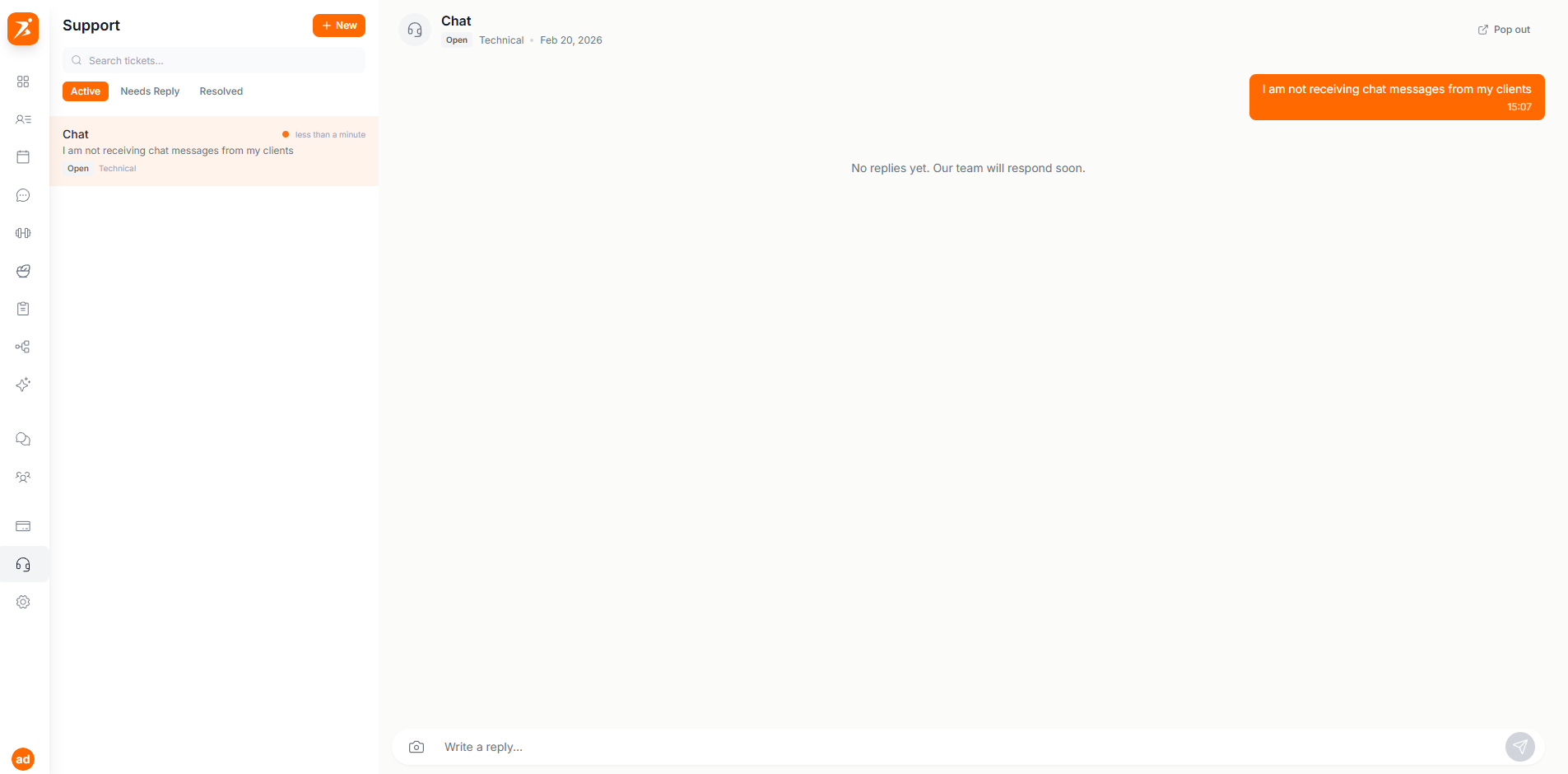
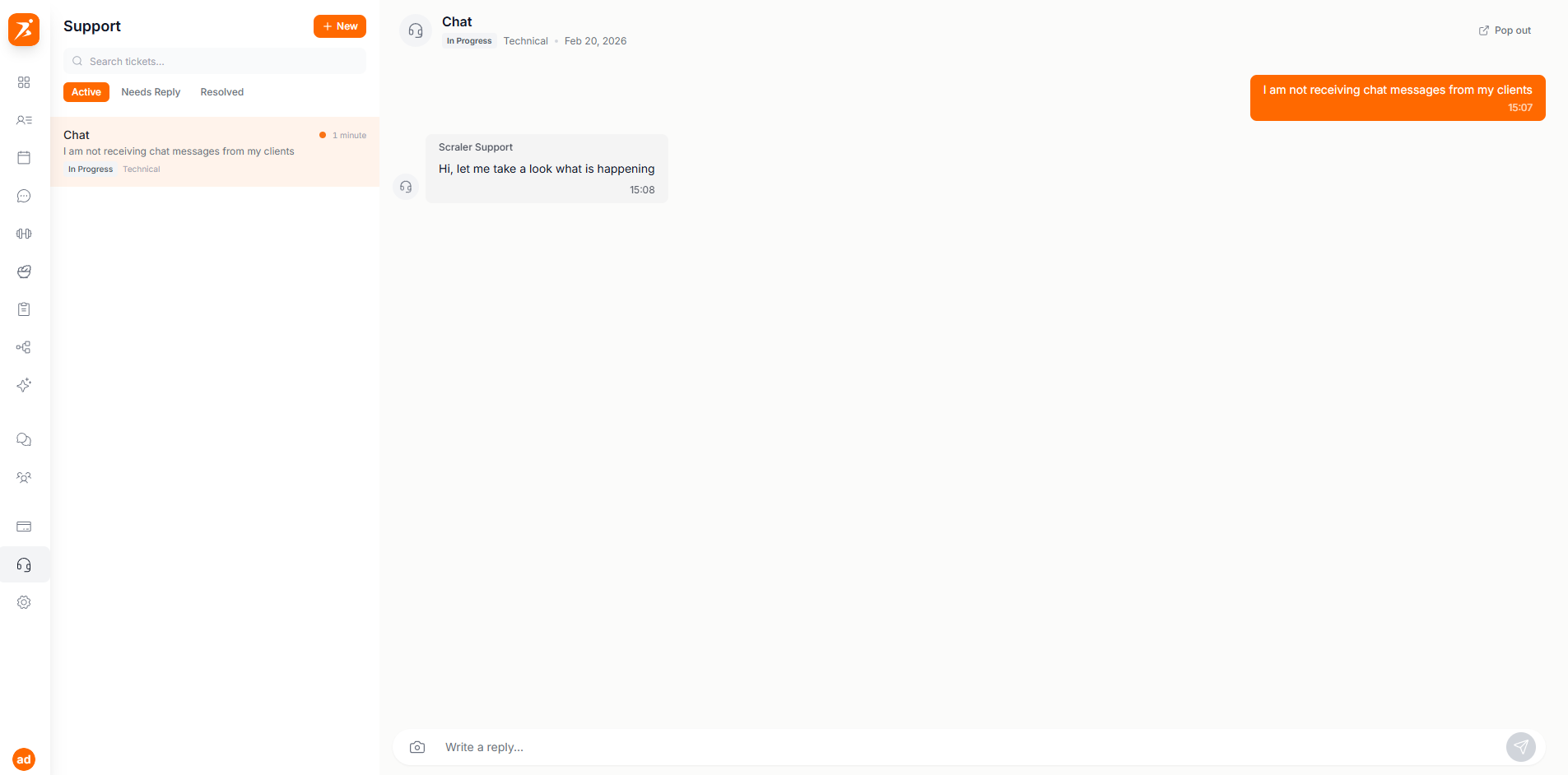
When you open a ticket, you see the full conversation on the right side. Your messages appear on the right, our replies appear on the left with a headset icon. Type your reply at the bottom and press Enter or click the send button.
Need to show us what's going wrong? Click the camera icon next to the text input to attach a screenshot or image. We support JPEG, PNG, GIF, and WebP files up to 10 MB. You can add a text message along with the image.
Each ticket has a status so you always know where things stand.
Your ticket has been submitted. Our team will look at it soon.
We're working on it. You'll get a reply when we have an update.
We've replied and are waiting for you to respond. Check your ticket.
The issue has been fixed or answered. Create a new ticket if you need more help.
This ticket has been closed and archived. Create a new ticket if you need further help.
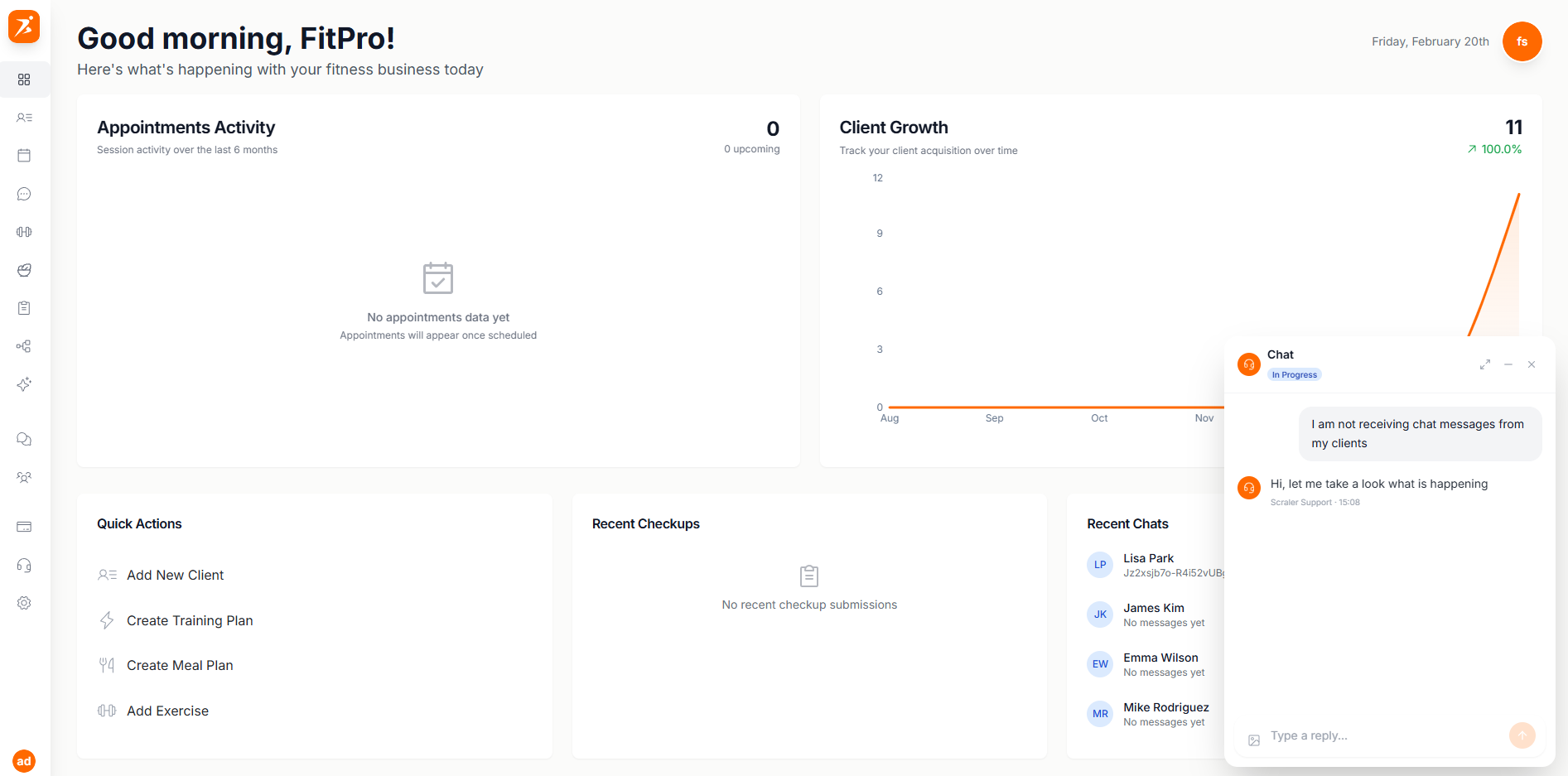
Don't want to stay on the support page? Click the Pop Out button on any ticket to turn it into a small floating chat window. It stays in the bottom-right corner of your screen so you can keep working while waiting for a reply. You can minimize it, expand it, or close it any time.
Chat directly with our support team inside the app. No need to send emails or leave the dashboard.
Attach screenshots and images to show us exactly what's happening. Supports JPEG, PNG, GIF, and WebP.
See all your tickets in one place. Filter by status, search by keyword, and track progress.
Pop out any ticket into a floating chat window so you can keep working while waiting for a reply.
We're here to help
Got a question or ran into a problem? Open a support ticket and we'll get back to you.
Get Started Free