Triggers are the starting point of every automation. They define when your automation runs — on client signup, missed workout, payment event, and more.
Browse the available trigger types and learn when each one fires.
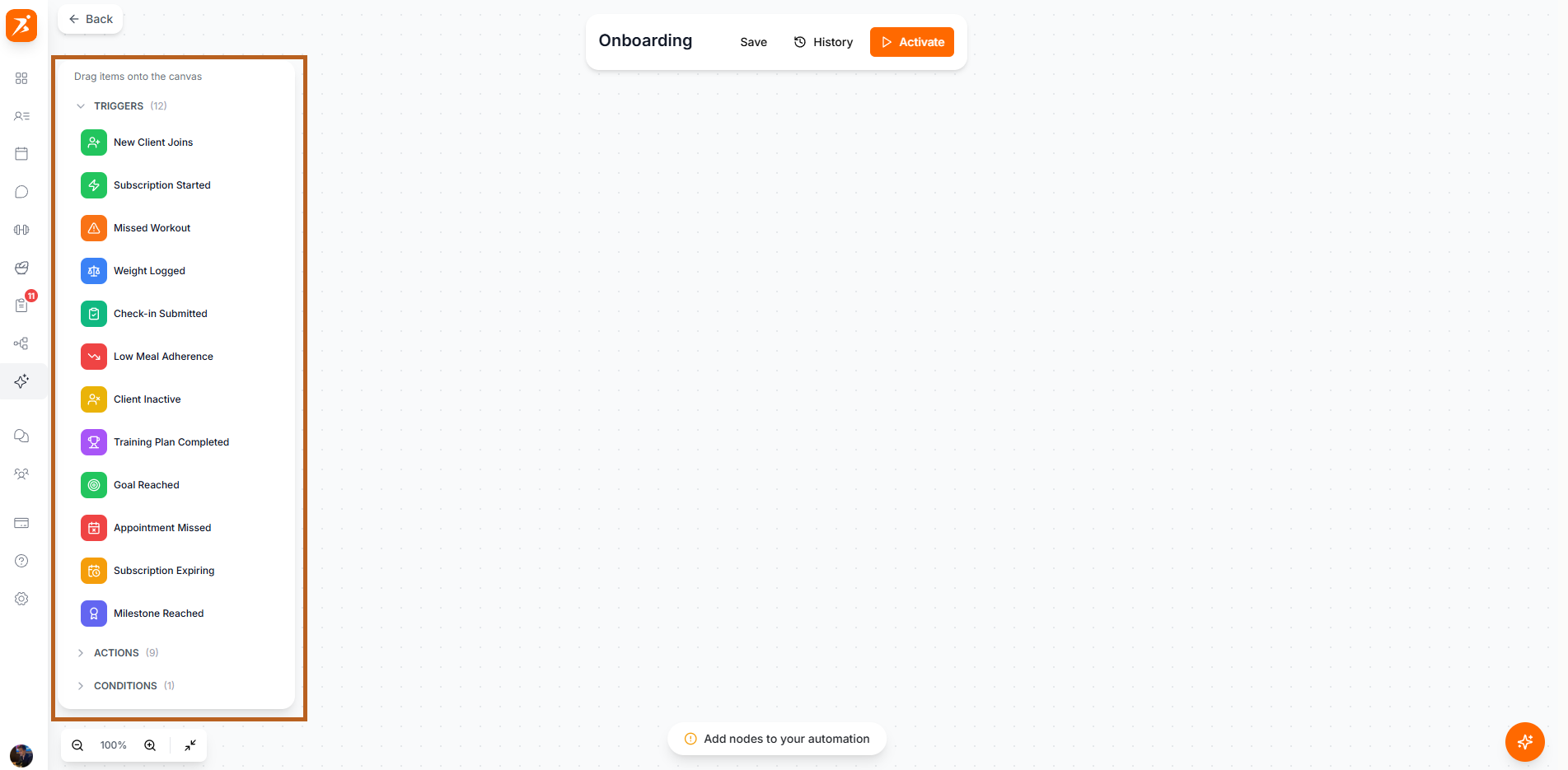
These triggers fire when something happens with a client's account or activity.
Client Signup
Fires when a new client completes their registration.
Client Inactive
Fires when a client is inactive for a number of days you configure.
Weight Logged
Fires when a client logs their weight.
Milestone Reached
Fires when a client hits a milestone you define, such as a workout count or days active.
These triggers fire based on workout and training-related activity.
Missed Workout
Fires when a client misses a scheduled workout for a set number of days.
Check-in Submitted
Fires when a client submits a check-in response.
Training Plan Completed
Fires when a client finishes all weeks in their assigned training plan.
Low Meal Adherence
Fires when a client's meal plan adherence drops below a threshold you set.
Appointment Missed
Fires when a client misses a scheduled appointment.
These triggers fire based on billing and subscription activity.
Payment Failed
Fires when a client's subscription payment fails. Choose whether it fires on any failed payment, only the first failure, or only on retry failures.
Subscription Expiring
Fires a configurable number of days before a subscription renewal date.
Subscription Activated
Fires when a new subscription is created or an expired one is reactivated.
Each trigger can be customized with filters and timing options to fine-tune when it fires.
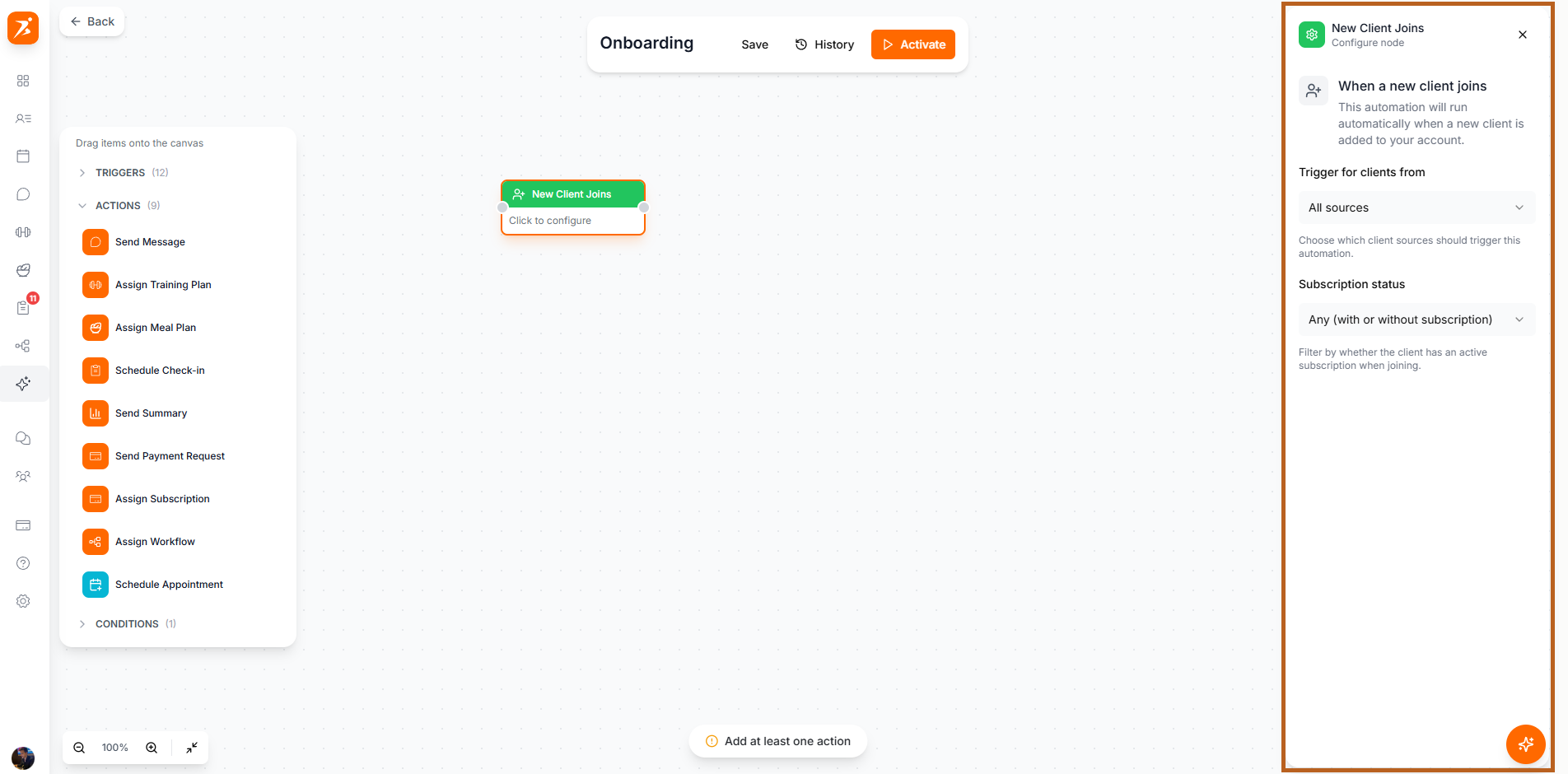
An automation can use up to 5 triggers. When you add more than one, every trigger must match before the automation fires.
Narrow the scope — e.g., only fire for clients on a specific plan.
Configure delays and thresholds (e.g., inactive for 3+ days).
Create separate automations for different triggers that need different responses.