Build a beautiful, branded landing page on your own domain to turn visitors into clients. Showcase your story, your results, and everything you sell — no designer or code required.
The landing page builder lets you create a public marketing page for your business. Drag in sections, write your copy, add your photos, and connect your memberships, programs, and events — then publish it on your branded subdomain or custom domain. It's your home on the web for getting found and signing up new clients.
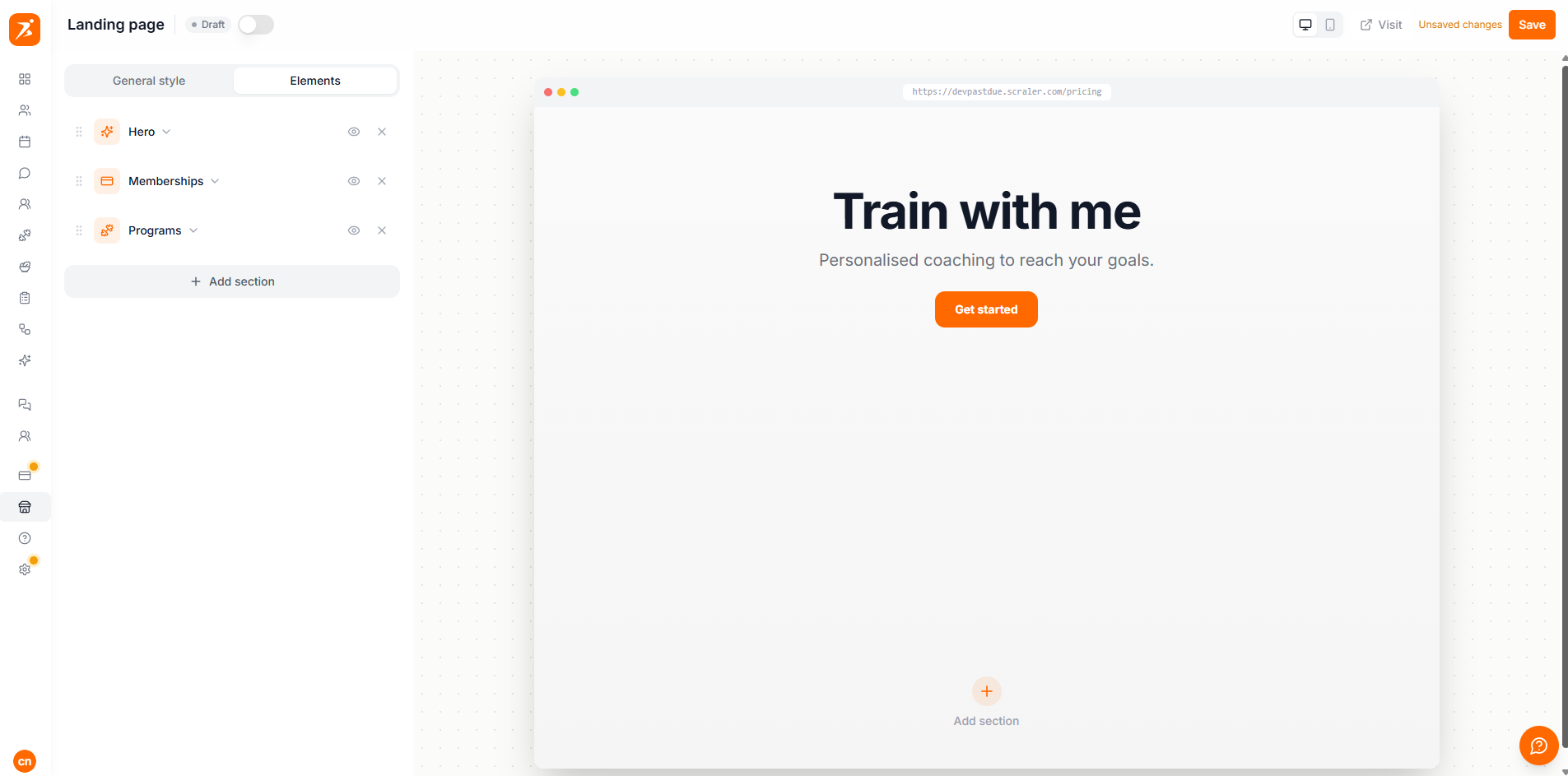
The landing page builder is available on the Premium and Ultimate plans. On Basic and Plus you'll see an upgrade prompt. After upgrading, open Landing page from your dashboard sidebar to start building.
The builder has an editor panel on the left and a live preview on the right. Everything you change appears in the preview instantly, so you always see exactly what visitors will see.
Add, reorder, hide, and edit the sections that make up your page.
Pick a background style, set your default button text, and connect your domain.
See a real, interactive preview as you build, with hover controls on every section.
Drag sections to reorder them, use the eye icon to hide a section without deleting it, and don't forget to click Save.
Your landing page lives on your own web address so it always reflects your brand. You choose how clients reach it.
Every trainer gets a free subdomain like yourname.scraler.com — ready to share right away.
On Ultimate, connect your own domain (like yourbrand.com) for a fully white-label page.
Anyone can view your landing page — no login needed. Visitors only sign up when they buy.
Memberships, programs, and events pull live from your account, so prices never go stale.
The page automatically uses your logo, business name, and brand color throughout.
Your page is fully responsive, so it looks sharp on phones, tablets, and desktops.