Create workflow templates that automate client onboarding, plan rotations, and follow-up sequences. Build once, assign to any client.
The workflow builder uses a calendar grid layout. Your saved templates appear in the left sidebar, the main area shows a week-by-week calendar where you place actions, and a config panel opens on the right when you edit an action.
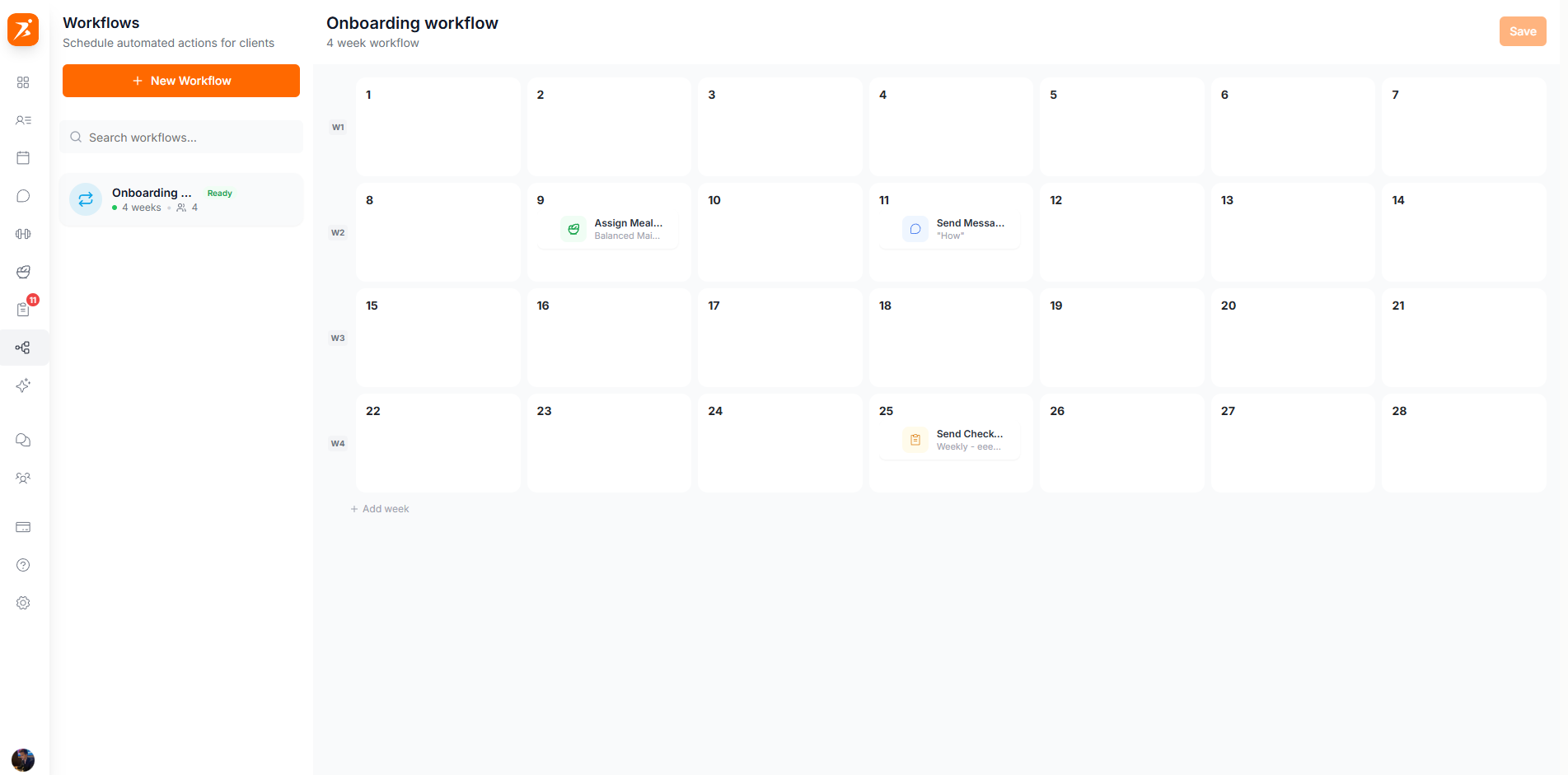
The main canvas is organized into weeks and days. Each week is a row with 7 day columns (Monday through Sunday). Click any day cell to add an action.
Add weeks to extend your workflow duration. Remove a week by clicking the delete button next to the week number.
Each cell shows its day number (Day 1, Day 8, Day 15, etc.) so you can quickly identify when each action fires.
Add these actions to any day in your workflow:
Send Message
Send an automated chat message to the client. Enter the message content in the config panel.
Assign Training Plan
Assign a training plan template. Select which plan from your library in the config panel.
Assign Meal Plan
Assign a meal plan template. Pick a meal plan from your library.
Send Check-in
Send a check-in template for the client to complete. Select the template in the config panel.
Payment Request
Send a payment request with a configurable amount and currency.
Send Summary
Generate and send a progress summary. Configure the timeframe and which data to include.
Click an action card to open the config panel on the right. Each action type has different settings — for example, a training plan action lets you pick which plan, while a payment request action lets you set the amount and currency.
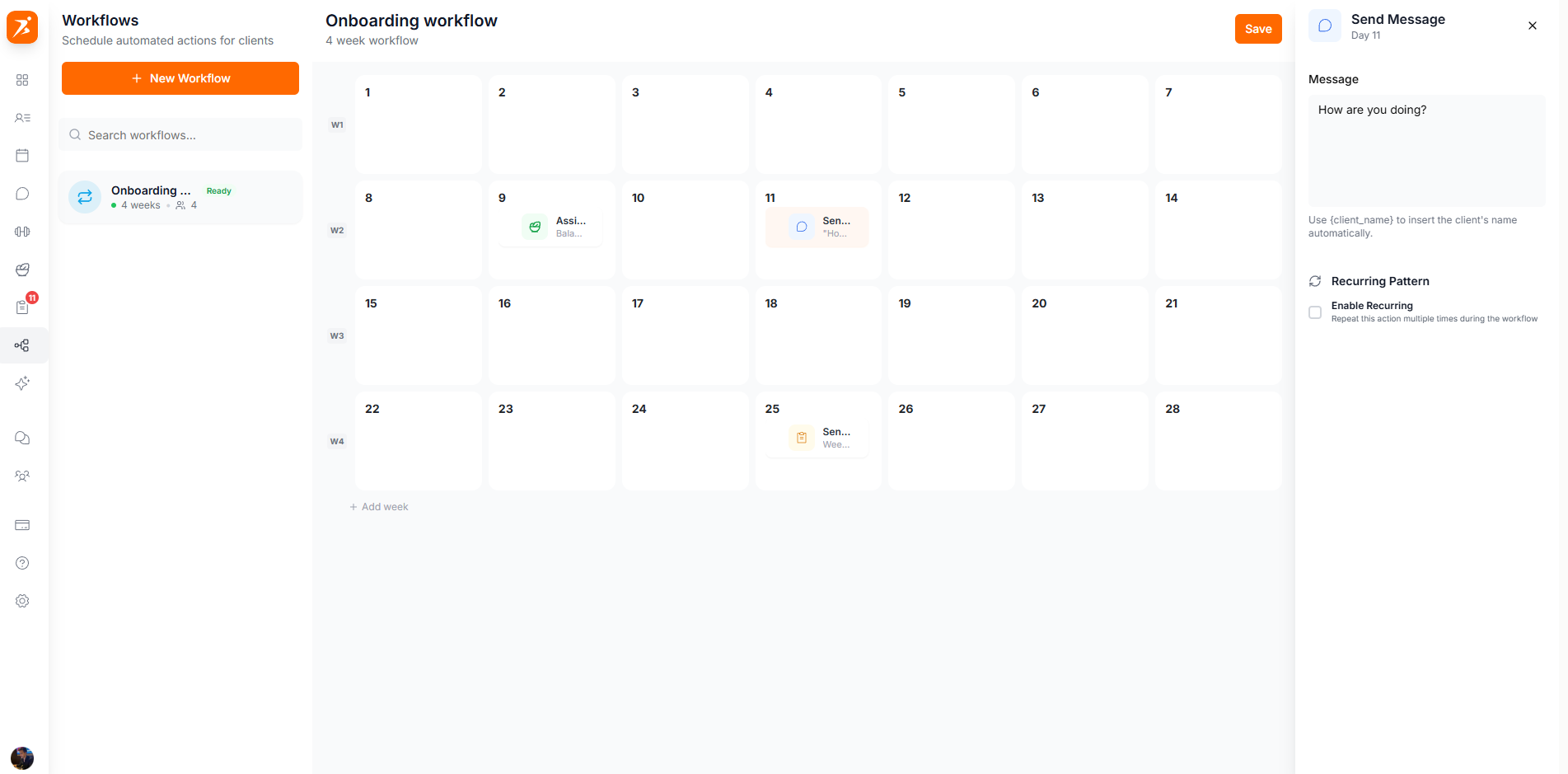
Drag action cards between days to reschedule them. Reorder actions within the same day by dragging them up or down.
The builder validates your workflow as you build:
Empty — no actions added yet
Incomplete — one or more actions are missing required config (e.g., a message without text)
Ready. Every action is configured, so the template can be assigned to a client.
Editing a template only changes future assignments. When you assign a workflow, Scraler freezes a copy of the template exactly as it was at that moment, so clients who are already part-way through keep the schedule they started on.
You cannot delete a template while it still has scheduled or active assignments. Cancel or complete those assignments first, then delete the template.
Use Ctrl+Z / Ctrl+Shift+Z to undo and redo changes.
Select multiple actions to delete or duplicate them in bulk.
Leave a few days between major assignments (training plans, meal plans) so clients aren't overwhelmed.