Configure your branded mobile app appearance. Set your app name, icon, colors, and theme to match your brand.
Customize how your branded app looks and feels for your clients on iOS and Android.
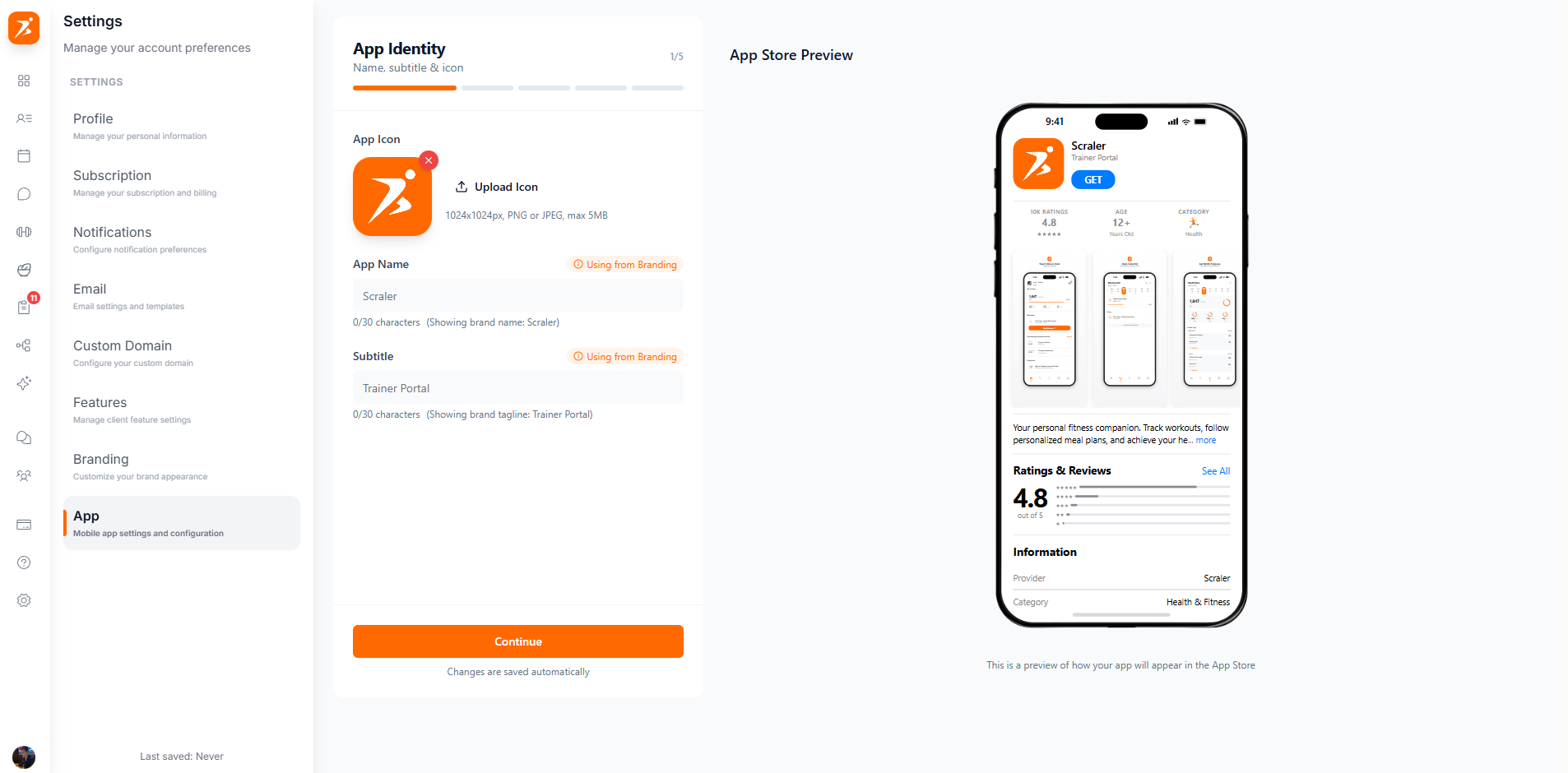
Screenshot: App store settings
Show: app store configuration page with app name input, app icon upload area with preview, primary color picker, theme selector (light/dark), and a live phone mockup showing the branded app appearance
public/docs/app-store-settings.png
Personalize the following aspects of your branded mobile app.
The name displayed under your app icon on client devices and in the app store.
Your custom app icon shown on the home screen and in the app store listing.
Set your primary brand color used throughout the app for buttons, accents, and navigation.
Choose between light and dark mode as the default theme for your clients.
Setting up your branded app takes just a few minutes:
Follow these guidelines for the best results when uploading your app icon.
Minimum 1024×1024 pixels. Square aspect ratio required.
PNG or JPG. No transparency — use a solid background color.
Keep it simple. Avoid text that's too small to read at icon size. Use your logo or a recognizable symbol.
Your icon will be automatically rounded by iOS and Android. Design with rounded corners in mind — keep important elements away from the edges.
When clients open the app, they see your brand — not Scraler's. Here's what changes for them:
Your app name and icon appear on their home screen.
Your brand colors are used throughout the entire app interface.
Your logo is displayed on the login and loading screens.
The chosen theme (light or dark) is applied as the default.