Go to a client's profile, open the Nutrition tab, and create a meal plan for a specific week.
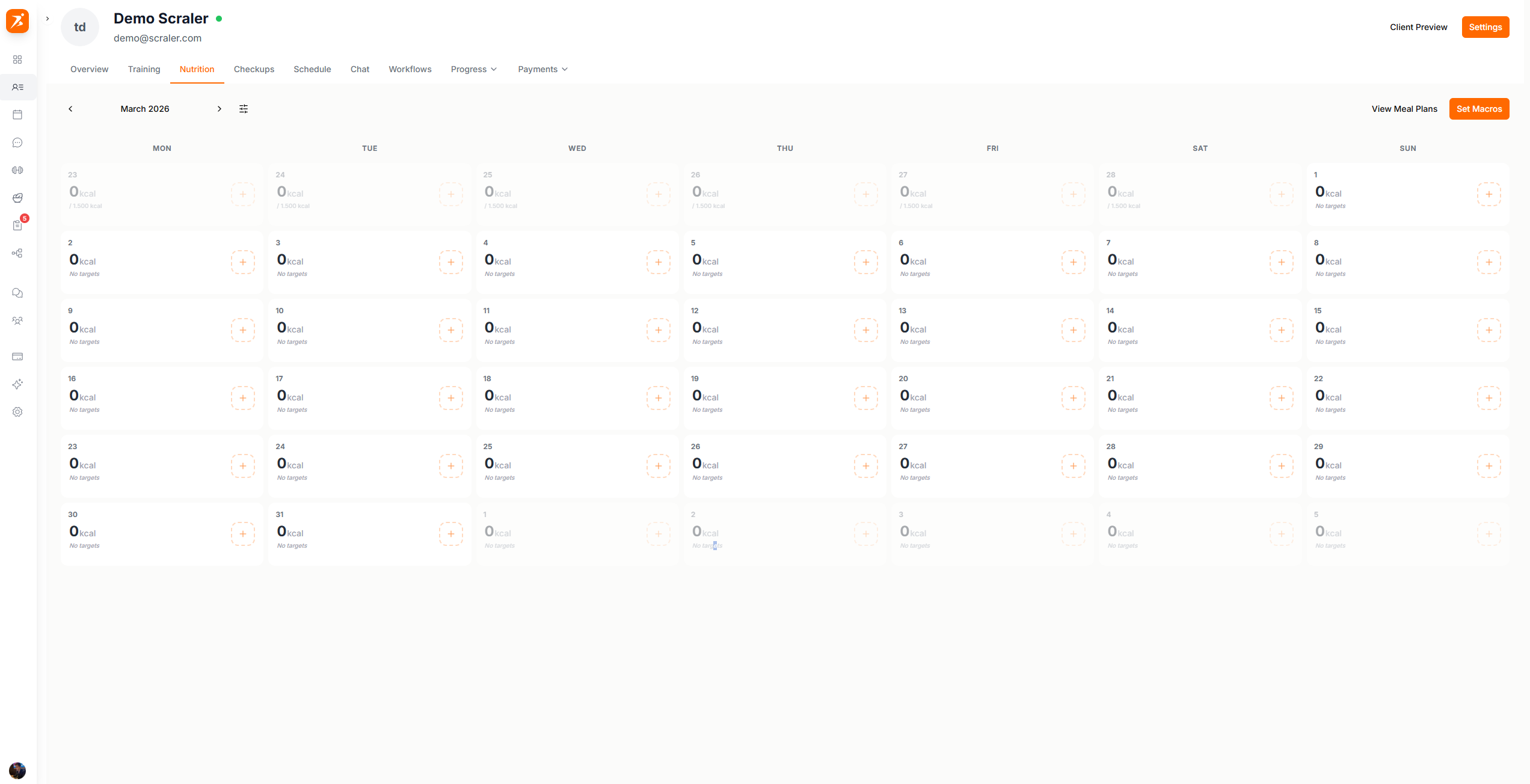
A monthly calendar showing macro targets per day. Days with a meal plan have a badge.
Screenshot: Client nutrition calendar
Show: monthly calendar with calorie data per day (consumed/target), today highlighted in orange, days without targets showing "No targets", "Set Macros" and "View Meal Plans" buttons, month navigation arrows
public/docs/nutrition-calendar.png
Set macro targets for a week before creating a meal plan.
Plans are assigned per week (Mon–Sun).
Build the plan yourself from scratch, or let AI generate it. Both options open the builder where you can make changes.
Click any day on the calendar to see what meals are planned, what the client logged, and how their macros look.
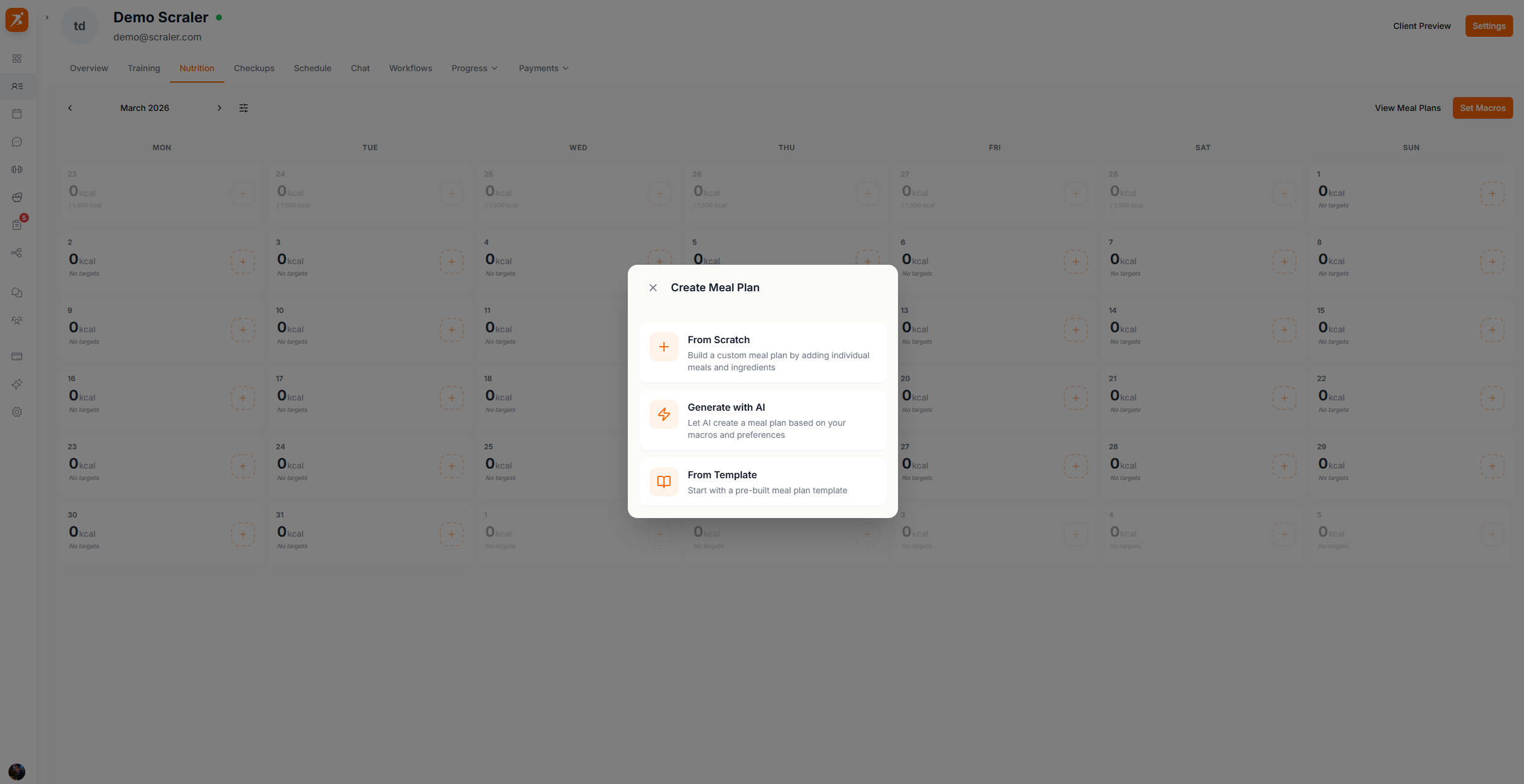
Click "Add Meal Plan". A popup gives you two options:
Screenshot: Create meal plan options
Show: "Create Meal Plan" modal with 2 options — Build from Scratch (with Plus icon) and Generate with AI (with Zap icon) — each with title and description
public/docs/meal-plan-options.png
Opens the builder so you can add meals and foods yourself, day by day.
AI builds the whole plan for you based on the client's macro targets.
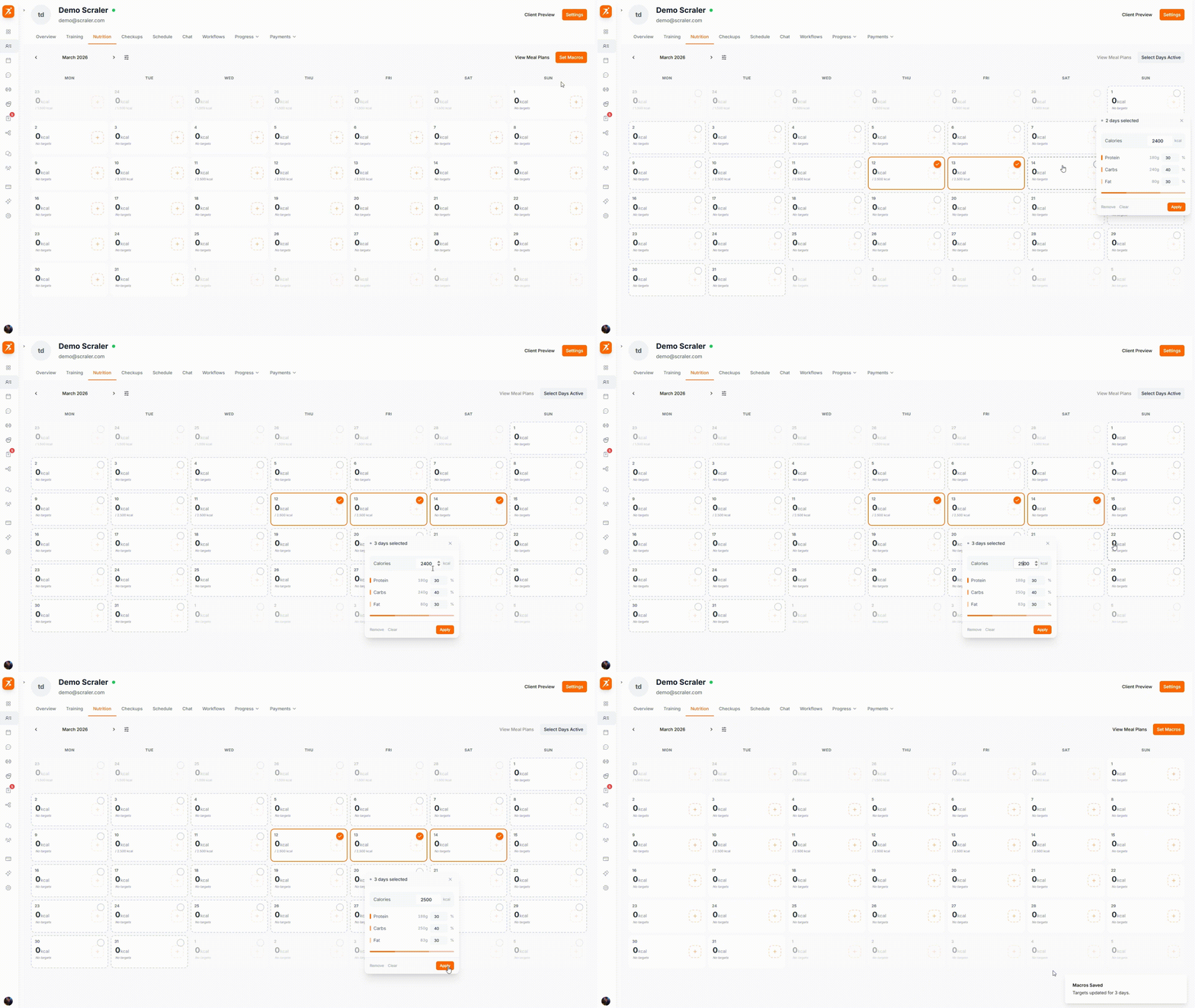
Click "Set Macros", select days on the calendar, then set calories and macros for those days.
GIF: Setting macro targets for a week
Record: click "Set Macros", select 4 days on the calendar (checkmarks appear), then show the macro config panel with calorie and percentage inputs, click "Apply"
public/docs/meal-plan-options.gif
Click days to select them, then set calories and macros for all selected days at once
Get your clients on the right nutrition plan
Assign meal plans, set macros, and track progress — all from one calendar.
Get Started Free