Need help? The built-in support system lets you send a message to the Scraler team without leaving your dashboard. Create a ticket, describe your issue, and get a reply — all inside the app.
The support page works like a simple inbox. You create a ticket, we reply, and you can chat back and forth until the issue is sorted.
Describe what you need help with. Pick a category and priority so we know what to look at first.
Our team reads your ticket and replies directly inside the app. No email needed.
You get a notification when we reply. Open the ticket to continue the conversation.
Go to Support in your sidebar and click the New button. Fill in a short subject line, pick a category and priority, and describe your issue. Click Submit Ticket and you're done.
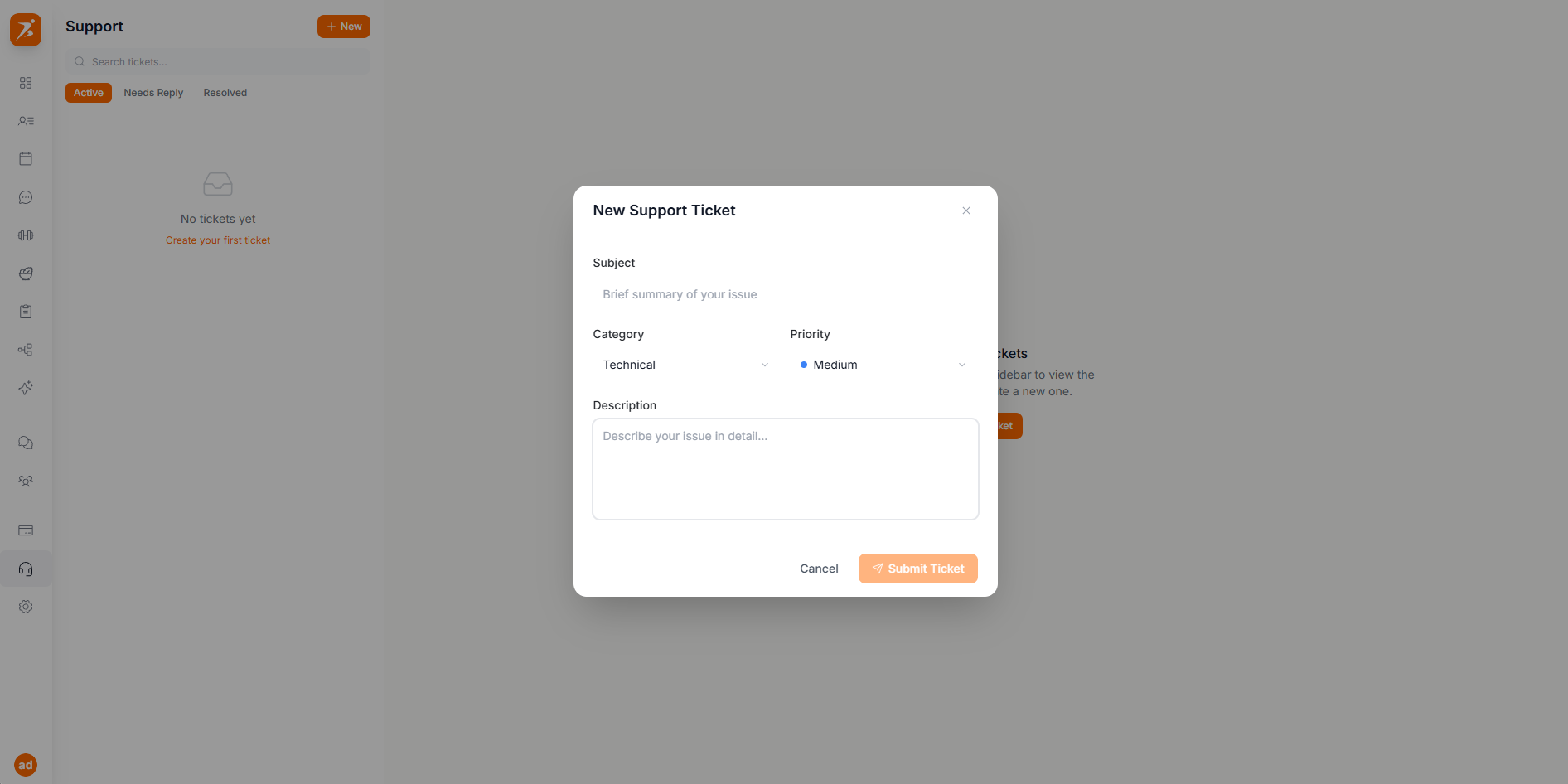
Screenshot: New support ticket form
Show: "New Support Ticket" modal with Subject input, Category dropdown (Technical selected), Priority dropdown with colored dots (Medium selected, blue dot), Description textarea, Cancel and Submit Ticket buttons at bottom
public/docs/support-new-ticket.png
When you create a ticket, pick the category that best fits your issue. This helps our team route it to the right person.
Login issues, profile settings, subdomain changes, or anything related to your account.
Questions about your subscription, payment issues, invoices, or Stripe connection.
Something isn't working right — bugs, errors, loading issues, or unexpected behavior.
Have an idea for something new? Let us know what you'd like to see in Scraler.
The support page shows all your tickets in a list on the left side. You can search by keyword, and filter by status — Active, Needs Reply, or Resolved. Click any ticket to see the full conversation.
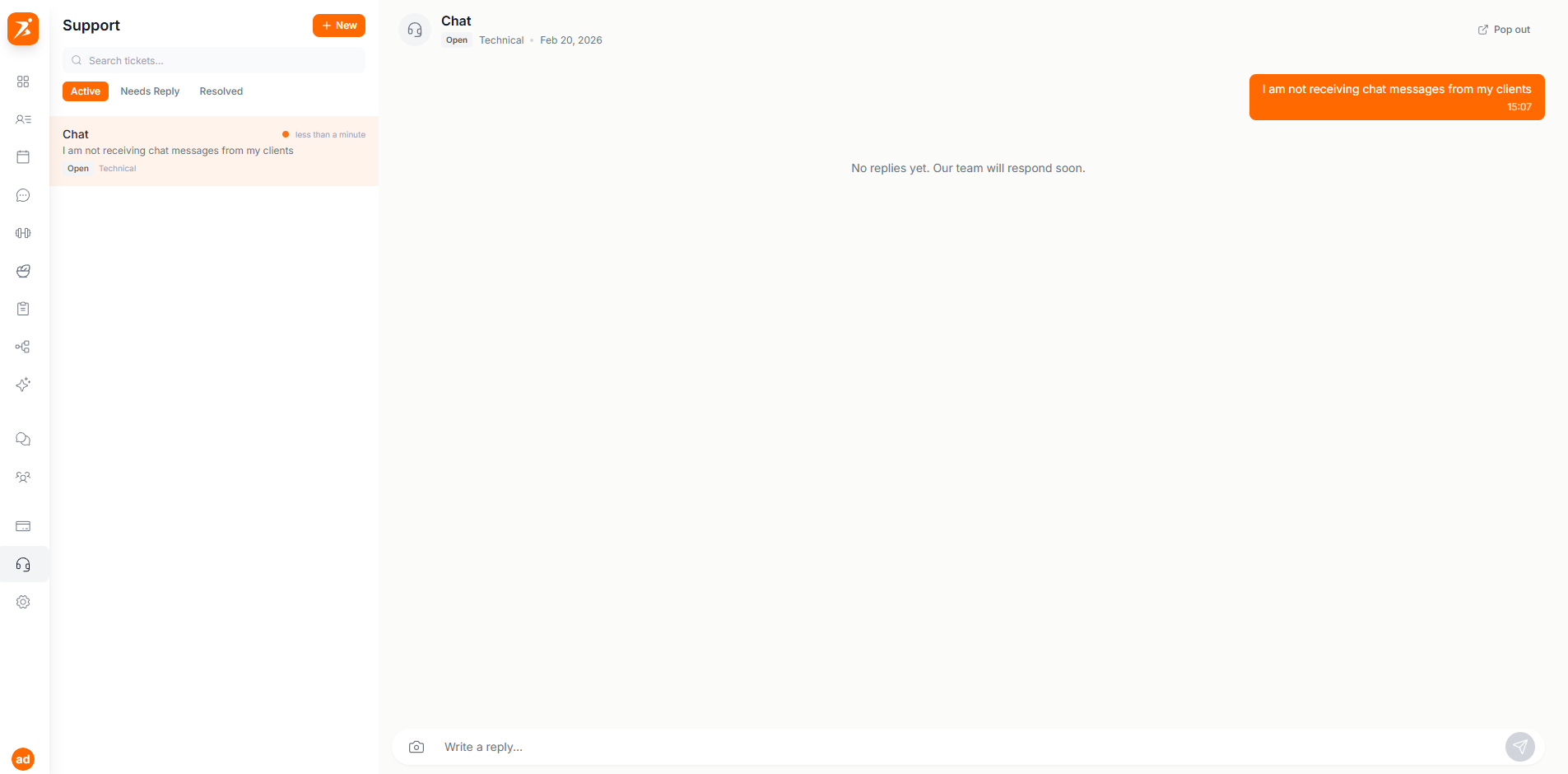
Screenshot: Support ticket list
Show: left sidebar with "Support" header and "+ New" button, search bar, filter tabs (Active, Needs Reply, Resolved), ticket list with 3 tickets — "Can't upload exercise GIF" (In Progress, Technical, blue dot), "Billing question about upgrade" (Awaiting Reply, Billing, orange dot), "Add dark mode please" (Open, Feature Request, gray dot) — each with title, preview text, status badge, category, and time ago
public/docs/support-ticket-list.png
When you open a ticket, you see the full conversation on the right side. Your messages appear on the right, our replies appear on the left with a headset icon. Type your reply at the bottom and press Enter or click the send button.
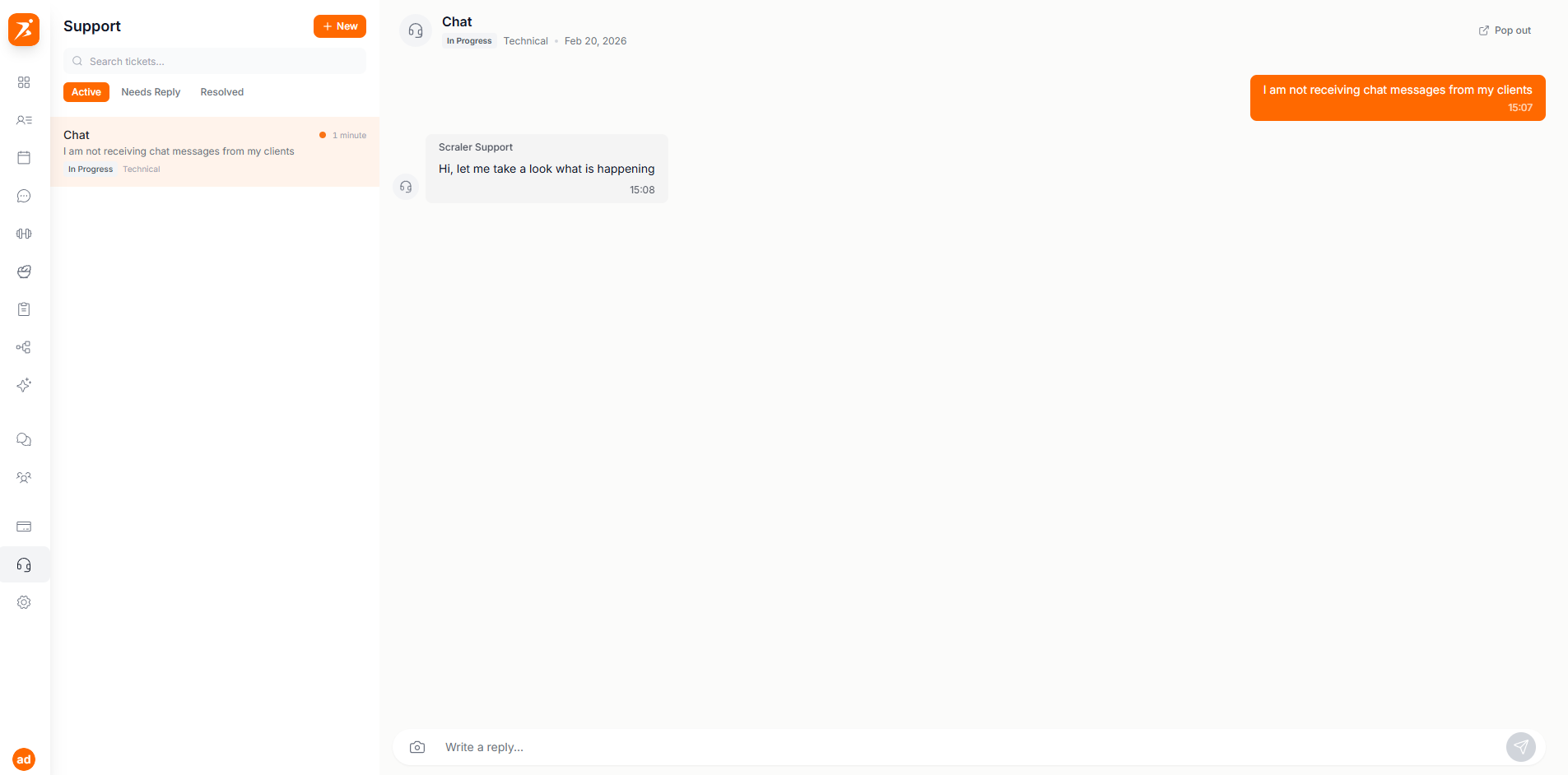
Screenshot: Support ticket conversation
Show: split view — left panel with ticket list, right panel showing conversation thread with trainer messages (right-aligned, colored) and Scraler Support replies (left-aligned with headset icon), text input at bottom with image attach button and send button
public/docs/support-conversation.png
Need to show us what's going wrong? Click the camera icon next to the text input to attach a screenshot or image. We support JPEG, PNG, GIF, and WebP files up to 10 MB. You can add a text message along with the image.
Each ticket has a status so you always know where things stand.
Your ticket has been submitted. Our team will look at it soon.
We're working on it. You'll get a reply when we have an update.
We've replied and are waiting for you to respond. Check your ticket.
The issue has been fixed or answered. Create a new ticket if you need more help.
Don't want to stay on the support page? Click the Pop Out button on any ticket to turn it into a small floating chat window. It stays in the bottom-right corner of your screen so you can keep working while waiting for a reply. You can minimize it, expand it, or close it any time.
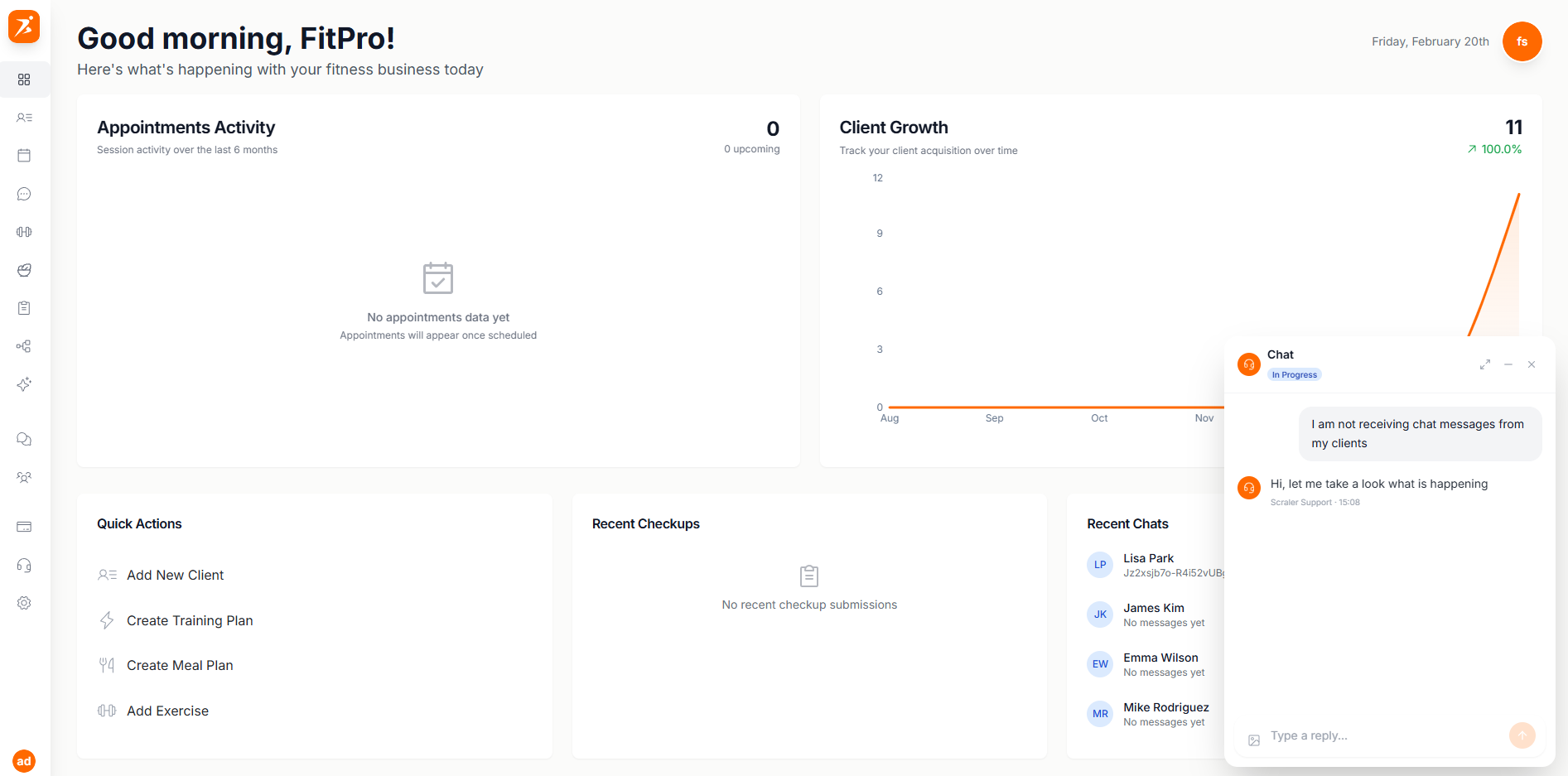
Screenshot: Floating support widget
Show: bottom-right corner of screen with a floating chat widget open, showing the ticket conversation in a compact view with header (ticket title, status badge, minimize/expand/close buttons), message thread, and reply input — the main page is visible behind it
public/docs/support-widget.png
Chat directly with our support team inside the app. No need to send emails or leave the dashboard.
Attach screenshots and images to show us exactly what's happening. Supports JPEG, PNG, GIF, and WebP.
See all your tickets in one place. Filter by status, search by keyword, and track progress.
Pop out any ticket into a floating chat window so you can keep working while waiting for a reply.
We're here to help
Got a question or ran into a problem? Open a support ticket and we'll get back to you.
Get Started Free