Instead of a long URL, your clients can go to something like app.yourname.com. This guide shows you how, step by step.
A domain is the address people type to visit a website. Like google.com. When you set up a custom domain, your clients visit your own address instead of ours.
Pick one. You can always change later.
Clients use app.scraler.com. No setup needed.
app.scraler.comClients use yourname.scraler.com. You pick the name.
yourname.scraler.comClients use app.yourname.com. Needs a Premium plan + your own domain.
app.yourname.comThe easiest option. Here is how:
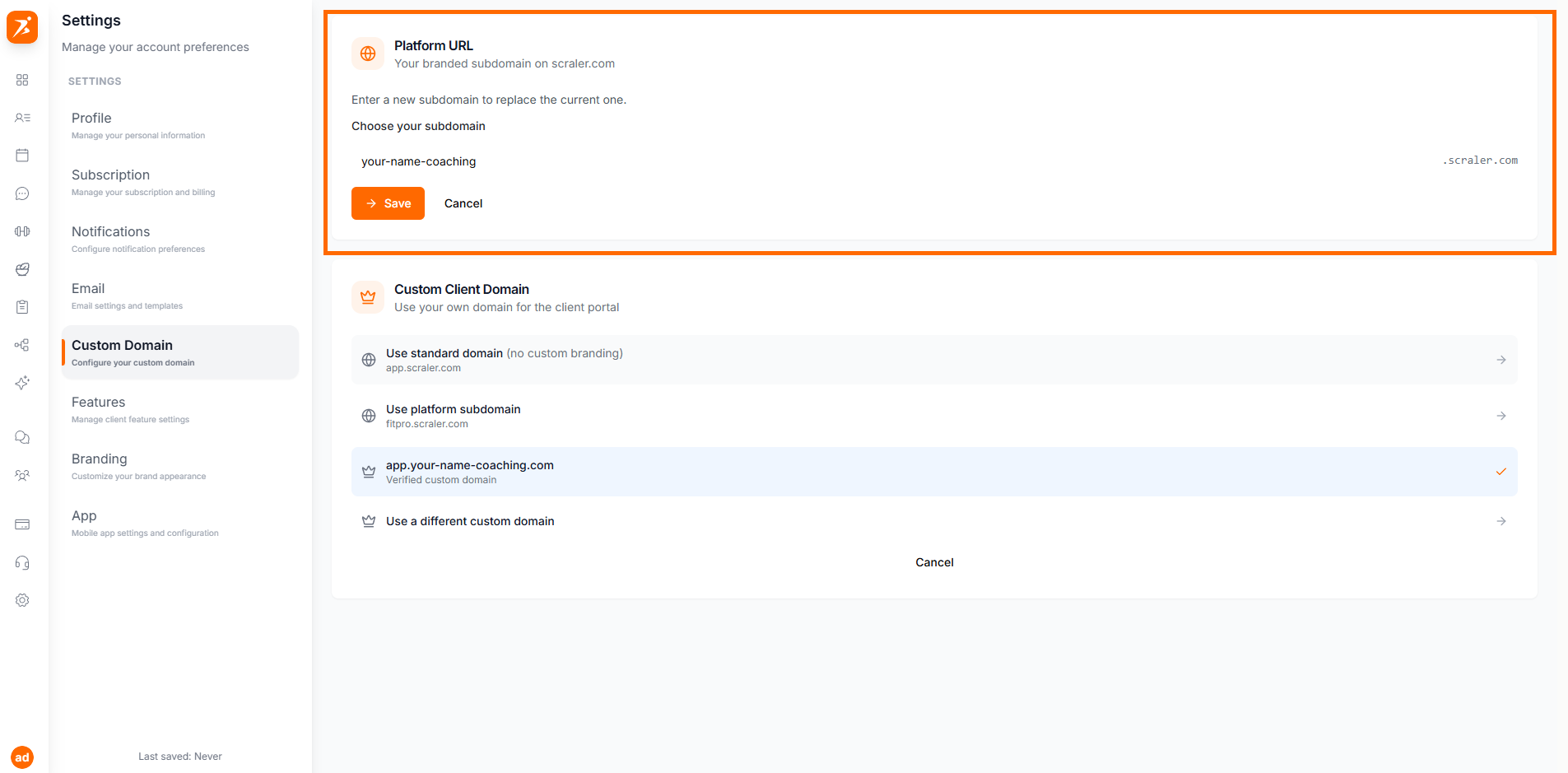
Screenshot: Settings page - Custom Domain tab
Show: trainer settings page with the Custom Domain tab selected, showing the Platform URL section with an input field
public/docs/cd-settings-tab.png
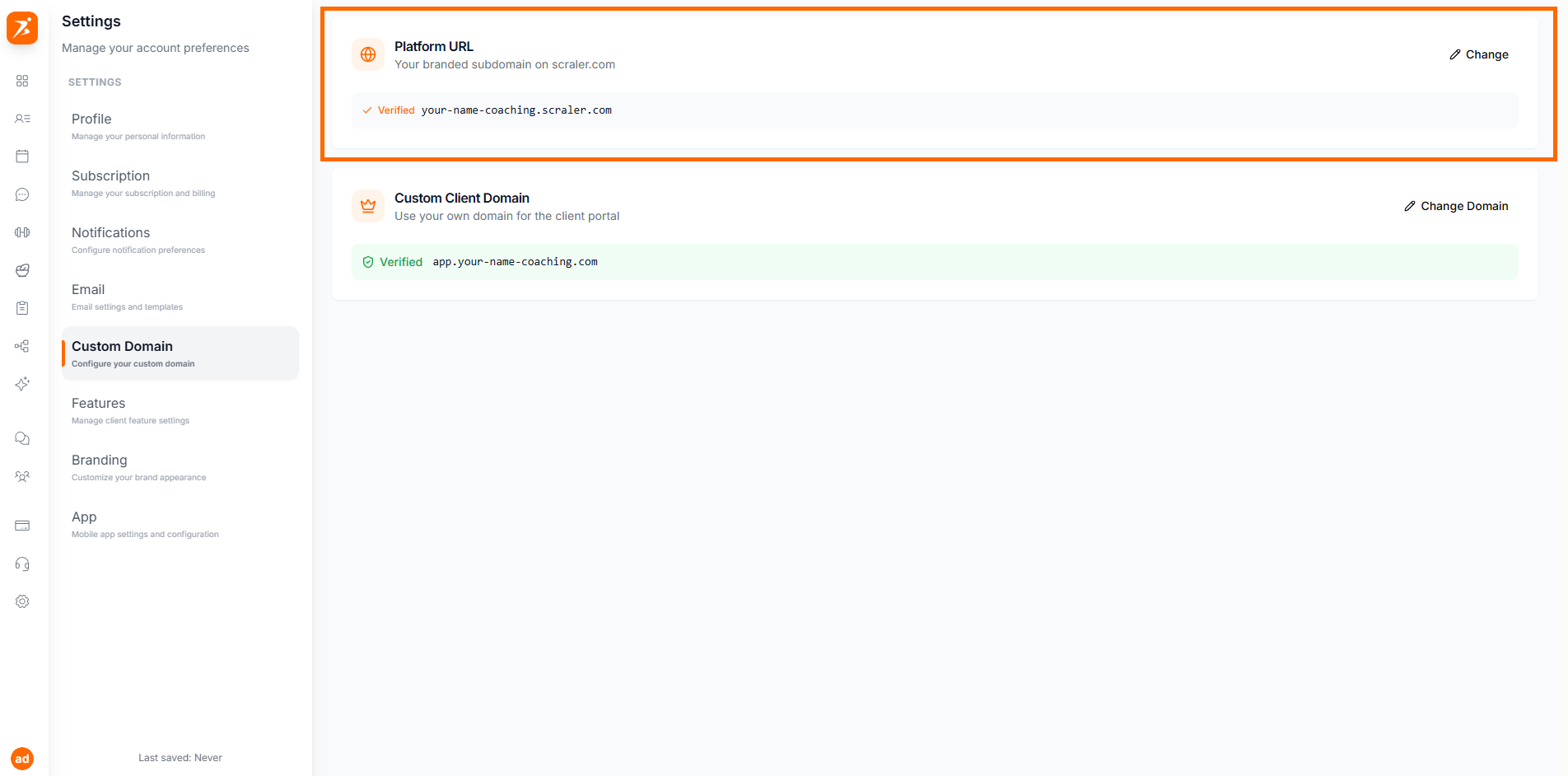
Screenshot: Subdomain claimed
Show: Platform URL section with a green checkmark and the claimed subdomain (e.g. yourname.scraler.com) displayed, plus a pencil icon to edit
public/docs/cd-subdomain-claimed.png
Done! Clients can now go to yourname.scraler.com.
Want to change it later? Click the pencil icon next to your subdomain.
A few more steps, but your clients will never see "scraler" anywhere. It looks 100% yours.
Already have one? Skip to Step 2. If not:
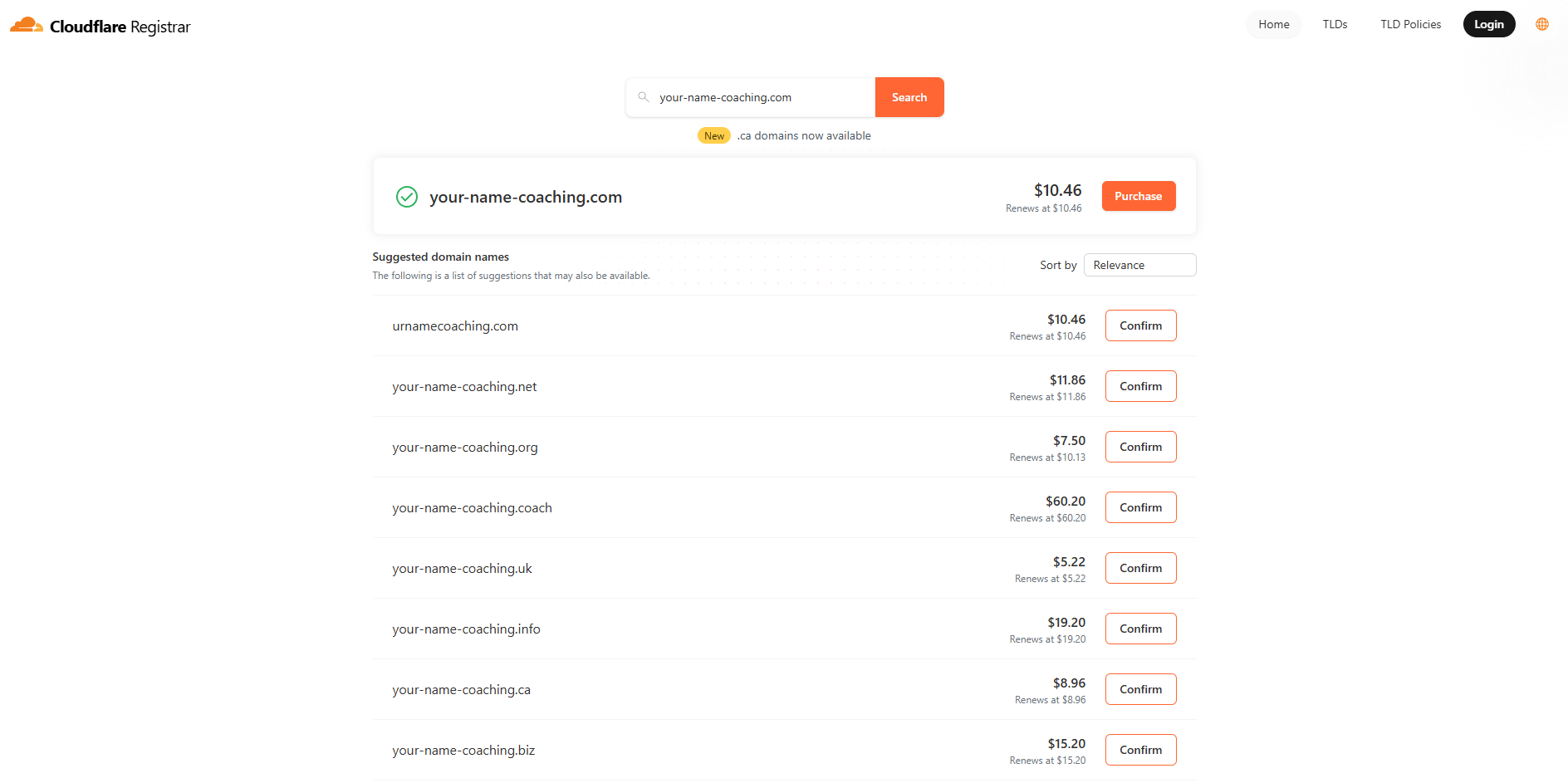
Screenshot: Domain registrar
Show: a domain registrar search page (e.g. Cloudflare) where a user searches for a domain name like 'mytraining.com' and sees it available to buy
public/docs/cd-buy-domain.png
We recommend Cloudflare - it's free for DNS and easy to use.
Tell Scraler which domain you want to use.
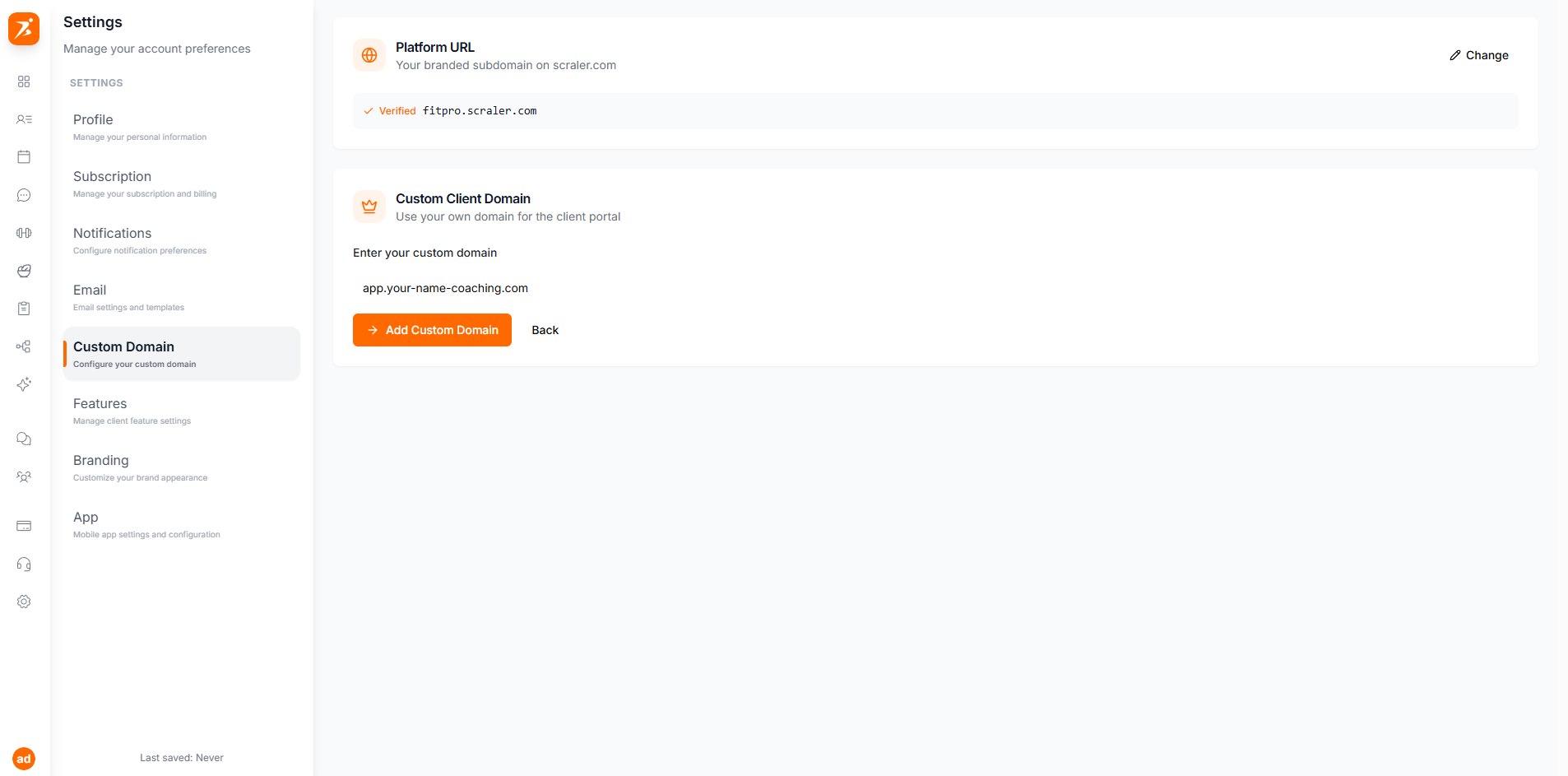
Screenshot: Enter custom domain
Show: the Custom Client Domain section with an input field containing 'app.yourname.com' and an 'Add Domain' button
public/docs/cd-enter-domain.png
Scraler shows you a special code. You need it for the next step. Keep this page open!
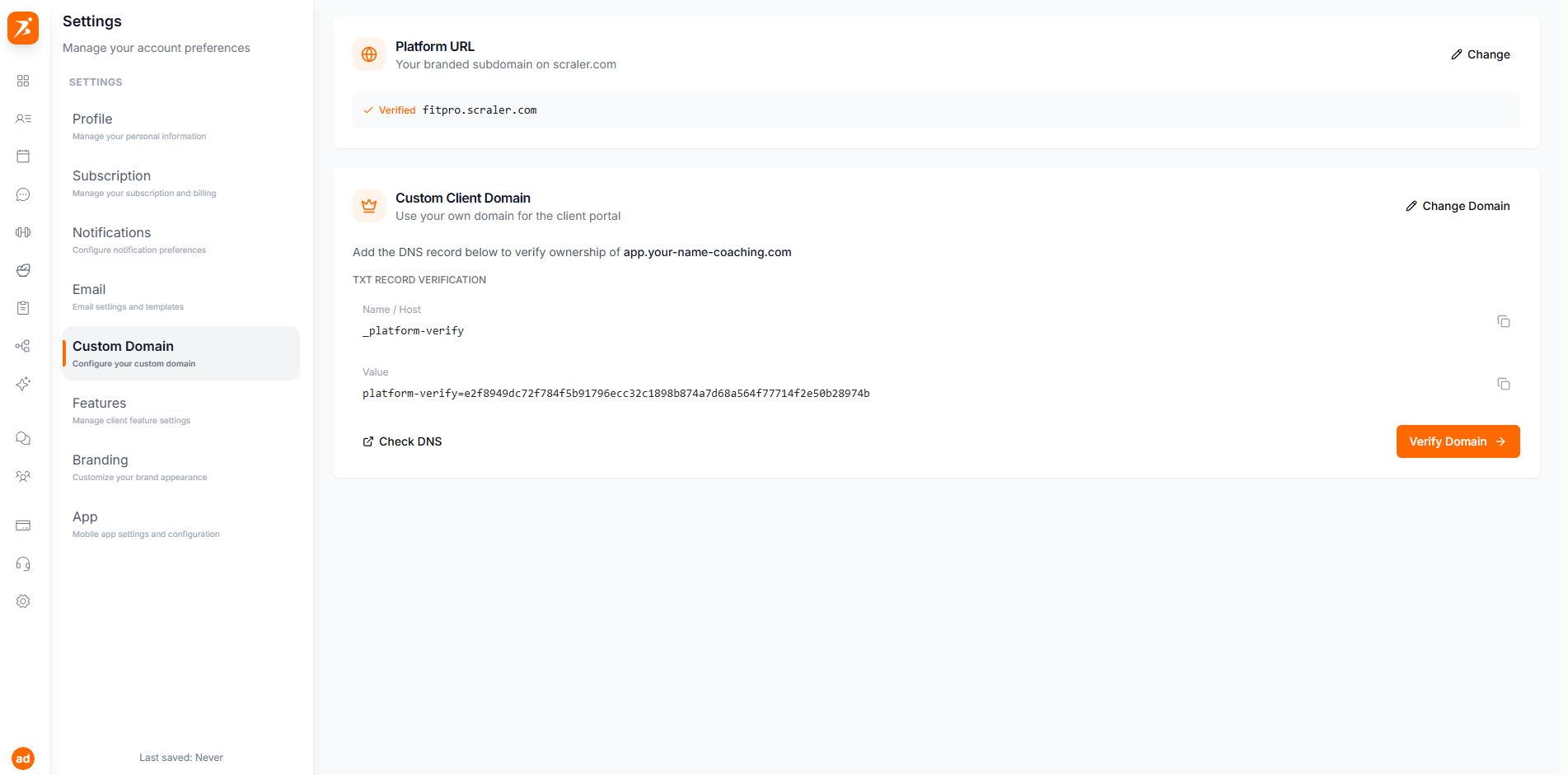
Screenshot: TXT record code
Show: Scraler displaying the TXT verification instructions with Name (_platform-verify) and Value (platform-verify=abc123...) fields, each with a copy button, plus a 'Verify Domain' button and 'Check DNS' link
public/docs/cd-txt-code-shown.png
Why app.yourname.com?
Your main domain (yourname.com) might be used for your website already. Using app.yourname.com keeps things separate.
This proves you own the domain. You do this at the website where you bought your domain.
Type: TXT
Name: _platform-verify
Value: platform-verify=your-code-from-scraler
TTL: 3600
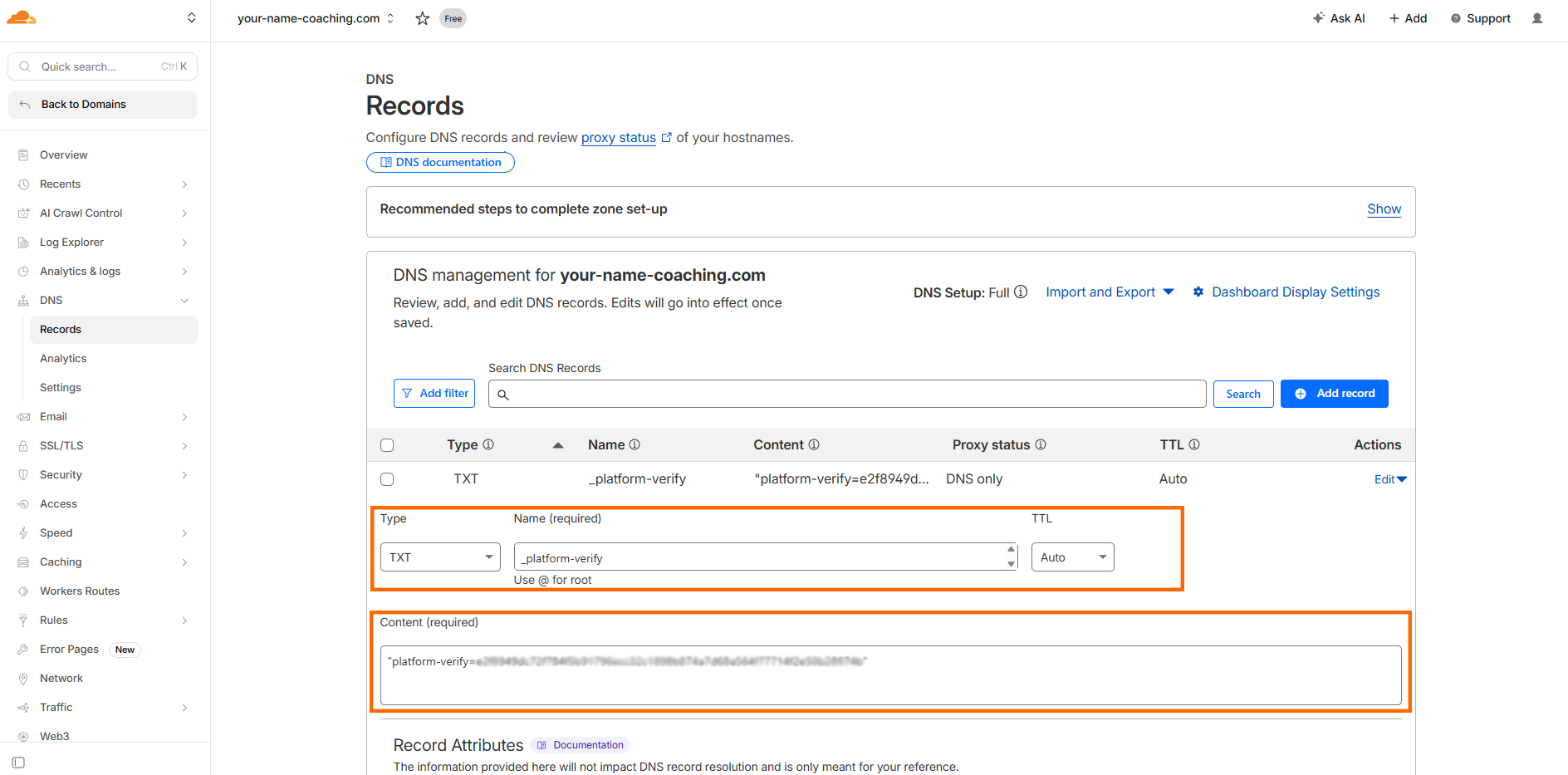
Screenshot: DNS panel - Adding TXT record
Show: a DNS management panel (e.g. Cloudflare) with a form to add a new TXT record. Fields filled in: Type=TXT, Name=_platform-verify, Content=platform-verify=abc123, TTL=Auto
public/docs/cd-dns-panel-txt.png
Can't find DNS settings? Search for "DNS" in your provider's help section, or look under your domain's management page.
One more record. This sends your visitors to our servers so the app loads.
Type: CNAME
Name: app (or your chosen subdomain)
Value: cname.vercel-dns.com
TTL: 3600
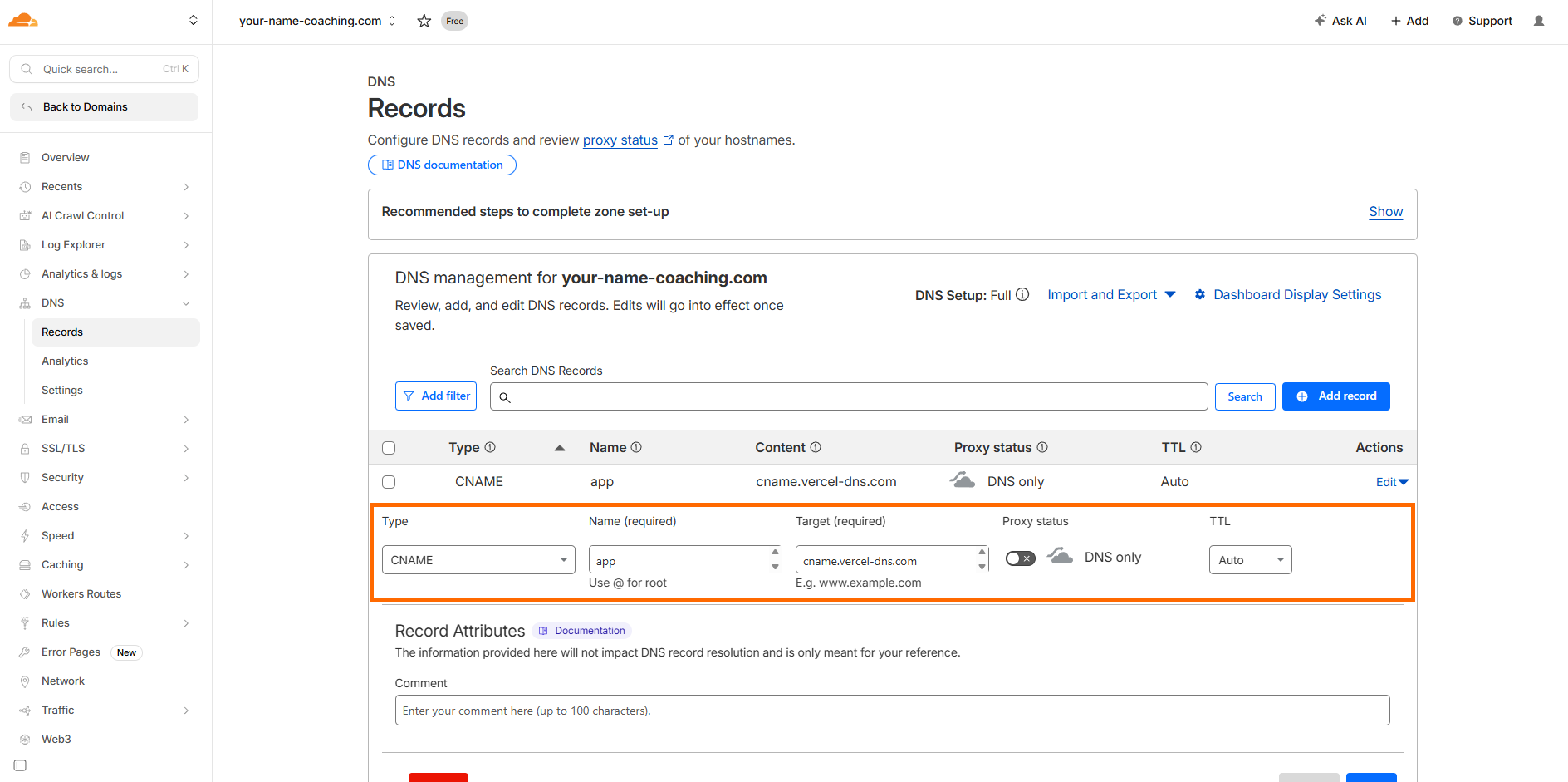
Screenshot: DNS panel - Adding CNAME record
Show: a DNS management panel with a form to add a new CNAME record. Fields filled in: Type=CNAME, Name=app, Target=cname.vercel-dns.com, TTL=Auto
public/docs/cd-dns-panel-cname.png
Go back to Scraler and click "Verify Domain". If everything is right, you'll see a success message.
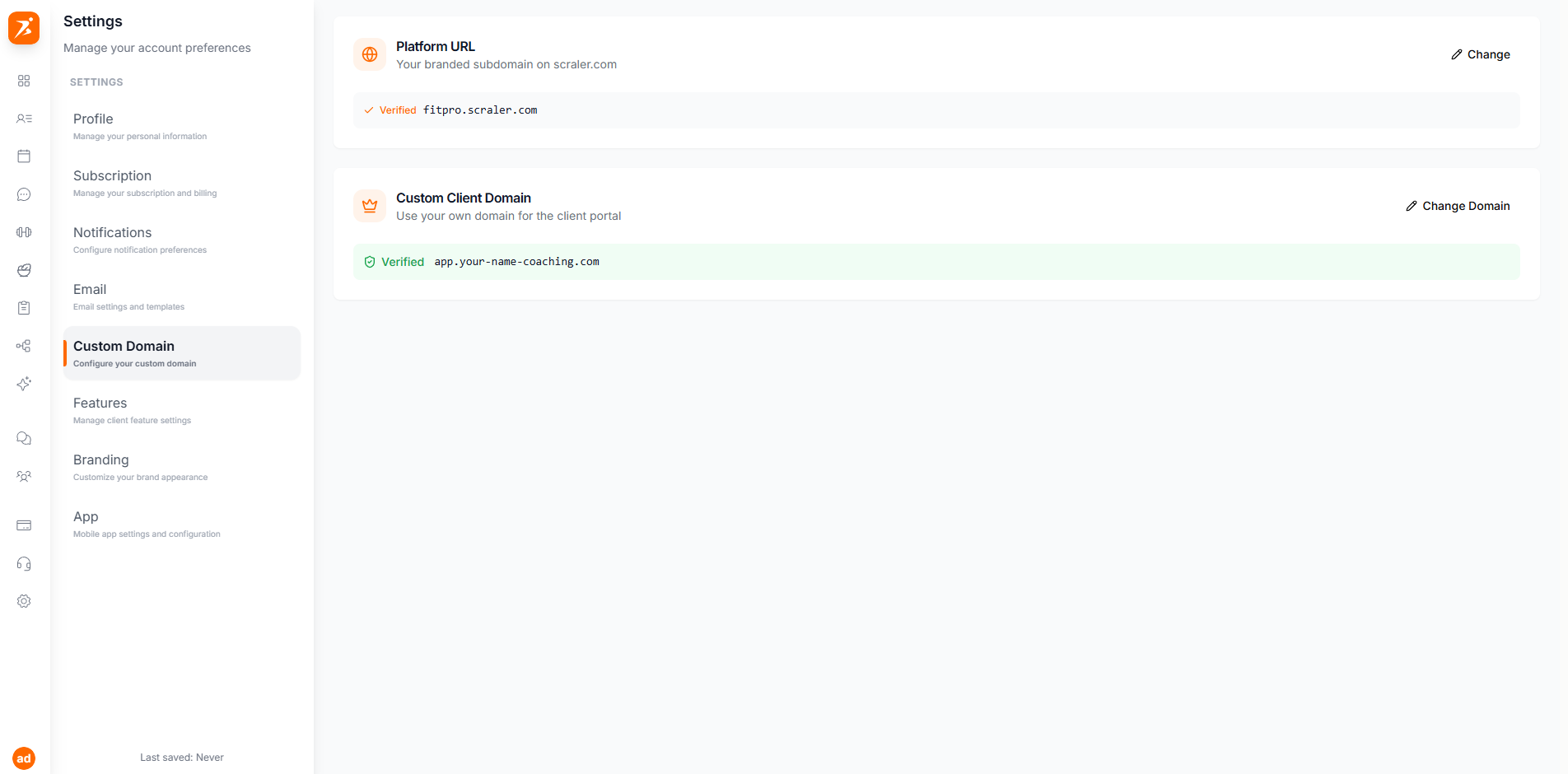
Screenshot: Click Verify Domain
Show: the verification section with a 'Check DNS' link on the left and a highlighted 'Verify Domain' button on the right, user is about to click it
public/docs/cd-verify-button.png
That's it! After a few minutes your domain is live. These things happen by themselves:
SSL (the lock icon in the browser) is set up for free. Your site is secure.
Clients can now visit app.yourname.com.
Scraler redirects you to your new domain automatically.
You can switch anytime. Scraler remembers everything.
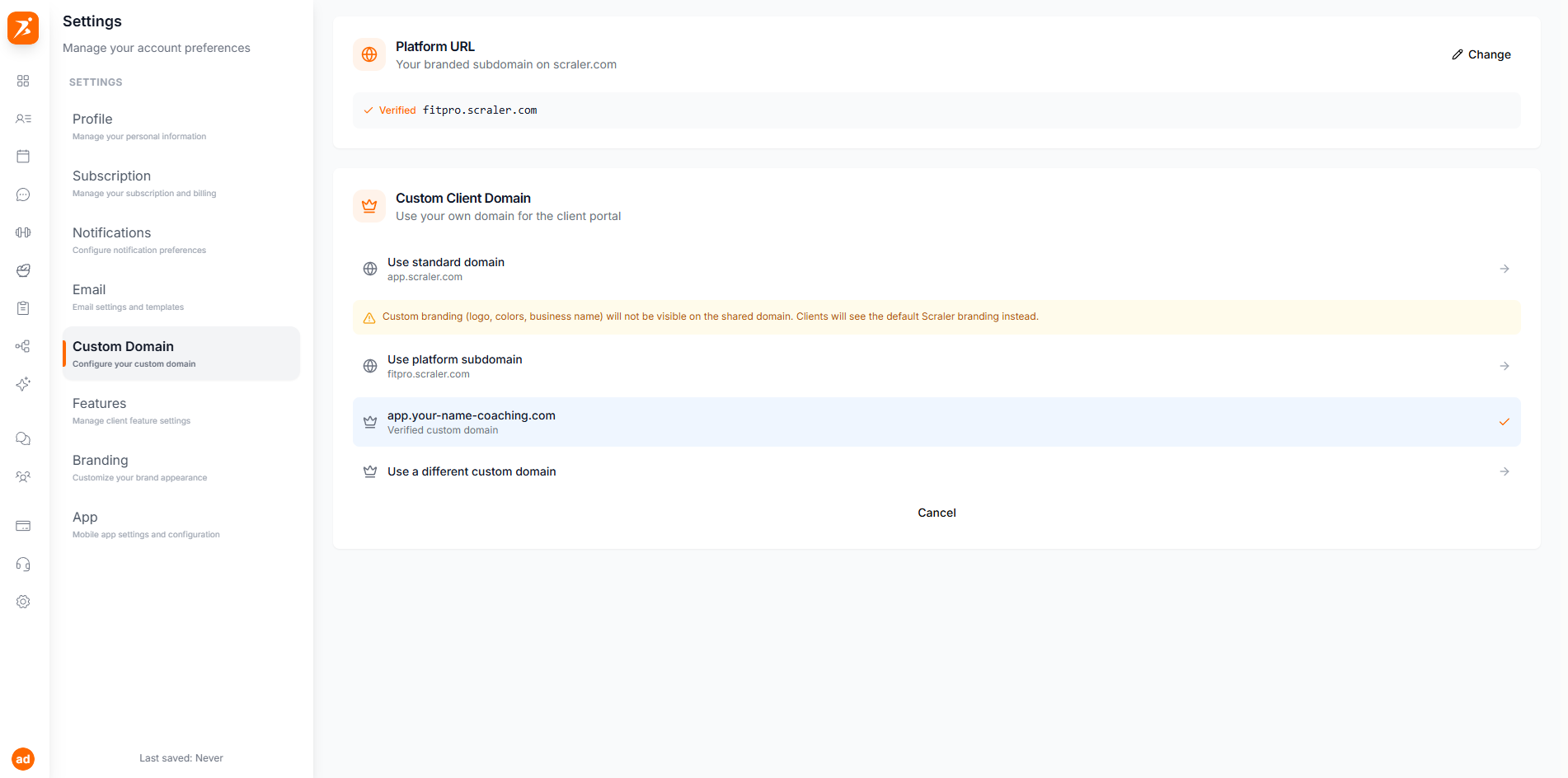
Screenshot: Switching domains
Show: the domain type chooser with three options - 'Use standard domain (app.scraler.com)' with globe icon, 'Use subdomain (yourname.scraler.com)' with globe icon and blue highlight, and 'app.yourname.com (Stored custom domain)' with crown icon, plus a 'Use a different domain' option at the bottom
public/docs/cd-switch-domain.png
Every domain gets a free security certificate. The lock icon shows up in the browser automatically.
Your app loads fast no matter where your client is in the world.
Only you can see domain settings. Clients never see this page.
Switch away and come back anytime. Your domain settings stay saved.