Before you can create a meal plan for a client, you need to set their daily calorie and macro targets. This page explains how to do that.
Go to a client's Nutrition tab, then click "Set Macros". This puts the calendar in selection mode. Click the days you want to set up, and a floating panel appears where you type in the numbers.
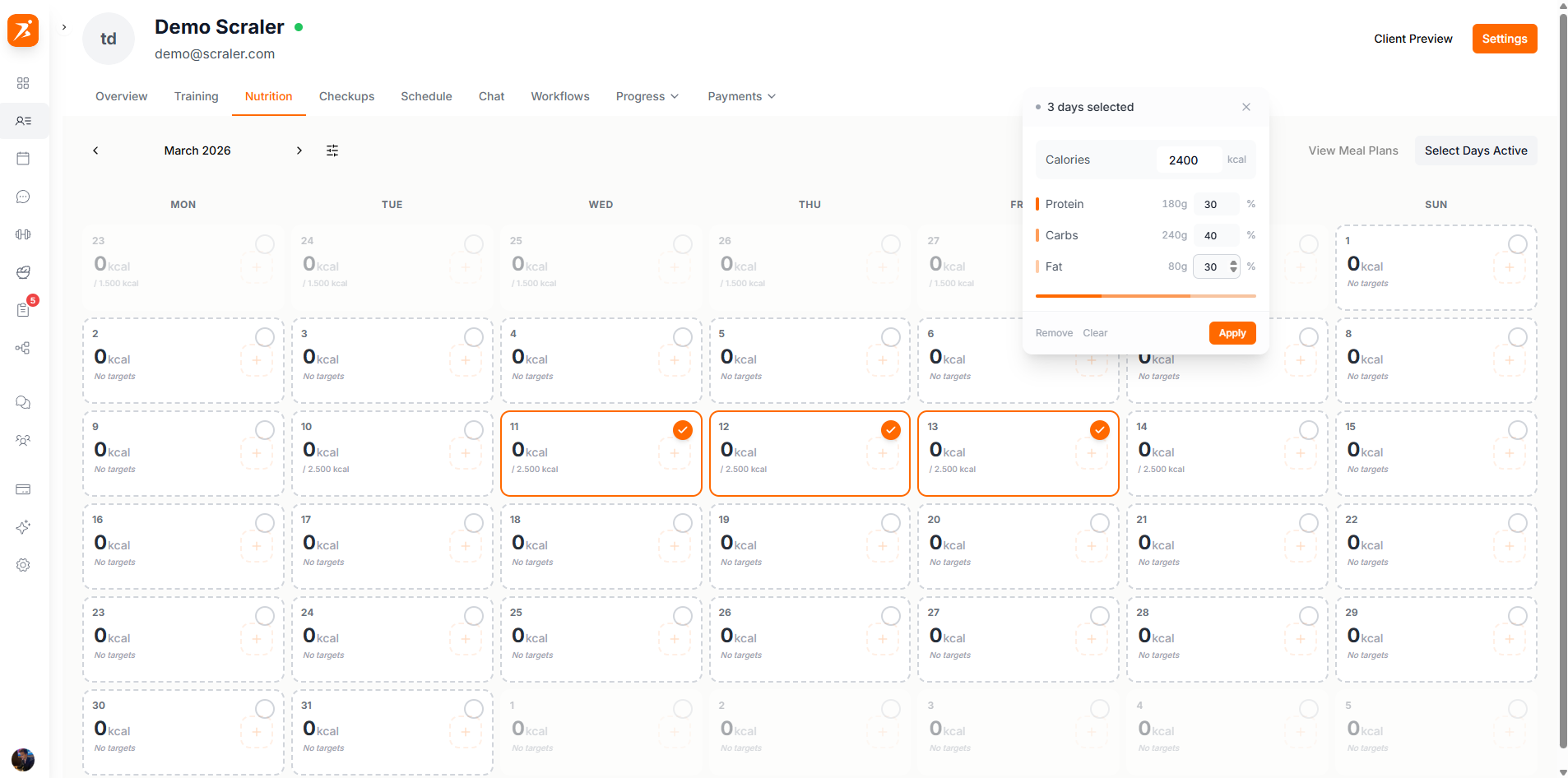
Screenshot: Macro settings panel
Show: floating macro config panel with client weight input (75 kg), daily calories input (2400), macro distribution grid (protein 30%, carbs 40%, fat 30%) with colored dots, visual stacked progress bar, "Save Settings" button
public/docs/macro-settings.png
Click "Set Macros"
This button is at the top of the Nutrition tab. It turns on selection mode.
Click the Days
Click the days on the calendar you want to set targets for. Selected days get a blue highlight.
Set Calories & Macros
A floating panel pops up. Type in the daily calories and set the percentage for protein, carbs, and fat.
Click "Apply"
This saves the targets to all the days you selected. The percentages need to add up to 100%.
Throughout the platform, macros always use the same colors so they're easy to spot:
Protein
4 cal/gram
Carbs
4 cal/gram
Fat
9 cal/gram
If your client has filled in their profile (weight, height, age, gender, activity level), the system calculates how many calories they burn per day (called TDEE). You can use this number as a starting point when setting calorie targets.
BMR × Activity Multiplier = TDEE
1,850 × 1.55 (moderately active) = 2,868 kcal
You can set different macros for different days. For example, more carbs on training days and fewer on rest days.
Just type percentages — the platform calculates the exact grams of protein, carbs, and fat based on the calorie target.
The Apply button stays disabled until your protein + carbs + fat percentages add up to exactly 100%.
Select multiple days and click "Remove" to clear macro targets from all of them at once.
Dial in your clients' nutrition targets
Day-specific macros, TDEE calculation, and percentage validation built in.
Get Started Free