
Client profile
Open any client from the Clients page to land on their profile. First choose which features this client gets, then see what each tab shows and where it is explained.
Features for this client
Choose exactly what this client gets. Click the gear icon at the top right of the profile, next to their name, and pick Settings.
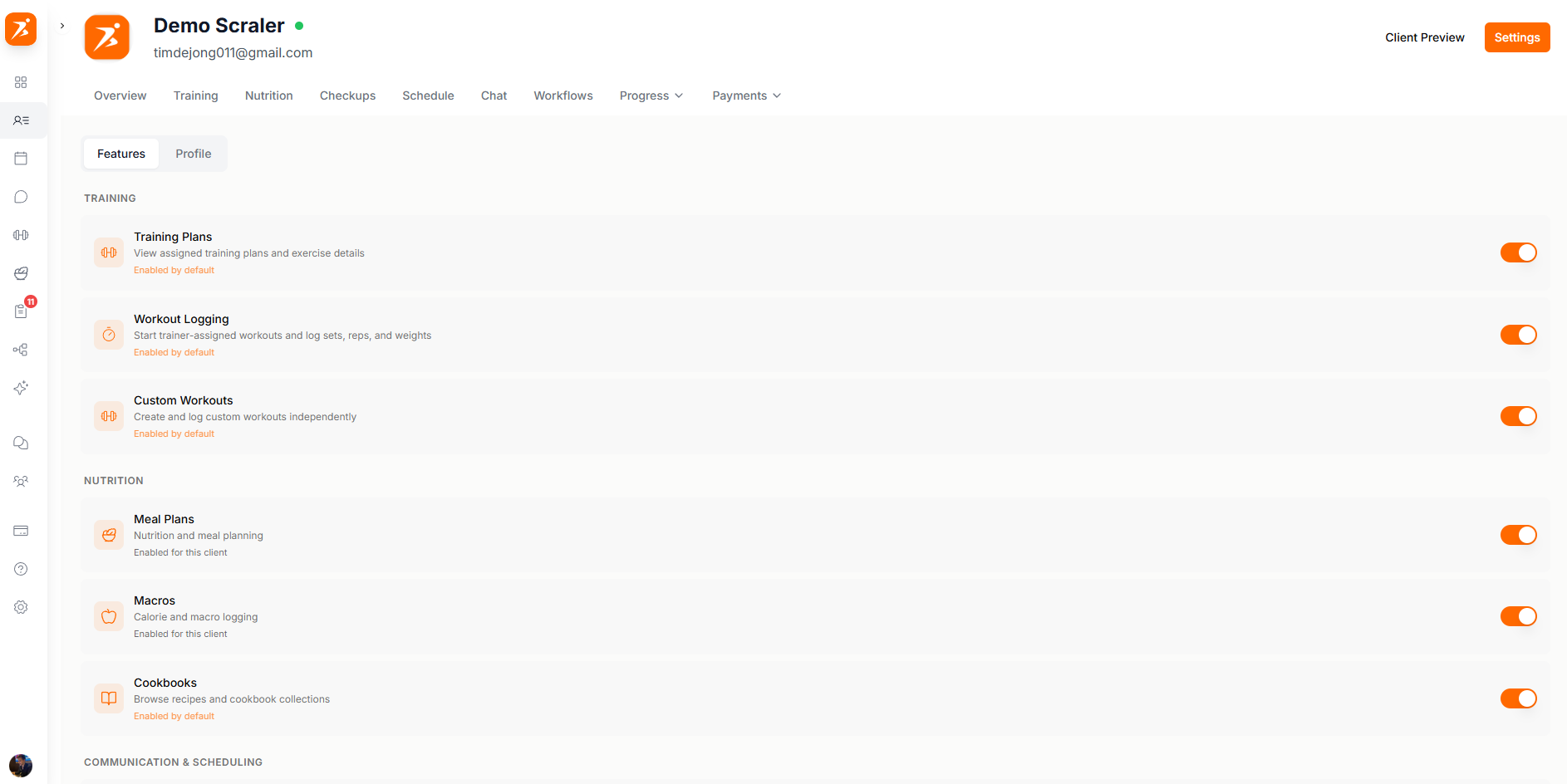
Every feature has three choices:
- Default
- Follows your default in Client features.
- On
- On for this client, whatever your default is.
- Off
- Off for this client, whatever your default is.
A paid plan always adds the features it includes, so those stay on whatever you pick. It changes what the client sees in their dashboard and app; you keep full access to their profile.
The line under each feature tells you why it is on or off:
Features are grouped by:
The same Settings view also holds:
- Delivery
- Calendar or Fixed, for training and nutrition. Switching deletes nothing.
- Workout mode
- How this client opens a workout in the app: Your default, Interactive (one exercise at a time) or List (every exercise on one page).
- Profile
- Contact details, body measurements, lifestyle, dietary restrictions, allergies, app language and goals. Needs the Edit Client Profiles permission; save with Save Profile.
- Export Data
- Downloads the client's full record as an Excel file, for GDPR requests.
See Delivery modes for how Calendar and Fixed differ. The same gear menu has Move to inactive.
What each tab shows
- Overview
- Weight, targets, what needs your attention, notes and onboarding answers.
- Training
- The client's training calendar or program. Assign plans and single workouts here.
- Nutrition
- Meal plans, macro targets and the food diary.
- Check-ins
- Check-ins sent to this client and their answers.
- Vault
- Files and resources you share with this client.
- Habits
- The client's habits and challenges.
- Cycle
- The cycle phases the client chooses to share.
- Schedule
- This client's sessions and their own calendar events.
- Chat
- Your conversation with this client.
- Workflows
- Actions scheduled for this client, like messages and plans (Ultimate).
- Progress
- Progress charts, training progress and progress reports.
- Payments
- The client's subscriptions, payment requests and purchases.
Some tabs only show when they apply. Habits and Cycle need the feature to be on for that client and included in your plan. Workflows needs automation access. Studio managers need the finance permission to see Payments.
Overview
Overview shows where this client stands. The cards on top give current weight and change, goal weight, training over 28 days, nutrition over 7 days, habits over 28 days, and when they last logged something. A card only shows once there is data for it.
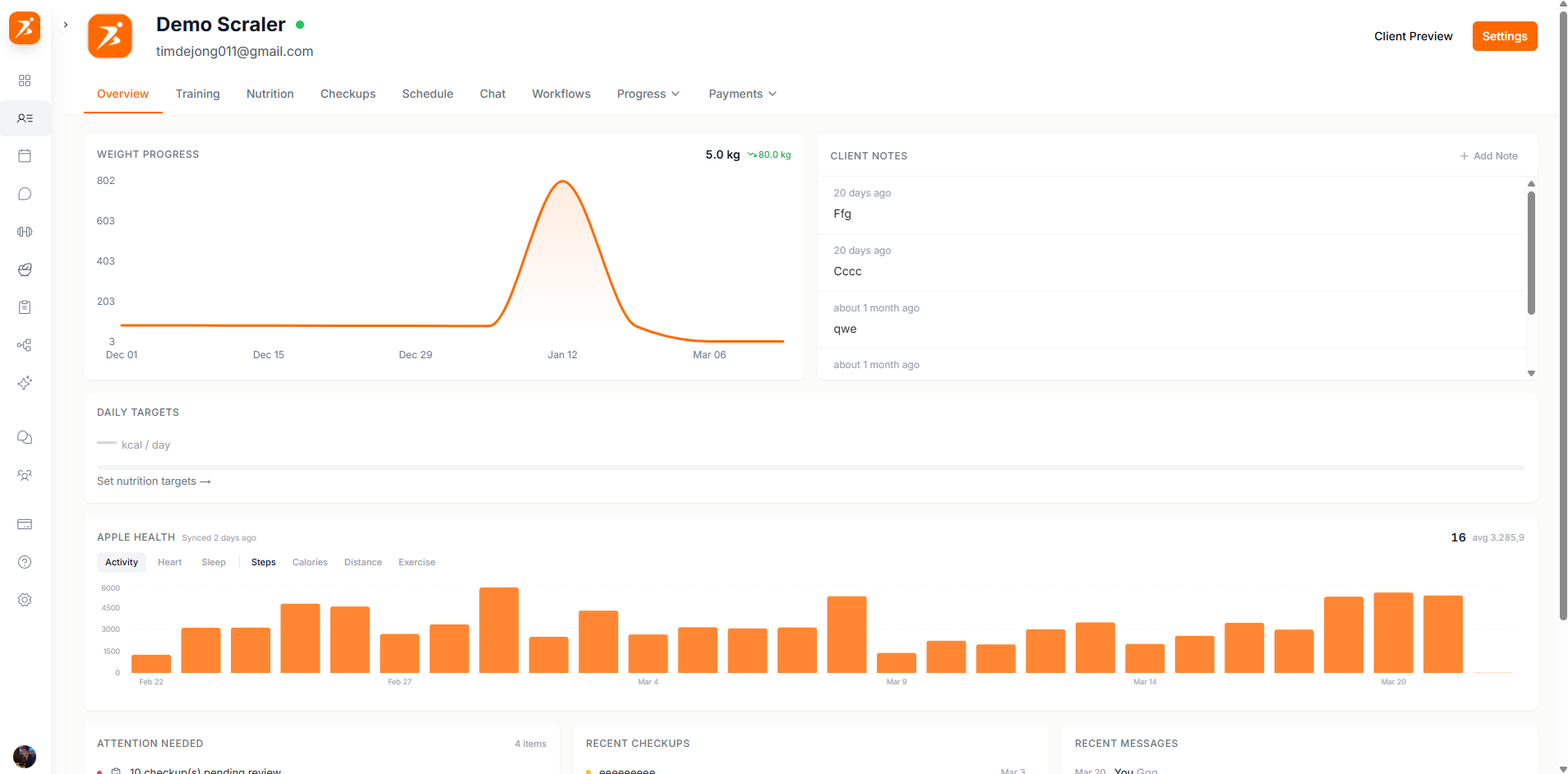
Attention Needed lists what needs you. A flag only shows while it applies:
Below that you get nutrition targets next to this week's intake, the current training plan and next workout, today's habits, and steps and sleep from check-ins or the client's phone health sync.
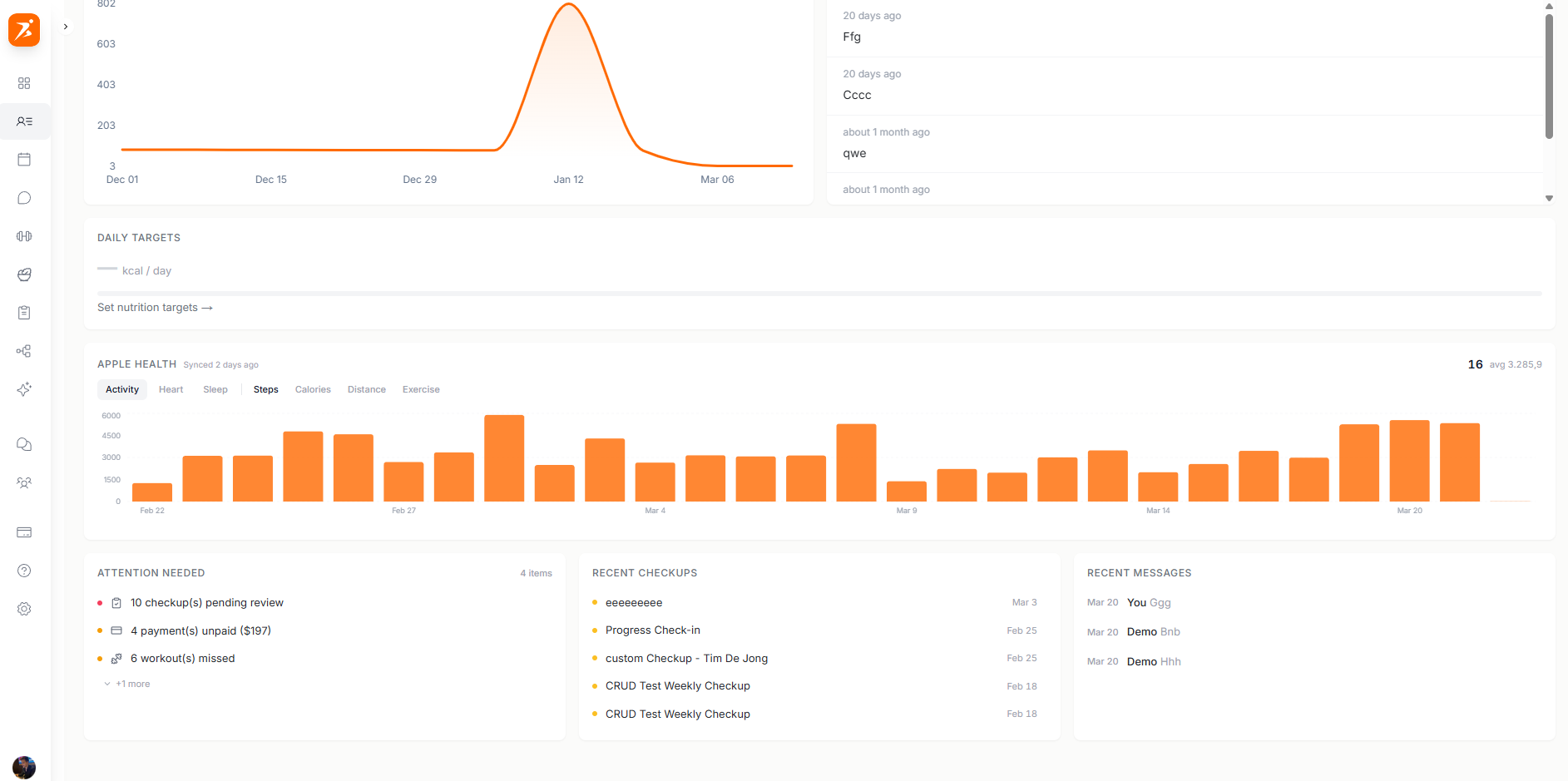
Client Notes are private. The client never sees them, and you can pin a note to keep it on top. Onboarding Answers shows what the client filled in during onboarding, and you can edit or delete the answers there. To set up the questions, see Client onboarding.
Progress
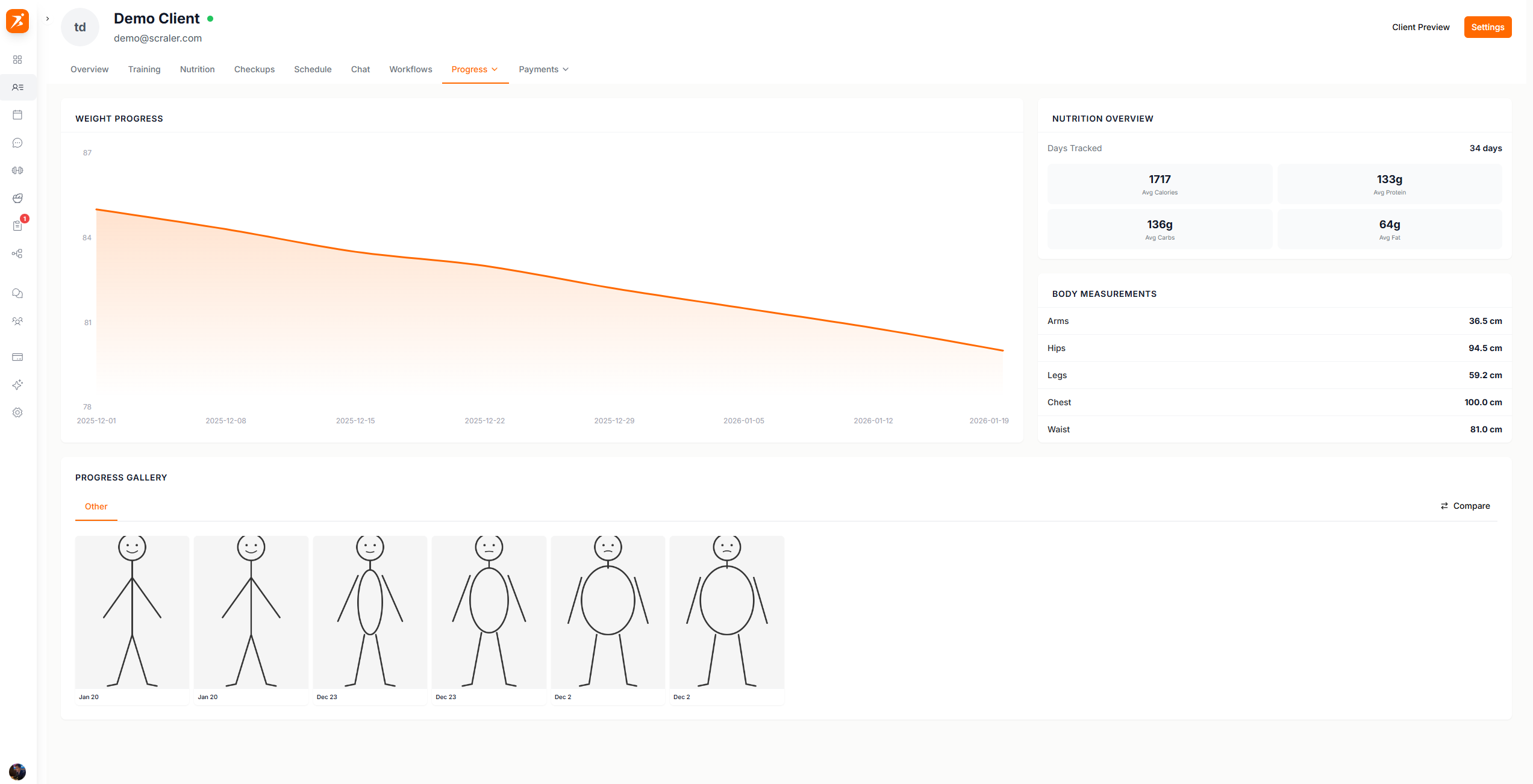
Progress opens a menu with three views: General Progress, Training Progress and Progress Reports. The data fills in by itself from check-ins, workouts, food tracking and the client's health sync.
Read along
Progress on the profile
Body metrics live on each client's profile. On Sarah's profile, open Progress, and choose General Progress.
Read the trend lines
Weight, body fat and muscle mass each get a trend line. Hover a point to read it. Use the range buttons to zoom in, or out.
Log a weigh-in
To log a weigh-in yourself, open the weight card, and add a new entry. Type the value, and click Add. Today's weigh-in is on the trend line right away.
Body measurements
Then look past the scale, and open Body Measurements. Waist, hips, chest and more each have their own trend.
Customize the page
Customize decides what this page shows. Pin any metric as its own chart, like Waist, or switch a card off, like Progress Photos. Close it, and Waist has its own chart on the page.
General Progress. Pick a range: 1M, 3M, 6M, 1Y or All. Each metric gets a card with a trend chart and its change over that range, from weight and body fat to measurements, custom metrics, nutrition and health data. Drag a card to reorder it, or drag its edge to resize it. Customize turns any card on or off. Health metrics without data stay hidden until the client syncs.
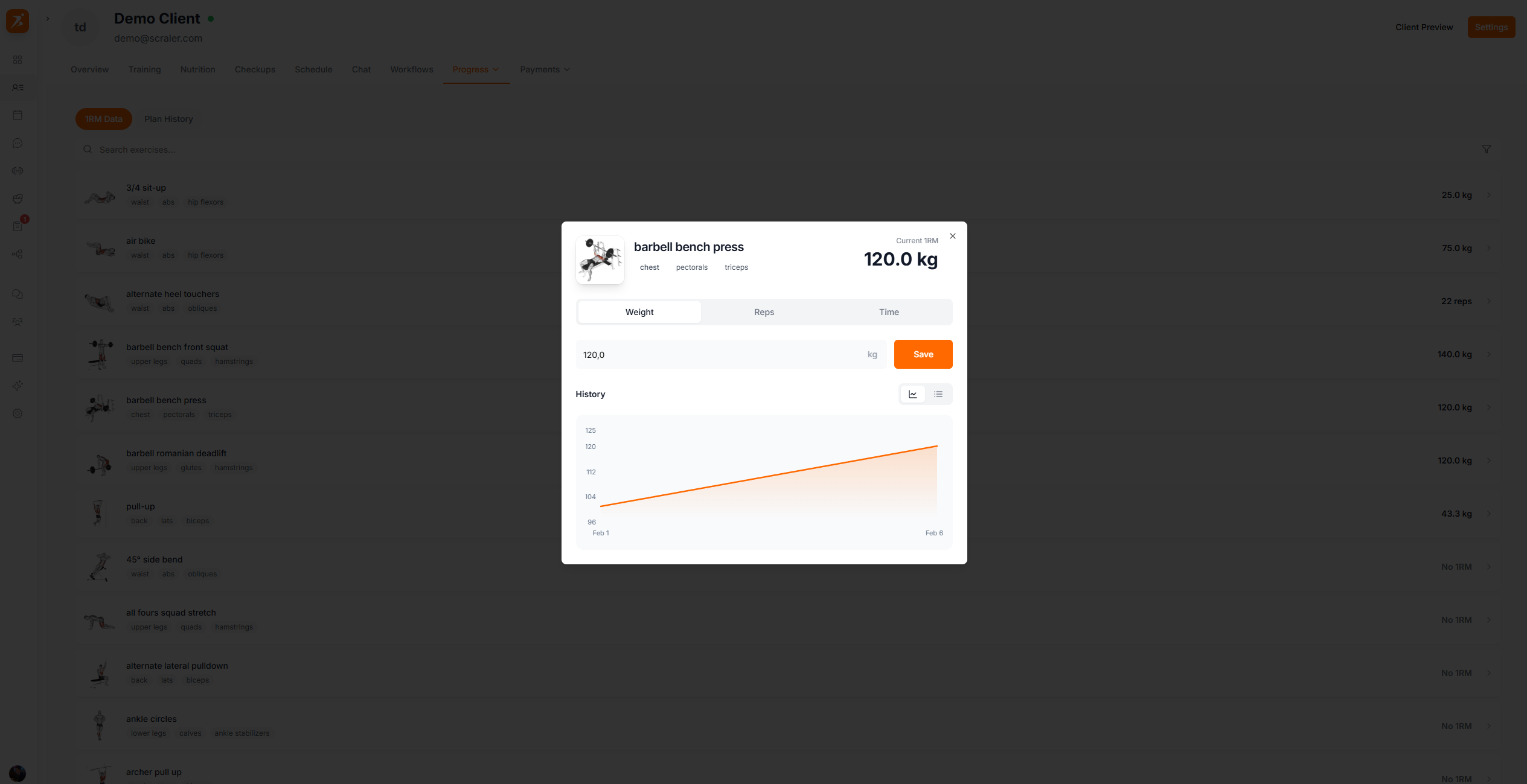
Training Progress. An overview of the selected range (1M, 3M, 6M or 1Y): adherence, completed against missed workouts, volume per session and session duration. 1RM Data shows each exercise's best lift with a history chart, and Plan History lists past and current training plans.
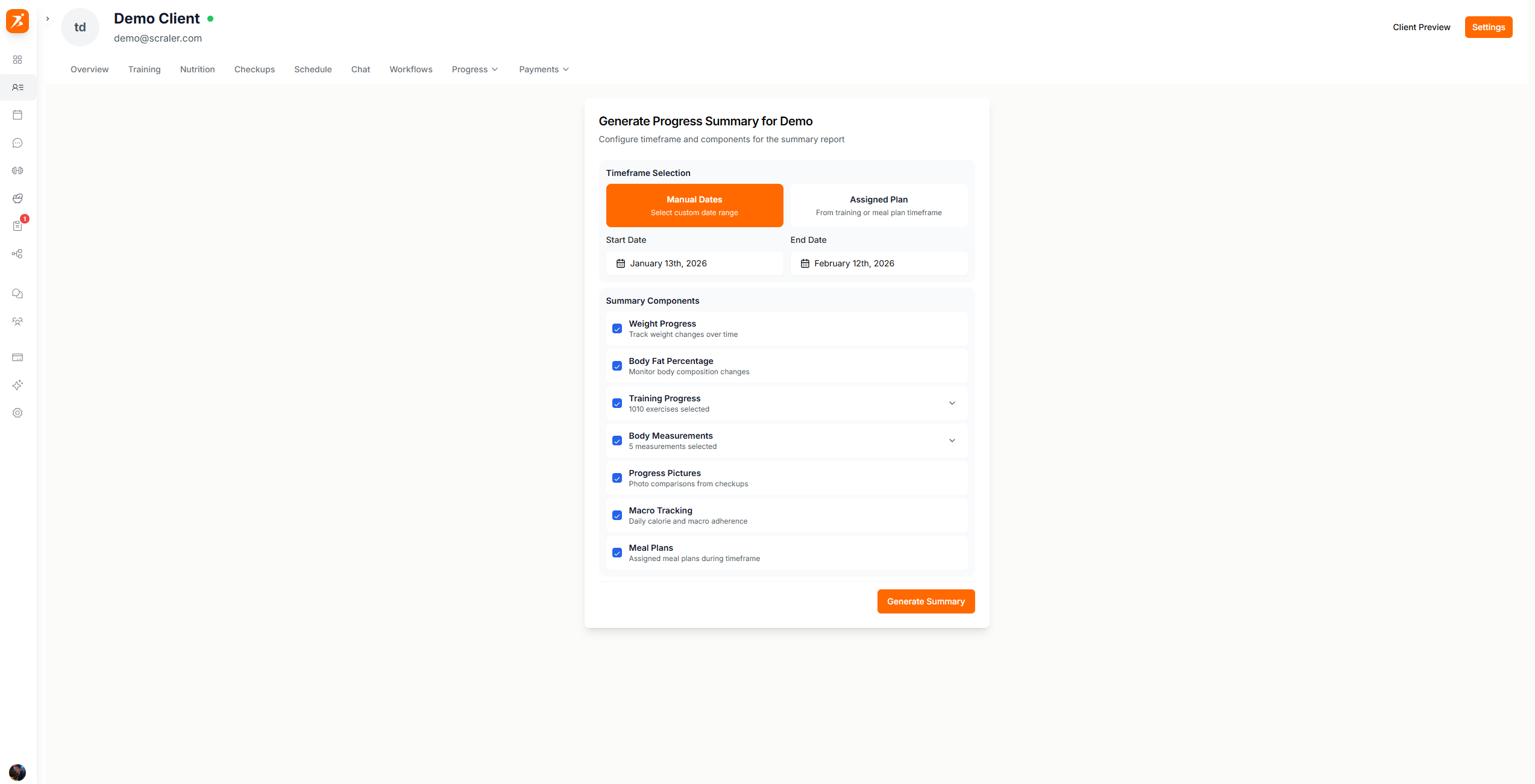
Progress Reports. Make branded reports for a client here. Each report is saved, so you can reopen it, resend it, or compare it over time. Click New Report, set the timeframe with manual dates or from an assigned plan, and choose what to include. Generate Summary builds and saves it.
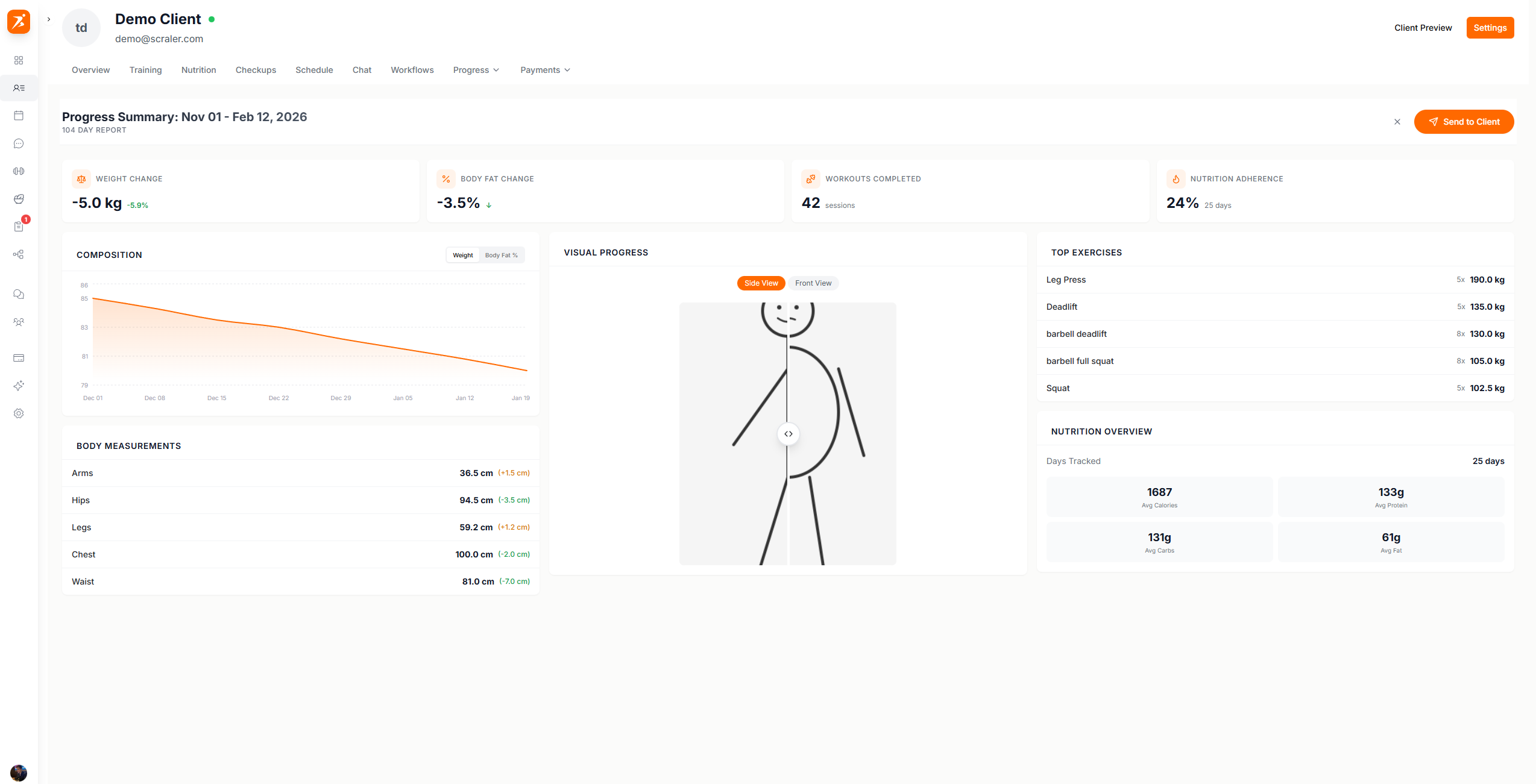
Send to Client delivers the report as a card in chat. The client taps it to open a full screen, Stories-style slideshow. View Recap plays the same slideshow for you. The last slide offers a branded results image the client can save and share.
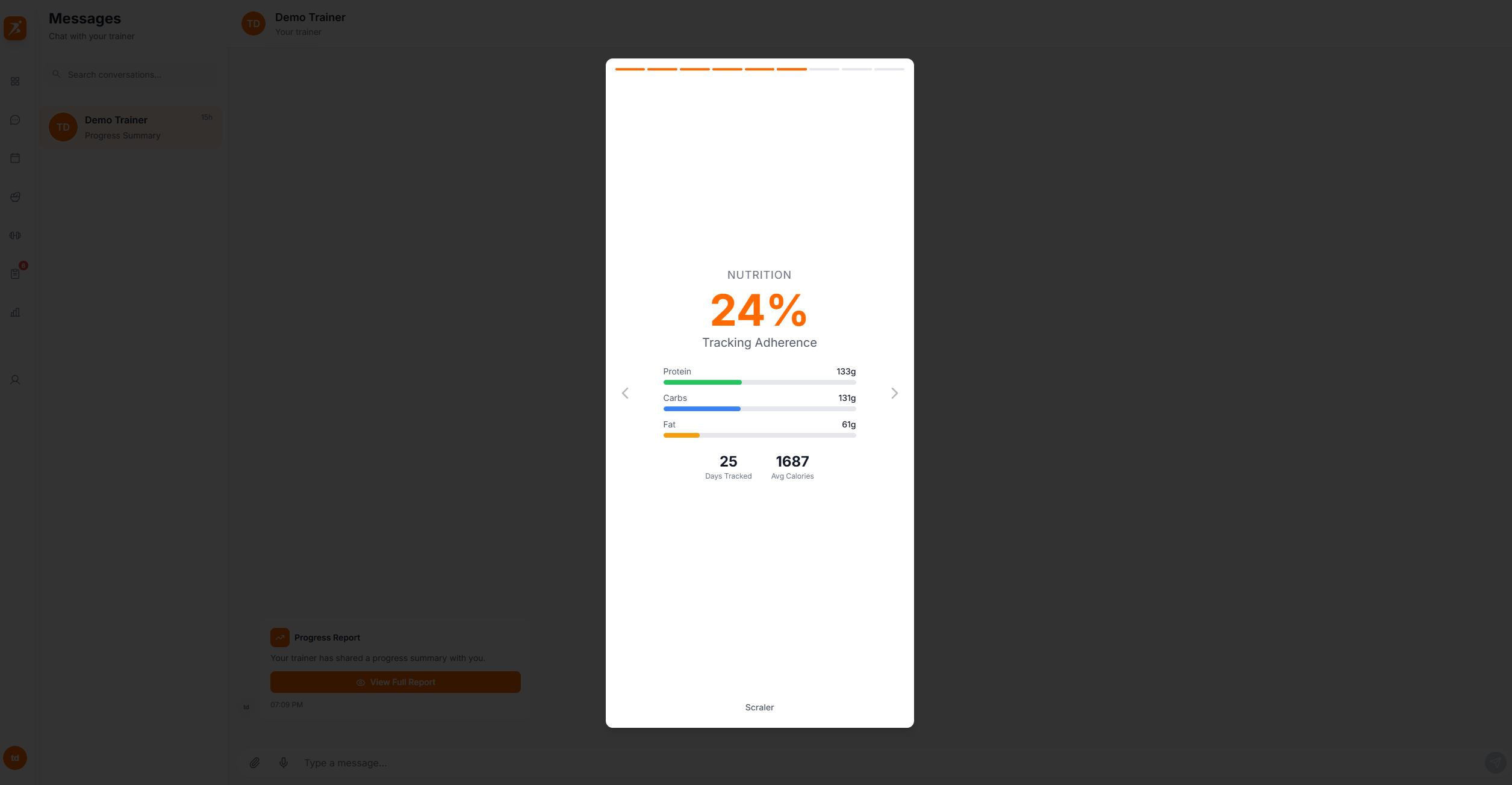
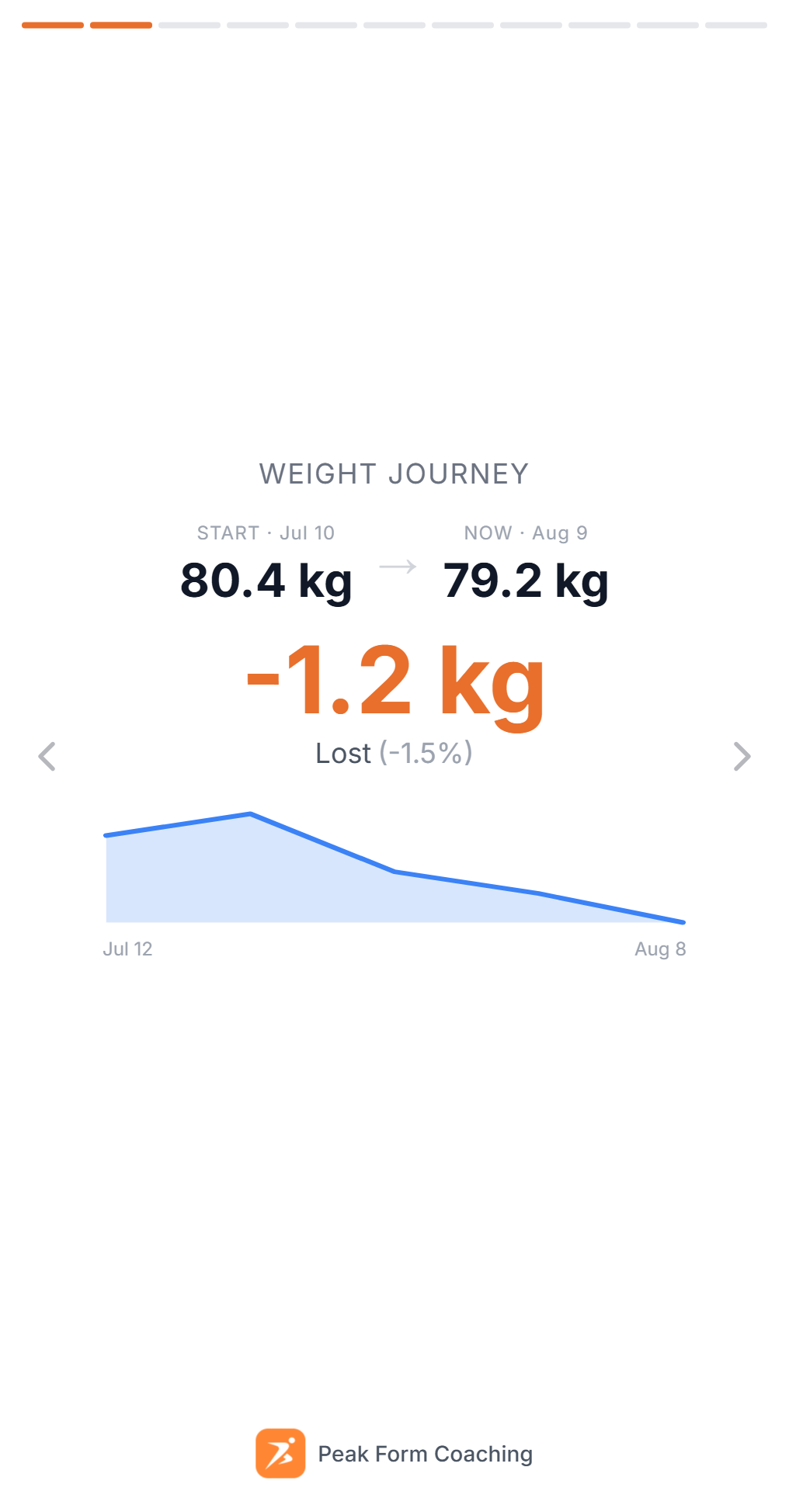
The slides follow what you included:
Cycle tracking
Cycle tracking is a private, opt-in tracker for your clients. It is a client feature, not a habit. The client decides whether to track and exactly what you get to see.
Clients log their period, flow and symptoms in the app or on the web. Scraler estimates the current phase (menstrual, follicular, ovulation or luteal) and predicts the next period once a couple of cycles are logged. These are estimates for planning, not medical advice.
Two things need to line up. Your plan must be Plus or higher, and the feature must be on for the client. Open their Settings, go to Features, and find Cycle tracking under Health. It is on by default for female clients, and you can switch it on for any client. The toggle only makes the feature available. It does not start tracking or share any data.

The client chooses what to share. They do it on the Cycle page of their dashboard or in the mobile app:
- Private
- You see nothing. The Cycle tab says the client is not sharing.
- Share cycle phase
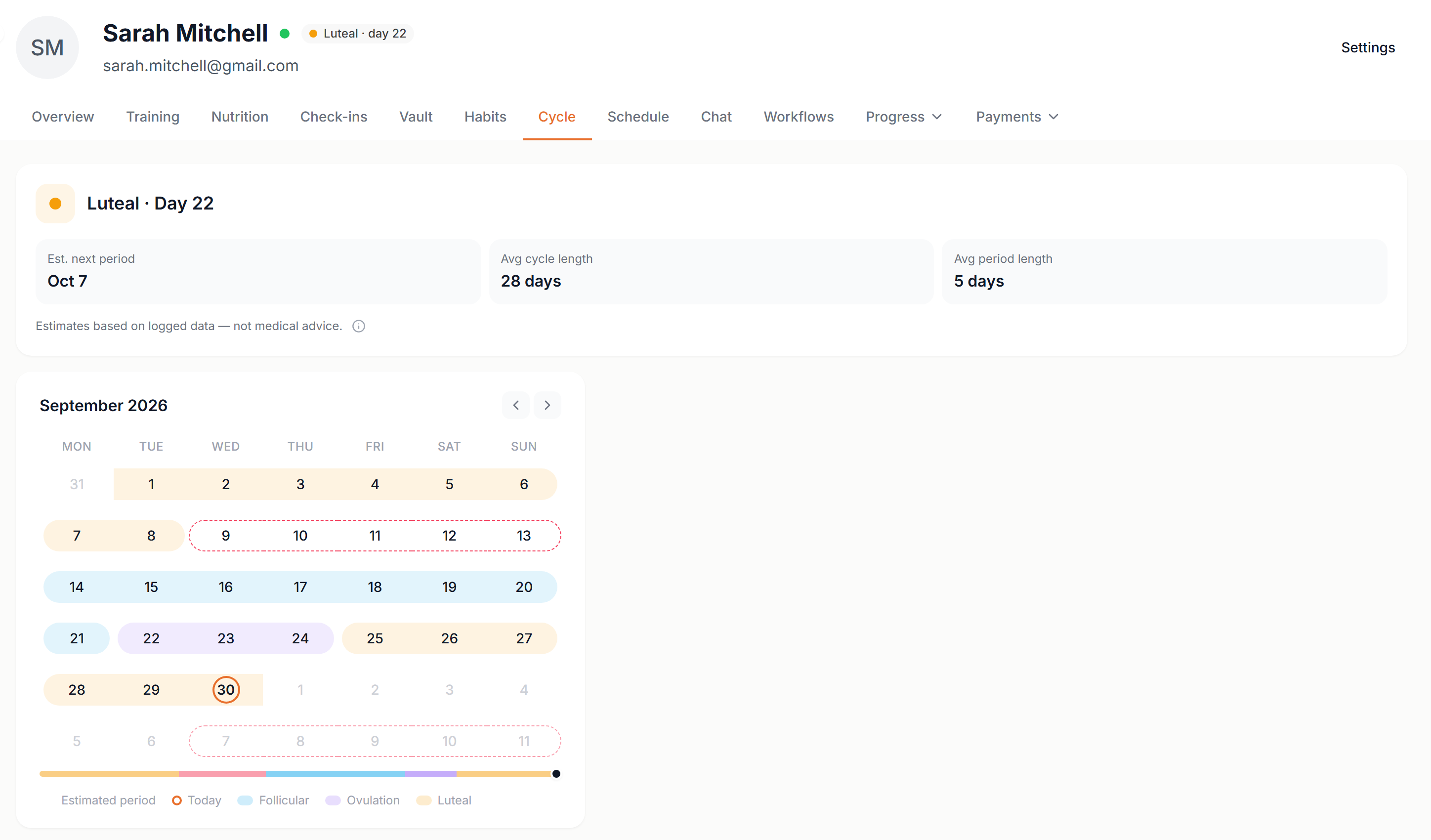
- You see the current phase and cycle day, the estimated next period, the average cycle and period length, and a month calendar with estimated phases.
- Share full details
- You also see the periods they logged, the symptoms logged this month, and their recent periods.
With a phase shared, the tab looks like this. The small chip next to the client's name in the profile header shows the same phase.
Clients can change the level, pause tracking or delete their data at any time.