
Appointment types
Create a service, like a 30-min Check-in, that clients book themselves in your open hours: free, paid or with a credit.
Read along
Set your availability
Clients can only book when you're open, so start with your weekly hours, under Availability. Click Weekdays to fill Monday to Friday in one go, switch on Saturday, and save.
Create an appointment type
Appointment types are the services clients can book. Under Appointments, click Add type and name it 30-min Check-in.
Set the length and booking times
Set it to 30 minutes, switch it to online, and choose who can book it, here on your website and in the app. Give it its own booking times if you like: this one is Fridays only.
Choose payment or credits
The last step sets what it costs. Leave Charge off for a free check-in, choose whether clients can book it with credits, and save.
Take bookings on your landing page
On Premium and Ultimate, your landing page takes bookings too: open your design, add the Appointments section, and save. A visitor picks a time and leaves a name and email, and once they confirm from their inbox, you have a new client with a session already booked.
Turn booking off for a client
Scheduling can also be switched off for a single client. In their profile settings, set Scheduling to Off.
Book as your client
This is Emma's side, in her client portal. She clicks Book a session, picks the 30-min Check-in and a Friday, and only sees times that are still free on your calendar.
See it on your calendar
She picks a time, and the booking is confirmed right away. Back on your schedule, Emma's check-in is already on Friday.
Set up a 30-min Check-in
- 1
Open Schedule and click Availability in the menu on the left.
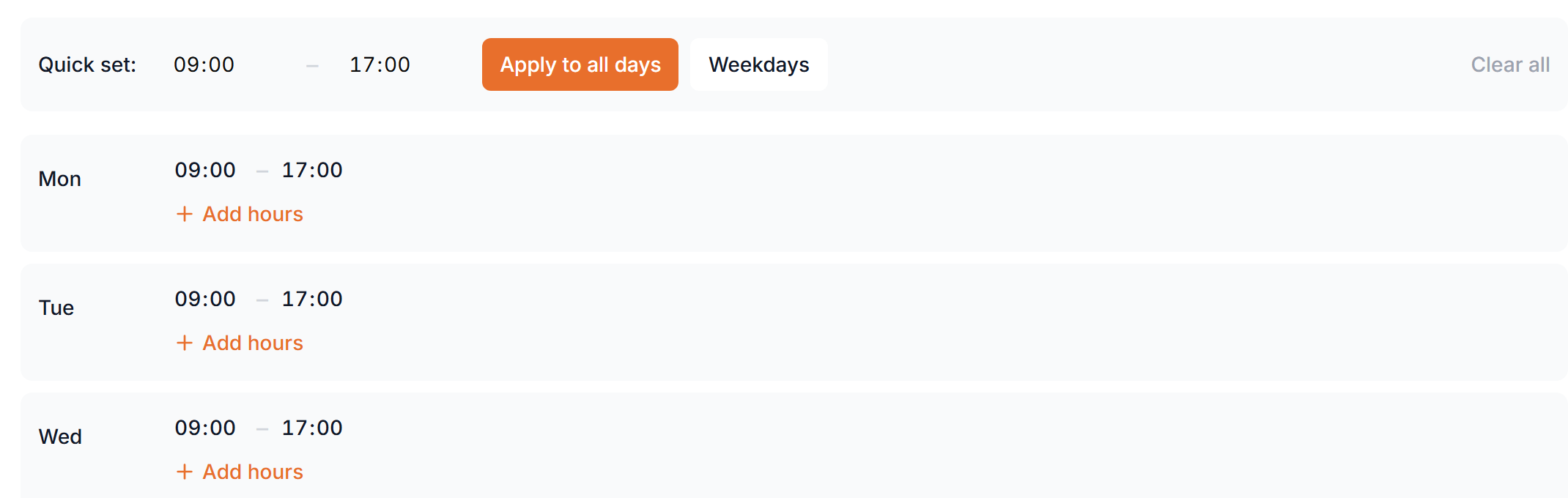
- Set the times next to Quick set: and click Weekdays to fill Monday to Friday in one go (Apply to all days fills all seven).
- Switch on Saturday if you work then. A day that is off shows Unavailable. Add hours adds a second block to a day, for example after a lunch break.
- Click Save availability.
Your weekly open hours, one row per day. Clients can only book inside these hours.
- 2
Click Appointments in the menu, then Add type.
New appointment type opens. It has three steps.
- 3
Type 30-min Check-in under Name and click Next.
Description (optional) and Cover image (optional) can stay empty.
- 4
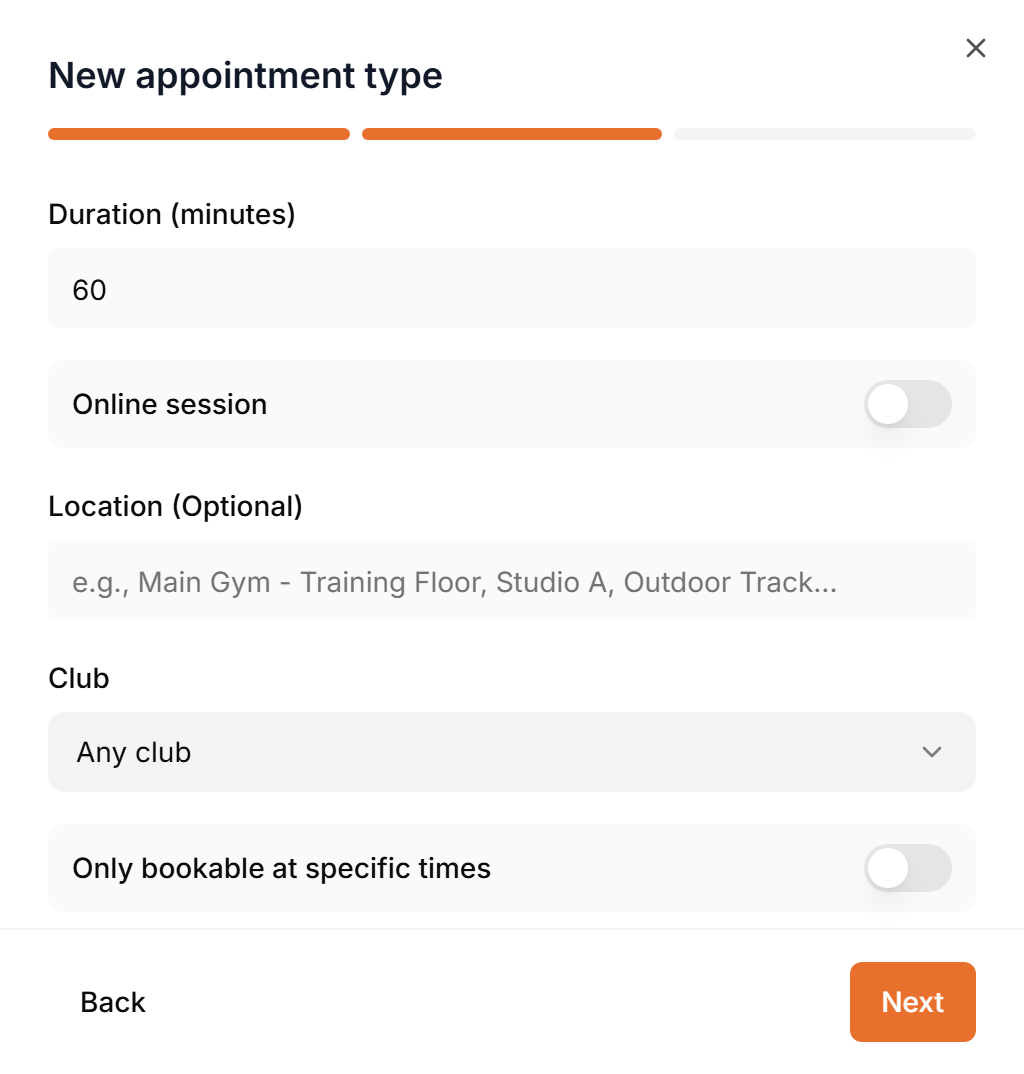
Set Duration (minutes) to 30.
- Switch on Online session. For an in-person session leave it off and fill in Location (Optional).
- Under Bookable by clients, choose Website and app.
- Switch on Only bookable at specific times and give the type its own hours, here Fridays only. These replace your weekly hours for this type.
- Click Next.
- 5
Choose how clients pay.
- Leave Charge for this session off for a free check-in. Switch it on and fill in Price to charge; clients pay when they book.
- Switch on Bookable with credits if clients with a pack or membership may use a credit. Set Credits per booking and how many hours before the start a cancel still gives the credit back.
- Click Save.
Appointment type saved. The type shows as a card with a Clients can book switch.
- 6
Emma books it: in her client portal she clicks Book a session, picks 30-min Check-in and a Friday.
She only sees times that are still free in your calendar. She picks one, the booking is confirmed straight away, and it shows on your Schedule.
Take bookings on your landing page
- 1
Open Landing page, open your design, click Add section and choose Appointments. Save.
Visitors pick a time and leave a name and email. Once they confirm from their inbox, they are your client with the session booked.
Fields
| Field | What it does |
|---|---|
| Name | What clients see in Book a session. |
| Duration (minutes) | Length of each booking. Clients get slots of this length. |
| Online session | On: no location. Off: fill in Location (Optional). |
| Club | Studios with more than one club pick where it runs, or Any club. |
| Bookable by clients | Website and app (landing page and client app), App only (your own clients) or Hidden. |
| Only bookable at specific times | Own booking hours for this type, instead of your weekly hours. |
| Charge for this session | Turns on Price. Charged in your account currency. |
| Bookable with credits | Clients with a credit for it use one. Credits per booking sets how many. |
Good to know
- With Bookable with credits on and a price, clients without a credit pay the price. With no price, only clients with a credit can book.
- A client who cancels at least the hours you set before the start gets the credit back.
- Charging needs the Premium plan and a connected Stripe account. Without them, step 3 shows Upgrade plan or Set up Stripe. Prices are set by the studio owner or a team member with finance rights.
- Switch off Clients can book on a type's card to stop bookings without deleting it.
- To stop one client from booking, open their profile settings and set Scheduling to Off.
- Tasks and notes on your calendar block that time, so clients can't book over them.
- Session requests that still need your answer show under Attention Required on the dashboard.
Related: Create appointments · Classes