
Classes
Put a class with a set number of spots on your timetable, repeat it, and let clients book and pay for a spot, in the app or on your landing page.
Read along
Create a class
Click Add, and choose Class. Name it Saturday Bootcamp, and add a cover photo. On When and where, set Saturday at nine. Repeat it weekly, so it's on your timetable every Saturday.
Set spots and a drop-in price
Cap it at twelve spots, with a drop-in price of fifteen euros. Under More options, Who can book stays on Everyone. And it's bookable on your website and in the app.
Book a client in yourself
On the next step, tick Sarah to book her in yourself, for every Saturday of the series. Check the summary, and click Create class. Saturday Bootcamp is on your calendar, with one of twelve spots taken.
A client books a spot in the app
In her client portal, Emma clicks Book a session. She picks Saturday Bootcamp, sees what it costs, and books it. She pays the fifteen euros at checkout. And the class is on her schedule right away.
Add it to your landing page
Open your landing page design. Scroll down, click Add section, and choose Events. Drag it up above Contact, so it sits before your footer. Open it, and under Style, set the layout to Weekly timetable, so visitors can pick a date. Then save your design. And publish it.
Visitors book on your landing page
A visitor opens your page, and finds Saturday Bootcamp in the timetable, with its price. They click it, and create an account with their name, email and a password. They pay at checkout. And the spot is theirs, as a new client on your account.
See the bookings
Back on your calendar, the class shows three of twelve spots booked. Open it to see Sarah, Emma, and Lisa, your new client from the landing page.
Create a weekly Saturday Bootcamp
- 1
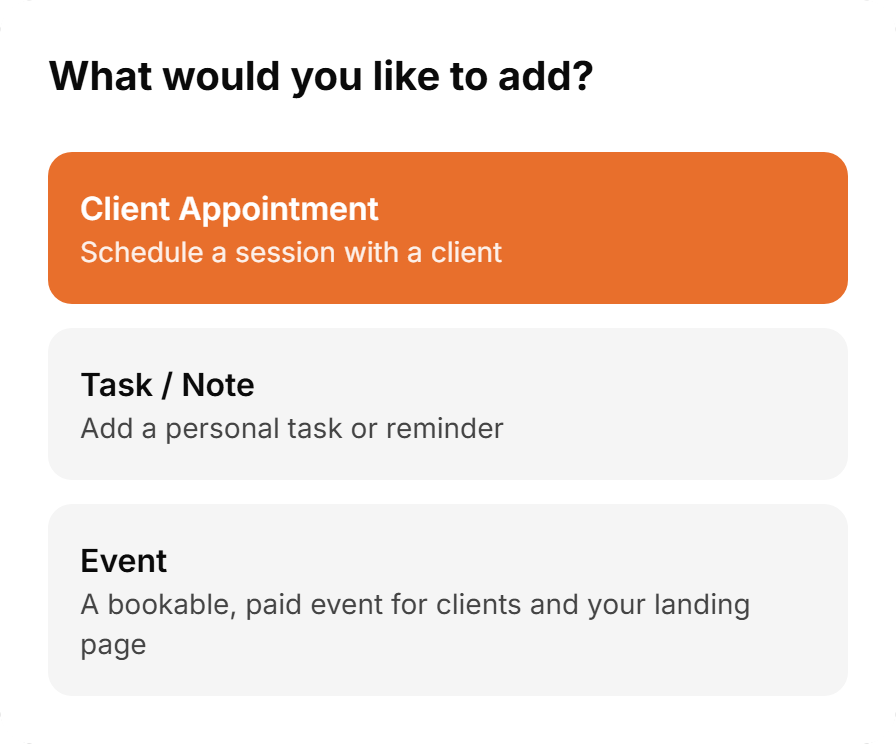
Open Schedule, click an empty slot on Saturday and choose Class.
Create class opens on Step 1 of 5: Details, with that date filled in.
- 2
Fill in the details.
- Class type: keep One-off class, or pick one of your class types to fill in the title, description, cover, length, spots and price. New class type creates one without leaving the wizard.
- Title: Saturday Bootcamp.
- Cover image (optional): click Upload an image and add a photo.
- Click Next.
- 3
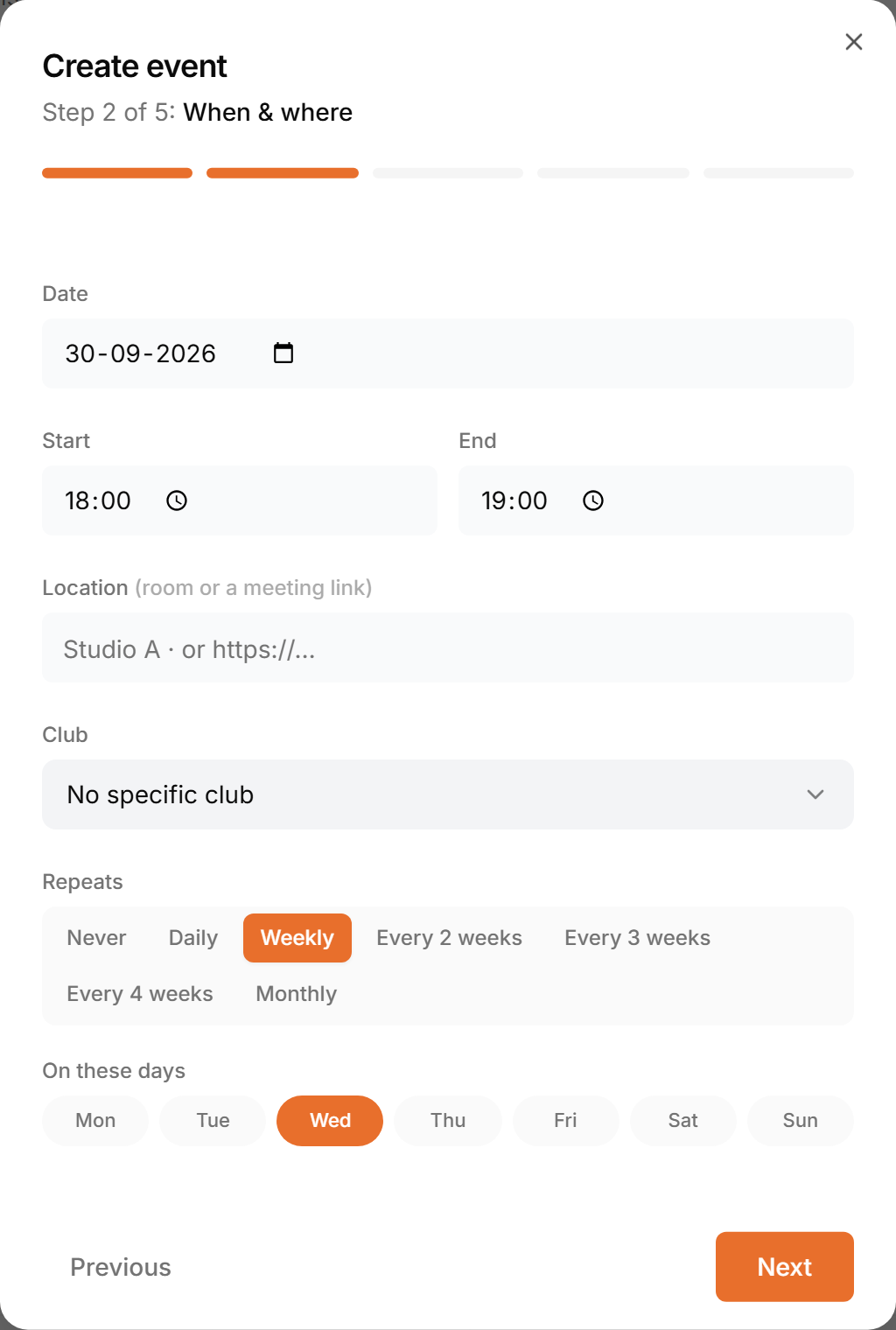
Set When & where.
- Start 09:00 and End 10:00. Date is the Saturday you clicked.
- Location: a room or a meeting link, optional.
- Club: Riverside. Shown when your studio has clubs.
- Coach: Maya. Shown when you have team members; the other choices are Me (owner) and your coaching team.
- Repeats: Weekly. On these days already has Saturday selected.
- Leave Until empty. You see Repeats until stopped · ~12 weeks scheduled ahead.
- Click Next.
- 4
Set Capacity & price.
- Capacity: 12. Empty means unlimited spots.
- Price: 15. Empty makes it Free.
- Click More options. Who can book stays Everyone, and Bookable by clients on Website and app.
- Click Next.
- 5
In Invite clients (optional), search and select clients to book them in yourself, or skip it. Click Next.
Invited clients are booked into every session of the series, for free.
- 6
Check the Review and click Create class.
Class series created with the number of sessions. Saturday Bootcamp is on every Saturday in your calendar.
A client books a spot
- 1
Your client opens their client portal or the app and clicks Book a session.
Classes they can book are listed with the date, the coach and the spots left.
- 2
They pick Saturday Bootcamp and click Book · €15.
A paid class goes to the checkout page; a free class books instantly.
- 3
They pay on the checkout page.
The class is on their schedule right away, and one spot is taken.
Sell spots on your landing page
- 1
Open Landing page and open your design.
- Click Add section and choose Events.
- Events is added above your footer. Drag it higher if you like, for example above Contact.
- Set the layout to Weekly timetable, so visitors pick a date.
- Click Save, then Publish.
Every Saturday of the class shows on your page with its price.
- 2
A visitor opens your page and picks Saturday in the timetable.
Create an account to continue opens.
- 3
They fill in their name, email and a password and click Create account and continue, then pay at checkout.
The spot is theirs, and they are a new client on your account.
See who booked
- 1
Open Schedule and click the class.
It shows how many spots are booked, for example 3 / 12 booked, with every client's name: the ones you booked in, the ones who booked in the app and the ones from your landing page. Add client books in one more.
Fields
| Field | What it does |
|---|---|
| Class type | Fills in the class from a type. Needed for Credits only. |
| Repeats | Never, Daily, Weekly, Every 2 weeks, Every 3 weeks, Every 4 weeks or Monthly. |
| On these days | The weekdays of a weekly series. At least one. |
| Until | Last date. Empty: repeats until you stop it, about 12 weeks planned ahead. |
| Club | The location it runs at, or No specific club. |
| Coach | Who runs it. A coaching team class is run by every coach who can schedule; only the owner edits or deletes it. |
| Capacity | Number of spots. Empty is unlimited. |
| Price | Drop-in price in your account currency. Empty is free. |
| Who can book | Everyone, or Credits only: only clients whose pack or membership covers the class. |
| Bookable by clients | Website and app, App only (your own clients) or Hidden. |
Who can book
With Credits only on a class, only clients whose pack or membership covers it can book.
Class type options
Cancelling, waitlists and fees are set on the class type: Schedule, Classes, open the type, step 2, More options. All are off until you switch them on.
| Field | What it does |
|---|---|
| Open booking before the start | How long before the class booking opens, in hours or days. |
| Close booking before the start | Closes booking minutes or hours before. Must be shorter than the open time. |
| Clients can cancel themselves | Free until a number of minutes before the start: the credit comes back and a card payment is refunded. Later, the booking counts as used and the payment is kept. |
| Waitlist when full | A full class offers Join waitlist. The first person waiting gets a free spot automatically; for a paid class they have 12 hours (or until booking closes) to pay. |
| Late-cancel and no-show fees | A late cancel or a No-show mark creates a fee you charge or waive under Booking fees in Finance. |
| Open gym session | Members book a time slot instead of a class. No attendance, no no-show fee. |
Good to know
- Changing or deleting a repeating class asks: this session only, or this and all later ones. Time changes apply to this and every later session; a new date moves only this one.
- The repeat itself can't be changed after you create the class. To change it, delete the later sessions and create a new series.
- A series has at most 52 sessions and runs at most 12 months.
- Deleting a class that has bookings cancels it: every booked client gets one notice, credits come back and card payments are refunded in full.
- Clients get a confirmation for each booking and a reminder 1 hour before. You get a notice when a client cancels. Switch on Empty classes tomorrow in your notification settings for a 22:30 list of tomorrow's classes nobody booked.
- Prices are set by the studio owner or a team member with finance rights.
Related: Appointment types · Landing page